How to Hide the Status Bar and Notification Bar on Android Devices?
Android devices give users quick access to notifications, connectivity settings, device information, and system controls. While these features make everyday usage convenient, they can become a problem when an Android device is assigned to a specific business task.
Think about a retail tablet running a point-of-sale application, a warehouse scanner used for inventory operations, or a tablet placed at a hotel reception desk. Users do not necessarily need access to notifications, Wi-Fi settings, Bluetooth controls, or other system functions. Allowing unrestricted access can interrupt workflows and expose information that should remain private.
This is why many organizations choose to hide the status bar on Android devices and restrict access to the notification panel. Doing so helps create a more focused interface, limits unnecessary interactions, and keeps users within approved business applications.
There are several ways to manage these system bars, including built-in Android settings, ADB commands, and Mobile Device Management (MDM). However, the level of control varies considerably between these methods.
In this blog, we will explain how the Android status bar and notification bar work, why organizations may need to restrict them, and how IT administrators can manage these settings across business devices using MDM.
What is Status Bar and Notification Bar on Android?
The status bar and notification bar appear at the top of an Android device, but they serve different purposes. Understanding the distinction helps determine which settings need to be restricted.
1. Status Bar
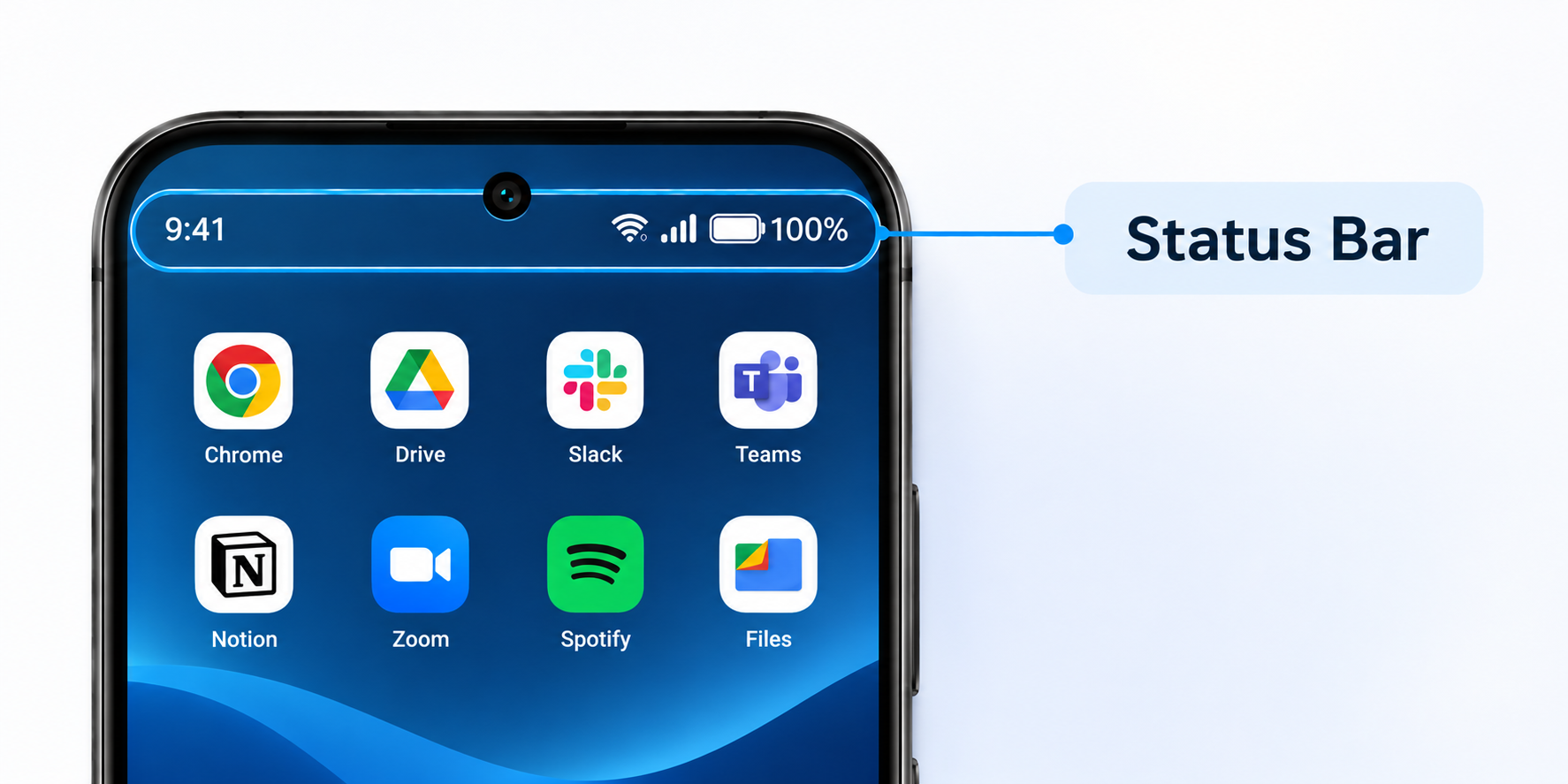
The status bar is the narrow strip at the top of the Android screen. It displays important device information and system indicators, including:
- Current time and date indicators.
- Battery level and charging status.
- Wi-Fi and cellular network connectivity.
- Bluetooth status.
- Alarm and notification icons.
- Other system activity indicators.
Users can usually see the status bar while navigating between applications, unless an app or device configuration hides it.
2. Notification Bar
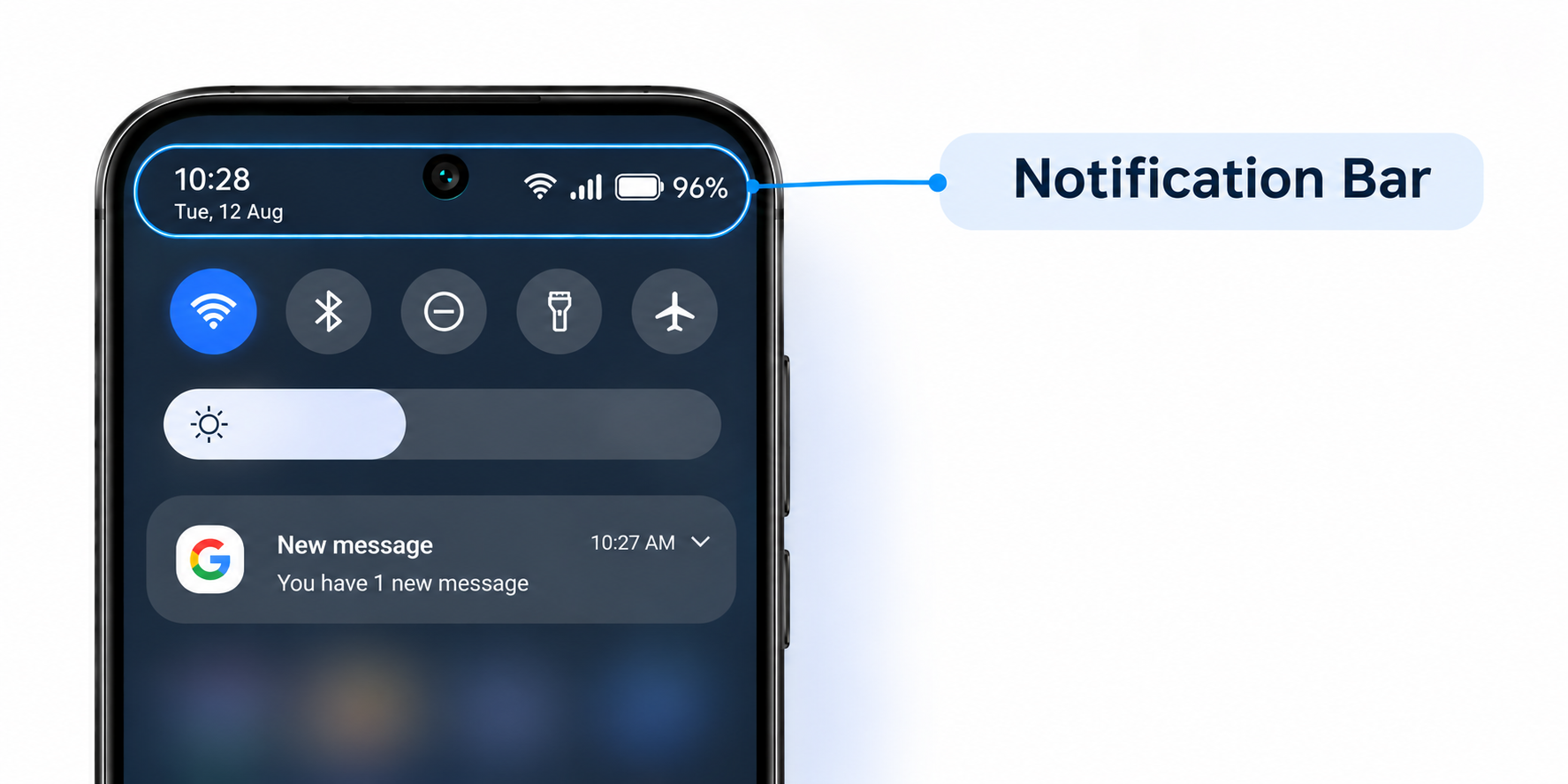
The notification bar, commonly known as the notification shade or notification panel, is the expandable system UI that appears when users swipe down from the top of the screen.
It provides access to:
- App notifications and alerts.
- Incoming messages and other notifications.
- Quick Settings shortcuts.
- Wi-Fi and Bluetooth controls.
- Airplane mode and mobile data settings.
- Screen brightness and other device controls.
- Location and flashlight settings, depending on the device.
On many Android devices, the first downward swipe displays notifications and a limited set of Quick Settings. A second swipe expands the panel to show additional controls.
For organizations, unrestricted access to this panel can create problems. Someone using a business tablet could accidentally turn off Wi-Fi, enable airplane mode, change connectivity settings, or view notifications belonging to another employee.
Restricting these system interfaces helps organizations maintain a more controlled Android experience.
Why Do Businesses Need to Hide Android Status Bar and Notification Bar?
Hiding the Android status bar and restricting the notification shade are particularly useful when devices are deployed for specific business purposes. The objective is not simply to remove visual elements. It is to prevent unnecessary interactions that could disrupt business operations or expose sensitive information.
Here are some common reasons organizations apply these restrictions.
1. Strengthen Android Kiosk Mode
Android kiosk mode restricts a device to one or more approved applications.
In single-app kiosk mode, the device remains locked to one designated application. Multi-app kiosk mode allows access to a limited collection of approved applications while restricting the rest of the device.
However, controlling app access alone may not provide the desired level of lockdown. If users can still pull down the notification shade, they may access notifications, Quick Settings, or other system controls.
Disabling the status bar through a supported MDM kiosk configuration helps close this gap.
For example, a self-service kiosk at a retail store should allow customers to interact with the shopping application, not access network settings or unrelated device functions. Restricting the top system interface helps maintain that dedicated experience.
2. Prevent Unauthorized Changes to Device Settings
The Quick Settings panel gives users convenient access to important device controls. However, these shortcuts can also allow accidental or unauthorized changes.
For example, a user could:
- Turn off Wi-Fi and interrupt access to business applications.
- Disable Bluetooth and disconnect a connected scanner or peripheral.
- Enable airplane mode and disconnect the device from the network.
- Change screen brightness and make the display difficult to use.
- Modify other system settings that affect device operations.
For organizations that depend on continuous connectivity, these changes can interrupt workflows and create avoidable support requests.
Restricting the notification shade helps prevent users from accessing these controls without administrator approval.
3. Protect Sensitive Information
Notifications can display information that organizations do not want exposed to other device users.
For example, a notification preview might contain a customer name, transaction detail, internal message, appointment information, or verification code. On devices used by multiple employees, these previews can expose information to someone who is not authorized to view it.
Hiding or restricting the notification panel can reduce this exposure by limiting access to notification content. Organizations can also configure notification visibility separately through supported Android settings and application policies.
4. Keep Employees Focused on Assigned Tasks
Notifications can interrupt employees while they are completing time-sensitive activities. A delivery driver checking a navigation application, a warehouse employee scanning inventory, or a retail associate processing customer transactions does not necessarily need personal notifications appearing on the screen.
Restricting access to the notification bar helps minimize these interruptions. Employees can focus on their assigned applications without unrelated alerts or system controls getting in the way.
This is particularly useful for task-specific Android deployments where devices are intended to support a limited set of business activities.
5. Reduce Unnecessary IT Support Requests
Unrestricted access to device controls can lead to accidental configuration changes. Employees might disconnect a device from Wi-Fi, disable Bluetooth, or change settings that affect application performance.
IT teams then have to spend time identifying and resolving problems that could have been avoided.
By restricting access to the notification shade and Quick Settings, administrators can reduce the chances of users changing important device configurations. This helps maintain consistency across deployments and reduces avoidable troubleshooting.
How to Hide Status Bar and Notification Bar on Android Devices?
There are several ways to hide the status bar on Android or restrict access to the notification panel. However, the available options depend on the Android version, device manufacturer, application, and management configuration.
Here are three approaches you can use.
1. Using Built-in Android Settings
Android does not provide a universal setting that completely disables the status bar and notification shade across the entire device. However, certain display and notification settings can reduce their visibility.
The available options vary between Android versions and manufacturers.
A. Hide silent notification icons
Some Android versions allow users to prevent silent notifications from appearing as icons in the status bar.
On supported Android 14 and newer devices:
- Open Settings.
- Navigate to Notifications.
- Look for Hide silent notifications in status bar.
- Enable the option.
This reduces the number of notification icons displayed at the top of the screen. However, it does not disable the notification shade or prevent users from accessing Quick Settings.
B. Enable full-screen mode for individual applications
Some Android devices allow users to configure supported applications to run in full-screen mode.
On supported Samsung Galaxy devices, for example:
- Open Settings.
- Navigate to Display.
- Select Full screen apps.
- Choose the application you want to configure.
- Select the full-screen display option, if available.
This can hide the status bar while the selected application is running. However, it does not necessarily prevent users from pulling down the notification shade.
C. Use gesture navigation to hide the bottom navigation bar
If your objective is to maximize the application's display area, you can also replace the traditional navigation buttons with gesture navigation.
On supported Android devices:
- Open Settings.
- Navigate to Display or System, depending on the device.
- Open Navigation bar or Navigation mode.
- Select Gesture navigation.
This changes how users navigate the device and can remove the traditional navigation buttons. It does not hide the status bar or disable the notification panel.
2. Using ADB Commands
Android Debug Bridge (ADB) is a command-line tool that allows administrators and developers to communicate with Android devices from a computer.
On compatible devices, ADB can be used to apply immersive mode settings that hide the status bar.
Step 1. Enable Developer Options
- Open Settings on your Android device.
- Navigate to About phone.
- Locate Build number.
- Tap it seven times to enable Developer Options.
- Return to Settings and open Developer options.
Step 2. Enable USB Debugging
Within Developer Options, locate and enable USB debugging. This allows the computer to communicate with the Android device through ADB.
Step 3. Install Android Platform Tools
Download and install Android Platform Tools on your Windows PC or Mac. Connect the Android device to the computer using a USB cable and authorize the debugging connection on the device.
Step 4. Run the Immersive Mode Command
Open Command Prompt or Terminal and execute:
adb shell settings put global policy_control immersive.status=*
On compatible Android builds, this command applies immersive mode to hide the status bar across applications.
Step 5. Restore the Status Bar
To remove the immersive mode configuration, reconnect the device and execute:
adb shell settings put global policy_control null
3. Using Android Kiosk Mode Through MDM
For organizations managing company-owned Android devices, an MDM solution provides a more centralized way to restrict access to the status bar and notification panel.
Instead of configuring each device manually, IT administrators can apply kiosk and device restriction policies through a management console.
This approach is particularly useful for retail tablets, POS terminals, warehouse scanners, digital signage, and other dedicated Android devices.
The general process involves:
- Enroll the device: Enroll the Android device in an MDM platform using a supported company-owned management method, such as Device Owner provisioning.
- Configure kiosk mode: Create a single-app or multi-app kiosk profile based on the device's intended use.
- Apply status bar restrictions: Locate the relevant device restriction or kiosk setting and disable status bar access, if supported.
- Assign the policy: Apply the configuration to the required device or device group.
- Verify the configuration: Check the device to confirm that users can no longer access the restricted system interface.
The exact setting names and available restrictions vary by MDM platform, Android version, and device manufacturer.
Unlike consumer-level display settings, MDM policies allow IT teams to manage supported restrictions centrally and apply them consistently across enrolled devices.
Which is the Best Way to Hide Status Bar and Notification Bar on Android?
The right approach depends on how you use your Android devices.
For personal devices, built-in settings may be sufficient if you only want to hide notification icons or use full-screen mode within specific applications.
ADB commands offer additional customization, but it is unreliable across modern Android devices because Google has restricted or changed support for this configuration in Android 11 and later. Manufacturer-specific implementations also vary, and users may still be able to access the notification shade by swiping down.
For business deployments, an MDM solution is generally the more reliable option.
Here is how the three approaches compare:
An MDM platform offers several advantages for enterprise deployments:
- Centralized policy management: Administrators can configure supported restrictions through a single management console instead of manually configuring every device.
- Kiosk lockdown: Supported kiosk configurations can restrict access to notifications, Quick Settings, and other system interfaces.
- Fleet-wide deployment: IT teams can assign policies to device groups and manage multiple enrolled devices.
- Consistent configurations: Administrators can maintain the same approved device experience across different business locations.
- Simplified administration: IT teams can update or modify restrictions remotely without physically accessing each device.
For organizations managing dedicated Android endpoints, MDM provides a more practical way to maintain a controlled device environment. However, the exact level of lockdown depends on the device's management mode, Android version, manufacturer support, and available MDM restrictions.
Steps to Hide the Status and Notification Bar Using Quantem Android MDM
Quantem Android MDM allows administrators to control the status bar and restrict access to notifications and system information on managed Android devices.
You can configure this restriction through the device group's kiosk settings in the Quantem Admin Console.
Follow these steps:
Step 1. Log in to the Quantem Admin Console.
Open the Quantem Admin Console using your administrator credentials.
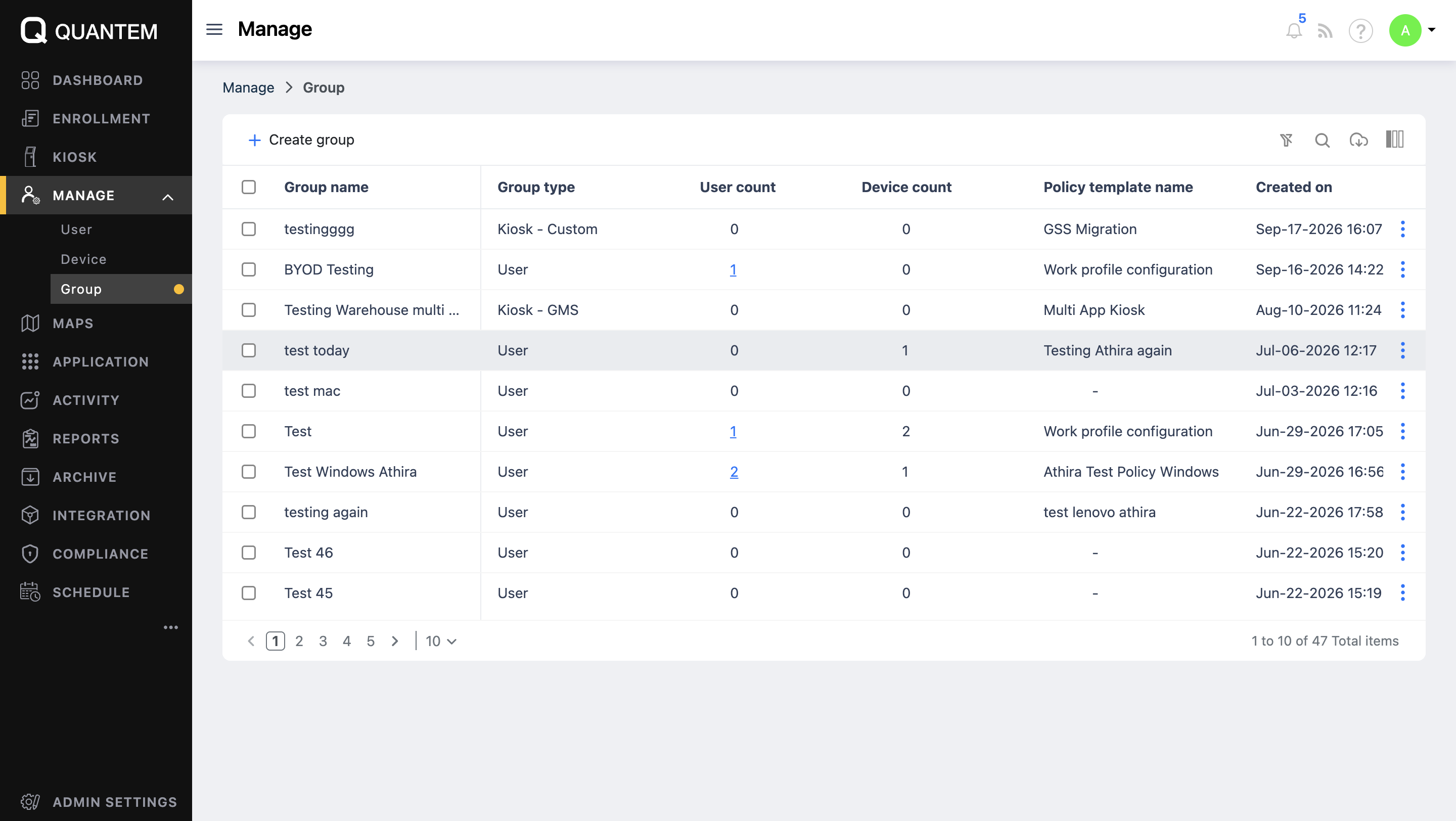
Step 2. Navigate to Manage → Group.
In the admin console, go to Manage → Group, select the Android device group, and click Edit Group.
Step 3. Open the Settings tab.
Go to Settings and, under Kiosk settings, set Status Bar: Notifications and System Info to Disabled. Click Submit to save the changes.
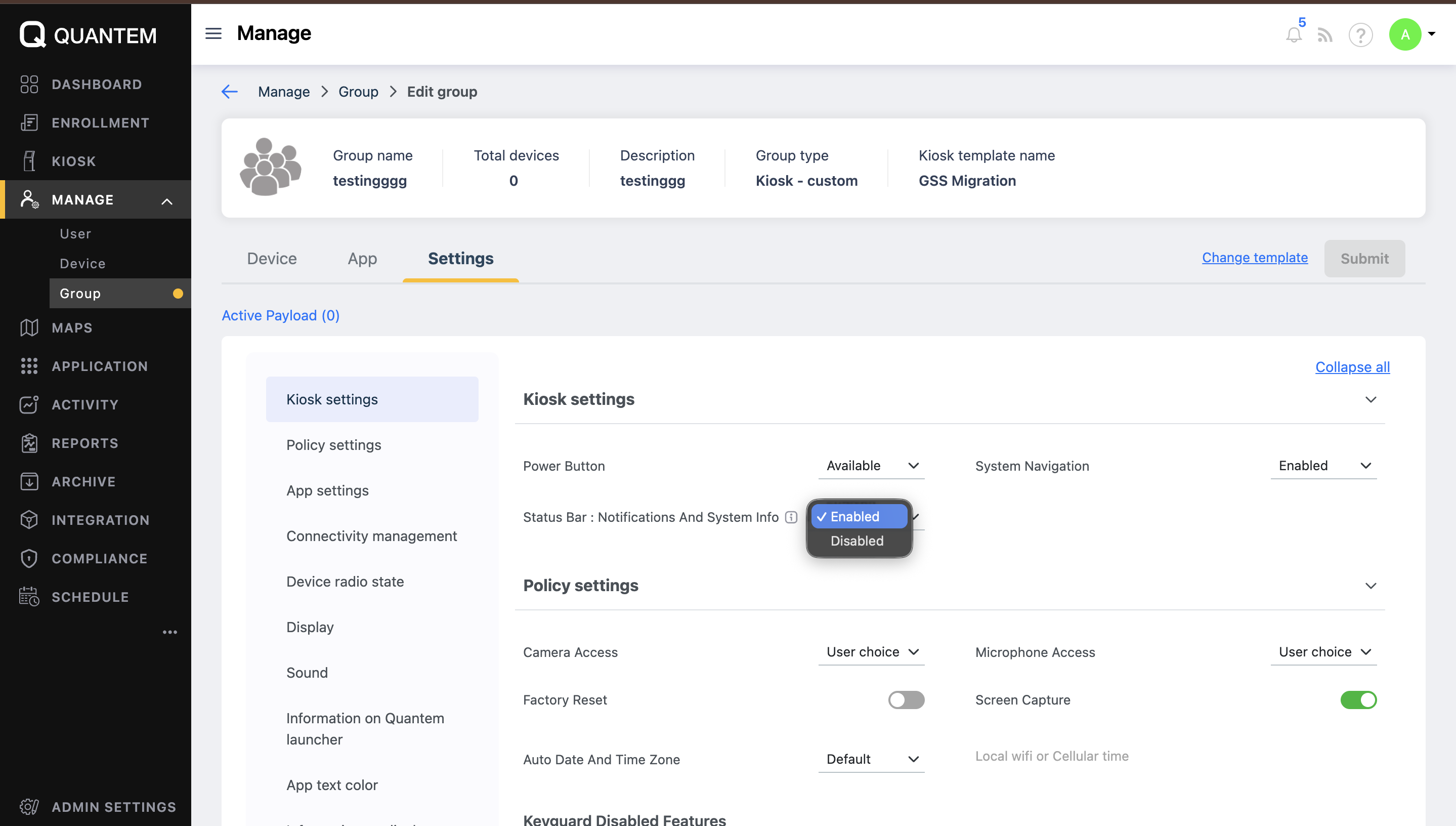
The configuration will be applied to the enrolled Android devices assigned to the selected group. Users will be restricted from accessing notifications and system information through the status bar, subject to device and OS support.
With Quantem, IT administrators can manage this setting centrally instead of configuring each Android device individually.
Create a More Controlled Android Experience With Quantem MDM
The Android status bar and notification shade provide convenient access to system information and device controls. However, business devices do not always need to expose these features to end users.
Whether you manage retail POS terminals, warehouse scanners, customer-facing kiosks, or dedicated enterprise tablets, restricting access to system interfaces helps maintain a focused and consistent device experience.
Quantem Android MDM gives IT administrators centralized control over supported status bar restrictions and kiosk configurations. Manage Android devices remotely, limit unnecessary user interactions, and keep business devices aligned with their intended purpose.
Create Focused Android Experiences with Quantem MDM.
FAQ
1. What is the Difference Between the Status Bar and the Notification Bar on Android?
The status bar is the narrow strip at the top of an Android screen that displays information such as the time, battery level, and network connectivity. The notification bar, also called the notification shade, is the expandable panel users open by swiping down from the top to view alerts and access Quick Settings.
2. Can I Hide the Status Bar Without Disabling Notifications?
Yes, depending on the application, Android version, and device configuration. Full-screen mode can hide the status bar while an application is running, but notifications may still be received and accessible through the notification shade. Hiding the status bar does not automatically disable notifications.
3. Does Hiding the Status Bar Also Disable Quick Settings?
Not necessarily. Some methods only hide the visual status bar while allowing users to swipe down and access the notification shade and Quick Settings. A supported MDM restriction can provide more control over access to these system interfaces on managed devices.
4. Can I Hide the Status Bar on Personal or BYOD Android Devices?
It depends on the management method and the restriction being applied. Basic display customization may work on personal devices, but system-level restrictions such as disabling the status bar generally require a supported company-owned management configuration. A standard Android work profile does not provide the same level of device-wide control as Device Owner management.
5. How Do I Hide the Notification Bar on a Shared Android Device?
For a shared or dedicated business device, enroll it in an MDM platform using a supported company-owned management method. Configure kiosk mode and apply the available status bar or notification shade restrictions. This helps prevent users from accessing notifications and Quick Settings while using the device.
6. Can I Hide Both the Status Bar and Navigation Bar on Android?
Yes, on supported devices and configurations. MDM kiosk settings may provide controls for the status bar and navigation bar, while some applications support full-screen immersive mode. However, the available restrictions vary by Android version, manufacturer, and management capabilities.
7. Will I Still Receive Notifications if I Hide the Status Bar?
Hiding the status bar does not necessarily stop applications from receiving notifications. It primarily changes whether users can see or access notification indicators and the notification panel. The actual notification behavior depends on the device configuration and the restrictions applied through Android or MDM.
8. Are There Any Risks Associated With Hiding the Status and Navigation Bars?
Restricting these interfaces can make certain device controls and navigation options less accessible. For example, users may not be able to check connectivity indicators or access navigation controls in the usual way. Before applying restrictions, administrators should ensure that the device has an appropriate navigation method and that essential system functions remain available for its intended use.



Get the latest blogs directly delivered to your mail fly arrow