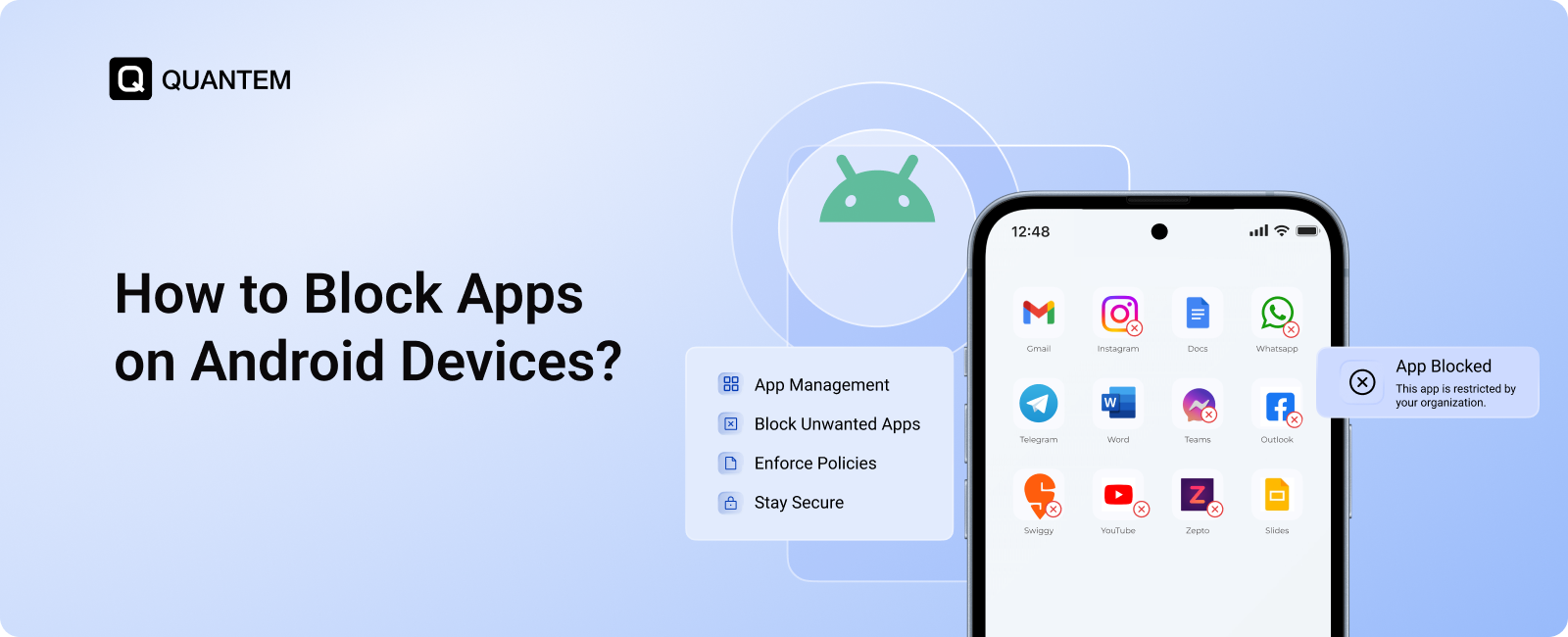
How to Block Apps on Android Devices?
An Android device can serve very different purposes depending on where it is used. A company phone may need only a handful of business applications. A school tablet may be limited to learning tools. A kiosk may need to run just one application. Giving users unrestricted access to every app does not always make sense in these environments.
This is where Android app blocking comes in. By controlling which applications can be installed or accessed, organizations can keep devices aligned with their intended use and reduce unnecessary software on managed devices.
Android offers several options for restricting applications, ranging from basic device settings and parental controls to centralized management through an MDM platform. The right approach depends largely on whether you are controlling one device or managing an entire fleet.
In this blog, we will cover how to block apps on Android, the types of applications you can restrict, the requirements for implementing app restrictions, and the different methods available.
Why Block Apps on Android?
An Android device can quickly become difficult to manage when users have unrestricted access to every application. The challenge isn't simply the number of apps installed. It's what those apps can do once they have access to the device, its resources, network connection, and potentially sensitive information.
For organizations, app restrictions provide a way to keep devices aligned with their intended purpose. A tablet issued to a sales representative may need business apps but not gaming platforms. A classroom device may require learning tools while limiting entertainment apps. Similarly, a customer-facing kiosk should not give users access to unrelated applications.
Restricting apps can help organizations:
- Improve digital safety: Restricting unnecessary or untrusted applications can reduce the number of potential security and privacy risks on an Android device.
- Control unauthorized installations: App restrictions can prevent users from adding software that has not been approved for a particular device or environment.
- Support security policies: Organizations can limit applications that conflict with their internal security requirements or data-handling policies.
- Minimize distractions: Removing access to non-work-related apps can help employees and students keep their attention on the tasks the device is intended for.
- Reduce resource usage: Unnecessary applications can consume storage, battery, memory, or network resources. Restricting them can help maintain device performance.
- Limit data exposure: Controlling which applications can run on a managed device can reduce opportunities for sensitive business information to be accessed or transferred through unapproved software.
The level of control you need will depend on the device and use case. For a personal phone, Android's built-in controls may be enough. For a fleet of company-owned devices, administrators generally need centralized controls that can apply the same app restrictions across multiple devices.
Which Types of Android Apps Can Be Restricted or Blacklisted?
Not every app needs to be blocked. The right restrictions depend on how the Android device is being used and who has access to it. For managed devices, administrators can target specific categories of applications that may interfere with productivity, security, or the device's intended purpose.
Common categories include:
- Social media apps: Applications such as TikTok, Instagram, Snapchat, or Facebook may be restricted on work or classroom devices when they are unrelated to the user's responsibilities.
- Video streaming apps: Streaming platforms can consume considerable network bandwidth and storage, making them unsuitable for devices intended primarily for business or educational activities.
- Gaming apps: Games can introduce distractions and unnecessary resource usage, particularly on employee, student, or shared-purpose devices.
- Third-party app stores: Alternative app marketplaces can allow users to install software outside the organization's approved application ecosystem, making them harder for IT teams to control.
- Inappropriate content apps: Applications containing adult, violent, or otherwise unsuitable content may need to be restricted based on the age group, environment, or purpose of the device.
- Resource-intensive apps: Apps that consume excessive battery, memory, storage, or network resources can affect device performance and may be restricted when they are not required for business operations.
Pre-Requisites to Block Apps on Android Devices
Before you block apps on Android devices, a few basic requirements need to be in place. These requirements can vary depending on whether you're restricting apps on a personal device or managing company-owned Android devices at scale.
1. Device ownership or administrative access: You need the appropriate level of control over the Android device to modify application settings. Enterprise devices typically require administrator-level management permissions.
2. Enrollment in an MDM solution: For centralized Android app blocking, business devices should be enrolled in an Android MDM or UEM platform. This allows IT teams to remotely configure app restrictions across managed devices instead of changing settings manually on each device.
3. Google Play Protect enabled: Keeping Google Play Protect active adds another security layer by checking installed applications for potentially harmful behavior. App restrictions can then complement these built-in Android security measures.
4. Required management permissions: Depending on the management method, certain permissions may need to be granted before administrators can control applications, enforce restrictions, or manage app access on the device.
Once these requirements are in place, you can choose an app-blocking method based on the level of control you need.
What Are the Ways to Block Apps on Android?
The method you use to block an app depends on how much control you need. Android's built-in settings can handle basic restrictions on individual devices, while organizations managing multiple devices generally need a centralized management solution.
Method 1: Use Android's Built-In App Settings
Android allows users to manage individual applications directly from the device settings. Depending on the Android version and device manufacturer, you can open Settings → Apps, select the application, and use the available options to disable it or manage its permissions.
This can work when you only need to control a few applications on a personal device. However, it becomes difficult to manage across a large number of devices because each device has to be configured separately. It also provides limited control compared with enterprise app management.
Method 2: Use Google Play Parental Controls
Google Play's parental controls can restrict the types of apps that can be downloaded based on content ratings. To configure them, open Google Play Store → Profile/Menu → Settings → Family/Parental controls, enable the feature, create a PIN, and configure the appropriate app and game restrictions.
This option is mainly designed for personal and family use. It is not intended to provide the centralized application controls that organizations need when managing business-owned Android devices.
Method 3: Use Focus Mode in Digital Wellbeing App
Android's Digital Wellbeing features include Focus Mode and digital wellbeing app timers, which help users limit access to distracting applications. Focus Mode pauses selected apps and blocks their notifications, while app timers let users set daily usage limits for specific applications.
To use Focus Mode, open Settings → Digital Wellbeing & parental controls → Focus mode, select the apps you want to pause, and activate the mode. You can also use digital wellbeing app timers to limit how long specific apps can be used each day. These options are useful for temporarily reducing app usage rather than permanently blocking or uninstalling an application. However, they are primarily designed for personal productivity and do not provide centralized control across multiple Android devices.
Method 4: Use an Android MDM Solution
For businesses managing Android devices, an Android MDM solution is the best and easiest way to manage devices at scale. Instead of configuring applications individually, IT teams can apply app restrictions, installation policies, and other device controls centrally.
With an MDM platform such as Quantem, administrators can manage app access across individual devices or groups from a single console. This makes it easier to enforce consistent application policies across large Android deployments while reducing manual configuration and administrative effort.
How to Block an App from Being Downloaded on Android Using Quantem MDM?
Quantem MDM lets administrators restrict applications on managed Android devices from a centralized console. You can apply the restriction to a specific device when only one device needs a change, or use device groups when the same policy needs to be enforced across multiple devices. The following steps show how to disable an application on an individual Android device using its Blueprint settings.
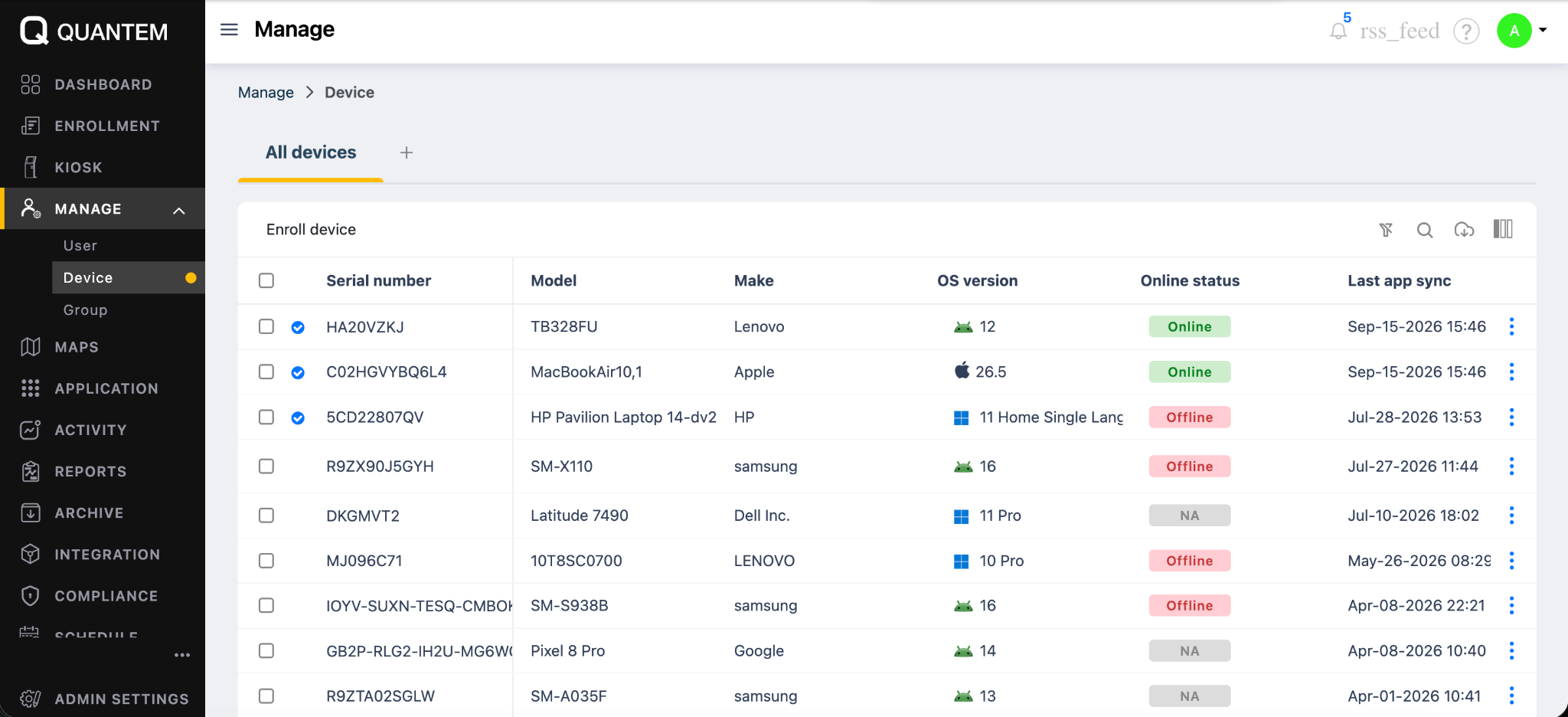
Step 1. Go to Quantem Dashboard → Manage → Device
From the Quantem console, open Manage → Device and select the Android device where you want to restrict the application.
Step 2. Open Blueprint
On the selected device's details page, click Blueprint from the left-side menu.
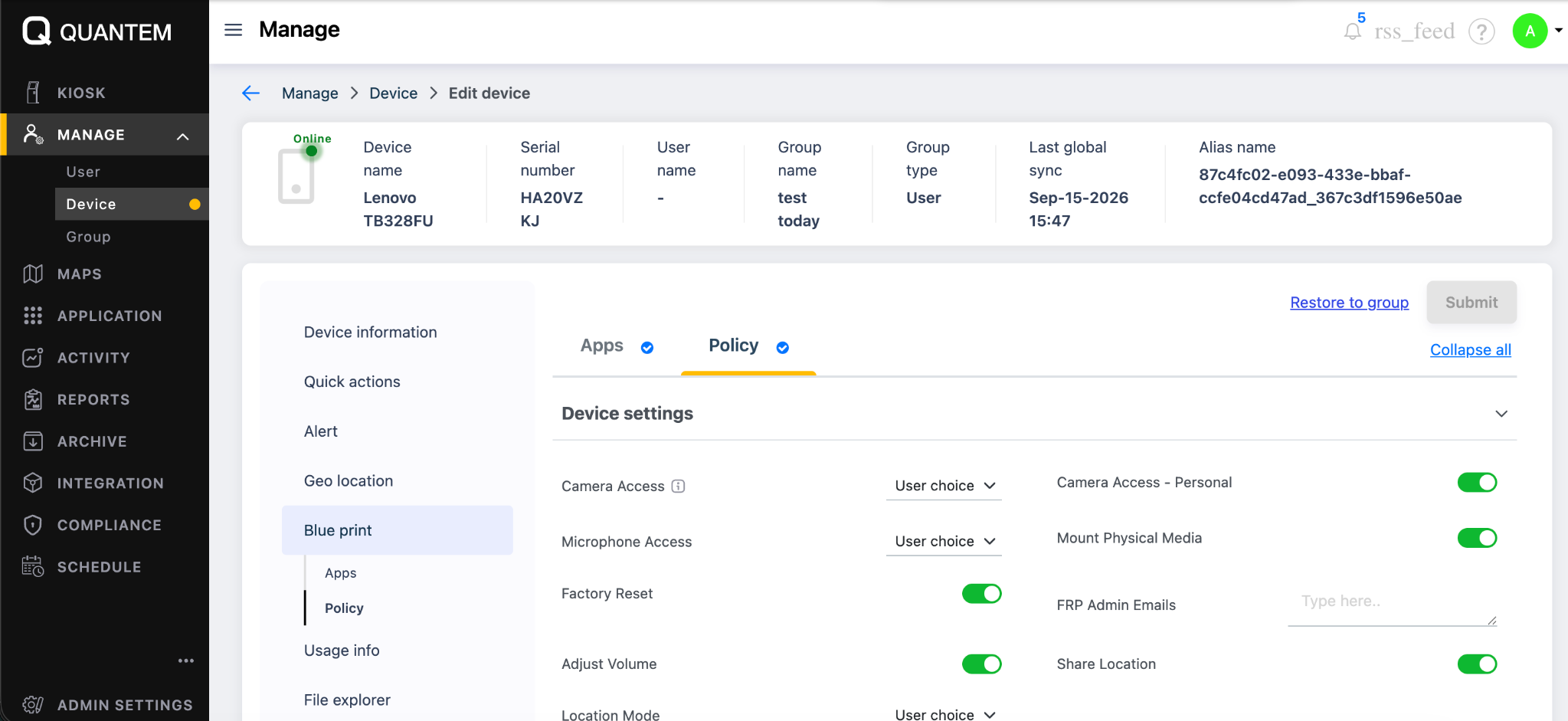
Step 3. Open Disabled Apps Information
Scroll through the Blueprint settings until you find the Disabled apps information section.
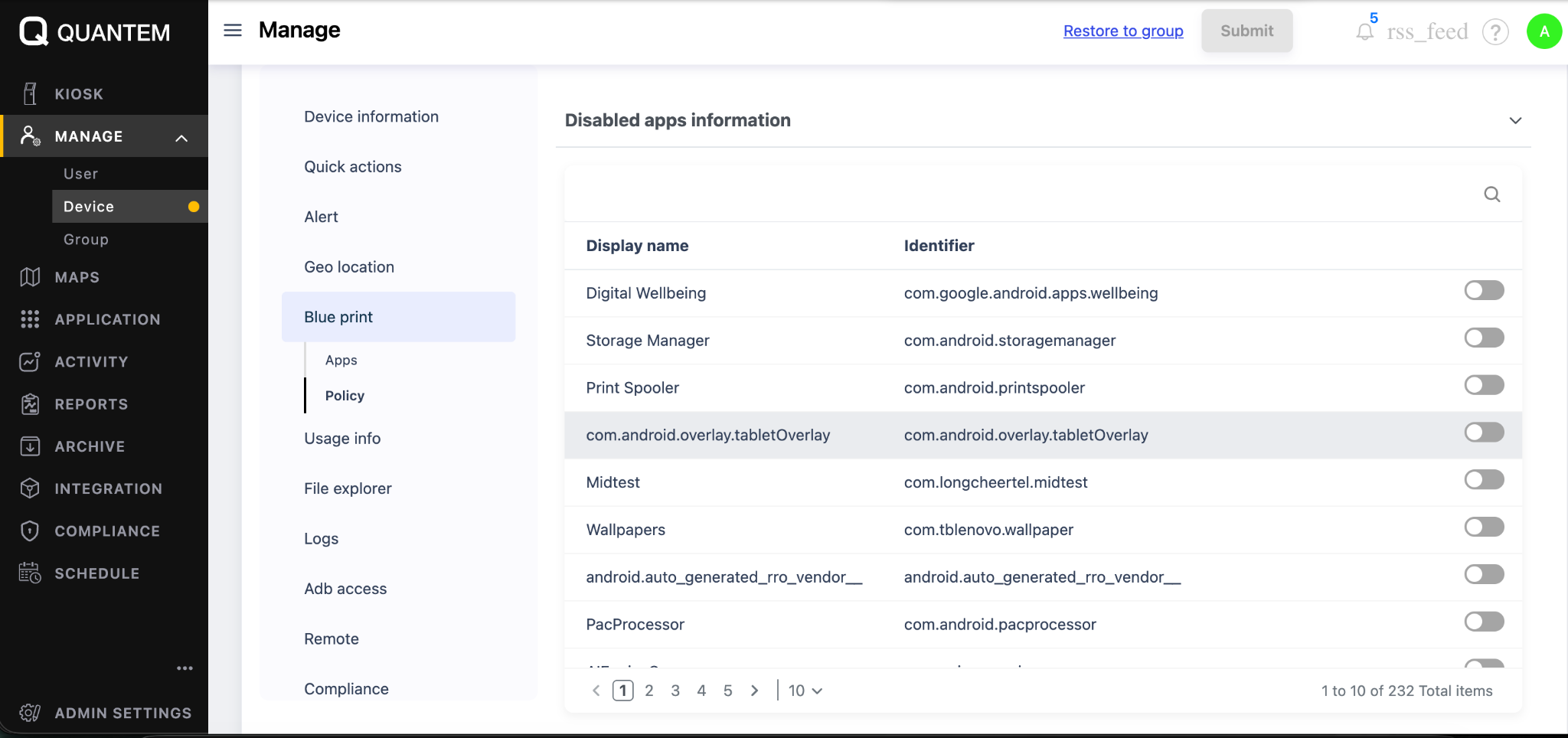
Step 4. Search for the Application
Use the search field to locate the application you want to block. You can search through both system applications and applications installed on the device.
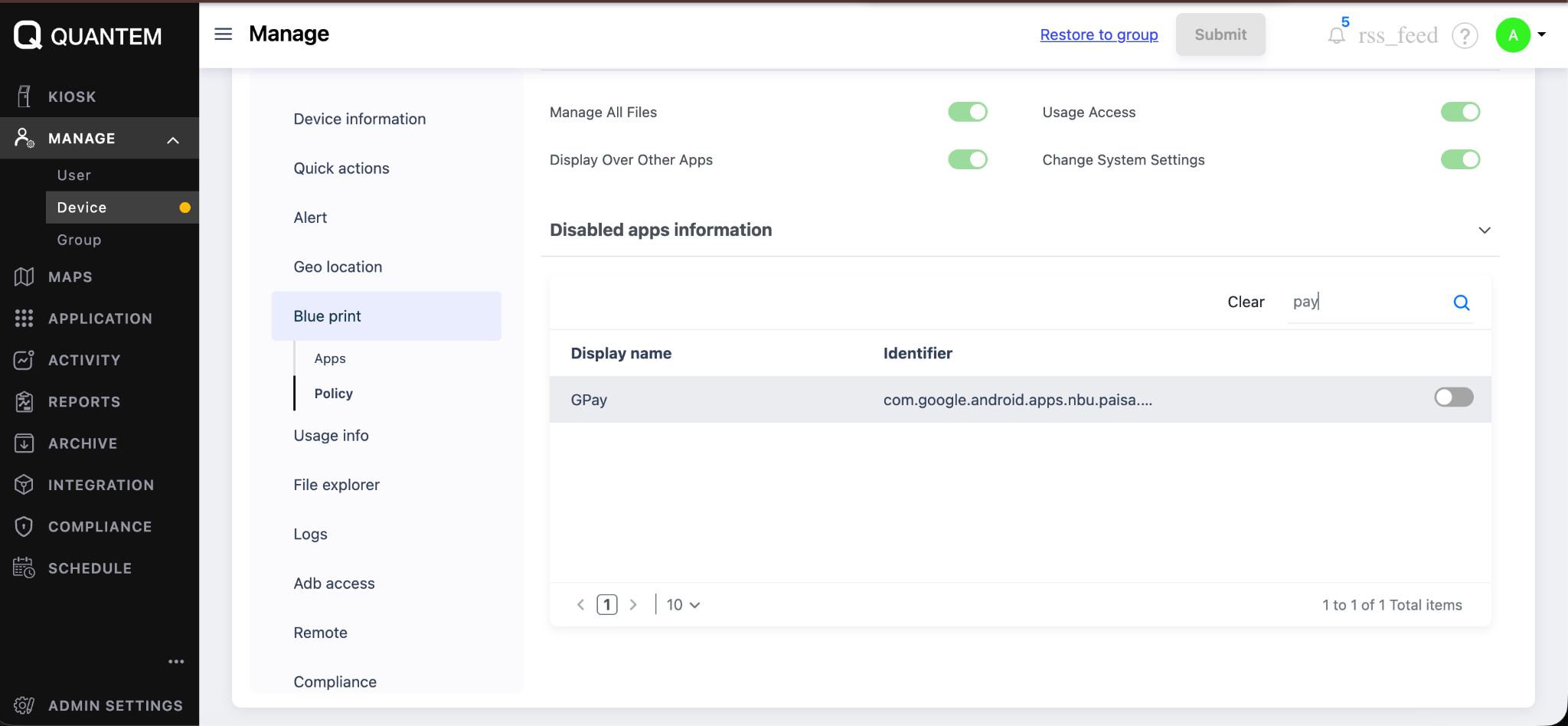
Step 5. Turn the Toggle ON
Find the required application and turn its toggle ON. This disables the selected application on the device.
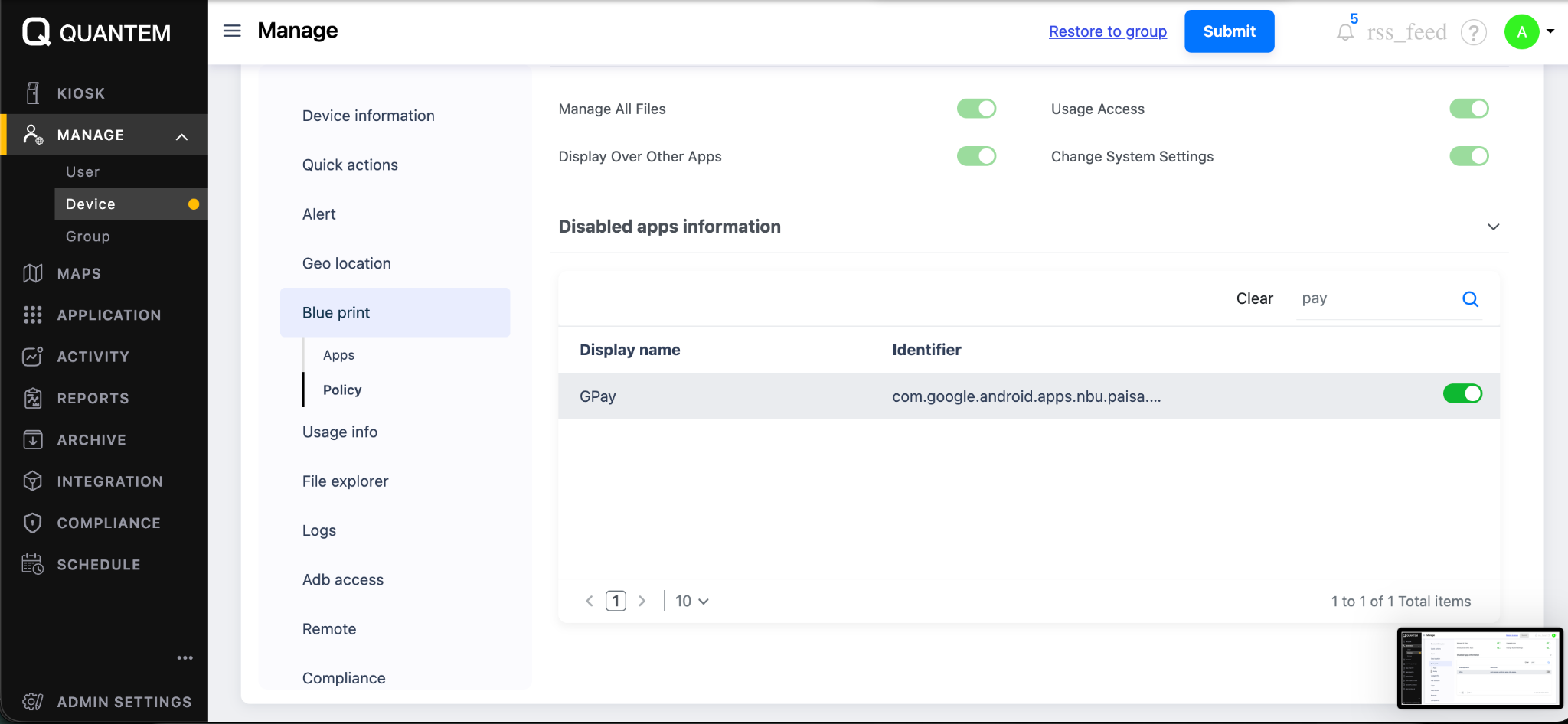
Step 6. Click Submit
Click Submit to apply the updated configuration to the device.
Simplify Android App Management with Quantem MDM
Managing app access becomes increasingly difficult as the number of Android devices grows. Manually checking applications on each device takes time and can lead to inconsistent configurations.
Quantem MDM gives IT teams centralized control over application access across managed Android devices. Administrators can restrict unwanted applications, manage app installation policies, and apply configurations across devices from a single console.
Whether you need to restrict a few applications or enforce consistent app policies across a larger device fleet, Quantem helps simplify Android app management while keeping devices aligned with business requirements.
Monitor, Manage, & Block Android Apps with Quantem
FAQ
1. What is the best way to block apps on Android?
For a single personal device, Android's built-in controls may be sufficient. For businesses managing multiple devices, an Android MDM solution provides centralized app restrictions, allowing administrators to control application access and enforce policies across the device fleet.
2. What is Google Family Link and how does it help block apps?
Google Family Link is a parental control tool that lets parents manage a child’s Android device and control which apps can be installed or used. Parents can review installed apps, set app limits, block specific applications, and manage Google Play restrictions remotely. It is primarily designed for managing children’s devices rather than centrally controlling Android devices in a business environment.
3. Can third-party app blockers be bypassed?
Yes. Depending on how the app blocker works, users may be able to bypass restrictions by uninstalling the blocker, changing its permissions, using another app store, or installing apps through APK files. For stronger control, especially on managed Android devices, organizations can use an MDM solution to enforce app restrictions at the device level.
4. Can I permanently block an app on Android?
Yes, an app can be restricted from being used or installed again when an appropriate device management policy is enforced. On managed Android devices, administrators can maintain the restriction even when users restart the device.
5. How do I block a specific apps from being downloaded on Android?
You can use Android's built-in controls for basic restrictions, but organizations that need more control can use an MDM solution. An MDM platform can restrict specific applications and manage which apps users are allowed to install on managed devices.
6. How do I block system apps on Android?
Some system applications can be disabled or restricted, depending on the Android version, device manufacturer, and management configuration. On managed devices, Android MDM solutions can provide additional controls for supported system applications.
7. How can I prevent apps on Android from auto-updating?
On a personal Android device, automatic updates can be managed through Google Play settings. For managed devices, organizations can use application management policies to control how and when apps are updated based on their operational requirements.
8. How can I restrict app permissions on Android?
Android allows you to manage permissions for individual applications through the device's settings. You can review permissions such as camera, location, microphone, and contacts and restrict access where appropriate. On managed devices, administrators can also apply supported permission policies through an MDM platform.



Get the latest blogs directly delivered to your mail fly arrow

.png)