How to Lock Chrome Browser in Kiosk Mode on Android Devices?
An Android tablet can be a useful business tool, but unrestricted browsing can quickly take the device beyond its intended purpose. A tablet placed at a reception desk, retail counter, classroom, or service location may only need to access one web application or a small group of approved websites.
Giving users unrestricted access to Chrome can make that difficult. They may browse unrelated websites, change browser settings, install or open other apps, or access parts of the Android system that should remain restricted.
Chrome kiosk mode on Android addresses this by creating a controlled browsing environment. Administrators can configure Chrome as the primary kiosk application, direct users to approved web content, and apply restrictions that prevent them from leaving the intended browsing experience.
In this guide, we will explain Android Chrome kiosk mode, its key features and use cases, and how to configure Chrome in kiosk mode with Quantem MDM.
What is Android Chrome Kiosk Mode?
Android Chrome Kiosk Mode is a managed browsing setup that restricts an Android device to a controlled Chrome experience. Instead of giving users unrestricted access to the browser and the rest of the device, administrators can configure Chrome around a specific website, web app, or approved set of browsing destinations.
This is useful when an Android tablet or smartphone needs to perform a focused web-based task. For example, a device at a reception desk could open a visitor registration portal, while a retail tablet could display a product catalog or customer feedback form.
With a kiosk browser configuration, administrators can control the browsing experience and limit access to content outside the intended workflow. When combined with an MDM platform such as Quantem, Chrome can be configured as the kiosk application while additional device restrictions help prevent users from navigating away from the managed environment.
Why Lock Google Chrome Browser on Android Work Devices?
An unmanaged Android device gives users access to far more than the web application they may need for work. For dedicated business devices, that can introduce distractions, unnecessary browsing, and opportunities to change device or browser settings.
Chrome kiosk mode on Android gives IT teams greater control over how these devices are used. By restricting Chrome to approved websites or a specific web-based workflow, organizations can keep users focused on the intended task while ensuring limited access to unrelated data and content.
Key reasons to use an Android Chrome kiosk setup include:
- Reduce device misuse: Restrict access to unrelated websites, social media, third-party apps, and device functions.
- Keep users focused: Direct users to an approved URL or web application without unnecessary browsing or app switching.
- Protect business information: Apply browsing restrictions that limit access to unauthorized websites and content.
- Create a simpler experience: Present users with a focused browser interface designed around a specific task, which is useful for self-service and public-facing devices.
- Control device behavior: Combine browser restrictions with Android device policies to prevent users from navigating away from the intended kiosk environment.
Key Features of Chrome Kiosk Mode on Android
A browser kiosk setup does more than simply open Chrome on a device. It can create an automatically controlled browsing environment where users have limited access to websites, browser functions, and Android features.
Key features include:
- Full-Screen Browser Lockdown: Launch Chrome in a dedicated full-screen environment and limit access to the Android launcher, notifications, and other device functions.
- URL Allowlisting: Define the websites or domains users are permitted to access. Attempts to visit destinations outside the approved list can be blocked.
- System Function Restrictions: Limit access to features such as navigation controls, quick settings, notifications, Wi-Fi settings, and other Android functions that could take users outside the kiosk workflow.
- Remote Policy Management: Push kiosk configurations to multiple managed devices from a central console. IT teams can also update browser settings or approved websites without configuring each device manually.
- Browser Interface Controls: Configure the browsing experience by restricting functions such as private browsing, new tabs, extensions, downloads, or other browser and privacy features that are not required for the intended use case.
- Remote Monitoring and Updates: Manage kiosk configurations remotely and keep track of managed devices through the MDM console, making ongoing administration easier across larger deployments.
Real-Life Use Cases of Chrome Kiosk Mode on Android
Chrome kiosk mode is useful when an Android device needs to provide access to web-based tools without exposing the full browser or device environment. Common use cases include:
Education & Digital Learning
Use Android tablets with MDM for education to provide students with controlled access to learning portals, online assessments, digital classrooms, and other approved educational websites.
Retail & POS
Turn Android devices into self-service terminals, product catalogs, ordering stations, or web-based POS systems while limiting access to unrelated websites and apps.
Field Service & Logistics
Give field employees access to dispatch portals, work-order systems, route management tools, and other web applications needed to complete their tasks through field service MDM
Healthcare & Patient Intake
Deploy tablets for patient registration, digital forms, appointment check-ins, and other browser-based workflows while restricting unrelated browsing.
Hospitality & Tourism
Use Android tablets for hotel check-ins, reservations, digital menus, visitor information, and other self-service experiences where users need access to specific web applications.
How to Lock Down Chrome Browser on Android with Quantem MDM?
Quantem MDM lets IT administrators configure Chrome as a dedicated kiosk application and apply browser and device restrictions from a centralized dashboard. This is useful when Android devices need to provide access to a specific website or web-based application without giving users unrestricted access to the device.
Step 1: Log In to the Quantem Dashboard
Sign in to the Quantem Dashboard and select Kiosk from the left navigation menu.
Step 2: Create a Kiosk Profile
On the Kiosk page, click + Create Kiosk to start creating a new kiosk configuration.
Step 3: Enter Kiosk Details
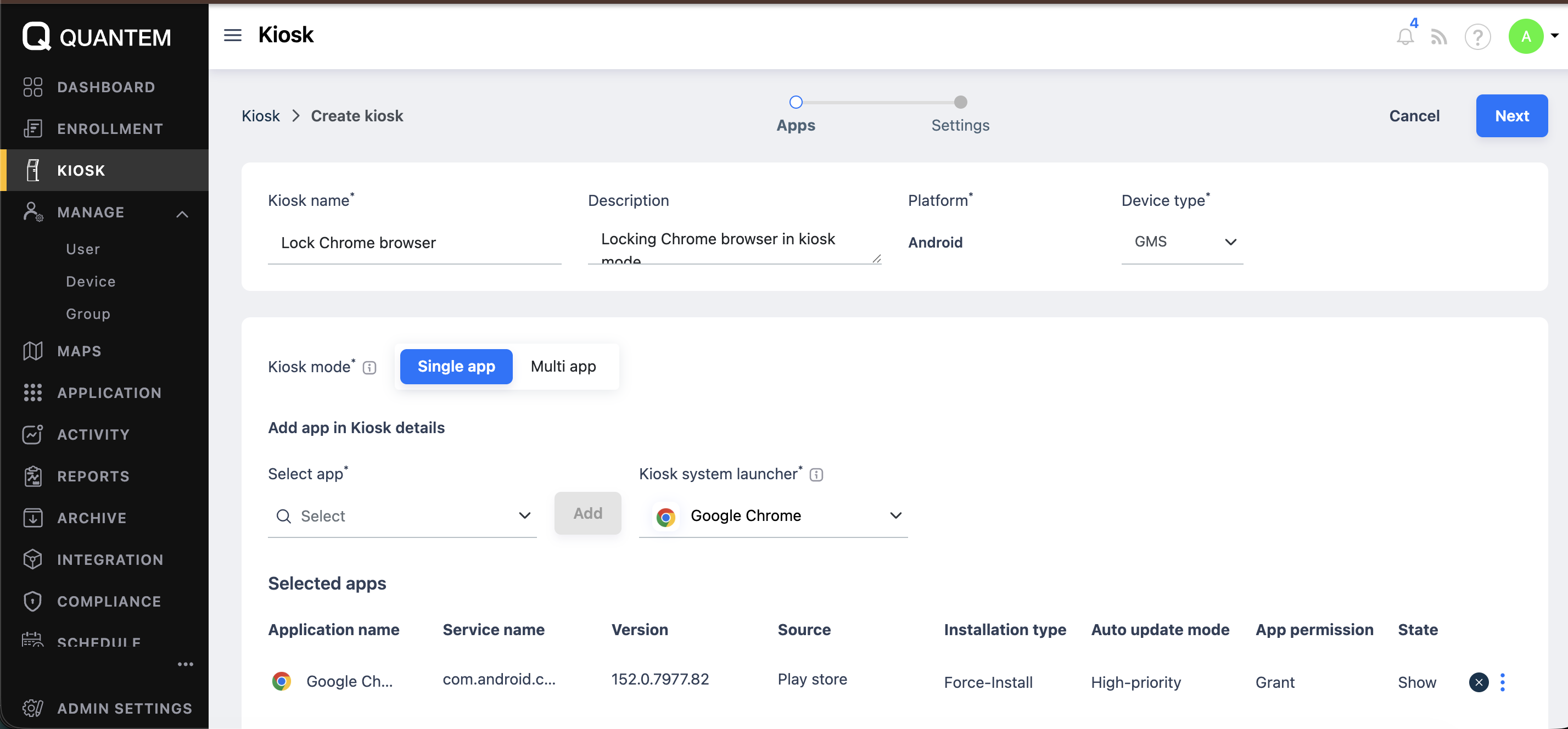
Enter the required details in the Kiosk Details section:
Step 4: Select Single App Mode
Under Kiosk mode, select Single app to configure the Android device for a dedicated Chrome browsing experience.
Step 5: Configure Google Chrome
Under the kiosk application settings, click Add app and select Google Chrome. Set Chrome as the Kiosk system launcher so it becomes the primary application launched on the device.
Step 6: Review the Kiosk Settings
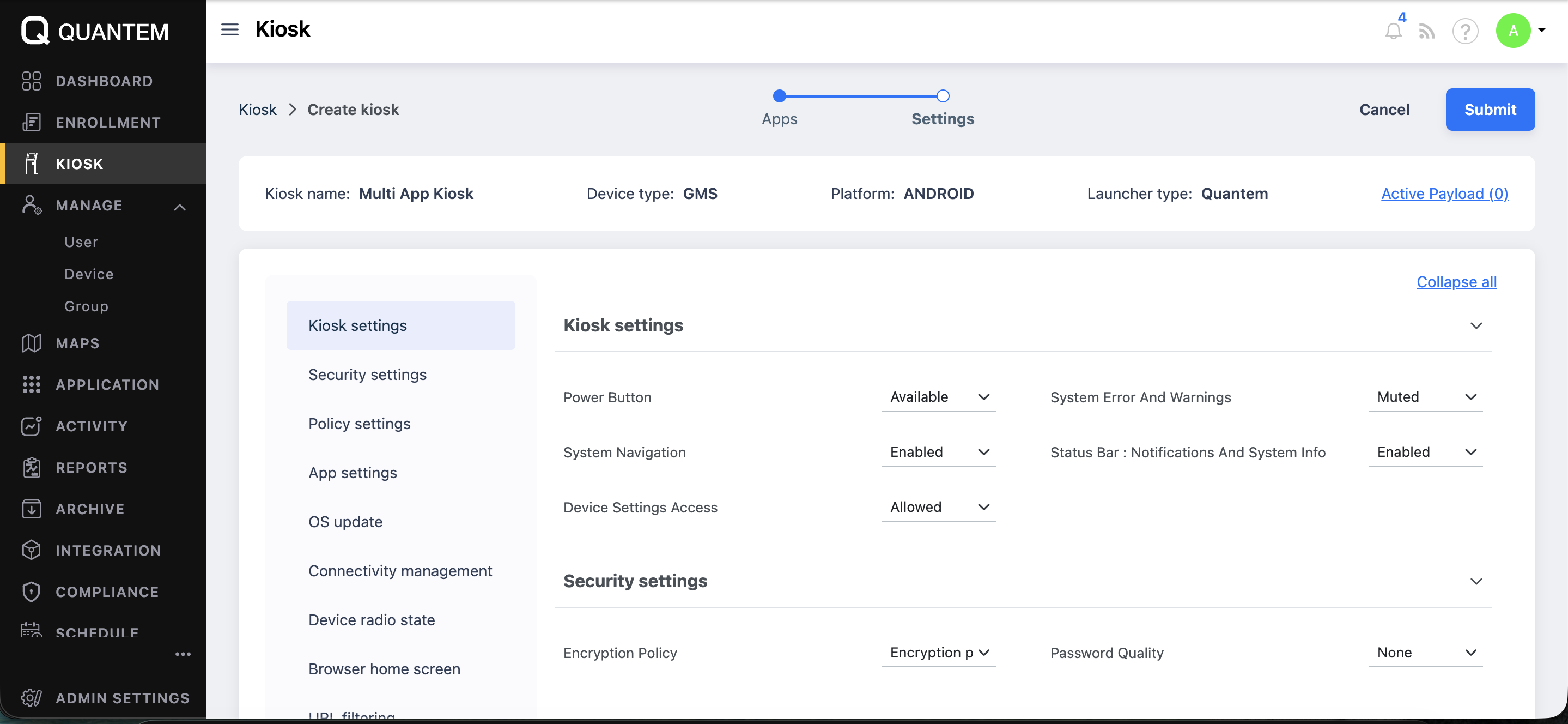
After clicking Next, the Settings screen is displayed. For example;
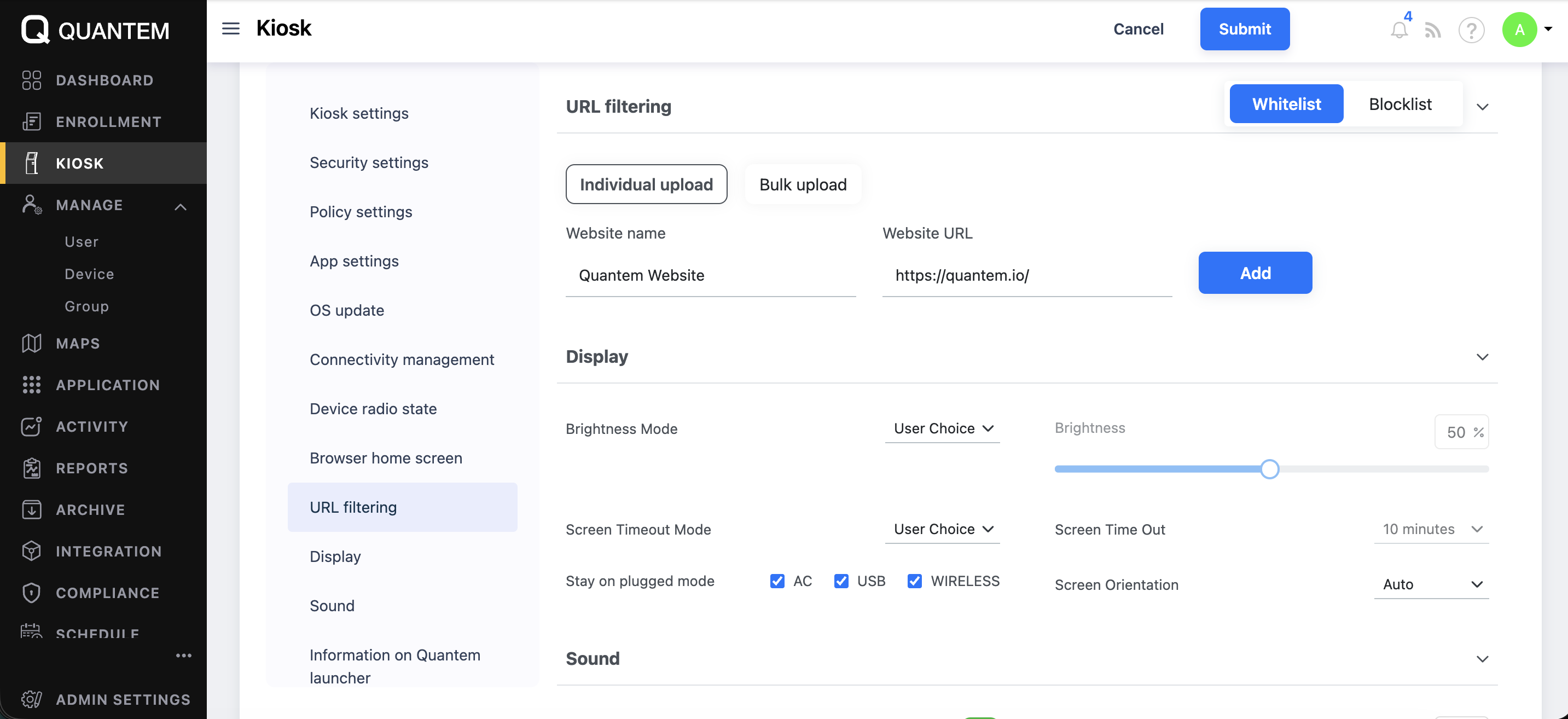
The left side of the Settings screen will show options like Kiosk settings, Security settings, Policy settings, App settings, OS update, Connectivity management, Device radio state, Browser home screen, and URL filtering etc.You may configure this based on your requirement.
Step 7: Configure URL Filtering
Use URL Filtering to control which websites users can access from the Chrome kiosk.
You can create a Whitelist for approved websites or use a Blocklist to prevent access to specific destinations. Websites can be added individually or uploaded in bulk.
To add a website, enter the Website name and Website URL, then click Add.
Step 8: Configure Display Settings
Under the available display settings, configure options such as:
- Brightness Mode
- Brightness
- Screen Timeout Mode
- Screen Time Out
- Stay on plugged mode for AC, USB, or wireless charging
- Screen Orientation
Configure these settings according to how the Android kiosk device will be used.
Step 9: Submit the Kiosk Configuration
Review the configured settings and click Submit to create the Chrome kiosk profile.
Once the profile is created, it can be assigned to the relevant managed Android devices to apply the kiosk configuration.
Secure, Manage, and Deploy Android Chrome Kiosks at Scale With Quantem
Managing Android devices that are used primarily for web-based tasks becomes easier when browser access and device settings can be controlled from one place. Chrome kiosk mode on Android helps organizations create a focused browsing environment while limiting access to unrelated websites, applications, and device functions.
With Quantem MDM, IT teams can configure Chrome as a single-app kiosk, define website access through URL filtering, and apply device restrictions from a centralized dashboard. These configurations can then be deployed across managed Android devices, reducing the need for manual setup and making ongoing kiosk management more consistent.
Keep Android Devices Focused and Secure with Quantem
FAQ
1. How Do I Turn On Kiosk Mode in Chrome on Android?
Chrome on Android does not provide a standard kiosk mode option that can be enabled directly from the browser settings. For managed Android devices, organizations can use an MDM solution to configure Chrome as the kiosk application, set the required browsing restrictions, and control which websites users can access.
2. Can I Exit Chrome Kiosk Mode Locally?
Whether users can exit kiosk mode depends on how the device has been configured. With Quantem, administrators can control how kiosk mode is exited and require authorized access before users can leave the managed environment. IT teams can also manage the configuration remotely through the MDM dashboard.
3. Who Can Benefit From Chrome Kiosk Mode on Android?
Organizations that provide Android devices for focused web-based tasks can use Chrome kiosk mode. Common examples include schools, retailers, logistics teams, healthcare organizations, and IT teams managing dedicated work devices.
4. Does Android Have a Built-In Kiosk Mode?
Android provides features such as Screen Pinning and Lock Task Mode that can restrict access to certain device functions. However, organizations requiring centralized management, website restrictions, remote configuration, and broader device controls can use an Android MDM solution for a more managed kiosk deployment.
5. Which Kiosk Software Can Manage Chrome on Android?
An MDM platform such as Quantem can manage Chrome kiosk deployments from a centralized console. IT administrators can configure kiosk policies, control approved websites, apply device restrictions, update configurations remotely, and manage multiple Android devices without configuring each device individually.
6. How Does Locking Down Android Devices in Chrome Browser Help With Data Security and Privacy?
Locking down Android devices in Chrome can reduce data exposure by limiting users to approved websites and restricting access to unrelated apps, browser functions, and device settings. Combined with URL allowlisting and MDM policies, this helps organizations maintain consistent browsing restrictions and protect business data.
7. Can I Install Other Apps When an Android Device Is Locked in Chrome Browser Kiosk Mode?
Generally, no. When an Android device is configured in Chrome Browser Kiosk Mode, users are restricted from accessing or installing unauthorized apps. Administrators can control available applications and device functions through the kiosk configuration, while approved apps and settings can be managed centrally through an MDM solution.



Get the latest blogs directly delivered to your mail fly arrow

.png)