How to Set Up A VPN on Android Devices?
Android devices give employees the flexibility to work from almost anywhere. They can access work applications, communicate with colleagues, and handle business tasks while traveling or working remotely. However, connecting to the internet through public Wi-Fi, personal hotspots, or unfamiliar networks can expose business traffic to security risks.
A Virtual Private Network (VPN) helps protect these connections by encrypting internet traffic between an Android device and a VPN server. For businesses, it also provides a secure way for employees to access internal applications and corporate resources without exposing them directly to the public internet.
Knowing how to set up a VPN on Android is useful for both individual users and IT administrators. While employees can install a VPN app or configure a connection manually, managing VPN settings across multiple business devices requires a more centralized approach.
This blog explains how to configure a VPN on Android using an app, built-in device settings, and an Android Mobile Device Management (MDM) solution. It also covers how IT teams can deploy VPN configurations across managed Android devices using Quantem MDM.
What is a Virtual Private Network (VPN)?
A Virtual Private Network (VPN) is a security technology that encrypts internet traffic and routes it through a remote VPN server. It creates a secure connection between a device and the VPN server, helping protect transmitted data from unauthorized access. A VPN also masks the device's public IP address by replacing it with the IP address of the VPN server.
On Android devices, a VPN protects internet connections when users browse the web, access online services, or connect to business applications. It is particularly useful when employees work remotely or use public Wi-Fi networks.
Businesses use VPNs to provide employees with secure access to internal resources, such as company applications, servers, and private networks. Instead of exposing these resources directly to the internet, organizations can route authorized connections through a protected VPN tunnel.
How Does a VPN Work?
A VPN works by creating an encrypted tunnel between your Android device and a remote VPN server. When you connect to a VPN, your internet traffic passes through this tunnel instead of traveling directly over the network.
Here is how the process works:
- VPN Connection Request: When you activate a VPN on your Android device, the VPN client contacts the selected VPN server and initiates a connection.
- Authentication: The VPN server verifies your identity using the configured authentication method, such as login credentials or digital certificates.
- Encrypted Tunnel Creation: Once authentication is successful, the VPN establishes an encrypted connection between your device and the server.
- Secure Data Transmission: Your internet traffic travels through this encrypted tunnel. This makes intercepted data significantly harder for unauthorized parties to read.
- IP Address Masking: The VPN server forwards your internet requests to their destinations using its public IP address instead of exposing your device's original public IP address.
When you access a website or online service, its response travels back through the VPN server and the encrypted connection to your Android device.
For businesses, this process helps employees securely connect to internal applications and corporate networks, even when working outside the office. IT administrators can also use managed VPN configurations to control how work-related network traffic is routed.
Why Do You Need to Setup VPN for Android Devices?
Android devices often connect to different networks throughout the day, from office Wi-Fi and home routers to public hotspots and mobile data connections. These networks may not offer the same level of security. A VPN adds a layer of protection by encrypting internet traffic and helping users maintain more private connections.
Here are five reasons to set up a VPN on Android devices.
1. Protect Data on Public Wi-Fi
Public Wi-Fi networks in airports, hotels, cafes, and other shared spaces may expose users to network-based attacks. Cybercriminals can attempt to intercept unprotected traffic or exploit insecure connections to access sensitive information.
A VPN encrypts traffic between the Android device and the VPN server, making intercepted data harder to read. This helps protect business communications and other sensitive information when employees connect through public networks.
2. Secure Access to Business Resources
Remote employees often need to access internal company applications, file servers, and other resources from outside the corporate network. A business VPN creates a secure connection to the organization's private network, allowing authorized employees to access these resources remotely.
This helps organizations extend secure network access beyond the office while keeping internal resources behind established security controls.
3. Improve Online Privacy
Without a VPN, websites and network providers can observe certain details about a user's internet activity. A VPN encrypts traffic between the device and the VPN server, helping prevent others on the same local network from easily inspecting that traffic.
It also replaces the device's public IP address with the VPN server's IP address, making it harder for websites to identify the user's original network location.
4. Reduce the Risk of Network-Based Attacks
Unsecured network connections can expose data to threats such as man-in-the-middle attacks and packet sniffing. In these scenarios, attackers attempt to intercept or inspect information traveling across a network.
VPN encryption makes it significantly harder for unauthorized parties to read intercepted traffic. However, a VPN does not replace endpoint security, antivirus protection, or other safeguards against malware and phishing attacks.
5. Maintain Secure Connectivity While Working Remotely
Employees may switch between office networks, home Wi-Fi, mobile data, and public hotspots during the workday. A VPN helps protect their internet traffic across these different network environments.
For businesses, configuring VPN connections on managed Android devices helps IT teams establish consistent network security policies, regardless of where employees work.
How to Set Up VPN on Android Devices?
Android provides multiple ways to establish a VPN connection. You can install a dedicated VPN application, configure a VPN profile manually through device settings, or use an MDM platform to deploy VPN configurations across managed devices.
Let's look at each method.
Method 1: Set Up a VPN Using a VPN App
Using a dedicated VPN app is one of the simplest ways to establish a VPN connection on an Android device. You don't need to enter server addresses or configure connection protocols manually. The app handles most of the setup process.
Follow these steps to connect your Android device to a VPN:
- Open the Google Play Store on your Android device.
- Search for a VPN application, such as Proton VPN, Surfshark, or McAfee.
- Download and install the application.
- Open the app and sign in using your account credentials.
- Select a VPN server or location and tap Connect.
- When Android displays a permission prompt asking to set up a VPN connection, tap OK or Allow.
- Once connected, look for the VPN key icon in the status bar to confirm that the VPN is active.
Note: The setup process may vary depending on the VPN application and Android version. Some VPN providers also require a subscription to access specific servers or features.
Method 2: Configure a VPN Manually Through Android Settings
Android allows users to add a VPN profile directly through device settings without installing a dedicated VPN application. This method is useful when your workplace, network administrator, or VPN provider supplies the connection details.
Follow these steps to configure a VPN manually:
- Open the Settings app on your Android device.
- Navigate to Network & internet > VPN. On Samsung devices, go to Connections > More connection settings > VPN.
- Tap the + icon or select Add VPN profile to create a new connection.
- Enter the VPN configuration details provided by your administrator or VPN provider:
- Name: Enter a name to identify the VPN connection.
- Type: Select the supported VPN protocol, such as IKEv2/IPSec or L2TP/IPSec, if available.
- Server address: Enter the VPN server's hostname or IP address.
- Username and password: Enter the authentication credentials, if required.
- Tap Save to create the VPN profile.
- Select the newly created VPN profile.
- Enter your credentials if prompted and tap Connect.
Note: The available VPN protocols and configuration fields vary depending on the Android version and device manufacturer. Some protocols, such as OpenVPN and WireGuard, generally require their respective VPN client applications rather than Android's built-in VPN settings.
Method 3: Set Up a VPN Using an Android MDM Solution
For organizations managing multiple Android devices, manually configuring VPN connections on each device can be time-consuming. An Android Mobile Device Management (MDM) solution allows IT administrators to configure supported VPN clients centrally and deploy their settings to managed devices.
With MDM, administrators can select a supported VPN client, configure its connection settings, and apply the configuration through device management policies. This reduces manual setup and helps maintain consistent VPN configurations across the device fleet.
Using an Android MDM solution, IT teams can:
- Deploy VPN applications: Push supported VPN client applications to enrolled Android devices.
- Configure VPN settings remotely: Apply VPN configurations through the MDM console without manually accessing each device.
- Manage VPN policies: Control VPN configuration permissions and apply settings based on device management policies.
- Simplify fleet management: Manage VPN configurations across multiple devices from a centralized dashboard.
The exact configuration options depend on the VPN client, Android version, device enrollment mode, and MDM platform capabilities.
Which is the Best Way to Set Up VPN on Android Devices?
The best way to set up a VPN on Android depends on the number of devices you manage and how much control you need over their network connections.
For individual users, installing a VPN app or configuring a connection manually through Android settings is usually sufficient. However, these methods have limitations when deployed across an enterprise device fleet.
- Limitations of VPN Apps: Employees may need to download the application, sign in, and establish the VPN connection themselves. IT administrators may have limited control over whether users keep the VPN connected.
- Limitations of Manual Configuration: IT teams must enter server addresses, authentication details, and other settings on each device. This makes large-scale deployment time-consuming and increases the possibility of configuration errors.
An Android MDM solution gives IT administrators centralized control over VPN configuration and deployment. Instead of setting up connections individually, administrators can configure supported VPN clients through a management console and distribute the settings to enrolled devices.
Key advantages include:
- Centralized VPN Deployment: Push supported VPN applications and configurations to multiple managed Android devices through a single console.
- Always-On VPN Management: Configure Always-on VPN on supported devices to maintain VPN connectivity automatically.
- VPN Lockdown: Where supported, enforce lockdown settings to prevent network traffic from bypassing the VPN connection when it is unavailable.
- Simplified Configuration: Apply VPN settings centrally instead of manually entering connection details on every device.
- Consistent Security Policies: Maintain approved VPN configurations across managed devices and reduce the risk of inconsistent setup.
VPN Setup Methods at a Glance
For organizations managing corporate-owned Android devices, an MDM solution offers a more scalable approach to VPN deployment. It helps IT teams configure connections, enforce supported VPN policies, and manage network security across their device fleet.
However, available capabilities depend on the Android version, device enrollment mode, VPN client, and MDM platform.
How to Set Up VPN on Android Devices Using Quantem MDM?
Quantem allows IT administrators to configure VPN settings for enrolled Fully Managed (FM) Android devices through Compliance Policies. Administrators can select a supported VPN client, configure its connection settings, and apply the policy to managed devices.
This eliminates the need to configure VPN settings individually on every device.
Prerequisites
Before configuring a VPN through Quantem MDM, ensure that:
- The Android device is enrolled as a Fully Managed (FM) device.
- The device is running Android 5.0 or higher.
- The required VPN client is installed on the device.
Steps to Configure VPN Using Quantem MDM
Follow these steps to configure VPN settings through the Quantem Admin Console:
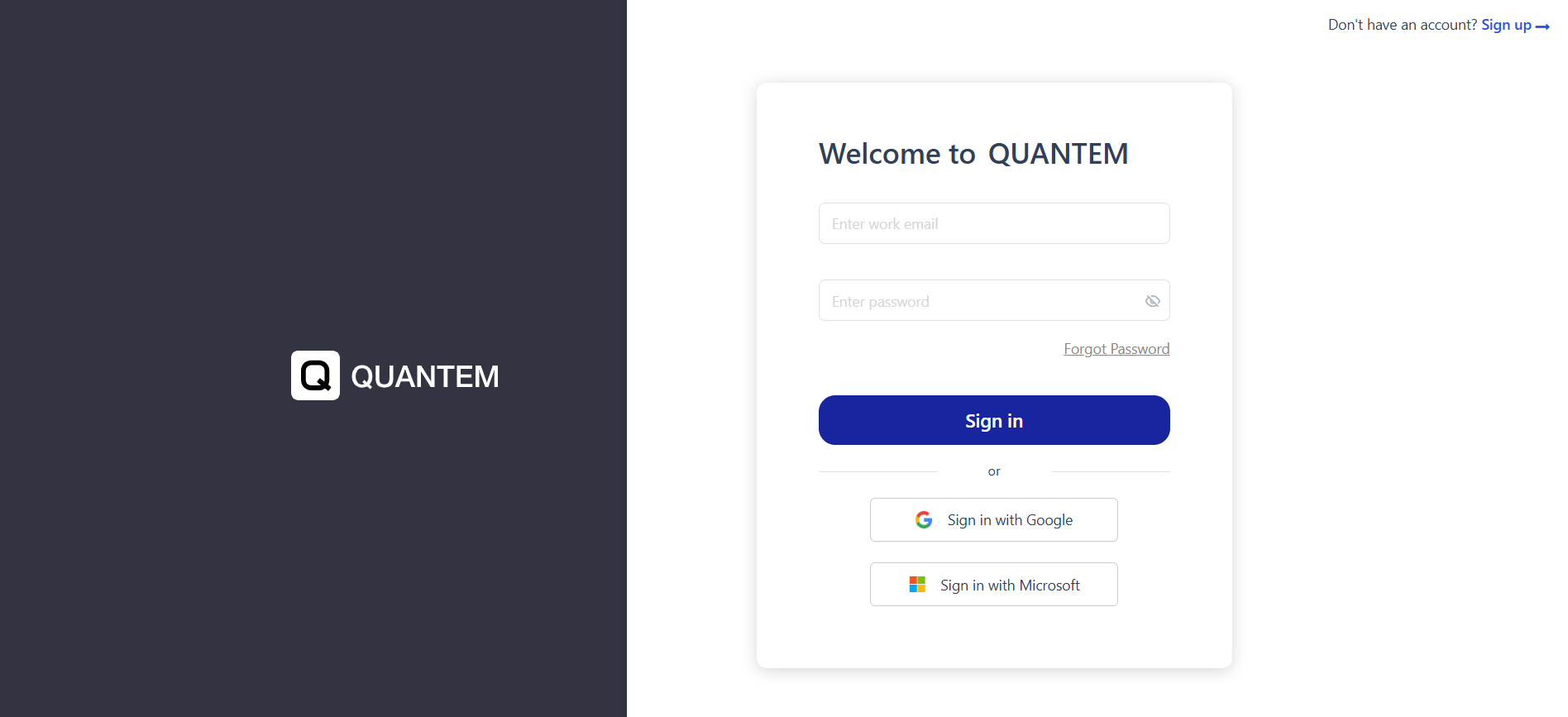
1. Log in to the Quantem Admin Console.
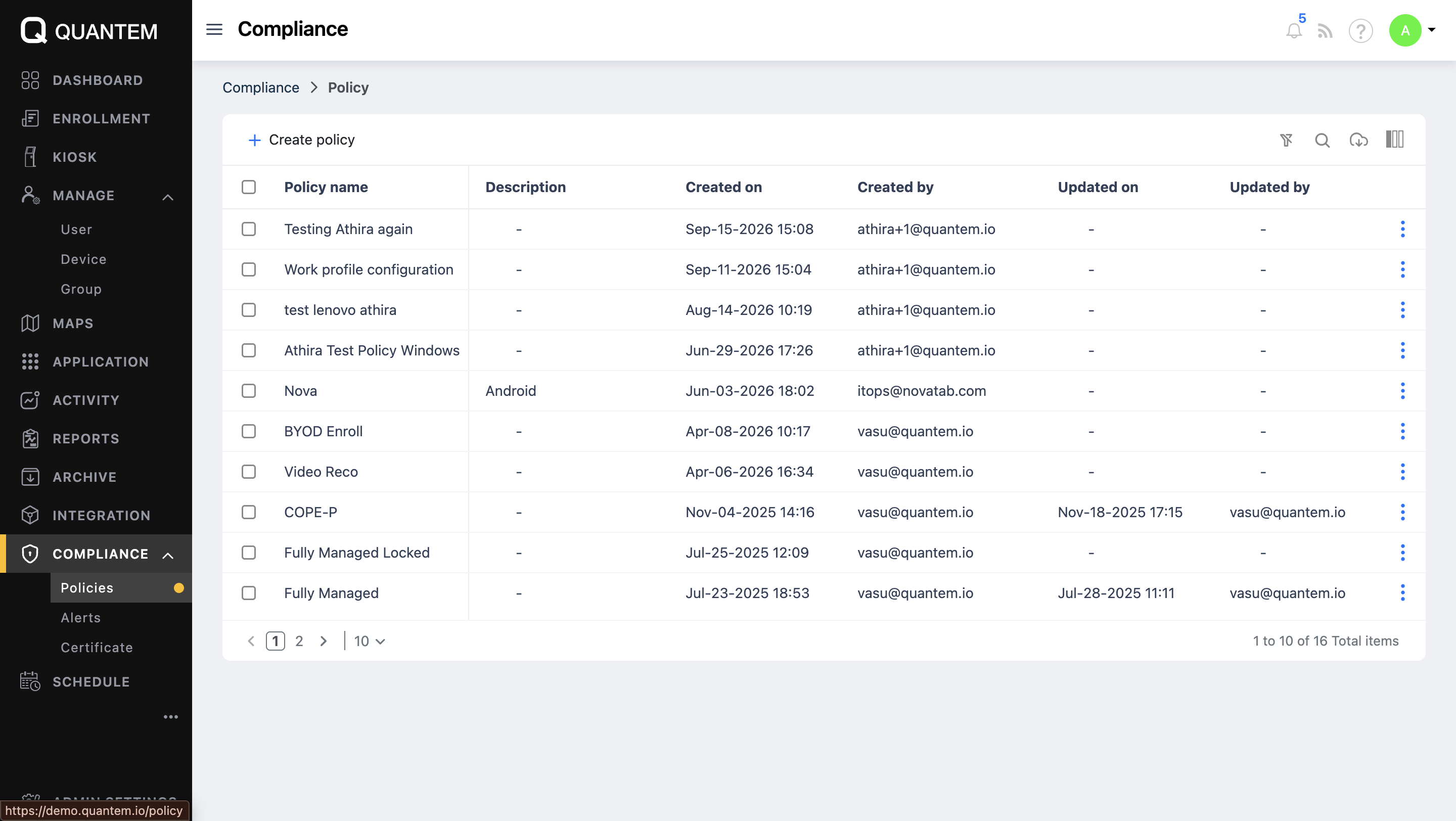
2. Navigate to Compliance → Policies. Create a new policy or select an existing Android policy.
3. From the policy settings menu, select Connectivity. Enable VPN Config.
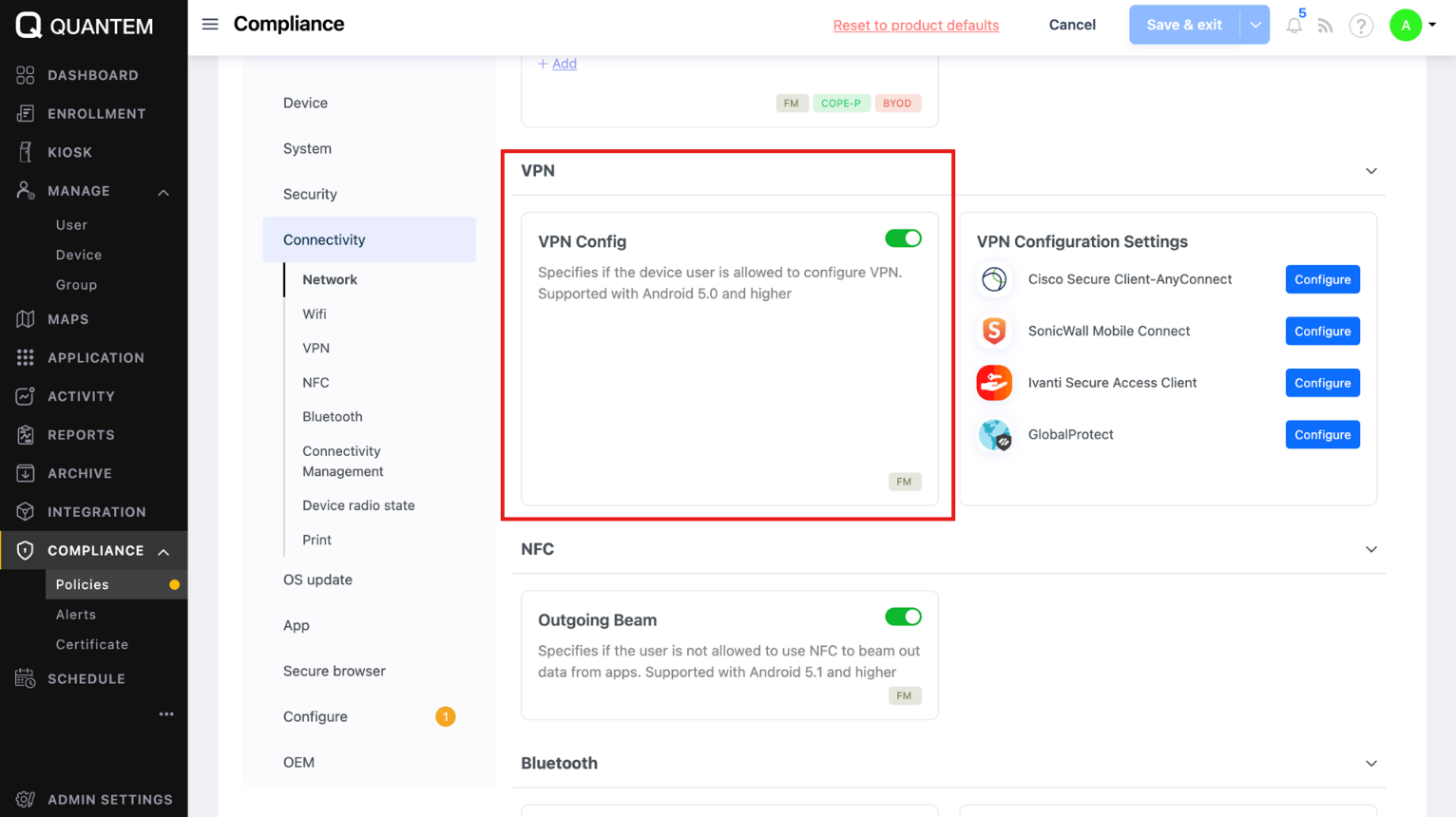
The VPN Config setting determines whether device users are allowed to configure a VPN. This setting is supported on Android 5.0 and higher.
4. Under VPN Configuration Settings, select the VPN client you want to configure. Click Configure next to the selected VPN client.
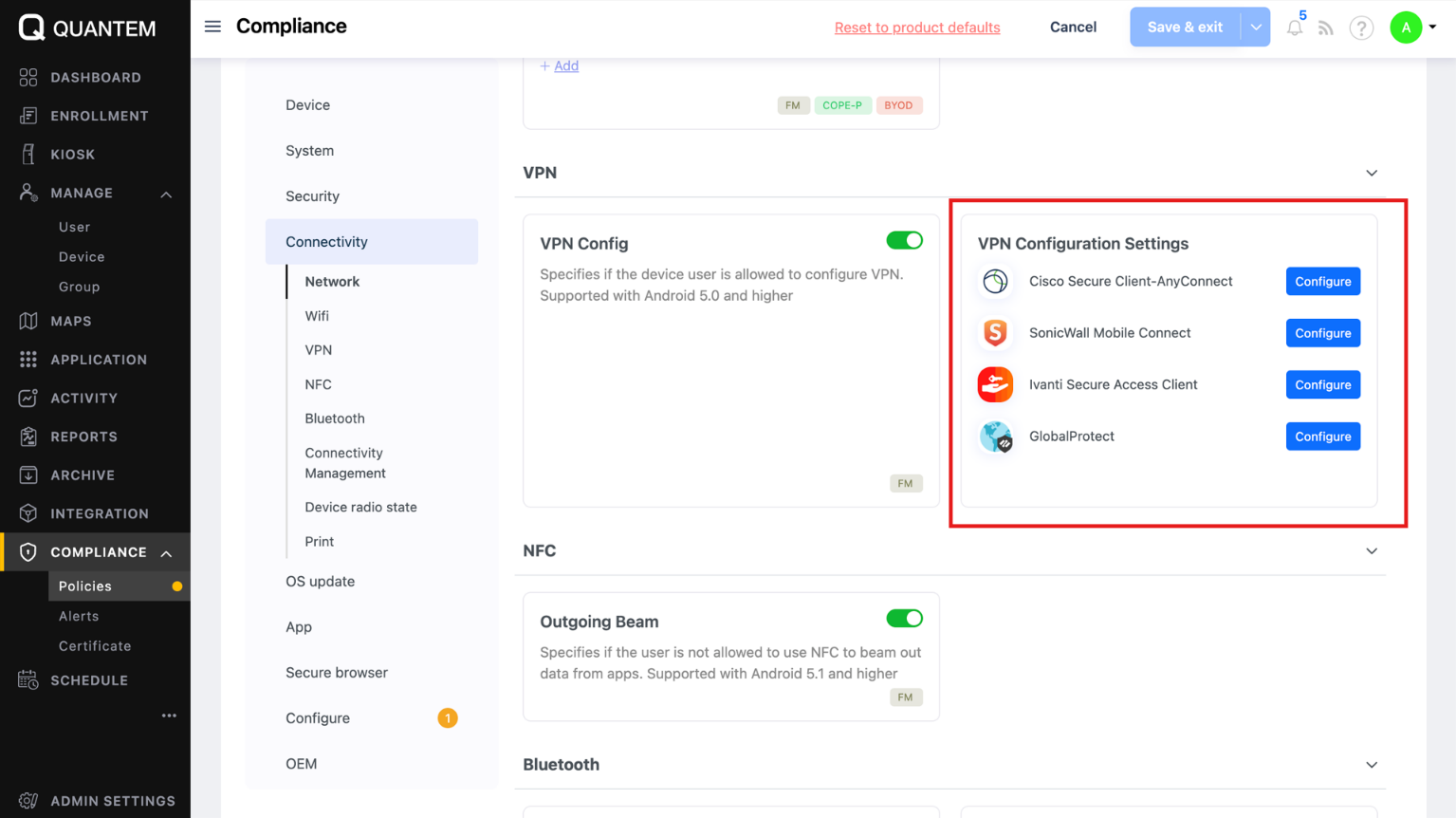
Quantem currently provides configuration options for the following VPN clients:
- Cisco Secure Client–AnyConnect
- SonicWall Mobile Connect
- Ivanti Secure Access Client
- GlobalProtect
6. Enter the configuration details required for the selected VPN client. Click Save to exit and save the policy.
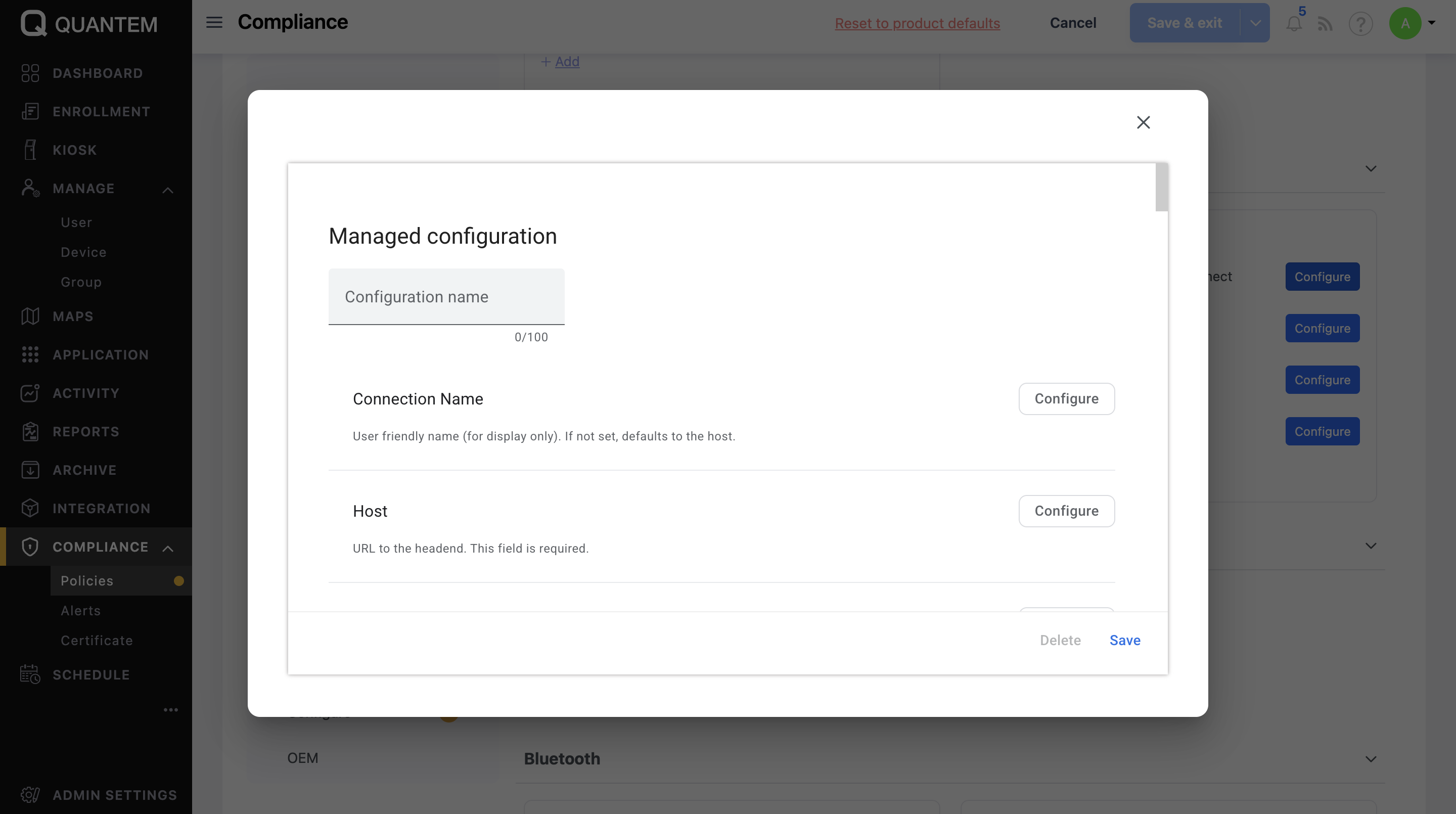
Once the policy is applied, the VPN configuration is pushed to the applicable Fully Managed Android devices associated with that policy.
Configure VPN for Privacy and Business Security with Quantem
Securing Android devices across a distributed workforce requires more than installing VPN applications. IT administrators also need control over VPN configurations and the ability to manage connections across enrolled devices.
Quantem Android MDM simplifies VPN deployment by allowing IT teams to configure supported VPN clients and manage their settings through a centralized dashboard. Administrators can apply VPN configurations to Fully Managed Android devices without manually setting up each connection.
With supported Always-on VPN configurations, organizations can help ensure that devices maintain secure VPN connections automatically. When VPN lockdown is supported and enabled, administrators can also restrict network traffic from bypassing the VPN connection.
Secure Your Business Devices & Simplify Android VPN Management with Quantem.
FAQ
1. Does Android Have a Built-in VPN?
Yes. Android includes built-in VPN configuration settings that allow users to add and connect to supported VPN profiles without installing a separate free VPN app. However, the available protocols and configuration options vary by Android version and device manufacturer. Some protocols, such as OpenVPN and WireGuard, generally require dedicated client applications.
2. How do I Manually Configure a VPN on Android Smartphone?
To manually configure a VPN on Android:
- Open Settings and navigate to Network & internet > VPN.
- Tap the + icon or Add VPN profile.
- Enter the VPN name, server address, and supported VPN type.
- Add your username and password if required.
- Tap Save.
- Select the newly created VPN profile and tap Connect.
The exact settings may vary depending on your Android device and VPN provider.
3. What Do I Need Before Using VPN on Android Mobile?
You need an active internet connection, a VPN service to subscribe to, and the required server details and login credentials. If your VPN uses a protocol such as OpenVPN or WireGuard, you may also need its dedicated client app.
4. Can I Set Up a VPN on Android Without an App?
Yes. You can configure a VPN directly through Android's built-in VPN settings if your VPN provider or network administrator supplies the required connection details and uses a supported protocol. However, VPN protocols such as OpenVPN and WireGuard generally require their respective client applications.
5. How do I Enable Always-on VPN on Android?
To enable Always-on VPN:
- Open Settings and go to Network & internet > VPN.
- Tap the gear icon next to your configured VPN profile.
- Enable Always-on VPN.
- If available, enable Block connections without VPN to activate VPN lockdown.
Android will then attempt to maintain the VPN connection automatically. Availability depends on the Android version, device, and VPN client.
6. Can an Administrator Configure VPN Settings Remotely on Android Devices?
Yes. An administrator can use an Android Mobile Device Management (MDM) solution to configure supported VPN settings and deploy them remotely to enrolled devices. This allows IT teams to manage VPN configurations centrally instead of setting up each device manually. Available capabilities depend on the MDM platform, Android version, enrollment type, and VPN client.
7. What is the Difference Detween Always-on VPN and VPN Lockdown?
Always-on VPN and VPN lockdown serve different purposes:
- Always-on VPN: Automatically establishes and maintains a VPN connection whenever the device starts or reconnects to the network.
- VPN lockdown: Prevents network traffic from accessing the internet outside the VPN tunnel when the VPN connection is unavailable.
When supported, both features can be enabled together to help ensure that device traffic does not bypass the configured VPN connection.
8. How do I Remove a VPN Configuration from an Android Device?
To remove a VPN configuration from an Android device:
- Open Settings and navigate to Network & internet > VPN.
- Tap the gear icon next to the VPN profile you want to remove.
- Select Forget VPN or Delete, depending on your device.
- Confirm the action if prompted.
The VPN profile will be removed from the device. If the configuration is managed by an organization through an MDM solution, you may need your IT administrator to remove it.



Get the latest blogs directly delivered to your mail fly arrow