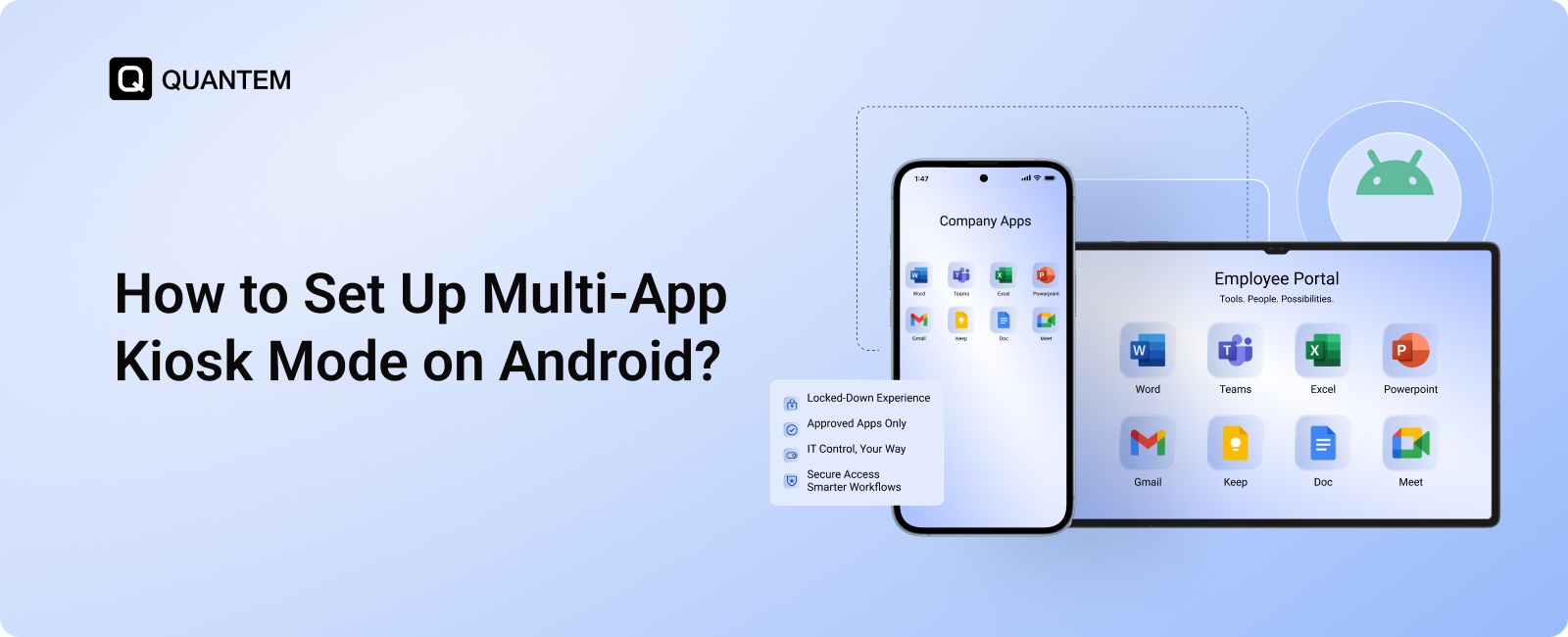
How to Set Up Multi-App Kiosk Mode on Android Devices?
An Android tablet can support several business tasks at once, but giving users unrestricted access to the device can create unnecessary risks. Employees may open unrelated applications, change settings, install unauthorized software, or move away from the workflow the device was intended to support.
Android multi-app kiosk mode provides a way to solve this without limiting the device to just one application. IT teams can create a controlled environment where users have access to a defined set of approved apps while other applications and device functions remain restricted.
This setup works well for devices used by frontline employees, retail staff, students, healthcare workers, field teams, and customers. A single tablet, for example, could provide access to a POS app, inventory application, and business browser without exposing the rest of the Android environment.
In this blog, we will explain what multi-app kiosk mode Android deployments are, how they work, their benefits and common use cases, and how to configure Android multi-app kiosk mode using Quantem MDM.
What is Android Multi-App Kiosk Mode?
Android multi-app kiosk mode is a device management configuration that uses kiosk software to limit an Android smartphone or tablet to a predefined group of approved applications. Instead of locking the device to a single app, IT administrators can make several work applications available while restricting access to everything outside the approved set.
For example, a retail tablet could provide access to a POS application, inventory tool, and business browser while preventing users from opening unrelated apps or changing important device settings.
The exact restrictions can vary based on the MDM platform, Android version, and device configuration. Administrators can typically control areas such as:
- Approved applications: Decide which apps users can access from the kiosk environment.
- Device settings: Restrict access to settings that could alter the device configuration.
- Unauthorized applications: Prevent users from accessing apps outside the approved application set.
- System functions: Limit access to selected Android features that are not required for the device's business purpose.
- Kiosk interface: Configure the device experience so users interact only with the applications and functions made available to them.
This makes multi-app kiosk mode Android deployments useful when users need several applications to complete a workflow but should not have unrestricted access to the rest of the device.
How Does Android Multi-App Kiosk Mode Work?
Multi-app kiosk mode works by creating a controlled Android environment around a predefined set of applications. Instead of allowing the device to function like a regular smartphone or tablet, the MDM configuration determines which apps users can access and which parts of the device remain restricted.
The administrator first defines the applications that should be available. These apps are then presented through the kiosk interface, while applications outside the approved set can be blocked or hidden. Additional device policies can be applied to restrict settings, system functions, and other areas that users do not need.
For example, a field-service tablet might provide access to a work-order app, navigation app, and communication tool. The employee can switch between those approved applications to complete the job, but cannot open unrelated apps or change the device configuration.
With an MDM-managed deployment, the kiosk configuration can also be applied to groups of devices rather than setting up every tablet individually. This makes Android multi-app kiosk mode practical for organizations that need to maintain the same restricted environment across a larger device fleet.
Why Use Multi-App Kiosk Mode on Android? Key Benefits
Giving users access to multiple applications does not mean they need access to the entire Android device. Multi-app kiosk mode creates a controlled middle ground: users can work with the apps required for their role while other applications and device functions remain restricted.
Here are the key benefits:
- Strengthen device security: Apply security policies and restrict access to functions that users do not need for their work.
- Control the application environment: Create a defined application catalog so users can access only the apps approved for that device or workflow.
- Reduce unauthorized device changes: Restrict access to areas such as the Android home screen, system settings, or other device functions based on the configured kiosk policy.
- Customize the kiosk experience: Configure the available interface and application experience to suit the organization's workflow or deployment requirements.
- Simplify remote support: IT teams can manage and troubleshoot kiosk devices remotely, reducing the need for physical intervention.
- Scale deployments more easily: Apply a consistent multi-app kiosk configuration across multiple devices instead of setting up each Android device manually.
Common Use Cases of Android Multi-App Kiosk Mode
The need for Android multi-app kiosk mode varies by industry, but the underlying goal is similar: give users access to the applications required for a task without exposing the rest of the device.
Hospitality
Hotels and restaurants can use multi-app kiosks for tasks such as guest check-in, order management, inventory, and customer feedback. A single Android device can provide access to several approved applications while keeping unrelated functions restricted.
Retail
Retail teams can configure Android tablets for POS operations, inventory management, product browsing, self-checkout, or digital promotions. Customers or employees can access the required applications without being able to modify the device or open unauthorized apps.
Education
Schools and universities can use Android multi-app kiosk configurations on classroom tablets. Students can access approved learning applications, digital textbooks, assessment tools, and other educational resources while unrelated apps remain unavailable.
Transport and Logistics
Drivers and field teams may need several applications for navigation, delivery tracking, order management, and reporting. Multi-app kiosk mode allows these apps to remain accessible while restricting unnecessary device functions and reducing opportunities for distraction.
Healthcare
Healthcare facilities can use managed Android tablets for patient check-in, monitoring, communication, and other approved workflows. Restricting the available applications can help keep devices focused on their intended tasks and limit access to unrelated applications.
How to Set Up Android Multi-App Kiosk Mode With Quantem?
With Quantem MDM, IT administrators can create a multi-app kiosk profile, choose the applications users are allowed to access, configure the available device controls, and assign the finished profile to a device group.
Step 1: Log in to the Quantem MDM Dashboard
Log in to the Quantem MDM Dashboard using your administrator credentials. From the left-hand navigation menu, click Kiosk. The Kiosk page displays your existing kiosk profiles.
.png)
Step 2: Create a New Kiosk
Click + Create Kiosk at the top of the Kiosk page to open the kiosk creation screen.
Step 3: Enter Kiosk Details
On the Create kiosk screen, enter or select the required details:
Step 4: Select Multi-App Mode
Under Kiosk mode, select Multi app. Quantem provides Single app and Multi app as the available kiosk modes.
Step 5: Add Applications
Under Add app in Kiosk details, use the Select app field to choose an application and click Add. Repeat the process for each application that should be available in the kiosk.
The applications you add will appear under the Selected apps section.
.png)
Step 6: Continue to Settings
Once the required applications have been added, click Next in the top-right corner to move from the Apps stage to Settings.
.png)
Step 7: Review the Kiosk Settings
Review the available kiosk and security settings. Depending on your configuration, these can include options for:
Configure these options according to how users should interact with the managed Android device.
Step 8: Submit the Kiosk
After completing the configuration, click Submit in the top-right corner to save the multi-app kiosk profile.
Step 9: Assign the Kiosk to a Group
From the Kiosk list, open the three-dot menu for the newly created multi-app kiosk and select Assign to group.
.png)
.png)
Step 10: Confirm the Assignment
In the Assign to group panel, select the checkbox for the group that should receive the kiosk configuration. Click Assign, then click Yes when the confirmation dialog appears.
.png)
Step 11: Verify the Assignment
After the assignment is completed, the Quantem Console displays a success message confirming that the kiosk profile was successfully assigned to the selected group.
.png)
Simplify Android Multi-App Kiosk Management With Quantem MDM
Managing Android devices that need access to several applications can become difficult when every device has to be configured and maintained separately. Android multi-app kiosk mode gives IT teams a way to provide the apps users need while keeping the rest of the device under control.
With Quantem MDM, administrators can create multi-app kiosk profiles, select approved applications, configure device and security settings, and assign the configuration to groups of managed Android devices. This helps organizations maintain a consistent kiosk environment across larger deployments without relying on manual configuration for every device.
Turn Android Devices Into Secure, Purpose-Built Kiosks
FAQ
1. What is Multi-App Kiosk Mode on Android?
Multi-App Kiosk Mode on Android is a managed device configuration that allows users to access a predefined set of approved applications while restricting access to other apps, settings, and selected device functions. It is commonly used on Android tablets, smartphones, POS devices, self-service kiosks, field devices, and shared work devices.
2. How do you turn on Kiosk Mode on Android?
The exact process depends on the Android device and the management solution being used. For business deployments, an MDM platform can create a kiosk profile, select the required kiosk mode, choose the approved applications, configure device restrictions, and assign the profile to managed devices.
3. How do I add an app to Kiosk Mode on an Android device?
With an MDM-managed Android device, administrators can add an application through the kiosk profile by selecting the required app from the available application list and adding it to the approved apps. The selected applications can then be deployed as part of the kiosk configuration.
4. Can Android devices run multiple apps in Kiosk Mode?
Yes. Multi-App Kiosk Mode allows administrators to make multiple approved applications available on the same Android device. This is useful when users need several apps to complete a workflow, such as POS, inventory, browser, feedback, navigation, or support applications.
5. Can I Use MDM to Restrict Devices to Single-App?
Yes. An MDM solution can configure managed Android devices for single-app mode by creating a configuration profile that specifies the approved application and applicable device restrictions. The profile can use a dedicated launcher to open the selected app and maintain a consistent user experience, while preventing access to unauthorized apps and device functions. This makes MDM suitable for deploying and managing single-purpose Android devices at scale.



Get the latest blogs directly delivered to your mail fly arrow

.png)