What is Kiosk Mode & How Does it Work?
Think about the last time you used a self-checkout machine, checked in at a hotel, scanned a ticket, or placed an order on a touchscreen. You probably didn't think about the device running behind the screen. You simply interacted with the application you needed and nothing else.
That focused experience is made possible by kiosk mode.
These digital interactions are becoming increasingly common. The global self-service kiosk market is expanding rapidly, valued at roughly $30 to $38 billion, driven by consumer demand for speed, labor-cost pressures, and contactless technology.[1]
As businesses deploy more self-service kiosks, POS terminals, digital signage, visitor check-in systems, warehouse tablets, and field-service devices, keeping these devices focused on their intended tasks becomes increasingly important. Users may access unrelated applications, change settings, or interfere with workflows, while managing hundreds or thousands of devices manually can quickly become difficult.
In this guide, we'll explain what kiosk mode is, how it works, its different types, key benefits, common use cases, and how businesses can enable and manage kiosk mode at scale.
What is Kiosk Mode?
Kiosk mode is a device lockdown feature that restricts a smartphone, tablet, computer, or other device to specific applications, websites, or functions. It prevents users from accessing unrelated features and turns a general-purpose device into a focused, purpose-built tool.
For example, an Android tablet can be locked into an inventory application for warehouse workers, while an iPad can run only a visitor check-in application. Users can interact with the assigned workflow without accessing system settings, unrelated apps, or other device functions.
Kiosk mode can be used across platforms, including Android kiosk mode, Windows kiosk mode, and iOS kiosk mode. The exact controls available vary by operating system, but the goal remains the same: keep the device focused on its intended purpose.
At its core, kiosk mode gives organizations control over how a device is used, what users can access, and which functions remain available.
How Does Kiosk Mode Work?
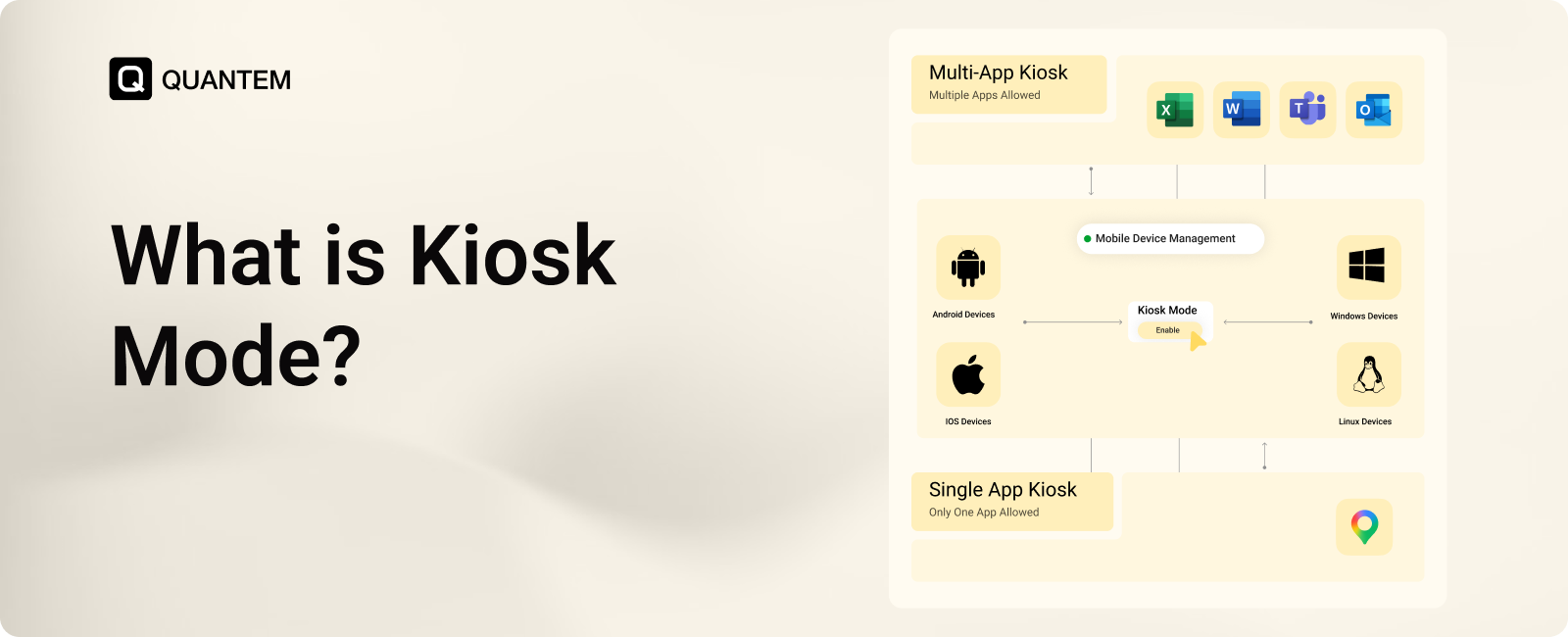
Kiosk mode works by restricting device functionality based on rules defined by an administrator. Instead of giving users unrestricted access, the device is configured to run only approved applications, websites, or workflows.
Depending on the platform and kiosk mode solution, admin can control:
- Which applications users can open
- Which websites or URLs can be accessed
- Access to device settings and system functions
- Available hardware features
- Whether applications can be installed or removed
- Which notifications are visible
For example, a warehouse tablet can be configured to run an inventory application and barcode scanner while blocking unrelated apps, settings, and websites.
For business deployments, kiosk mode software or an MDM platform can provide centralized configuration and management. IT teams can apply kiosk policies remotely, update applications, change restrictions, monitor devices, and troubleshoot issues from a central dashboard.
This makes kiosk mode practical for managing everything from individual devices to large fleets across multiple locations.
What Are the Different Types of Kiosk Mode?
Not every kiosk device needs the same level of restriction. A device used only for payments may need to run one application, while a warehouse tablet may require access to several approved apps.
The three common kiosk configurations are single app mode, multi-app mode, and browser kiosk mode.
Single-App Kiosk Mode
Single-app kiosk mode locks a device to one specific application. Users cannot switch to other applications or access unrelated device functions.
This configuration works well when a device has one clearly defined purpose, such as:
- Point-of-sale terminals
- Ticket scanning devices
- Self-check-in systems
- Examination tablets
- Payment terminals
For example, a customer-facing tablet at a restaurant can be locked to the ordering application. Customers can place their orders without accidentally opening settings or other applications.
Single app kiosk mode provides the highest level of focus because the device is dedicated to one workflow.
Multi-App Kiosk Mode
Multi app kiosk mode allows users to access a limited selection of approved applications while restricting everything else.
This is useful when employees need more than one application to complete their work. A warehouse tablet, for example, might provide access to an inventory application, barcode scanner, and internal communication tool while blocking unrelated apps and settings.
Multi app kiosk mode provides more flexibility than single-app lockdown while still maintaining control over the device.
Browser Kiosk Mode
Browser kiosk mode restricts a device to an approved web-based experience rather than a collection of native applications. Administrators can configure the device to open a specific website or allow access only to approved URLs.
Common use cases include:
- Digital signage
- Public information kiosks
- Self-service ordering
- Customer feedback stations
- Interactive displays
Organizations can combine browser kiosk mode with URL allowlisting to prevent users from navigating to unapproved websites.
What Are the Benefits of Using Kiosk Mode for Business?
Kiosk mode is more than a way to lock down a device. When implemented correctly, it can improve operational efficiency, security, user experience, and the overall cost of managing business devices.
Here are some of the key benefits.
1. Increase Operational Efficiency
Kiosk mode keeps devices focused on the tasks they were deployed to perform. Employees do not need to navigate through unnecessary applications or device settings, which can make workflows faster and more consistent. For example, a field worker using a locked delivery tablet can move directly between the required delivery and proof-of-delivery applications instead of dealing with unrelated device functions.
2. Strengthen Security
Unrestricted devices can create unnecessary security risks. Users may install unauthorized applications, change settings, access unapproved websites, or expose business information. Kiosk lockdown limits these possibilities by allowing only approved applications, websites, and functions. Organizations can also combine kiosk mode with device restrictions, application allowlisting, and other security policies to create stronger controls.
3. Improve the User Experience
A kiosk should not feel like a regular computer or smartphone with dozens of unnecessary options. It should guide users toward the action they need to complete. A focused interface can make self-service experiences easier to understand, reduce mistakes, and shorten the time needed to complete common tasks. This is particularly valuable for customer-facing devices such as ordering, check-in, and information kiosks.
4. Reduce Operational Costs
Kiosk mode can reduce costs by limiting unauthorized device use, preventing unnecessary configuration changes, and reducing the need for manual troubleshooting. Remote management also reduces the number of physical IT visits required to update applications or change device settings. Over time, these efficiencies can lower the cost of operating a large kiosk fleet.
What Are the Common Kiosk Mode Use Cases?
Kiosk mode can be used anywhere a device needs to perform a specific task without giving users unrestricted access.
Retail and Point-of-Sale
Retail businesses can use kiosk mode as part of mobile device management for retail to manage POS terminals, self-checkout systems, product catalogs, and customer self-service stations. Locking these devices to approved applications prevents unrelated usage while keeping the customer experience focused.
Transport and Logistics
Delivery and logistics teams often use rugged Android tablets and handheld devices for route management, inventory, barcode scanning, and proof of delivery. Kiosk mode can restrict these devices to the applications workers need throughout their workflows.
Education
Schools and universities can use kiosk mode to restrict tablets during examinations or assessments. Students can be limited to approved applications or websites, helping reduce distractions and unauthorized access.
Healthcare
Healthcare organizations can use kiosk devices for patient check-in, registration, information access, and other controlled workflows. Restricting device access helps reduce the risk of unauthorized use when devices handle sensitive information.
Manufacturing
Manufacturing teams can deploy kiosk devices for production dashboards, quality inspections, work instructions, and reporting. A consistent device configuration can help workers access the required tools without unnecessary applications or settings.
Hospitality
Hotels, restaurants, and other hospitality businesses can use kiosk mode for guest check-in, self-service ordering, service requests, and staff applications. Dedicated devices can provide a consistent experience while remaining locked to approved workflows.
How to Enable Kiosk Mode?
There are several ways to enable kiosk mode depending on the operating system, device type, and management requirements. The two common approaches are native kiosk methods and MDM-based kiosk mode.
Native Kiosk Methods
Many operating systems offer built-in features that can restrict a device to a specific application.
On Android, Screen Pinning locks the device to a selected app so users cannot switch to other applications without exiting the pinned session. It is useful for keeping a device focused on one application.
On Apple devices, Guided Access restricts an iPhone or iPad to a single application and can disable selected features such as touch input, hardware buttons, or screen rotation.
MDM-Based Kiosk Mode
An MDM platform allows IT administrators to configure and manage kiosk policies remotely across multiple devices. Depending on the MDM solution, administrators can:
- Configure single-app or multi-app kiosk mode
- Allow only approved applications
- Restrict device settings and system functions
- Configure browser and URL restrictions
- Deploy and update applications remotely
- Monitor device status and compliance
- Change kiosk configurations remotely
- Troubleshoot devices without physical access
These approaches allow organizations to configure kiosk restrictions based on their device platform and management requirements.
Which is the Best Way to Enable Kiosk Mode?
Native tools such as Android Screen Pinning and Apple Guided Access are useful when you need basic, temporary app restriction. They are simple to configure and do not require a full device management platform.
However, businesses managing a larger fleet usually need more than basic app pinning. They need a way to configure, monitor, update, secure, and troubleshoot kiosk devices remotely.
That's where MDM-based kiosk management has a clear advantage.
An MDM platform can apply kiosk policies across hundreds or thousands of devices from one dashboard. IT teams can control which applications are available, restrict device functions, monitor device status, push updates, and take remote actions when required.
The choice ultimately depends on the deployment. A single tablet used temporarily may only need a native lockdown feature. A fleet of customer-facing or business-critical devices requires centralized kiosk management software that can scale with the organization.
Lockdown Devices & Simplify Kiosk Management with Quantem MDM
Kiosk mode becomes significantly easier to manage when it is combined with centralized device management. Quantem MDM enables businesses to configure and manage kiosk deployments from a centralized console, giving IT teams greater control over applications, policies, updates, and device access.
With Quantem MDM, organizations can:
- Manage kiosk devices centrally: View and manage kiosk devices from one dashboard and make configuration changes remotely.
- Control device access: Restrict device settings, navigation controls, Wi-Fi configurations, and other functions to keep devices focused on their intended use.
- Manage applications: Deploy, update, and control approved applications while restricting unauthorized apps.
- Troubleshoot remotely: View device screens remotely to identify issues and reduce troubleshooting time.
- Manage patches and updates: Control operating system and application updates remotely to keep devices current.
- Prevent unauthorized resets: Use Factory Reset Protection (FRP) to help maintain device ownership and prevent unauthorized factory resets.
- Remotely wipe devices: Erase data from lost, stolen, or retired devices when necessary.
- Apply granular policies: Assign policies based on device groups, roles, departments, or other organizational requirements.
- Customize kiosk experiences: Configure kiosk layouts and device presentation while scaling deployments from a small number of devices to large fleets.
By combining kiosk lockdown with centralized MDM capabilities, businesses can keep devices focused on their intended workflows while reducing the effort required to manage them.
See how Quantem MDM can help you deploy and manage kiosk devices at scale.
Frequently Asked Questions
1. What is Android kiosk mode?
Android kiosk mode is a device lockdown feature that restricts an Android device to specific applications, websites, or functions. It prevents users from accessing unrelated apps and settings.
2. What does kiosk mode mean for a device?
Kiosk mode means a device is configured to perform a specific task instead of providing unrestricted access. Users can access only the applications, websites, and functions approved by the administrator.
3. How does kiosk mode help protect data?
Kiosk mode limits access to unauthorized applications, websites, settings, and device functions. This reduces opportunities for users to access or expose sensitive business data.
4. What do you need to configure kiosk mode?
Basic kiosk restrictions can be configured using native features such as Android Screen Pinning or Apple Guided Access. For business deployments, an MDM or kiosk management solution provides greater control and centralized management.
5. Do you need an MDM solution to enable kiosk mode?
No. Basic kiosk functionality can work without MDM. However, an MDM solution is recommended for larger deployments because it enables centralized configuration, remote management, application control, monitoring, and policy enforcement.
6. Are Kiosk Apps Better Than an MDM Solution?
Kiosk apps available on the Google Play Store or Apple App Store can provide basic device lockdown, but they typically offer more limited management capabilities than an MDM solution. An MDM platform can manage kiosk settings alongside applications, security policies, remote monitoring, and user data protection, making it better suited for managing business devices at scale.
7. What Are the Native Kiosk Lockdown Methods for Kiosk Mode on Android Tablets?
Android tablets offer Screen Pinning as a native option to lock the device to a single app. For stronger, persistent kiosk lockdown, Android Enterprise supports dedicated device mode, which allows an MDM solution to lock the tablet to a single app or a set of approved apps.
8. What is a Kiosk Browser?
A kiosk browser is a web browser that restricts a device to specific websites or web applications while blocking access to unauthorized URLs, browser settings, and other device functions. It is commonly used for web-based kiosks, digital signage, self-service portals, and other public-facing devices.



Get the latest blogs directly delivered to your mail fly arrow