Android Device Profiles: Types, Features, & How to Choose the Right One?
Android devices serve different purposes across the workplace. Employees may use personal phones to access work apps, frontline teams may rely on company-issued devices, and businesses may deploy dedicated Android devices for kiosks, point-of-sale terminals, or digital signage.
Managing these devices with the same settings and restrictions can create unnecessary limitations or leave security gaps. IT teams need a way to apply the right applications, policies, and device controls based on how each device is used.
This is where Android device profiles come in. Through an Android Enterprise-compatible mobile device management (MDM) or enterprise mobility management (EMM) platform, administrators can enroll and configure devices according to their ownership, intended use, and management requirements.
In this guide, we will explain what Android device profiles are, explore the different Android Enterprise management modes, examine their key features and benefits, and help you choose the right configuration for your organization.
What are Android Device Profiles?
Android device profiles are sets of management configurations that determine how Android devices are set up, secured, and used within an organization. Through an MDM platform, IT administrators can apply specific policies, application settings, network configurations, and device restrictions based on a device’s purpose and ownership.
For example, an employee using a personal Android phone for work needs separation between corporate and personal data. A company-issued device used exclusively for business may require stricter controls, while a tablet running a digital signage application may need access to only that application.
Android device profile management helps address these different requirements by letting administrators configure devices or groups of devices according to their intended use. Rather than configuring every device individually, IT teams can apply consistent settings across the relevant device fleet.
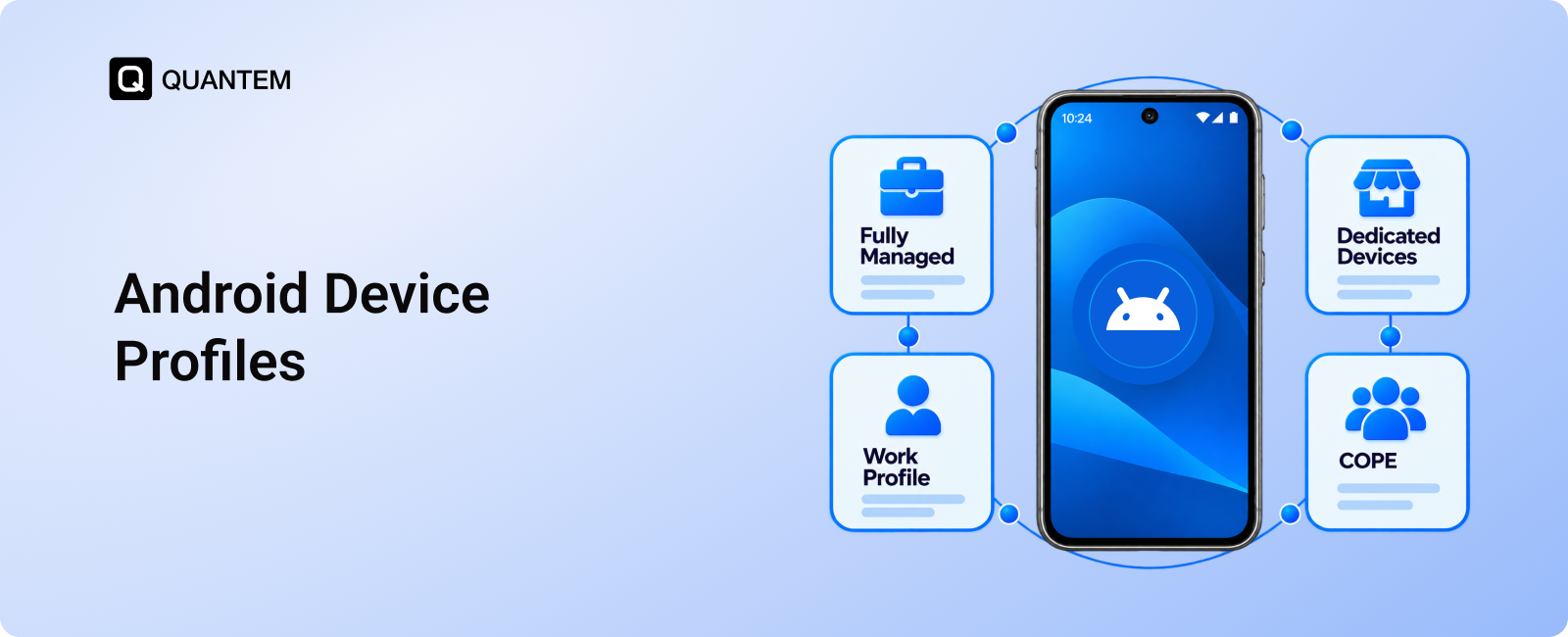
In Android Enterprise, these configurations work alongside different management modes, including Work Profile, fully managed devices, work profiles on company-owned devices, and dedicated devices. Each mode offers a different balance of organizational control, employee privacy, and device functionality.
The goal is to ensure that every Android device has the appropriate level of access and control for its role, whether it belongs to an employee, is issued by the company, or serves a specific operational purpose.
Why are Android Device Profiles Important for Businesses?
As organizations deploy Android devices across offices, retail locations, warehouses, and field operations, managing each device individually becomes difficult to maintain. Android device profiles help IT teams standardize configurations, apply appropriate restrictions, and manage devices according to their business purpose.
Here’s how they help simplify Android device management.
- Centralized Device Control: IT administrators can manage configurations and policies from a central MDM dashboard instead of setting up each device manually. This makes it easier to maintain control across a growing device fleet.
- Consistent Device Configurations: Profiles help standardize settings, applications, and restrictions across devices used for similar tasks. This reduces configuration differences and makes troubleshooting more straightforward.
- Faster Device Deployment: Preconfigured policies and application settings can be assigned during device provisioning. Employees and frontline teams can receive devices that are ready for their intended work with less manual setup.
- Scalable Device Management: As the organization adds more Android devices, existing configurations can be reused and updated across applicable devices or groups. IT teams can maintain consistent management without repeating the same configuration process for every device.
- Automated Policy Enforcement: Supported management policies can be applied centrally, reducing the need for administrators to configure settings individually. This helps maintain the intended device configuration as business requirements change.
- Controlled Application Access: Administrators can distribute required business apps and restrict applications or functions where supported. This is particularly useful for dedicated devices that should serve a specific business purpose.
- Stronger Security Controls: Device profiles can enforce supported security settings, restrictions, and access requirements. These controls help reduce unauthorized access and protect corporate data on managed Android devices.
Ultimately, Android device profiles give IT teams a structured way to manage different device requirements at scale. The right configuration helps balance security, operational control, and usability without applying the same restrictions to every Android device.
Key Features of Android Device Profiles
Android device profiles give IT administrators control over how managed devices are configured, which applications they can access, and what security policies they must follow. The available controls depend on the Android Enterprise management mode, device capabilities, and the MDM platform being used. Here are some of the key features of Android device profiles:
1. Security Settings
Security configurations help protect business data and prevent unauthorized access to managed Android devices.
- Screen Lock Policies: Enforce supported PIN, password, or screen-lock requirements to reduce the risk of unauthorized device access.
- Data Encryption: Apply or verify supported encryption requirements to help protect information stored on devices.
- Authentication Controls: Configure supported authentication requirements based on organizational security policies and the device's management mode.
2. Network Configurations
Network settings help devices connect to approved business networks and access corporate resources securely.
- Wi-Fi Configuration: Distribute Wi-Fi settings, including network identifiers and supported authentication details, so devices can connect to designated networks with less manual setup.
- VPN Configuration: Deploy supported VPN settings to help route device or work-related traffic through approved connections when accessing corporate resources remotely.
3. Application Management
Application controls help ensure that devices have the software needed for their intended tasks while limiting access to unwanted applications.
- App Deployment and Updates: Distribute approved applications through the management platform and manage their availability and updates where supported.
- App Restrictions: Control application installation, access, or usage according to the device's management mode and available policy options.
- App Configuration: Apply supported settings to managed applications, reducing manual configuration and helping standardize the user experience.
4. Device Restrictions
Device restrictions let administrators control selected hardware features and system functions according to business requirements.
- Camera Controls: Restrict camera usage on supported devices when workplace policies or operational requirements call for tighter control.
- USB and Data Transfer Restrictions: Apply supported USB or data-transfer restrictions to reduce the risk of unauthorized data movement. Available controls vary by device and Android management mode.
- System Feature Restrictions: Limit access to selected device settings, system functions, or user actions where supported by the management platform.
5. Compliance Policies
Policy enforcement helps organizations maintain their required device configurations and identify devices that need attention.
- Policy Enforcement: Apply supported security, application, and configuration requirements across managed devices.
- Compliance Monitoring: Review device status against configured requirements and identify devices that do not meet the expected standards.
- Remediation Actions: Depending on the MDM platform and integrations, flag non-compliant devices, notify administrators, or restrict access to corporate resources until the issue is addressed.
Together, these features help organizations configure Android devices according to their intended use while maintaining consistent security and management practices. The exact controls available depend on the enrollment mode, Android version, device manufacturer, and MDM solution.
Advantages of Using Android Device Profiles
Android device profiles help organizations manage devices more consistently while adapting configurations to different business needs. By assigning the right policies and restrictions to each management mode, IT teams can simplify administration without applying unnecessary controls across the entire device fleet.
- Stronger Data Protection: Security policies, access restrictions, and work-profile separation help protect corporate information against unauthorized access and reduce the risk of data exposure.
- Consistent Policy Enforcement: Standardized configurations help ensure that devices used for similar purposes follow the same organizational rules, reducing configuration gaps and inconsistencies.
- Simplified Device Management: Centralized profile management allows IT administrators to configure settings, distribute applications, and update policies across applicable devices without handling every device individually.
- Faster Device Deployment: Preconfigured policies and applications reduce repetitive setup tasks, helping employees and frontline teams get devices ready for work more quickly.
- Better User Experience: Configurations can be tailored to how devices are used. Employees can retain personal use where permitted, while dedicated devices can provide a focused experience for specific business tasks.
- Easier Fleet Expansion: Reusable configurations help IT teams manage additional devices as the organization grows, without having to recreate policies for every new deployment.
These advantages make Android device profiles useful for organizations managing everything from employee smartphones to dedicated operational devices. The key is to match each management mode and its available controls to the device's purpose, ownership, and security requirements.
What are the Different Types of Android Device Profiles?
Android Enterprise supports different management modes to accommodate how organizations deploy and use their devices. Each mode offers a different level of IT control and separation between business and personal use, making it important to choose the right option for each business scenario.
The four main Android Enterprise management modes are:
1. Work Profile
An Android Work Profile is designed primarily for employee-owned devices used for work, commonly known as Bring Your Own Device (BYOD). It creates a separate work environment on the device, keeping corporate apps and data apart from personal apps and information.
IT administrators can manage work applications, apply security policies to the work environment, and remove corporate data when access is no longer required. Personal apps, files, and usage remain separate from the organization's management of the work profile.
2. Fully Managed Devices
Fully managed mode is intended for company-owned Android devices used exclusively for work. It gives IT administrators broader control over device settings, applications, security policies, and supported system functions.
Administrators can configure the device for business use, restrict unauthorized applications or features, and enforce organizational policies across the device. Because the device is dedicated to work, this mode is suitable when the organization requires comprehensive control rather than a separate work area.
3. Work Profile on a Company-Owned Device
This management mode is designed for company-owned Android devices that support both work and personal use. It combines organizational ownership and device-level management with a separate work profile for corporate apps and data.
IT administrators can apply broader controls to the company-owned device while managing work applications and data within the work profile. The precise controls available depend on the device configuration and management policies, helping organizations balance business requirements with employee privacy.
4. Dedicated Devices
Dedicated devices are company-owned Android devices configured for a specific business task rather than general-purpose use. They are commonly used for kiosks, point-of-sale (POS) terminals, warehouse scanners, check-in stations, and digital signage.
IT administrators can restrict access to approved applications and supported device functions so users can perform the intended task without navigating unrelated apps or settings. Depending on the deployment, a dedicated device may run a single application or a limited set of applications.
Android Enterprise Management Modes Compared
Each Android Enterprise management mode offers a different balance of device control, employee privacy, and business functionality. The following table compares the four modes to help clarify their capabilities and intended uses.
The main distinction is the combination of device ownership, intended use, and management scope. Work Profile is designed to separate work from personal use on employee-owned devices, while fully managed mode provides broader control over company-owned work devices. Work profiles on company-owned devices support mixed use, and dedicated mode is designed for devices assigned to specific business tasks.
Which Android Device Profile Should You Choose?
Different Android devices require different levels of management depending on their purpose and ownership. Use the following table to identify the most suitable Android device profile for common business needs.
The comparison highlights how each Android device profile serves a different business need. Work Profile suits employee-owned phones, while Fully Managed is appropriate for company-issued devices used exclusively for work. For company-owned phones that allow personal use, Work Profile on Company-Owned Device balances device management with work-data separation. Dedicated Device is ideal for task-specific deployments, including kiosks, POS terminals, warehouse scanners, and digital signage.
Before selecting a profile, consider device ownership, personal-use requirements, and the level of control needed to support each workflow.
Simplify Android Device Management with Quantem
Managing Android devices across different teams and business functions requires configurations that match each device's intended use. Quantem simplifies Android device management by allowing IT administrators to configure device profiles, apply policies, manage applications, and control device settings from a centralized dashboard.
Through the Quantem dashboard, administrators can navigate to Device Profiles & Policies to create and customize profiles based on organizational requirements. These profiles can include supported security settings, application configurations, network settings, and device restrictions.
Once configured, profiles can be assigned to individual devices or relevant device groups, helping IT teams maintain consistent configurations across their Android device fleet. Administrators can also update policies as business requirements change, reducing the need for repetitive manual configuration.
Take Control of Android Fleet with Device Profiles Customized for Business Needs
1. What Does an Android Device Profile Do?
An Android device profile is a set of configurations and policies used to control device settings, application access, security requirements, and restrictions through an MDM platform. It helps IT administrators configure Android devices according to their intended use and organizational requirements.
2. How Does Managed Google Play Work with Android Device Profiles?
Managed Google Play works with Android device profiles by enabling IT administrators to distribute, configure, update, and restrict business applications through an MDM platform. Administrators can assign approved apps and supported configurations to managed devices, ensuring users have access to the applications required for their work while following organizational policies.
3. How Does Work Profile on Android Differ from Fully Managed Mode?
Work Profile separates corporate apps and data from personal information, making it suitable for BYOD environments. A fully managed Android device is company-owned and intended exclusively for work, giving IT administrators broader control over the device and its settings.
4. Which Android Enterprise Profile is Suitable for BYOD?
Work Profile is generally the best fit for BYOD because it separates corporate apps and data from an employee's personal environment. This allows IT administrators to manage work-related resources without applying the same level of control to the employee's personal device usage.
5. What is the Current Android Enterprise Alternative to COPE?
COPE, or Corporate-Owned, Personally Enabled, is an older term for company-owned devices that support both work and personal use. Android Enterprise now describes this deployment as Work Profile on a company-owned device, which separates corporate apps and data while allowing supported device-level controls.
6. How are Dedicated Android Devices Used in Businesses?
A dedicated Android device is a company-owned device configured for a specific business purpose rather than general-purpose use. Common examples include endpoints such as kiosks, POS terminals, warehouse scanners, and digital signage systems that run approved applications for designated tasks.
7. Does Android Work Profile Allow Employers to Access Personal Information?
On an employee-owned Android device, Work Profile separates personal apps and data from the managed work environment. Organizations can manage work-related apps and data on devices with work profiles, but personal information such as personal files and app usage remains separate from the work profile's management.
9. Is it Possible to Install Applications Remotely on Managed Android Devices?
Yes. IT administrators can distribute approved applications through an MDM platform integrated with Managed Google Play. Depending on the device's management configuration and platform capabilities, apps can be installed, updated, configured, or removed remotely.
9. How does Android Device Policy support MDM solutions?
Android Device Policy is Google's device policy controller for compatible Android Enterprise management solutions. It applies supported policies configured through the management platform, helping enforce device settings, security requirements, and other controls based on the enrollment configuration.



Get the latest blogs directly delivered to your mail fly arrow