Android Single App Kiosk Mode: How to Lock Devices to One App?
An Android device can be used for much more than personal browsing. In a business setting, the same tablet might serve as a POS terminal, a self-service kiosk, a delivery device, or a tool for collecting customer information. In each case, users may only need access to one specific application.
Giving users access to the rest of the device can create unnecessary problems. They could switch to unrelated apps, change device settings, access sensitive information, or interfere with the application they are supposed to use.
This is where single app kiosk mode becomes useful. It turns an Android device into a purpose-built device by keeping users inside a designated application and restricting access to other parts of the device.
In this guide, we will explain Android single app mode, how it works, its key benefits and use cases, and the different ways to enable it. We'll also show you how to lock an Android device to one app using Quantem MDM for centralized management.
What is Android Single App Kiosk Mode?
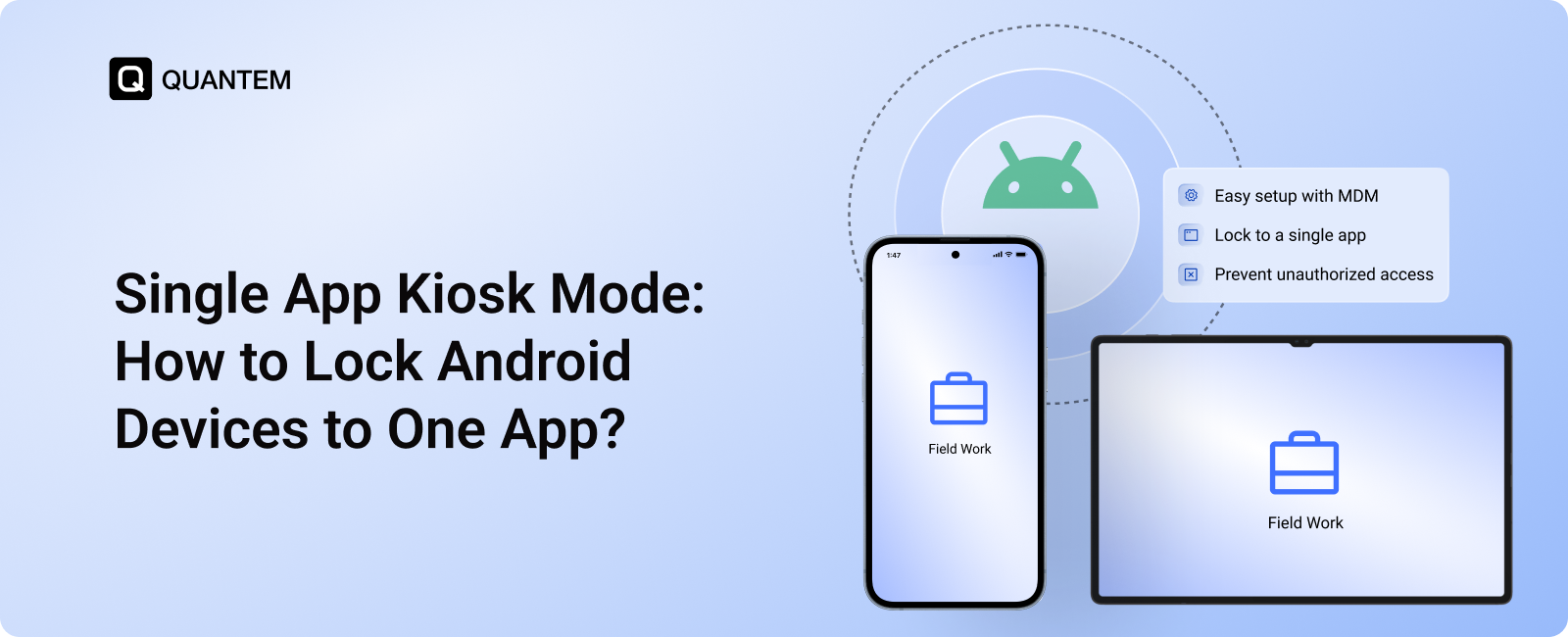
Android Single App Kiosk Mode is a device configuration that restricts an Android device to one designated application. Instead of giving users access to the full Android interface, the device is set up to perform a specific task through a single app.
For example, a tablet at a restaurant might run only a self-ordering application, while a retail device may stay inside a POS app. Users cannot freely switch to other applications or navigate through the device's regular interface.
How Does Android Single App Kiosk Mode Work?
When Single App Kiosk Mode is configured, the selected application becomes the primary interface on the device. The Android system restricts common actions that could take users away from the app, such as opening other applications or accessing system settings.
Depending on the device and management configuration, administrators can also restrict features such as:
- App switching: Prevent users from opening or switching to other applications.
- System settings: Restrict access to settings that could change the device configuration.
- Notification access: Hide or restrict the notification panel to keep users within the designated workflow.
- Hardware controls: Disable supported buttons or device functions that could interfere with kiosk operation.
- Connectivity controls: Restrict access to Wi-Fi, Bluetooth, USB, or other device settings where supported.
- System interface: Limit access to navigation controls and other Android UI elements.
The device can also be configured to launch the designated application automatically. This helps maintain the kiosk setup even after a restart and keeps the device focused on its intended purpose.
Why Lock an Android Device to One App? Key Benefits of Single App Mode
A device used for a specific task does not always need to expose the full Android experience. Restricting it to one application can simplify how the device is used and reduce the number of things users can change or access.
Here are some of the key benefits of Android single app mode:
- Create a Focused Device Experience: Keep users inside the application they need for a specific task, whether it is processing a transaction, completing a form, or accessing learning content.
- Reduce Unwanted App Access: Prevent users from switching to unrelated or unauthorized applications while using a dedicated Android device.
- Limit Unnecessary Device Changes: Restrict access to settings and system functions that could interfere with the device's intended configuration.
- Simplify IT Support: A device running a single application has fewer user-controlled variables, which can make troubleshooting and day-to-day support easier.
- Protect Business Data: Restricting access to other applications and device functions can help reduce opportunities for unauthorized access to business information.
- Support Consistent Operations: Organizations can deploy devices with the same app-focused configuration, making it easier to maintain a consistent user experience across multiple locations.
- Improve Device Resource Usage: Running a dedicated application instead of allowing unrestricted app usage can help keep the device focused on its primary workload.
Industry Use Cases for Android Single App Mode
Android single app mode is useful whenever an Android device has one primary job. Instead of allowing users to move freely between applications, organizations can configure the device around the workflow it needs to support.
Retail and Point-of-Sale
Retail businesses can lock Android tablets or phones to POS, payment, inventory, or ordering applications. This keeps employees focused on the required workflow and reduces access to unrelated apps or device settings.
Education and Online Learning
Schools can use single app kiosk Android setups for digital classrooms, assessments, or dedicated learning applications. Students can remain within the required application without switching to games, social media, or other unrelated apps.
Healthcare and Clinics
Healthcare organizations can dedicate Android devices to patient check-in, medical workflows, surveys, or other healthcare applications. Restricting the device to the required app can help limit unauthorized access and keep the device focused on its intended task.
Logistics and Field Services
Delivery teams and field workers often rely on Android devices for navigation, delivery confirmation, work orders, or reporting. Locking the device to the required application can help prevent unnecessary app switching while employees complete their assigned tasks.
Hospitality, Tourism, and Events
Hotels, museums, conference venues, and similar businesses can use Android tablets for check-in, visitor information, feedback forms, or digital brochures. Android single app kiosk mode keeps the interface focused on the service being provided.
Corporate Training and Onboarding
Organizations can configure dedicated Android tablets to run training, onboarding, or assessment applications. Employees can complete the required workflow without access to unrelated applications on the device.
What Are the Ways to Enable Single App Kiosk Mode on Android?
There isn't one universal way to put an Android device into single app kiosk mode. The right approach depends on whether you need a temporary restriction, deeper device-level control, or centralized management across a fleet.
Method 1: Use App or Screen Pinning
Android's built-in Screen Pinning feature lets you keep a selected application on the screen and prevent normal app switching. It can be useful when you need to hand someone a device for a specific task without giving them immediate access to other applications.
However, Screen Pinning is mainly suited to temporary or basic use cases. It does not provide the broader management capabilities typically required for dedicated business devices.
Method 2: Use a Custom ROM
A custom ROM can modify the Android environment to create a highly restricted device configuration. This approach may provide deeper control over system behavior and can be considered for specialized deployments where organizations control the device software stack.
The trade-off is complexity. Deploying and maintaining a custom ROM requires technical expertise and can introduce additional work when managing different device models, Android versions, updates, and hardware configurations.
Method 3: Use Android MDM Solution
An Android MDM solution provides a centralized way to configure and manage Single App Kiosk Mode across managed devices. IT administrators can select the application, apply kiosk restrictions, and deploy the configuration without manually setting up every device.
This approach is particularly useful for businesses managing multiple Android tablets, phones, or dedicated devices. Administrators can also manage kiosk policies remotely and maintain consistent configurations across the device fleet.
Which is the Best Way to Enable Single App Kiosk Mode on Android?
For organizations managing multiple Android devices, an Android MDM solution provides the most practical way to deploy and manage Single App Kiosk Mode. Unlike Screen Pinning, which is designed for simpler device-level use, or custom ROMs, which require more technical maintenance, MDM centralizes kiosk configuration and management.
For businesses deploying dedicated Android devices, MDM also makes it easier to apply the same kiosk configuration across multiple devices. IT teams can manage the selected application and related device restrictions from a central console instead of configuring each device manually.
How to Lock Android Device to One App Using Quantem MDM?
Quantem MDM lets IT administrators create a dedicated kiosk configuration and assign it to managed Android devices. This allows organizations to keep devices focused on a specific application without configuring each device individually.
Step 1: Log in to the Quantem Dashboard
Log in to the Quantem Console using your administrator credentials. From the left-hand navigation menu, click Kiosk.
.png)
Step 2: Navigate to Kiosk
The Kiosk page displays existing kiosk profiles along with details such as the configured launcher, kiosk mode, device type, app count, creation date, and creator.
Step 3: Create a New Kiosk
Click + Create Kiosk at the top of the Kiosk page to create a new kiosk profile.
If you want to modify an existing profile, use the three-dot menu (⋮) for the relevant kiosk profile and select the available edit option.
.png)
Step 4: Enter Kiosk Details
Enter the required information for the kiosk profile:
Step 5: Select Single-App Kiosk Mode
Under Kiosk mode, select Single app. This configures the profile to run one application on the managed device.
Step 6: Add the Kiosk Application
Under Add app in Kiosk details:
- Click the Select app field.
- Choose the application you want to use in kiosk mode.
- Click Add.
- Confirm that the application appears under Selected apps.
The Selected apps section provides details about the application, including its name, service name, version, source, installation type, auto-update mode, app permissions, and current state.
Step 7: Configure the Kiosk System Launcher
In the Kiosk system launcher field, select the application that should serve as the device launcher. For a single-app deployment, make sure the launcher configuration matches the application you want the device to open.
Step 8: Continue to Settings
Click Next in the top-right corner to move to the Settings stage and complete the remaining kiosk configuration.
Step 9: Review and Submit
Review the kiosk profile and verify that the selected application and launcher are configured correctly. Submit the profile to save the configuration.
Step 10: Assign the Kiosk Profile
Once the kiosk profile has been saved, assign it to the required device or device group from the appropriate management area in the Quantem Console.
Secure & Simplify Android Single App Kiosk Management with Quantem
Managing dedicated Android devices becomes easier when every device can be configured around the task it is meant to perform. Single App Kiosk Mode helps organizations lock an Android device to one app, limit unnecessary access, and maintain a consistent device experience.
Whether you are deploying Android POS terminals, learning devices, healthcare tablets, or field-service devices, a centralized kiosk configuration reduces the need for manual setup and makes it easier to maintain devices across different locations.
With Quantem, IT teams can create and deploy Single App Kiosk profiles from a centralized console. They can configure the kiosk application, manage device settings, and assign profiles to individual devices or groups. This provides a practical way to manage dedicated Android devices at scale while keeping them focused on their intended applications.
Keep Every Android Device Focused on Its Intended Task
FAQ
1. Which Android devices support Single App Mode?
Most Android smartphones and tablets can support some form of single-app restriction, but the available controls depend on the Android version, device manufacturer, and management method. For business deployments, an MDM solution can provide more consistent control over supported managed devices.
2. Is Single App Mode secure?
Single App Mode can reduce unauthorized access by limiting users to a designated application and restricting access to other device functions. However, the level of security depends on factors such as the device configuration, Android version, enrollment method, application permissions, and the policies applied by the administrator.
3. How do I set up Kiosk Mode on Samsung Tabs?
Samsung tablets can be configured for kiosk use through supported Android management capabilities. The exact setup depends on the Samsung device model, Android version, and the kiosk management solution being used. For centralized deployments, an MDM platform can be used to configure and manage the kiosk profile remotely.
4. How to Exit Single-App Kiosk Mode?
To exit Single App Kiosk Mode, the required steps depend on how the device was configured. With basic app pinning, users can use the device's designated unpin action to return to the home screen. On an MDM-managed device, exiting kiosk mode may require an administrator to disable the kiosk policy or send a remote command from the management console.
5. What Are the Different Types of Kiosk Modes Supported by Mobile Device Management Software?
Mobile device management software can support several kiosk configurations depending on the device's intended use. Common types include Single-App Kiosk Mode, which restricts the device to one application; Multi-App Kiosk Mode, which allows access to a defined set of approved apps; Browser Kiosk Mode, which limits access to a browser or selected websites; and Digital Signage Mode, which displays approved content or media on the device.
6. How much does an Android Kiosk Mode solution cost?
The cost of Android kiosk mode software varies based on the provider, features, deployment size, and subscription model. The source outline estimates that an Android kiosk solution may cost around $1–$4 per device per month when billed annually, although actual pricing depends on the solution and plan selected.



Get the latest blogs directly delivered to your mail fly arrow

.png)