Android Screen Pinning: How to Set Up & Best Alternative for Business
Imagine handing your phone to someone to show them a picture, only to watch them start browsing through your other apps. It’s a small situation, but it highlights a common problem: sometimes, you want someone to use one app without giving them access to everything else on your device.
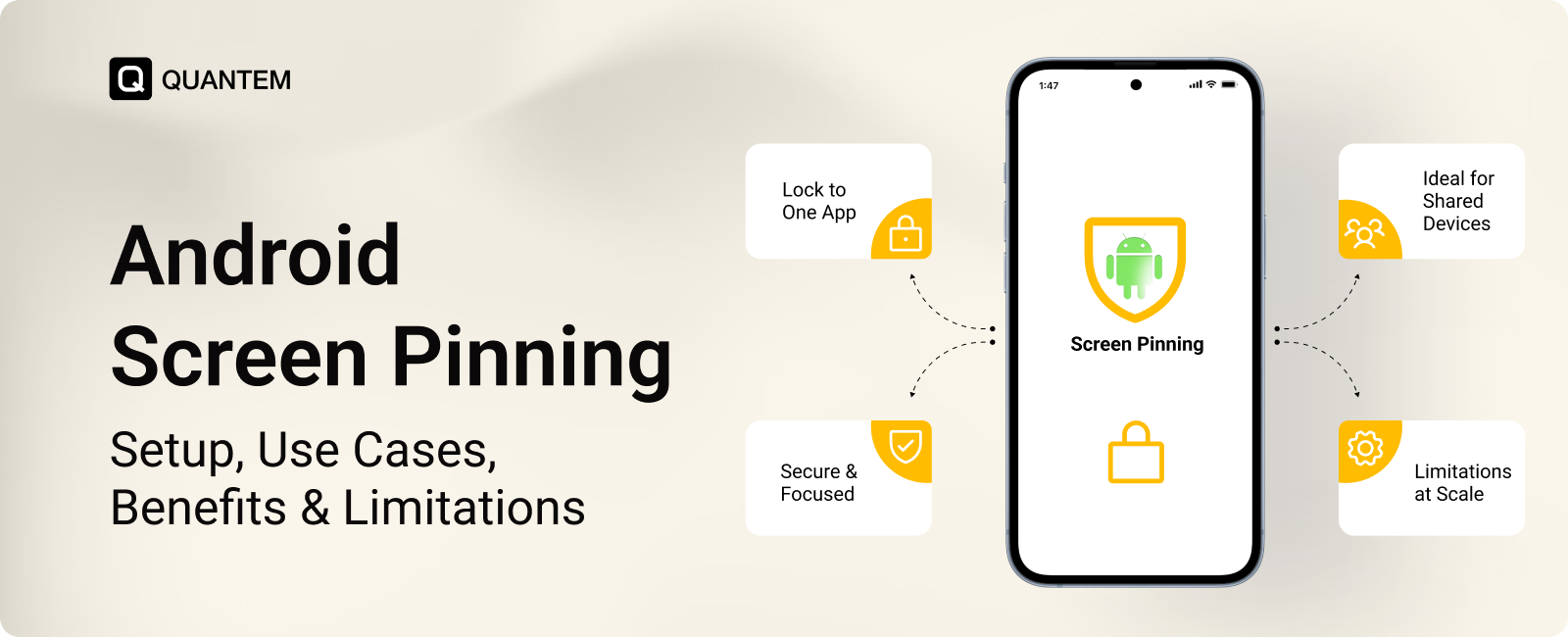
That’s where Android Screen Pinning comes in. It lets you keep a specific app on the screen and restrict access to other parts of the device until the app is unpinned.
Screen Pinning can be useful for personal situations, temporary device sharing(often compared to Guided Access for Android), demonstrations, and other simple use cases. In this guide, we’ll explain what Android Screen Pinning is, how it works, how to pin and unpin apps, and what you should know before using it.
What is Screen Pinning on Android?
Android Screen Pinning is a built-in feature that locks the device to a single app, preventing users from freely switching to other apps or accessing other parts of the device.
Once an app is pinned, it stays on the screen until the user follows the required unpinning steps. If PIN, password, or pattern protection is enabled, authentication is also required before leaving the pinned app.
Screen Pinning is available on Android 5.0 (Lollipop) and later, although the exact settings and steps can vary depending on the Android version and device manufacturer.
Some of its key capabilities include:
- Single-app lockdown: Keeps the selected app active while restricting access to other apps.
- Exit protection: Can require a PIN, password, or pattern before the device can be unpinned.
- Built-in functionality: Doesn't require a separate app and is available as part of Android on supported devices.
- Device flexibility: Works across supported Android phones and tablets, although the interface and settings may differ by manufacturer.
How Does Android Screen Pinning Work on Your Device?
When Screen Pinning is active, Android keeps the selected app open and limits access to other parts of the device. The user can't freely switch to another app, return to the home screen, or open device settings while the app is pinned.
Android applies these restrictions through the device itself, so the pinned app doesn't need any special setup for Screen Pinning to work.
For example, a user can't leave the pinned app to open another application or access device settings. The device stays focused on the selected app until the pinned session is ended.
A PIN, pattern, or password can be required before the app can be unpinned. Without this protection, anyone who knows the device's unpinning method may be able to exit the pinned session.
Once enabled, Screen Pinning remains active until the user deliberately unpins the app or the device is restarted.
What Are the Uses of Android Screen Pinning?
Android Screen Pinning can be useful whenever you want to keep a device focused on one application and prevent users from accidentally accessing other apps or device functions.
Common use cases include:
- Shared devices: Let someone use a specific app without giving them access to other apps, settings, or personal information.
- Customer-facing tablets: Keep tablets limited to menus, forms, ordering apps, or other customer-facing applications, making the experience simple and focused.
- Classroom devices: Keep students focused on a learning or assessment app during a specific activity without distractions from other applications.
- Product demonstrations: Restrict a device to the application being demonstrated at an event, store, or trade show.
- Field service: Let customers or workers access a specific app, such as a form or work-order application, without exposing other apps or device functions.
For these simple and temporary scenarios, Screen Pinning provides an easy way to control what users can access without installing additional software.
How to Enable and Use Screen Pinning on Android Devices?
The exact location of Screen Pinning can vary depending on your Android version and device manufacturer. However, you can usually enable it through your device's security settings.
- Open Settings on your Android device.
- Go to Security or Security & privacy.
- Look for Screen Pinning or App Pinning.
- Turn on the Screen Pinning toggle.
- If available, enable Ask for PIN before unpinning to require your device PIN, pattern, or password when leaving a pinned app.
If you can't find the option, use the search bar in Settings and search for "Screen Pinning" or "App Pinning." The name and location may differ across Android devices.
How to Pin an App With Android Screen Pinning?
Once Screen Pinning is enabled, you can pin an app directly from the recent apps screen. The steps may vary slightly depending on your Android version and navigation settings.
Android Version 9 and Later
- Open the app you want to pin.
- Swipe up from the bottom of the screen and hold to open Recent Apps.
- Tap the app icon at the top of the app preview.
- Select Pin.
The selected app will now remain on the screen until you unpin it.
Android version 8.1 and Earlier
- Open the app you want to pin.
- Tap the Overview button to open recent apps.
- Find the app you want to pin and swipe up on its preview.
- Tap the Pin icon.
The device will now be restricted to the selected app.
How to Unpin an App on Android?
The steps to unpin an app depend on your device's navigation method. Once the app is unpinned, you can return to the home screen and access other apps normally.
- Gesture navigation: Swipe up from the bottom of the screen and hold.
- 2-button navigation: Touch and hold the Back and Home buttons at the same time.
- 3-button navigation: Touch and hold the Back and Overview buttons together.
If you have enabled Ask for PIN before unpinning, Android will ask for your PIN, pattern, or password before restoring full device access.
Is Android Screen Pinning Suitable for Business Operations?
No, Android Screen Pinning is not suitable as a complete solution for business device management. It works well for simple, temporary use cases, but businesses managing multiple devices need more control than Screen Pinning provides.
Screen Pinning requires devices to be configured individually, with no central dashboard for IT teams to manage settings or policies. It also provides limited visibility into device status and does not offer remote actions when a device is lost, damaged, or needs to be reconfigured.
There are also security limitations. Screen Pinning mainly controls which app users can access, but it does not provide broader controls for managing data transfers, device settings, applications, or other device functions.
For a small number of devices used for simple tasks, Screen Pinning may be sufficient. However, businesses managing larger Android fleets typically need a more comprehensive approach to device management and security.
Android Screen Pinning vs. Android Kiosk Mode: What’s the Difference?
Android Screen Pinning and Android Kiosk Mode both restrict device access, but they serve different purposes. Screen Pinning keeps a device limited to one app for simple, temporary use, while Kiosk Mode provides broader control for dedicated business devices.
Why is Android Kiosk Mode Better Than App Pinning for Business?
For personal use, Screen Pinning can be enough to keep someone inside a single app. Business devices often need more control, especially when they are shared, customer-facing, or deployed across multiple locations.
Here are some key reasons businesses choose Android Kiosk Mode over Screen Pinning:
1. Support Single-App and Multi-App Devices
Kiosk Mode can lock a device to one approved application or allow users to access a defined set of business apps. This gives businesses more flexibility to support different workflows, from dedicated kiosks to shared tablets.
2. Apply Stronger Device Restrictions
Businesses can restrict access to device settings, navigation controls, notifications, and supported hardware functions. This helps prevent users from changing configurations or accessing features that aren't required for their work.
3. Reduce Unauthorized Device Use
By limiting the apps and functions users can access, Kiosk Mode helps prevent unnecessary changes, distractions, and misuse. Users can focus on the applications and tasks the device was intended for.
4. Support Dedicated Business Devices
Kiosk Mode works well for POS systems, self-service kiosks, digital signage, shared tablets, and other devices designed for specific business tasks. The device can be configured around its intended purpose instead of functioning like a general-purpose Android device.
5. Maintain a Consistent Device Experience
Organizations can apply the same kiosk configuration across multiple devices, helping ensure users get a consistent experience regardless of where the devices are deployed. This also makes it easier to maintain standard device configurations across different locations.
Go Beyond Android Screen Pinning with Quantem MDM Kiosk Mode
Android Screen Pinning works well for basic app restriction, but businesses managing multiple devices need broader control. Quantem MDM takes Android device management further with Kiosk Mode, centralized policies, remote management, and security controls.
With Quantem, IT teams can manage Android devices from a single dashboard while keeping them restricted to their intended applications and workflows.
Here's how Quantem MDM goes beyond Screen Pinning:
- Kiosk Lockdown: Lock devices into single-app or multi-app Kiosk Mode and control access to navigation buttons, the notification bar, hardware buttons, and system settings. These restrictions can remain in place even after a device restarts.
- Zero-Touch Enrollment: Deploy Android devices at scale with Zero-Touch Enrollment and centralized policy management. Devices can receive their required configurations without IT teams having to manually set up every device.
- App Management: Install or remove applications remotely across managed devices. IT teams can also manage and apply application level policies to manage and restrict application usage.
- Support for BYOD: Quantem supports company-owned and employee-owned Android devices, helping organizations manage business use while keeping personal and work data separate.
- Policy Management at Scale: Create and apply policies across multiple devices from one console. This makes it easier to maintain consistent configurations across large device fleets and different locations.
- Remote Cast and Control: View device screens and remotely assist users when issues occur. IT teams can troubleshoot devices without needing physical access, helping reduce downtime.
- Content Management: Control access to websites and URLs to prevent users from leaving the approved workflow through browser links or other web content.
- Patch and OS Management: Manage Android OS updates from a centralized dashboard, schedule updates, monitor available releases, and help keep devices secure and compliant.
- Custom Branding: Customize the device experience with your organization's branding, including a custom home screen background, so managed devices maintain a consistent business appearance.
- Security Controls: Protect devices and business data with controls such as USB and Bluetooth restrictions, Factory Reset Protection (FRP), and remote wipe. These controls can help prevent unauthorized data transfers and protect devices that are lost, stolen, or decommissioned.
With these capabilities, Quantem MDM turns Android device lockdown into a broader device management strategy, giving IT teams greater visibility, control, and flexibility than Screen Pinning alone.
References:
If you are ready to move beyond basic app restriction, see how Quantem MDM can help you manage and secure your Android device fleet.
FAQs
1. Is Android Screen Pinning secure for business use?
Android Screen Pinning provides basic protection by keeping users inside a selected app, but it does not offer the broader security and management controls businesses may need. For larger deployments, an MDM-based Kiosk Mode can provide stronger device restrictions, monitoring, and remote management.
2. What are the benefits of Screen Pinning on mobile devices?
Screen Pinning helps keep a mobile device focused on a single app, preventing users from easily switching to other apps or accessing unrelated device functions. It can improve privacy, reduce distractions, and make temporary device sharing safer. For businesses, it can also help keep shared or customer-facing devices focused on their intended tasks.
3. How do you enable Screen Pinning and pin a screen?
Go to Settings > Security > Screen Pinning and turn on the Screen Pinning toggle. Then open the app you want to pin, open Recent Apps, tap the app icon, and select Pin. The device will remain restricted to that app until you unpin it.
3. How do I turn off Screen Pinning on Android?
To turn off Screen Pinning, use your device's unpinning method, such as swiping up and holding with gesture navigation or pressing the required navigation buttons. If PIN protection is enabled, you'll also need to enter your PIN, pattern, or password.
4. How do you unpin the screen and pinned app?
To unpin a screen, use your device's navigation method. With gesture navigation, swipe up from the bottom and hold. With 2-button navigation, press and hold Back + Home, or with 3-button navigation, press and hold Back + Overview. If PIN protection is enabled, enter your PIN, pattern, or password to exit the pinned app.
5. Can I pin and unpin multiple apps with Android Screen Pinning?
No. Android Screen Pinning is designed to keep the device restricted to one app at a time. If you need users to access several approved applications, Android Kiosk Mode with multi-app support is a better option.
6. How is Android MDM better than Screen Pinning?
Screen Pinning restricts one app on an individual device, while an Android MDM solution can manage an entire device fleet from a central console. MDM can also provide application management, policy enforcement, remote troubleshooting, monitoring, and other device controls.



Get the latest blogs directly delivered to your mail fly arrow