Device Lockdown vs. Browser Lockdown: Key Differences Explained
A company-owned device can be restricted in more than one way.
You can control the entire device and limit what users can access. Or, you can leave the device mostly unrestricted while controlling what users can do through the browser.
This is where device lockdown and browser lockdown come in. Both approaches help organizations reduce unauthorized access, improve security, and keep devices focused on their intended purpose. However, they work at very different levels.
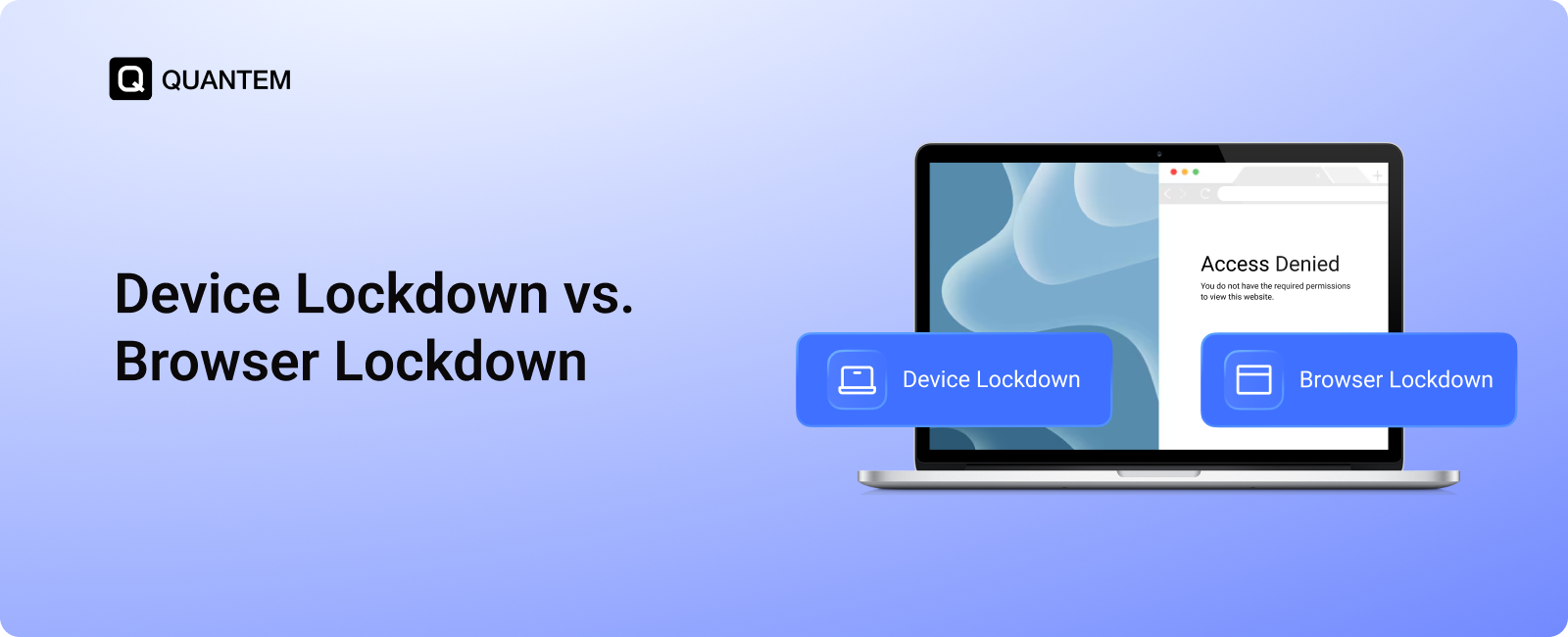
Device lockdown controls the broader device environment, including applications, settings, and device functions. Browser lockdown, on the other hand, focuses specifically on restricting browser access, websites, and web-based activities.
Choosing between the two depends on how the device is used, what users need access to, and how much control your organization requires.
In this blog, we will explain device lockdown vs browser lockdown, their key features, benefits, use cases, and how to choose the right approach for your business.
What is Device Lockdown?
Device lockdown is the process of restricting an entire device to approved applications, settings, functions, and activities.
Instead of giving users unrestricted access to the device, IT teams can control what they can open, change, install, or access. This helps organizations turn general-purpose devices into dedicated devices designed for specific business tasks.
For example, a business can use device lockdown to:
- Restrict access to unauthorized applications.
- Prevent users from changing important device settings.
- Limit network connections.
- Control hardware functions.
- Restrict devices to one or more approved apps.
- Prevent unauthorized downloads or installations.
A device lockdown solution is commonly used on company-owned and purpose-built devices where unrestricted access is unnecessary or creates additional security risks.
For instance, a retail kiosk may only need access to a product catalog, a warehouse device may only need approved work applications, and a student device may need to remain limited to learning tools.
By controlling the broader device environment, organizations can improve device access control, reduce misuse, and maintain consistent configurations across their device fleet.
Key Features of Device Lockdown
Device lockdown goes beyond simply blocking a few apps. It gives organizations greater control over how a device can be used and helps ensure it remains dedicated to its intended purpose.
Here are some of the key capabilities of a device lockdown solution:
- App Restrictions: IT teams can control which applications are available on a device. Unauthorized apps can be blocked, removed, or prevented from being installed, helping maintain a consistent and secure app environment.
- Settings Restrictions: Important device settings can be restricted to prevent users from making accidental or unauthorized changes. This helps maintain the required device configuration throughout its lifecycle.
- Single-App and Multi-App Kiosk Mode: Organizations can lock a device to a single approved application or provide access to a selected group of apps. This is useful for dedicated devices such as kiosks, POS systems, field devices, and task-specific workstations.
- Network and Connectivity Controls: Device lockdown can restrict network settings and connections to help prevent access to unapproved or potentially unsafe networks. IT teams can control connectivity based on organizational requirements.
- Hardware and Peripheral Controls: Certain device functions and hardware features can be restricted when they are not required for work. This can include controls for features such as cameras, Bluetooth, USB access, and other peripherals.
- Reboot Protection: A lockdown configuration should remain active even after a device restarts. Reboot protection helps ensure that users cannot bypass restrictions simply by restarting the device.
- Remote Provisioning and Management: IT teams can configure and manage devices remotely instead of setting up each one individually. This makes it easier to lock down devices at scale and maintain consistent policies across the fleet.
Together, these capabilities provide broader device access control and help organizations create secure, dedicated devices for specific business requirements.
What Are the Benefits of Device Lockdown?
Device lockdown gives organizations more than just tighter restrictions. By limiting devices to approved functions and activities, businesses can improve security, simplify management, and ensure devices are used as intended.
Here are some of the key benefits of device lockdown:
1. Greater Control Over Device Usage
Device lockdown gives IT teams control over applications, settings, network connections, and device functions. Instead of allowing unrestricted access, organizations can define exactly what users can and cannot do.
2. Reduced Distractions and Misuse
Restricting devices to approved apps and functions helps prevent users from accessing games, social media, entertainment apps, or other non-work-related content. This keeps dedicated devices focused on their intended tasks.
3. Stronger Device Security
A device lockdown solution can restrict access to sensitive settings, hardware features, and connectivity options. This reduces opportunities for unauthorized changes, data transfers, and other forms of device misuse.
4. Simplified Fleet Management
Managing restrictions manually across individual devices can be time-consuming. Centralized device access control allows IT teams to apply and maintain policies across multiple devices from a single platform.
5. Consistent User Experience
For customer-facing and task-specific devices, users only see the apps and functions they need. This creates a simpler and more consistent experience while reducing the chance of accidental misuse.
6. Lower Maintenance and Support Effort
Preventing unauthorized app installations and changes to device settings can reduce common device issues. This means fewer troubleshooting requests and less time spent restoring devices to their required configuration.
Common Use Cases of Device Lockdown
Device lockdown is useful when a device needs to perform a specific function without giving users unrestricted access to everything else. It is commonly used across industries where security, consistency, and task-focused device usage are important.
Here are some common device lockdown use cases:
1. Retail
Retail businesses use device lockdown to turn tablets and other devices into dedicated tools for self-service ordering, product information, digital catalogs, checkout, and customer assistance. By restricting access to approved apps and functions, businesses can create a consistent customer experience while protecting company and customer data from unauthorized access.
2. Healthcare
Healthcare organizations use mobile devices for patient information access, data entry, communication, and other clinical or administrative tasks. Device lockdown helps restrict devices to approved applications and functions, reducing unnecessary access and helping maintain a more controlled environment for sensitive information.
3. Logistics and Transportation
Drivers and field workers often rely on Android devices for navigation, delivery updates, proof of delivery, and communication. Organizations can lock devices to required work applications to reduce distractions, prevent unnecessary data usage, and ensure devices remain focused on operational tasks.
4. Education
Schools and educational institutions use tablets and other devices to support digital learning. Device lockdown can restrict student devices to approved learning applications and resources while limiting access to games, entertainment, and unnecessary settings. This helps create a more focused learning environment and makes it easier for IT teams to manage devices consistently.
5. Public and Customer-Facing Kiosks
Businesses can use device lockdown software to convert devices into dedicated kiosks for activities such as self-check-in, visitor registration, ticketing, surveys, and information access. Restricting the device to its intended application or workflow helps prevent users from accessing system settings or unrelated apps.
What is Browser Lockdown?
Browser lockdown is the process of locking a device to a specific web browser and restricting access to other parts of the device.
When browser lockdown is enabled, users can access approved websites and web-based applications through the browser, but they cannot exit the browser to open other apps, access device settings, or use unauthorized device functions.
Within the locked browser environment, organizations can also control what users can access online. Depending on the solution, IT teams can allow specific websites, block unauthorized content, and restrict browser-based activities.
A browser lockdown solution can help organizations:
- Lock devices to a dedicated browser.
- Prevent access to other apps and device settings.
- Allow access only to approved websites and web applications.
- Block distracting or inappropriate websites.
- Restrict unauthorized downloads.
- Create a secure and focused browsing environment.
For example, an organization may use a web-based business application for employees, customers, or students. Instead of giving users access to the entire device, the device can be locked to a browser that provides access only to the required web resources.
Key Features of Browser Lockdown
Browser lockdown combines device-level restrictions with controlled web access. By locking the device to a dedicated browser, organizations can ensure users stay within an approved web environment without accessing other apps or device functions.
Here are some of the key features of a browser lockdown solution:
- Dedicated Browser Access: The device can be locked to a specific browser, creating a controlled environment for web-based activities. Users can access the required browser without being able to switch to other applications.
- Website Allowlisting and Blocklisting: IT teams can define which websites users are allowed to access and block websites that are unnecessary, distracting, or inappropriate. This helps ensure users only access approved web resources.
- Restricted Access to Device Functions: Browser lockdown prevents users from exiting the browser to access other apps, device settings, or unauthorized functions. This helps maintain a dedicated and controlled device environment.
- Browser Settings Control: Organizations can restrict access to browser settings and prevent users from changing configurations. This helps maintain a consistent browsing environment across all devices.
- Download Restrictions: Browser lockdown can control or restrict downloads from websites to prevent unauthorized files from being saved on the device.
- Full-Screen Browsing: The browser can run in a full-screen environment, minimizing access to navigation controls and other device elements. This creates a more focused experience for users.
- Remote Browser Configuration: IT teams can remotely configure browser policies and apply them across multiple devices. This makes it easier to maintain consistent browser restrictions without configuring each device individually.
Together, these features help organizations create a secure, controlled, and purpose-built browsing environment while preventing users from accessing other parts of the device.
What Are the Benefits of Browser Lockdown?
Browser lockdown helps organizations create a controlled environment for devices that primarily rely on web-based applications and resources. By restricting both device access and browser activity, it helps keep users focused on approved online tasks.
Here are some of the key benefits of browser lockdown:
1. Keeps Users Within a Web-Based Environment
Browser lockdown restricts the device to a dedicated browser, preventing users from opening other applications or accessing unrelated device functions. This keeps the device focused on web-based tasks.
2. Controls Access to Websites
Organizations can allow access to approved websites and web applications while blocking unauthorized, distracting, or inappropriate content. This provides greater control over how the internet is used on managed devices.
3. Reduces Distractions
By limiting access to other apps and unnecessary websites, browser lockdown helps users stay focused on the task at hand. This is particularly useful for learning, assessments, customer self-service, and task-specific workflows.
4. Improves Device Security
Restricting access to device settings, applications, and unauthorized websites reduces the chances of device misuse. It also helps organizations maintain a more controlled environment for web-based activities.
5. Simplifies the User Experience
Users only see the browser and web resources they need. This creates a simple and easy-to-use interface, especially for public-facing devices and users who only need access to specific web applications.
6. Supports Web-Based Workflows
Many organizations rely on browser-based applications for everyday tasks. Browser lockdown allows users to access these required resources without providing unrestricted access to the rest of the device.
7. Enables Centralized Management
IT teams can remotely configure browser settings, website access, and lockdown policies across multiple devices. This reduces manual effort and helps maintain consistent browser configurations throughout the device fleet.
Common Use Cases of Browser Lockdown
Browser lockdown is useful when users need access to web-based resources but do not need access to other applications or device functions. It creates a controlled browser environment while keeping the rest of the device inaccessible.
Here are some common browser lockdown use cases:
1. Online Assessments and Exams
Schools and testing organizations can lock devices to a browser during online exams. Students can access the required assessment platform without switching to other apps or browsing unrelated websites.
2. Web-Based Learning
Educational institutions can provide students with access to specific learning portals, websites, and browser-based applications. Browser lockdown prevents access to distracting apps and other device functions during learning sessions.
3. Customer Self-Service
Businesses can lock public-facing devices to a browser for activities such as appointment booking, form submissions, surveys, and accessing online information. Users can complete the required task without accessing other parts of the device.
4. Employee Web Applications
Many organizations use browser-based applications for tasks such as time tracking, data entry, scheduling, and internal workflows. Browser lockdown provides access to these web applications while restricting access to unnecessary device features.
5. Public Access Devices
Libraries, government offices, hotels, and other public spaces can provide controlled internet access through dedicated devices. Organizations can restrict users to approved websites while preventing them from accessing device settings, installed apps, or unauthorized content.
Device Lockdown vs. Browser Lockdown: Which Approach Fits Your Organization?
Choosing between device lockdown and browser lockdown depends on how your devices are used and how much control your organization needs.
To determine which approach works best, consider these questions:
- What does the user need to access? Consider whether the workflow requires installed apps, web applications, or both.
- How restricted should the device be? Decide whether users need access to selected device functions or only a browser.
- What type of devices are being managed? Dedicated company devices, Android COPE deployments, and shared devices all require different control strategies compared to a shared or BYOD model.
- How sensitive is the work being performed? Devices handling sensitive data or critical operations may need broader restrictions.
- Do different device groups have different requirements? Not every device in your organization may need the same lockdown policy.
Here's a simpler way to make the decision:
- Choose browser lockdown when the entire workflow happens online. It works well for web portals, online forms, digital catalogs, assessments, and browser-based applications.
- Choose device lockdown when users need approved apps and device functions. It provides broader control for dedicated devices, operational workflows, and task-specific applications.
- Use different lockdown policies when your organization manages different device types. A retail kiosk, warehouse device, and customer-facing tablet may all require different levels of access.
The goal is to provide enough control to secure the device without unnecessarily restricting the user.
How to Enable Device Lockdown or Browser Lockdown for Business Devices?
Businesses can enable device lockdown or browser lockdown using native device settings or dedicated device management tools.
Most operating systems provide built-in options for restricting device access:
- Android: Screen Pinning can keep a device locked to a specific app.
- iOS and iPadOS: Guided Access can restrict a device to a single app and limit access to certain device features.
- Windows: Assigned Access can configure a device to run a specific application or provide access to a limited set of apps.
These native settings can be useful for basic lockdown requirements. However, they are not practical for managing a large number of business devices. They often require manual configuration on individual devices and offer limited centralized management and granular policy controls.
This is why most businesses use a Mobile Device Management (MDM) or Unified Endpoint Management (UEM) solution to configure lockdown policies remotely.
MDM and UEM tools allow IT teams to:
- Enable Kiosk Mode or lockdown mode remotely.
- Lock devices to a single app, multiple apps, or a browser.
- Restrict access to device settings and unauthorized functions.
- Control which websites and web applications users can access.
- Create different lockdown policies for different device groups.
- Apply and update policies across multiple devices from one dashboard.
With centralized management, IT teams can configure and maintain device lockdown and browser lockdown policies without manually setting up every business device. This makes it easier to apply consistent restrictions while managing devices across the organization.
Simplify Device Lockdown and Browser Lockdown Management with Quantem
Managing device lockdown and browser lockdown manually becomes difficult as the number of business devices grows. Quantem MDM provides centralized controls to configure, deploy, and manage locked-down devices and policies across Android, iOS, Windows, macOS, and Linux.
Whether you need to restrict a device to a single application, provide access to selected apps, create a dedicated browser environment, or set up a customer-facing kiosk, Quantem gives IT teams the flexibility to apply the right level of control.
Here's what Quantem can do for your organization:
- Single App Mode: Lock devices to one specific app for dedicated and focused use. Ideal for POS systems, kiosks, and task-specific devices.
- Multi-App Mode: Provide access to a selected set of approved apps while keeping all other apps inaccessible.
- Kiosk Mode: Create a controlled device environment by restricting access to approved apps, websites, and device functions.
- Digital Signage Mode: Turn devices into dedicated displays for announcements, information, and customer-facing content.
- Peripheral Settings: Remotely manage network connections, app permissions, device lock settings, and USB blocking to maintain consistent security.
- Advanced Kiosk Settings: Customize lockdown configurations based on device platforms and specific business requirements.
- Custom Branding: Customize the device interface with your company logo and branding to create a consistent user experience.
- Shared Device Management: Manage shared devices in schools and offices with lockdown policies that provide controlled access and prepare devices for the next user.
- Time-Based Access: Schedule access to apps and device functions based on work hours, school schedules, or other operational requirements.
With centralized controls, Quantem MDM helps IT teams deploy and manage lockdown policies at scale while maintaining consistent security and device configurations across their fleet.
Manage and Secure Every Android Device with Quantem
FAQ
1. What is the Key Difference Between Device Lockdown and Browser Lockdown?
Device lockdown restricts the overall device, including apps, settings, and device functions. Browser lockdown restricts the device to a browser, allowing users to access approved websites and web applications while blocking access to other parts of the device.
2. What is Device Lockdown Used For?
Device lockdown is used to turn general-purpose devices into dedicated devices for specific tasks. Organizations commonly use it for kiosks, POS systems, retail devices, warehouse devices, healthcare devices, and other business-specific use cases.
3. What is Browser Lockdown Used For?
Browser lockdown is used when users only need access to websites or web-based applications. Common use cases include online assessments, web portals, digital catalogs, customer self-service, and browser-based employee workflows.
4. Can Device Lockdown and Browser Lockdown Be Used Together?
Yes. Organizations can use both approaches together. Device lockdown can restrict access to approved apps and device functions, while browser lockdown can further control the websites and web applications users can access.
5. Can I Lock an Android Device to a Browser?
Yes. You can lock an Android device to a browser using browser lockdown or kiosk mode. This prevents users from exiting the browser to access other apps, settings, or unauthorized device functions.
6. Can Businesses Enable Device Lockdown Without MDM?
Yes, basic restrictions can be enabled using native features such as Screen Pinning on Android, Guided Access on iOS and iPadOS, and Assigned Access on Windows. However, these options require manual configuration and offer limited centralized management. For larger device fleets, businesses typically use an MDM or UEM solution to configure and manage lockdown policies remotely.
7. Which is Better: Device Lockdown or Browser Lockdown?
Neither is universally better. The right choice depends on the device's purpose. Device lockdown is better for app-based and task-specific workflows, while browser lockdown is better when the entire workflow happens through websites or web applications.
8. What is Kiosk Lockdown?
Kiosk lockdown is a device management method that restricts a device to specific apps, websites, or functions while blocking access to unauthorized apps, device settings, and other parts of the operating system. It is commonly used for customer self-service, POS systems, digital signage, online learning, and other dedicated device use cases.



Get the latest blogs directly delivered to your mail fly arrow