What is Android Device Owner Mode? A Guide to Features, Benefits, and Setup
Have you ever wondered how businesses keep company-owned Android devices secure, consistent, and ready for work? When employees use smartphones and tablets to access business applications, manage operations, or handle sensitive information, IT teams need more than basic device settings to maintain control.
Without centralized management, users may install unapproved applications, change important configurations, or expose company data to unnecessary risks. Managing these devices individually also becomes difficult as an organization’s device fleet grows.
Android Device Owner Mode addresses this challenge by enabling comprehensive management of company-owned Android devices. It allows IT administrators to enforce device-wide policies, control application access, configure security settings, and restrict devices to specific business tasks.
In this blog, we will explain what Android Device Owner Mode is, explore its key features and benefits, compare it with Work Profile Mode, and cover how organizations can enable it on Android devices.
What is Android Device Owner Mode?
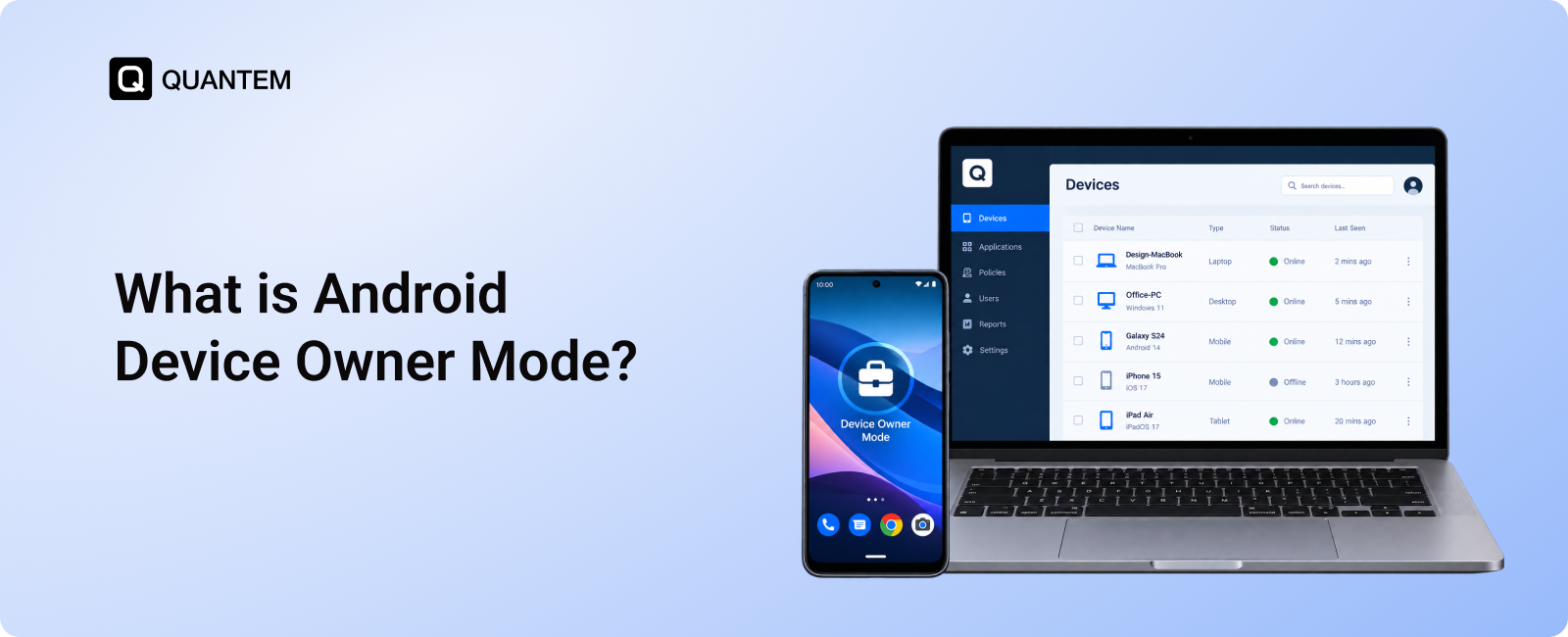
Android Device Owner Mode is an Android Enterprise management mode that gives IT administrators full-device management capabilities for company-owned Android smartphones and tablets. It allows organizations to enroll devices into a centrally managed environment, where administrative control extends across the device rather than being limited to individual applications.
Businesses use Android Device Owner Mode to prepare devices for work, establish consistent management policies, and maintain control over company-owned hardware. It is particularly useful for organizations deploying Android devices at scale across offices, retail stores, warehouses, and other business environments.
Key Features of Android Device Owner Mode
Android Device Owner Mode gives IT administrators several tools to manage company-owned devices and keep them configured for business use. These capabilities help organizations enforce usage policies, control access, and manage devices across their fleet. Here are some of the key features of Android Device Owner Mode:
1. Application Management and Restrictions
IT administrators can deploy business applications and restrict access to unapproved apps, helping ensure that devices are used for their intended purpose. For example, a warehouse tablet can be configured with inventory and order management apps while unrelated applications are blocked.
2. Kiosk Mode
Device Owner Mode supports dedicated-device deployments, allowing Android devices to run a single application or a limited set of approved apps. Businesses can use this capability to lock Android devices to use as point-of-sale terminals, digital signage, visitor check-in stations, and self-service kiosks.
3. Device-Wide Security Policies
Administrators can enforce supported security restrictions across managed devices, such as password requirements, camera restrictions, and network configurations. These controls help reduce unauthorized access and keep device settings aligned with organizational security policies.
4. Remote Device Management
Through an MDM or UEM platform, IT teams can manage enrolled devices from a centralized console. Depending on the platform and supported capabilities, administrators can distribute applications, update configurations, troubleshoot issues, and perform remote actions without handling each device physically.
5. Data and Usage Protection
When Device Owner Mode is configured via an MDM or UEM platform, IT teams can manage enrolled devices from a centralized console. Depending on the platform and supported capabilities, administrators can distribute applications, update configurations, troubleshoot issues, and perform remote actions without handling each device physically.
5 Key Advantages of Android Device Owner Mode
For businesses managing multiple Android devices, maintaining security and consistency can become challenging as the fleet grows. Android Device Owner Mode helps address these challenges by giving IT teams greater control over company-owned devices. Here are five key benefits.
1. Stronger Device Security
Company-owned Android devices may access business applications, customer information, and internal resources. Device Owner Mode allows IT administrators to enforce supported security policies and restrict device functions, helping reduce the risk of unauthorized access and data exposure.
2. Improved Employee Productivity
Unnecessary apps and unrestricted device access can distract employees from their work. By limiting devices to approved applications and business functions, organizations can keep employees focused on their responsibilities. For example, delivery personnel can use navigation and delivery management apps without accessing unrelated applications.
3. Consistent Device Configurations
Managing each device individually can lead to inconsistent settings, application versions, and security policies. Device Owner Mode helps organizations standardize configurations across their Android fleet, making it easier to maintain uniform usage policies and simplify device administration.
4. Easier Remote Troubleshooting
When company-owned devices are distributed across different offices, stores, or field locations, resolving technical issues can take time. When paired with an MDM or UEM platform, Device Owner Mode enables IT teams to perform supported remote management actions, helping reduce unnecessary site visits and device downtime.
5. Better Support for Security and Compliance Requirements
Organizations in sectors such as healthcare, finance, and education may need to follow specific data protection and security requirements. Device Owner Mode helps IT teams enforce relevant device policies and restrict unauthorized usage. These controls can support an organization's broader compliance efforts, although compliance also depends on processes, applications, and other security measures beyond device management.
Device Owner Mode vs. Work Profile Mode: What's the Difference?
The primary difference between Android Device Owner Mode and Work Profile Mode is the scope of management. Device Owner Mode gives IT administrators control over the entire device, while Work Profile Mode limits management primarily to a separate work environment.
Device Owner Mode is suitable when an organization needs control over how a company-owned device operates. IT administrators can enforce supported device-wide restrictions and configurations, making this mode useful for devices such as warehouse handhelds, corporate phones, and kiosk tablets.
Work Profile Mode is useful when employees need to access work resources without giving their organization the same level of control over their personal environment. It separates work apps and data from personal content, allowing IT teams to manage the work profile independently.
Organizations can also deploy a Work Profile on a company-owned device. This arrangement allows employees to use company-provided hardware for personal activities while keeping work apps and data in a separate managed profile.
Ultimately, the choice depends on whether the organization needs to manage the entire device or primarily secure its work environment.
When Should Businesses Use Android Device Owner Mode?
Android Device Owner Mode is a good fit when company-owned devices need to serve a defined business purpose and remain under centralized IT control. Here are three common scenarios where this management mode can be useful.
1. Managing Company-Issued Work Devices
Organizations that provide Android phones or tablets to employees can use Device Owner Mode to prepare devices before they reach the workforce. Instead of leaving setup and app installation to individual employees, IT teams can establish the required configuration in advance.
For example, a field service company could issue technicians Android tablets with work order, scheduling, and communication apps already configured. This helps employees get started with the tools they need while keeping device usage aligned with company policies.
2. Running Business-Specific Kiosks
Some business operations require an Android device to perform one clearly defined task rather than function as a general-purpose tablet. Device Owner Mode supports these dedicated deployments by allowing organizations to restrict devices to a single app or a set of approved applications.
Common examples include:
- Retail: Tablets used for checkout and point-of-sale transactions
- Hospitality: Devices for digital menus and self-service ordering
- Healthcare: Tablets used for patient check-in
- Transportation: Devices for ticket validation
- Warehousing: Rugged Android devices used for scanning and inventory tasks
- Customer-facing spaces: Digital signage and visitor registration stations
In these environments, restricting access to unrelated apps and settings helps keep the device focused on its intended function.
3. Equipping Frontline Teams Across Shifts
Retail associates, warehouse operators, and manufacturing teams may rely on company-owned Android devices throughout the workday. When devices move between employees or shifts, manually configuring each one can create unnecessary work for IT.
Device Owner Mode lets organizations establish a consistent management approach for these devices. For instance, a warehouse can use managed Android handhelds for inventory updates and order picking, with the required apps and restrictions maintained according to company policy.
How to Enable Android Device Owner Mode?
Android Device Owner Mode is typically set up during the device provisioning process using an MDM or UEM platform. In most standard Android Enterprise deployments, the device must be new or factory-reset before enrollment so it can be configured as fully managed.
The exact steps depend on the management platform and the device's enrollment options. Common provisioning methods include:
1. Set Up Devices with QR Code Enrollment
IT administrators can generate a provisioning QR code through a compatible MDM or UEM platform. During the initial setup of a supported, new or factory-reset Android device, the administrator scans the code to apply the organization's management configuration and complete enrollment.
2. Provisioning with Android Zero-Touch Enrollment
Zero-touch enrollment simplifies large-scale deployments. Organizations purchase eligible Android devices through participating resellers and assign them to their management configuration. When a device connects to the internet during its initial setup, it can automatically retrieve the assigned configuration and enroll without requiring IT staff to configure each device manually.
3. Using DPC Identifier or Enrollment Token
Some Android Enterprise enrollment workflows use a Device Policy Controller (DPC) identifier or an enrollment token to connect a device to the organization's management platform. The available process depends on the device, Android version, and MDM or UEM solution.
4. Other Supported Provisioning Methods
Depending on the Android device and management platform, additional enrollment options may be available, including manufacturer-specific services. Organizations should verify which methods their devices and chosen management solution support before deployment.
Important Considerations Before Deploying Android Device Owner Mode
Android Device Owner Mode gives organizations extensive control over company-owned devices, but it requires careful planning before deployment. Here are a few factors IT teams should consider:
1. Device Ownership and Intended Use
Device Owner Mode is generally intended for organization-owned devices that require full-device management. Before choosing this setup, determine whether the device will be dedicated to work or also used for personal activities.
2. Factory Reset and Enrollment Requirements
Enrolling an existing Android device into Device Owner Mode typically requires a factory reset. This erases local data, so organizations should back up any necessary information and plan device provisioning before starting enrollment.
3. Employee Privacy and Usage Policies
Because management can extend across the entire device, organizations should communicate their device usage policies and permissions clearly. Employees should understand what restrictions apply and how company-owned devices may be monitored or managed.
4. Android Version and Manufacturer Support
Available management policies and enrollment options can vary by Android version, device manufacturer, and MDM or UEM platform. IT teams should verify compatibility and test configurations before rolling them out across the organization.
5. Enrollment at Scale
Manually provisioning a large number of devices can be time-consuming. Organizations managing substantial fleets should evaluate automated options, such as Android zero-touch enrollment, where supported, to simplify deployment and maintain consistent configurations.
Choosing the right management approach from the beginning helps organizations deploy Android devices more efficiently while keeping device policies aligned with business needs.
Enhance Android Enterprise Device Management with Device Owner Mode Using Quantem MDM
Managing company-owned Android devices becomes more complex as organizations expand across teams, locations, and business operations. Quantem MDM helps IT administrators manage enrolled Android devices from a centralized platform, making it easier to maintain consistent configurations and enforce device usage policies.
With Quantem MDM, IT teams can configure Android devices for their intended business use, deploy applications, distribute Wi-Fi and VPN settings, and apply supported security restrictions. Administrators can also manage kiosk deployments, restrict access to approved applications, and perform supported remote actions to maintain control over devices in the field.
Whether your organization manages a small number of corporate phones or a large fleet of dedicated Android devices, Quantem MDM helps simplify device administration and reduce the effort required to manage devices individually.
Want to do More with Android Device Owner Mode? Try Quantem MDM
1. Does Android Device Owner Mode Require a Factory Reset?
Yes, enrolling an existing Android device into Device Owner Mode generally requires a factory reset. This allows the device to be provisioned as fully managed during its initial setup. Back up any important data before resetting the device.
2. How Can I Enable Device Owner Mode on Android?
You can enable Device Owner Mode by enrolling a supported, new or factory-reset Android device through an MDM or UEM platform. Depending on the device and solution, available methods may include QR code enrollment, Android zero-touch enrollment, or a DPC identifier.
3. Can Personal Android Devices Use Device Owner Mode?
Device Owner Mode is primarily intended for organization-owned devices that require full-device management. For employee-owned devices, organizations generally use Work Profile Mode to manage business apps and data separately from personal content.
4. What is the Difference Between Device Owner Mode and Device Administrator Mode?
Device Owner Mode is part of Android Enterprise and supports comprehensive management of fully managed devices. Device Administrator is an older Android management framework with more limited capabilities. Modern enterprise mobility deployments generally use Android Enterprise management modes instead of relying on legacy Device Administrator enrollment.
5. What is the Difference Between Device Owner Mode and Profile Owner Mode?
Device Owner Mode provides management capabilities across the entire device. Profile Owner Mode manages a specific profile, such as a work profile, allowing organizational apps and data to be managed separately from personal content.
6. Which Android Versions Support Device Owner Mode?
Device Owner Mode is part of Android's enterprise management framework, with support and available policies depending on the Android version, device manufacturer, and management solution. Organizations should verify compatibility with their MDM or UEM platform before enrolling devices.
7. Does Android Device Owner Mode Support Kiosk Devices?
Yes. Device Owner Mode supports dedicated Android device deployments, including kiosk setups. With a compatible MDM or UEM solution, IT admins can configure devices to run a single approved application or a limited set of applications for use cases such as digital signage, point-of-sale transactions, and visitor check-in.



Get the latest blogs directly delivered to your mail fly arrow