How to Set Up Parental Controls on Android Devices?
Children use smartphones and tablets for schoolwork, entertainment, games, and staying connected with friends. But unrestricted access can also expose them to inappropriate content, excessive screen time, unwanted downloads, and online risks. For parents, finding the right balance between digital freedom and safety can be challenging.
Android parental controls help parents manage how children use their devices by setting screen time limits, restricting apps and downloads, filtering certain content, and managing other aspects of device usage. The available controls depend on the Android version, device manufacturer, and tools being used.
For basic supervision, Android's built-in settings and Google Family Link offer several ways to manage a child's device. Parents who need tighter restrictions or centralized control over multiple devices can also consider an Android Mobile Device Management (MDM) solution.
In this blog, we will explain how to set up parental controls on Android phones and tablets, explore the available options, and help you choose an approach that fits your child's needs.
What are Android Parental Controls?
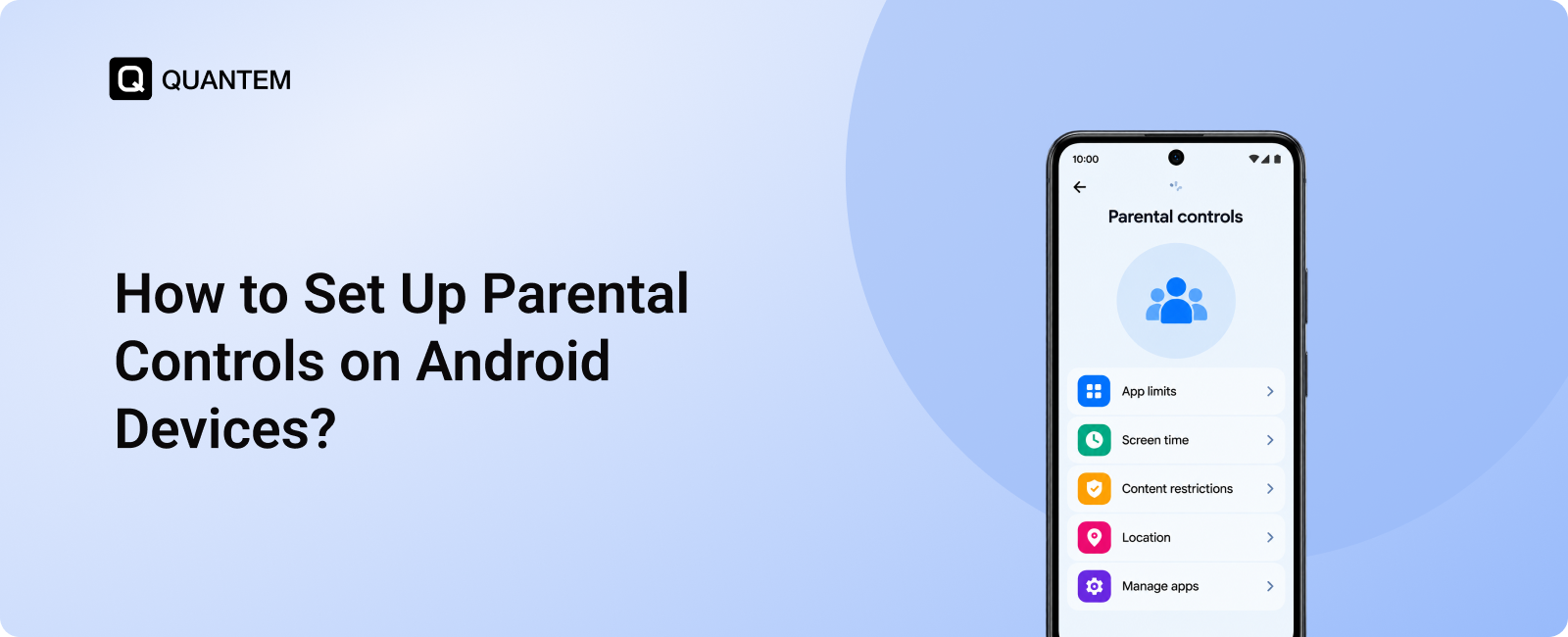
Android parental controls are tools that help parents manage their children's device usage by setting screen time limits, blocking apps and restricting downloads, filtering age-inappropriate content, and supervising certain online activities. Depending on the device and setup, these controls are available through Android settings, Google Family Link, and Google Play.
Parents can use these tools to establish boundaries around how children use their phones and tablets. For example, they can limit time spent on selected apps, schedule device downtime, restrict access to age-inappropriate content, and review app activity.
The controls available vary by Android version, device manufacturer, and the child's account settings. While built-in options provide a useful starting point, parents may need additional management tools when they want stricter restrictions or need to manage multiple devices centrally.
Why Should Parents Set Up Parental Controls on Android?
Children use Android devices for learning, entertainment, and communication, but not every app or online experience is appropriate for their age. Setting up parental controls helps parents establish boundaries around device usage while allowing children to explore digital content more safely.
Here are three important reasons to use parental controls on Android:
- Filter Inappropriate Content: Content management can help limit access to age-inappropriate apps, games, websites, and other media in Chrome browser. This reduces the likelihood of children encountering unsuitable content, although filters may not catch everything.
- Manage Apps and Downloads: Parents can review app requests, restrict certain applications, and require approval for eligible downloads or purchases. These controls help reduce exposure to unsuitable apps and prevent accidental spending.
- Set Healthy Screen Time Limits: Screen time controls let parents set daily usage limits, schedule downtime, and review how much time children spend on supported apps. This can help establish a healthier balance between screen use, schoolwork, sleep, and other activities.
Parental controls work best when combined with age-appropriate rules and open conversations about online safety. They provide useful safeguards, but they cannot replace parental guidance or guarantee that children will never encounter harmful content.
How to Set Up Parental Controls on Android?
There are several ways to configure parental controls on Android phones and tablets. You can use the controls built into Android settings, manage your child's device remotely through Google Family Link, restrict downloads through Google Play, or use an MDM solution for more centralized control.
Option 1: Enable Built-In Parental Controls on Android
Newer Android devices may include parental controls directly in Settings. The exact menu names and available features depend on your device and Android version.
- Open Settings: Go to the Settings app on your child's Android phone or tablet.
- Find Parental Controls: Search for Parental controls in Settings. If available, you may also find them under Digital Wellbeing & parental controls.
- Enable the Controls: Select the option to set up parental controls and follow the on-screen instructions. Depending on your device, you may need to create a PIN that prevents unauthorized changes.
- Configure Restrictions: Set the available daily screen time limits, app limits, downtime schedules, and content restrictions to suit your child's needs.
Once configured, these settings can help you establish basic usage boundaries directly on the device without necessarily installing a separate parental control app.
Option 2: Set Up Google Family Link for Remote Management
Google Family Link lets parents supervise a child's Google account and manage supported settings from their own device. This is useful when you want to adjust restrictions without having to access the child's phone each time.
- Set Up Supervision on Your Child's Device: Follow Google's Family Link setup instructions to link the child's account with the parent's Google account. The exact steps depend on the child's age, account status, and existing supervision settings.
- Install Google Family Link: Download the Google Family Link app on the parent's compatible device and sign in with the parent account used during setup.
- Configure Parental Controls: Use Family Link to manage supported app approvals, screen time limits, downtime, content restrictions, and location settings where available.
After setup, you can manage supported settings remotely through the Family Link app. The available controls depend on the child's device, account, and Google's current supervision options.
Option 3: Set Up Parental Controls in Google Play
Google Play has its own parental controls for restricting access to apps, games, and other content based on maturity ratings. These settings are useful when you want to limit what your child can browse or download through the Play Store.
- Open Google Play: Launch the Google Play Store on your child's Android device.
- Navigate to Parental Controls: Tap the profile icon, open Settings, and look for Family or Parental controls. Menu labels may vary by version.
- Turn On Parental Controls: Enable the feature and follow the instructions to create a PIN if prompted.
- Choose Content Restrictions: Set suitable maturity ratings for supported apps, games, and other available media, then save your preferences.
Keep in mind that Google Play parental controls primarily govern content available through the Play Store. They do not automatically restrict every app, website, or download source on the device.
Option 4: Use an Android MDM Solution for More Controlled Device Management
For parents, schools, or organizations managing multiple Android devices, a Mobile Device Management (MDM) solution can provide centralized administration and more restrictive device configurations. This approach is particularly relevant for school-issued tablets or devices intended for specific educational activities.
The setup typically involves these steps:
- Enroll the Android Device: Add the device to a compatible MDM platform using a supported enrollment method. The enrollment process and available management scope depend on the device and deployment type.
- Configure a Device Profile: Create a profile that defines how the device should be used, including the permitted applications and applicable security settings.
- Apply App and Website Restrictions: Configure supported application restrictions and website access policies to help keep the device focused on approved activities.
- Set Usage and Device Restrictions: Apply the screen time controls or device restrictions supported by the platform. For a dedicated learning device, kiosk mode can limit access to a single app or a selected group of approved apps.
Once the policies are applied, administrators can manage enrolled devices through the MDM console. This option is most useful when centralized control, consistent configurations, or dedicated-use restrictions are needed across multiple devices.
Which is the Best Way to Set Up Parental Controls on Android Phone?
The best way to set up parental controls on Android depends on the child's age, the type of device, and how much control you need. Android's built-in settings and Google Family Link work well for everyday supervision, while an Android MDM solution is worth considering when you need stricter restrictions or centralized management across multiple devices.
Where Built-In Android Parental Controls May Fall Short?
Android's built-in controls and Family Link provide a useful starting point, but they may not meet every family's or school's requirements.
- Limited control over applications: Play Store restrictions and app approvals do not necessarily cover apps installed through other sources or every preinstalled application.
- Restrictions may not cover every browsing route: Content filters generally apply to supported apps and services. They may not block inappropriate content across every browser or third-party app.
- Features vary by device: Available settings depend on the Android version, manufacturer, account configuration, and management tool.
- Less centralized control across multiple devices: Managing several devices individually can become time-consuming, particularly for schools or families overseeing multiple tablets.
- Limited dedicated-device management: Basic parental controls may not offer the level of lockdown needed to keep a tablet restricted to educational apps or a specific learning environment.
These limitations do not make built-in controls ineffective. For many families, they provide sufficient tools for setting everyday boundaries. However, when devices must follow stricter rules or remain restricted to approved applications, an Android MDM solution can offer additional management capabilities.
When Should You Consider Android MDM for Parental Controls?
An Android MDM solution is particularly useful when managing school-issued tablets, classroom devices, or multiple Android devices that need consistent restrictions. Depending on the platform and enrollment configuration, administrators can control approved applications, configure supported website restrictions, apply device policies, and lock devices into a dedicated kiosk environment.
Unlike basic parental controls configured separately on each device, centralized management allows administrators to apply consistent policies across enrolled devices. This can be valuable in schools where students use tablets for specific educational tasks and should not have unrestricted access to device settings or unrelated applications.
The right choice is the one that provides the level of control you need without adding unnecessary restrictions. For personal devices, start with Android's built-in controls or Family Link. For managed educational devices that require more comprehensive restrictions, consider an MDM solution.
Strengthen Parental Controls on Android Devices With Quantem MDM
Built-in parental controls can help families manage everyday device usage, but schools and organizations managing multiple Android tablets may need more centralized control. Quantem MDM helps administrators configure enrolled Android devices for specific purposes and apply consistent usage policies across their device fleet.
With Quantem MDM, administrators can restrict devices to approved educational apps, configure supported website restrictions, track device location, and manage enrolled tablets remotely. Kiosk mode can also limit devices to a single application or a selected set of approved apps, helping keep students focused on their learning activities.
For schools deploying Android tablets across classrooms, Quantem MDM simplifies device administration while helping maintain a controlled digital learning environment.
Keep Android Devices Safe with Advanced Parental Controls Powered by Quantem
1. How Do I Set Up Parental Controls on the Google Play Store?
Open the Google Play Store on your child's Android device, tap the profile icon, and navigate to Settings > Family > Parental controls. Turn on parental controls, create a PIN if prompted, and select suitable content ratings for apps, games, and other supported media.
2. How Do I Access Parental Controls in Google Family Link?
Install Google Family Link on the parent's device and sign in with the parent Google account linked to the child's supervised account. Select your child's profile to access available settings for screen time, app approvals, content restrictions, and location sharing.
3. Are Android Parental Controls Safe?
Android parental controls provide useful safeguards by helping parents restrict apps, filter supported content, and manage screen time. However, they cannot block every inappropriate website or activity. Combining these controls with age-appropriate rules and conversations about online safety provides a more balanced approach.
4. How Do I Set Screen Time Limits on Android?
You can set screen time limits through supported Android settings or Google Family Link. Depending on your device, you can configure daily usage limits, set time limits for individual apps, and schedule downtime to reduce device use during bedtime or other designated hours.
5. How Do I Use Kids Mode on Android?
The steps depend on your device and its available features. Some Android manufacturers offer a dedicated Kids Mode or children's environment with age-appropriate content and usage restrictions. Alternatively, you can use Google Family Link or a compatible device management solution to restrict apps and configure device usage.
6. How Do I Childproof an Android Tablet?
Start by setting up parental controls, restricting age-inappropriate content, limiting app downloads, and setting screen time boundaries. For a tablet used mainly for education, an MDM solution can provide additional control by restricting access to approved applications or locking the device into a dedicated kiosk environment.
7. Can I Manage Content and Restrict App Usage With Google Family Link?
Yes. Google Family Link lets parents manage supported content restrictions, approve or block app downloads, set app-specific usage limits, and control screen time on a child's Android device. Parents can also manage certain Google services and content filters, depending on the child's account and device. However, these controls may not cover every third-party app or website.
8. How Do I Turn Off Parental Controls on Android?
The process depends on how the controls were configured. You can adjust or disable Google Play content restrictions from its parental controls settings using the required PIN. To stop Google Family Link supervision, follow Google's account-specific process, which may require parent authorization and depends on the child's age and account status. If an MDM solution manages the device, an authorized administrator may need to change or remove the applicable policies.



Get the latest blogs directly delivered to your mail fly arrow