How to Disable Power Button on Android Devices?
A company-owned Android device going offline because someone pressed the power button may sound like a small problem until it happens during a POS transaction, in the middle of a delivery route, or while a customer is using a self-service kiosk.
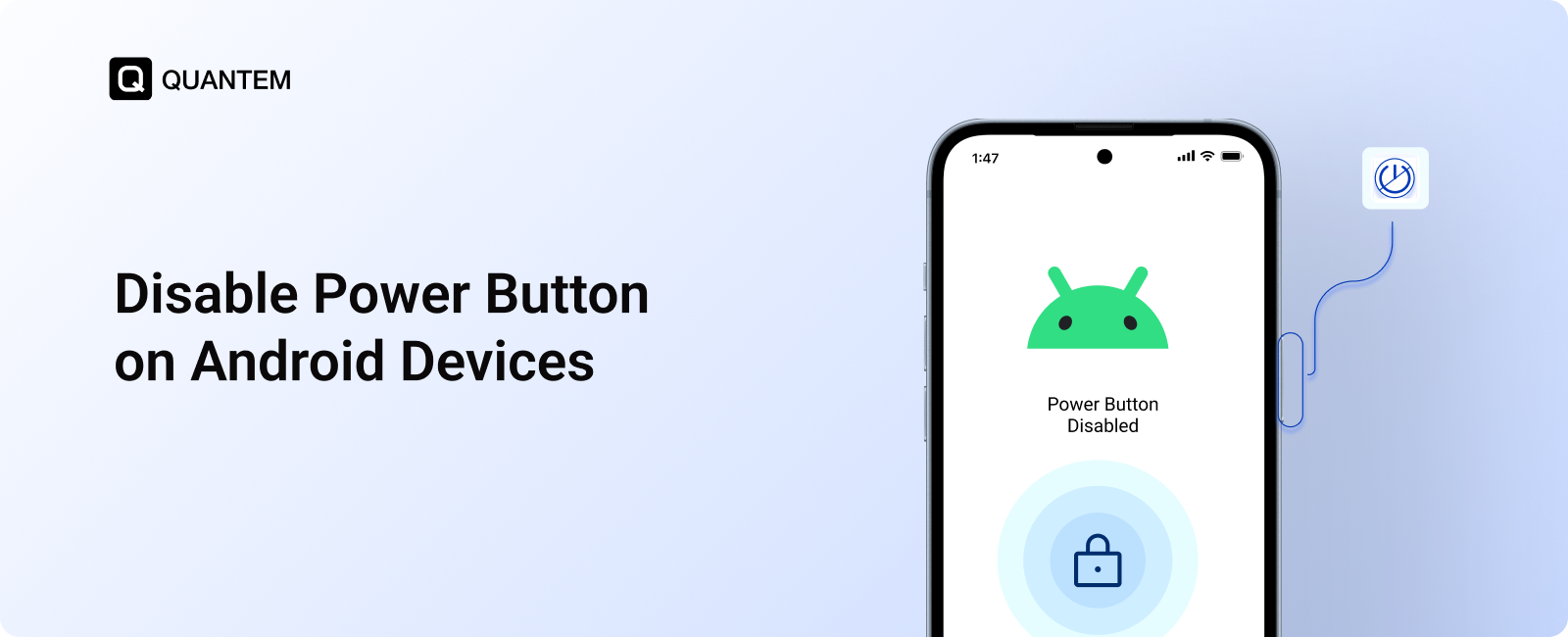
For businesses managing Android devices in retail, healthcare, logistics, education, and other frontline environments, keeping devices available is often essential to daily operations. This is why knowing how to disable power button on Android devices can be an important part of maintaining device availability and preventing unintended interruptions.
In this blog, we will look at why businesses disable the Android power button, the different ways to do it, and why an MDM solution is the most practical approach for managing the restriction at scale.
Why Disable Power Button on Android Devices?
When Android devices are used for a dedicated business purpose, an unexpected shutdown can quickly turn into an operational problem. Restricting the power button helps organizations:
- Prevent accidental shutdowns: Keep POS terminals, kiosks, scanners, and other business devices running during active workflows.
- Reduce device downtime: Prevent unnecessary reboots that can interrupt apps, sessions, or ongoing tasks.
- Limit unauthorized access: Restrict access to the power menu and options that may interfere with the device’s intended configuration.
- Protect kiosk deployments: Reduce attempts to exit or bypass a locked-down kiosk environment through hardware buttons.
- Improve productivity: Prevent users from intentionally switching off devices during working hours, helping keep business-critical endpoints available.
For organizations managing dedicated Android devices, disabling or restricting the power button shifts control of the device lifecycle from the end user to the IT team.
What Are the Ways to Disable Power Button on Android Devices?
There are several ways to control or disable power-button functionality on Android devices. The right approach depends on the device, Android version, and how the device is being used.
1. Use Native Device Settings
Some Android devices include built-in settings that allow users to customize or restrict certain power-button actions. These settings can control how the device responds to button presses and may provide options for changing or restricting specific power-related functions.
2. Use a Third-Party Button Remapping App
Button-remapping apps allow users to change the action triggered when a physical button is pressed. Depending on the app and device, users can assign a different function to the power button or restrict its default behavior to prevent unintended actions.
3. Disable Power Button With Root Access
Root access provides deeper control over the Android operating system and hardware-button behavior. With appropriate root-enabled tools or system modifications, administrators or advanced users can change how the power button responds to different types of presses.
4. Use an MDM Solution
An MDM solution allows organizations to centrally manage power-button restrictions across enrolled Android devices. IT administrators can configure the required policies remotely and apply them across multiple devices, helping maintain consistent device behavior across business deployments.
This approach is particularly useful for dedicated Android devices, such as kiosks, POS terminals, digital signage, and rugged devices, where users need restricted access to certain device functions.
Which is the Best Way to Disable Power Button on Android Devices?
For a business managing a large number of Android devices, the method used to disable power button should provide consistent control without requiring individual device configuration. Here’s how the four approaches compare:
1. Native Device Settings: Native device settings can provide basic control over power-button behavior directly on the Android device. However, they are primarily suitable for personal devices where settings can be configured individually. They are not designed to provide the centralized control needed to manage restrictions across a large device fleet.
2. Third-Party Button-Remapping Apps: Third-party button-remapping apps can change how the power button responds and may be useful for basic device-level customization. However, these restrictions can often be bypassed by users, making such apps less suitable for enforcing power-button policies on business-owned devices.
3. Root Access: Root access provides deeper system-level control over Android hardware functions, allowing the power button to be modified or restricted through system-level tools. However, rooting can void the device manufacturer's warranty, introduce security risks, cause Google SafetyNet checks to fail, and restrict access to Android Enterprise APIs. This makes root access unsuitable for enterprise deployments.
4. MDM Solution: An MDM solution provides centralized, policy-based control over managed Android devices. IT administrators can configure power-button restrictions remotely and apply them consistently across an entire device fleet. For organizations managing multiple Android devices, MDM is the most practical approach because it combines centralized policy enforcement, remote administration, consistent configuration, and broader device-management capabilities.
Use Quantem MDM to Disable Power Button on Android Devices
With Quantem Android MDM, IT teams can control device hardware and software remotely. Using device restriction profiles, administrators can disable the power menu and restrict hardware button functions on managed Android phones and tablets.
Once applied, users cannot shut down or restart the device, and the power dialog no longer appears. IT administrators can still reboot or shut down devices remotely through the MDM console when needed. Power-cycle control is simply shifted from the user to the IT team.
Combined with kiosk mode lockdown, these restrictions can also prevent users from accessing system settings or using hardware key combinations to bypass policies, keeping managed devices secure and operational.
Quantem goes beyond simply disabling the power button, offering the flexibility and centralized control businesses need to manage Android devices at scale. Here’s what makes it a practical choice:
- Zero-Touch Policy Enforcement: Apply device restrictions remotely without manually configuring individual devices or requiring physical access to endpoints.
- Flexible Deployment: Apply the appropriate restrictions across dedicated device kiosk mode, fully managed mode, and work profile deployments based on the organization's requirements.
- Transparent Pricing: No hidden costs or unexpected charges, with deployment and migration support included at no additional cost.
- 24/7 Complimentary Premium Support: Get ongoing assistance from a dedicated support team whenever help is needed, regardless of time or location.
- Security Without Compromise: Protect business data with a solution that is SOC 2, GDPR, and CCPA compliant.
Want Granular Control Over Android Devices?
1. How to disable the power button on Samsung devices?
On Samsung devices, IT administrators can use OEM specific controls provided through Samsung Knox to manage hardware and power-related functions. When Samsung devices are enrolled with an MDM solution that supports Knox capabilities, administrators can apply the appropriate restrictions remotely and control power-button behavior across managed devices.
2. Can the MDM solution disable the camera remotely?
Yes. Enterprise MDM solutions can remotely restrict camera access through device restriction policies. IT administrators can apply the policy to managed Android devices and prevent users from using the camera when required.
3. How to lock the power-off button?
The most effective way to restrict the power-off function on a managed Android device is to use an MDM solution. IT administrators can configure device restriction policies to disable the on-screen power menu and prevent users from shutting down or restarting the device.
4. Does disabling the power button improve device security?
Yes. Restricting the power button can prevent unauthorized users from shutting down managed devices or interrupting their intended operation. When combined with other device restrictions and kiosk policies, it provides an additional layer of control over business-owned Android devices.
5. Can I disable USB file transfer on Android?
Yes. An MDM solution can restrict USB file transfer on managed Android devices through device restriction policies. IT admin can control USB access remotely and apply the required restrictions across enrolled devices.
6. How do I prevent users from turning off Android tablets?
An MDM solution can disable the power menu on managed Android tablets, preventing users from accessing shutdown and restart options through the physical power button. Combining this restriction with kiosk mode can further limit access to system settings and other functions that could be used to bypass device policies.
7. Does kiosk mode disable hardware buttons on Android devices?
Not necessarily. Kiosk mode primarily restricts access to apps and software features, while hardware buttons such as the home button, power and volume button may continue to function. To restrict these functions, IT administrators can use MDM device restriction policies alongside kiosk mode.
8. How do I disable the volume button on Android devices with an MDM solution?
An MDM solution can restrict volume keys function on managed Android devices through device restriction policies. IT administrators can configure these policies remotely to prevent users from changing the device volume and maintain the required audio settings across the device fleet.



Get the latest blogs directly delivered to your mail fly arrow