.png)
How to Set Up a Work Profile on Android?
As more employees use Android devices for work, businesses face a key challenge: how do you protect company data without taking control of an employee's entire personal device?
When work emails, documents, and business apps exist alongside personal content, sensitive company data can be harder to manage. However, managing the entire device can also raise privacy concerns, especially in a BYOD environment.
This creates a gap between business security and employee privacy.
An Android Work Profile helps bridge that gap. It creates a separate, managed space for work apps and company data while keeping personal apps, photos, messages, and other private content separate.
This makes an Android Work Profile ideal for BYOD programs. IT teams can manage work apps, enforce security policies, and protect corporate data without interfering with an employee's personal use of the device.
In this blog, you will learn what an Android Work Profile is, why businesses use it, and how to set up a Work Profile on Android devices. We will also cover the requirements, common issues, and how to manage Android Work Profiles using an MDM solution.
What is an Android Work Profile?
An Android Work Profile is a feature of Android Enterprise that creates a separate, managed space for work apps and company data on an Android device.
Work apps and data remain separate from personal apps and content. This allows employees to use the same device for both work and personal activities without mixing the two environments.
For businesses, an Android Work Profile provides a practical way to manage employee-owned devices. IT teams can use an MDM or EMM solution to deploy work apps, enforce security policies, and protect corporate data within the work profile.
At the same time, employees retain control over their personal apps, photos, messages, and other private content. This makes the Android Enterprise Work Profile particularly useful for organizations with BYOD programs.
Why Should You Set Up an Android Work Profile?
Allowing employees to access company resources from personal devices creates several management challenges. Businesses need to protect corporate data, control work apps, and remove access when required without unnecessarily monitoring an employee's personal activity.
An Android Work Profile helps businesses address these challenges.
1. Personal Devices Are Now Part of the Workplace
Employees often use their own Android devices to check emails, access documents, join meetings, and communicate with colleagues. Without a separate work environment, company data can become mixed with personal apps and accounts.
2. Full Device Management Is Not Always Appropriate
Managing an employee-owned device like a company-owned device can create privacy concerns. Employees may not be comfortable giving IT control over their personal apps, photos, and messages. A Work Profile limits management to the business side of the device.
3. Businesses Need Control Over Work Apps
IT teams need a way to distribute approved apps and remove unauthorized or unnecessary business applications. A managed Work Profile gives administrators a dedicated environment for controlling work apps.
4. Employee Access Needs to Be Removed Securely
When an employee leaves the company, changes roles, or loses a device, the business needs to remove corporate access quickly. A Work Profile allows IT teams to remove the managed work environment without deleting personal content.
5. Corporate Data Needs Its Own Security Controls
Business data may require stronger password rules, app restrictions, encryption, and other security policies. A Work Profile allows organizations to apply these controls specifically to work data.
6. BYOD Programs Need a Clear Management Boundary
BYOD can reduce hardware costs and offer greater flexibility, but it also creates a shared responsibility between employees and IT teams. An Android Work Profile establishes a clear boundary by separating what the business manages from what remains personal.
Key Benefits of Using Android Work Profile for Businesses
An Android Work Profile does more than separate work and personal apps. It gives businesses a practical way to secure corporate data, manage BYOD devices, and support employees without unnecessarily controlling their personal devices.
Here are the key benefits:
1. Creates a Dedicated Work Environment: The Work Profile creates a separate space for business apps and data. Employees can quickly identify work apps and keep them separate from personal activities.
2. Reduces App Clutter: Employees do not have to search through personal apps to find work tools. Work apps remain grouped within the work profile, creating a more organized experience.
3. Simplifies App Management: IT teams can remotely deploy, update, and remove managed work apps. These actions apply to the work profile without affecting personal applications.
4. Improves Corporate Data Security: Businesses can apply security policies to protect work apps and company data. IT teams can also control app access and restrict data sharing where required.
5. Supports Employee Privacy: The business manages the work environment instead of the entire personal device. Personal apps, photos, messages, and other private content remain outside the managed profile.
6. Helps Maintain Work-Life Boundaries: Employees can pause the Work Profile when they are off the clock. This turns off work apps and notifications temporarily, helping separate work from personal time.
7. Allows Scheduled Work Access: Organizations can configure when work apps and notifications should be available based on business or operational requirements. This can help support defined working hours.
8. Supports Security and Compliance Requirements: IT administrators can enforce security policies within the Android Work Profile without applying the same restrictions to personal content. This helps businesses maintain better control over corporate data.
9. Keeps Work and Personal Data Independent: Work data remains within the managed profile instead of mixing freely with personal apps and storage. This reduces the chances of accidental data exposure.
10. Allows Selective Removal of Corporate Data: If an employee leaves the company or access needs to be removed, IT teams can delete the work profile and its managed data. Personal content on the device remains unaffected.
By using an Android Work Profile, businesses can balance centralized management with employee privacy, making it a strong option for Android BYOD and employee-owned device programs.
Prerequisites for Setting Up an Android Work Profile
Before you set up a Work Profile on Android, your business needs a few things in place. Checking these requirements beforehand can help avoid enrollment and configuration issues later.
1. A Compatible Android Device
The device must support Android Work Profile. Work Profile functionality is available on Android 5.0 and later, although the available features may vary depending on the Android version and device manufacturer.
2. Android Enterprise and MDM Support
Businesses typically need an MDM solution that supports Android Enterprise to create and manage Work Profiles at scale. This allows IT teams to enroll devices, deploy work apps, and apply security policies remotely.
3. A BYOD Enrollment Method
Employees need a supported enrollment method to create the managed Work Profile on their personal devices. Depending on the MDM solution, this may include a QR code, enrollment link, or other approved provisioning method.
4. Required Permissions and Configurations
Some Work Profile settings may require specific permissions or configurations before enrollment. IT teams should ensure that the necessary policies, user assignments, and enrollment settings are ready before employees begin the setup process.
How to Set Up a Work Profile on Android Devices?
Businesses typically use an Android Enterprise-supported MDM solution to create and manage an Android Work Profile. The process involves preparing the management environment, enrolling the employee's device, and applying the policies required to protect corporate data.
1. Set Up Android Enterprise for Work Profile Management
Before creating an Android Work Profile, businesses need to set up Android Enterprise through their MDM solution.
Android Enterprise provides the framework that makes Work Profile management possible. It allows IT teams to:
- Create and manage Work Profiles.
- Separate work and personal data.
- Deploy approved work apps.
- Apply security policies.
- Manage corporate data remotely.
Businesses can use an Android MDM solution to manage these settings from a centralized dashboard instead of configuring each device individually.
2. Enroll the Device to Create the Work Profile
Once Android Enterprise and the MDM environment are configured, employees can enroll their Android devices.
Depending on the MDM solution, enrollment may involve a QR code, enrollment link, work credentials, or a one-time passcode. Once the enrollment is complete, the Android Work Profile is created automatically on the device.
The employee can then access managed work apps and company resources through the separate work environment, while personal apps and data remain outside the managed profile.
3. Configure Policies for the Work Environment
Once the Android Work Profile is active, IT administrators can configure policies to secure and manage it.
Common policies include:
- Password Requirements: Set password rules for accessing work apps and data.
- App Management: Control which apps employees can install and access within the Work Profile.
- Data Sharing Restrictions: Limit how work data can be copied or shared with personal apps.
- Encryption Policies: Protect corporate data stored within the managed environment.
- Selective Wipe: Remove work apps and corporate data without deleting personal content.
These policies allow businesses to maintain control over corporate resources while respecting the privacy of employees using personal devices.
How to Configure an Android Work Profile Using Quantem MDM?
Setting up an Android Work Profile manually for every employee can be time-consuming, especially when managing a growing BYOD program. With Quantem MDM, IT teams can enroll employee-owned devices, create a separate work environment, and apply policies to protect corporate data while keeping personal apps and information separate.
Quantem Android Mobile Device Management (MDM) solution simplifies the setup of an Android Work Profile. It helps secure company data on employee devices while keeping personal apps and data separate. Follow this guide to get started:
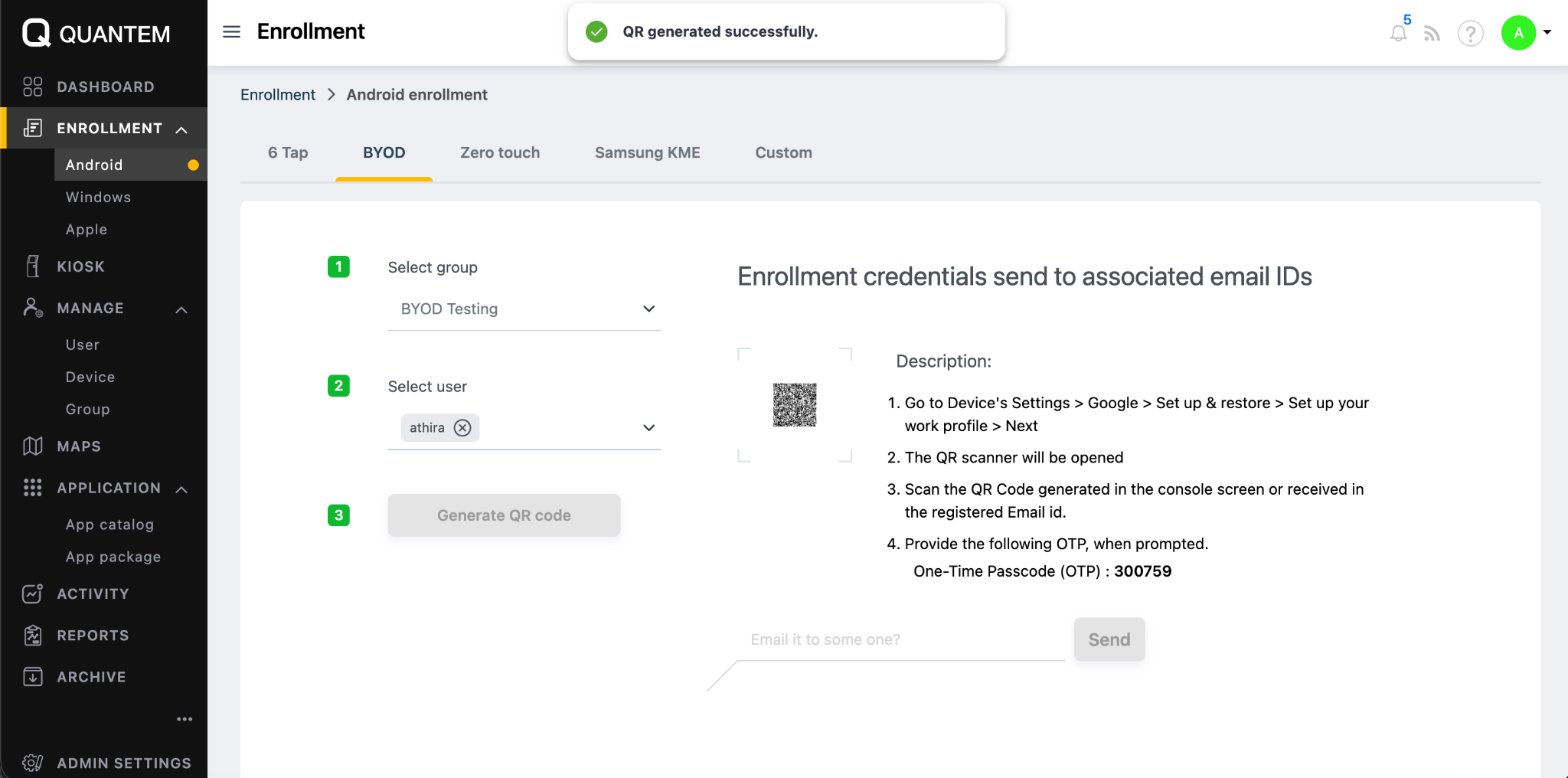
Step 1: Enroll a Device as BYOD
1: Open Android Enrollment
In the Quantem Console, navigate to Enrollment > Android and select the BYOD tab.
2: Select the Group
Under Select group, choose the group to which the BYOD device should be assigned.
3: Select the User
Under Select user, select the user who will enroll the personal device.
4: Generate the QR Code
Click Generate QR code. Quantem generates the enrollment QR code for the selected user and group.
5: Start Work Profile Setup on the BYOD Device
On the personal Android device, go to Settings > Google > Set up & restore > Set up your work profile.
6: Scan the Enrollment QR Code
When the QR scanner opens, scan the QR code generated in the Quantem Console or the QR code received through the registered email ID.
7: Provide the OTP
When prompted, enter the One-Time Passcode (OTP) provided with the enrollment credentials.
8: Complete Work Profile Enrollment
Follow the Android Work Profile setup flow. Install Quantem MDM when prompted, enter the verification code if requested, grant the required permissions, and complete the setup.
Step 2: Configure Work Profile Requirements
With the device enrolled, an administrator can now configure the policy that governs the work profile on that device.
1: Navigate to Compliance
From the left-hand navigation menu, select Compliance and then select Policy.
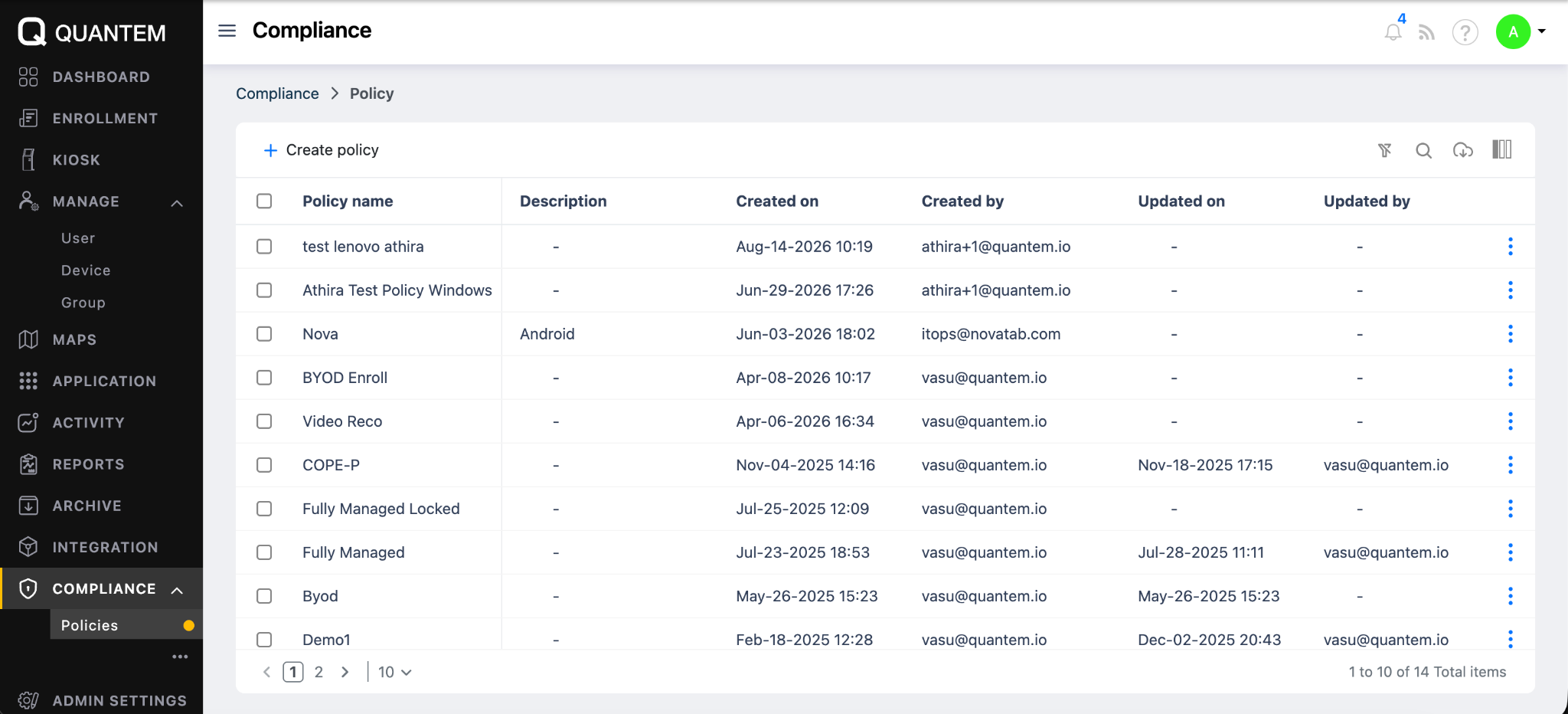
2: Create a Policy
On the Policy page, click + Create policy.
3: Configure the Android Policy
In the Create policy screen, enter the Policy name and Policy Description. Select the Android tab to configure Android policy settings.
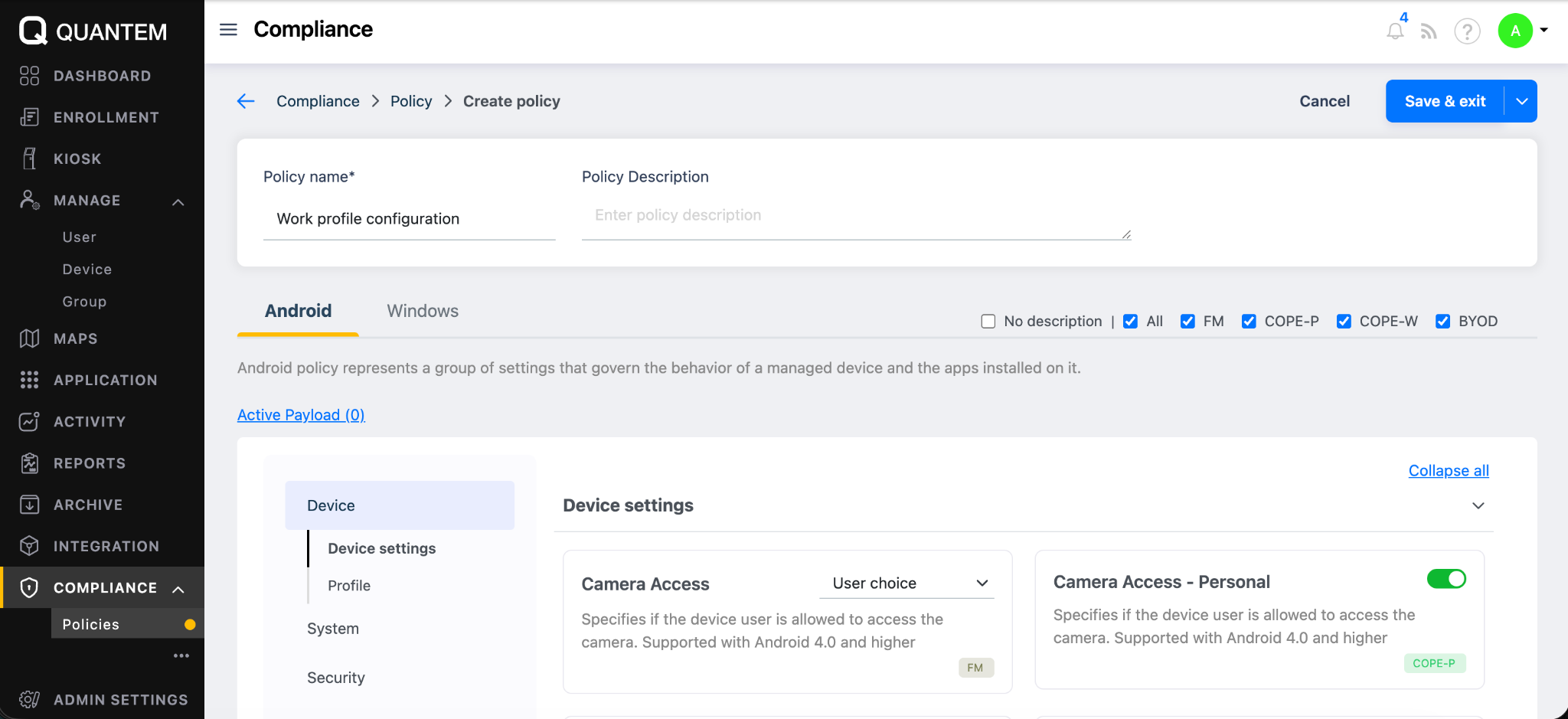
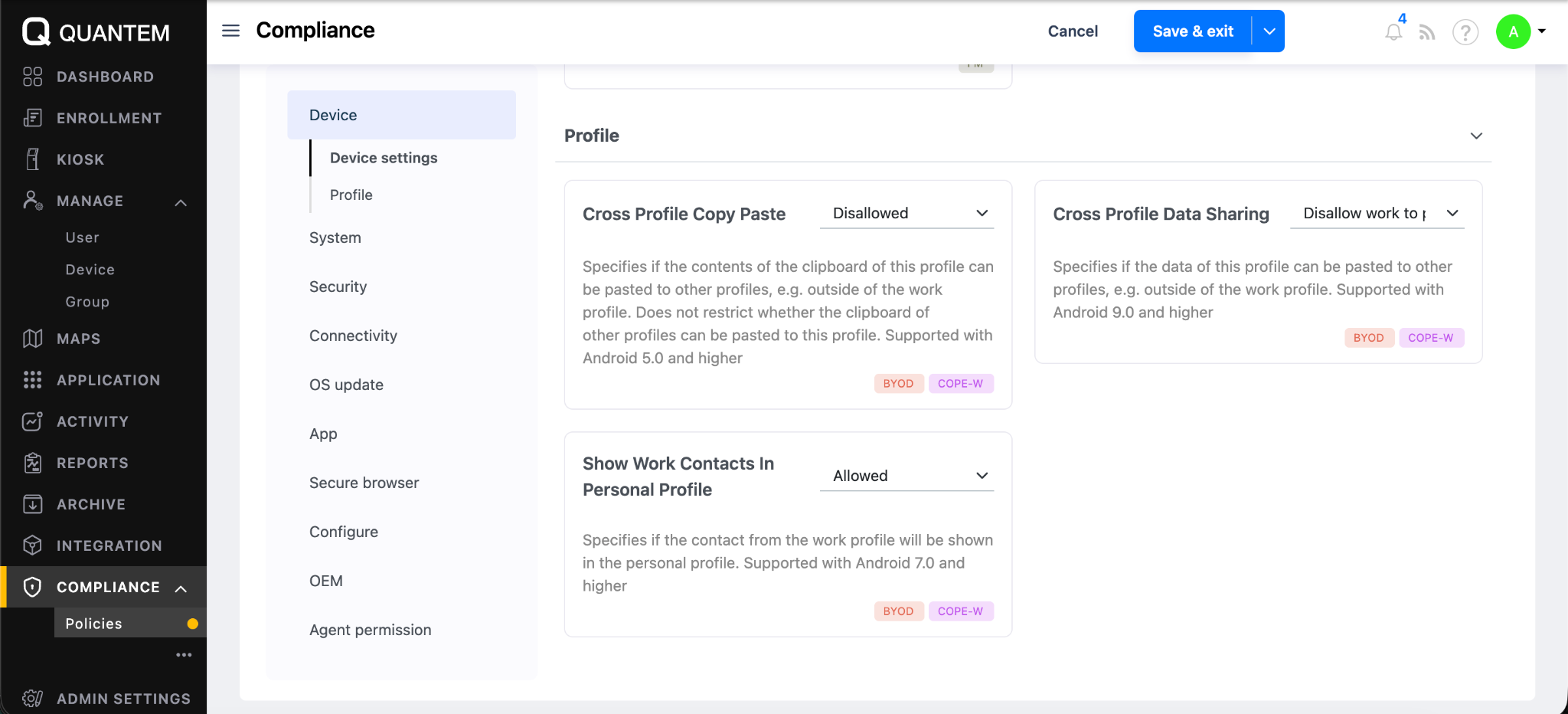
4: Configure Profile Settings
Select Profile under the Device section. The following Profile settings are visible:
5: Configure Security
Select Security. Under Encryption, Security Type is shown as Encryption policy. The Device Password Requirements section includes Password Quality.
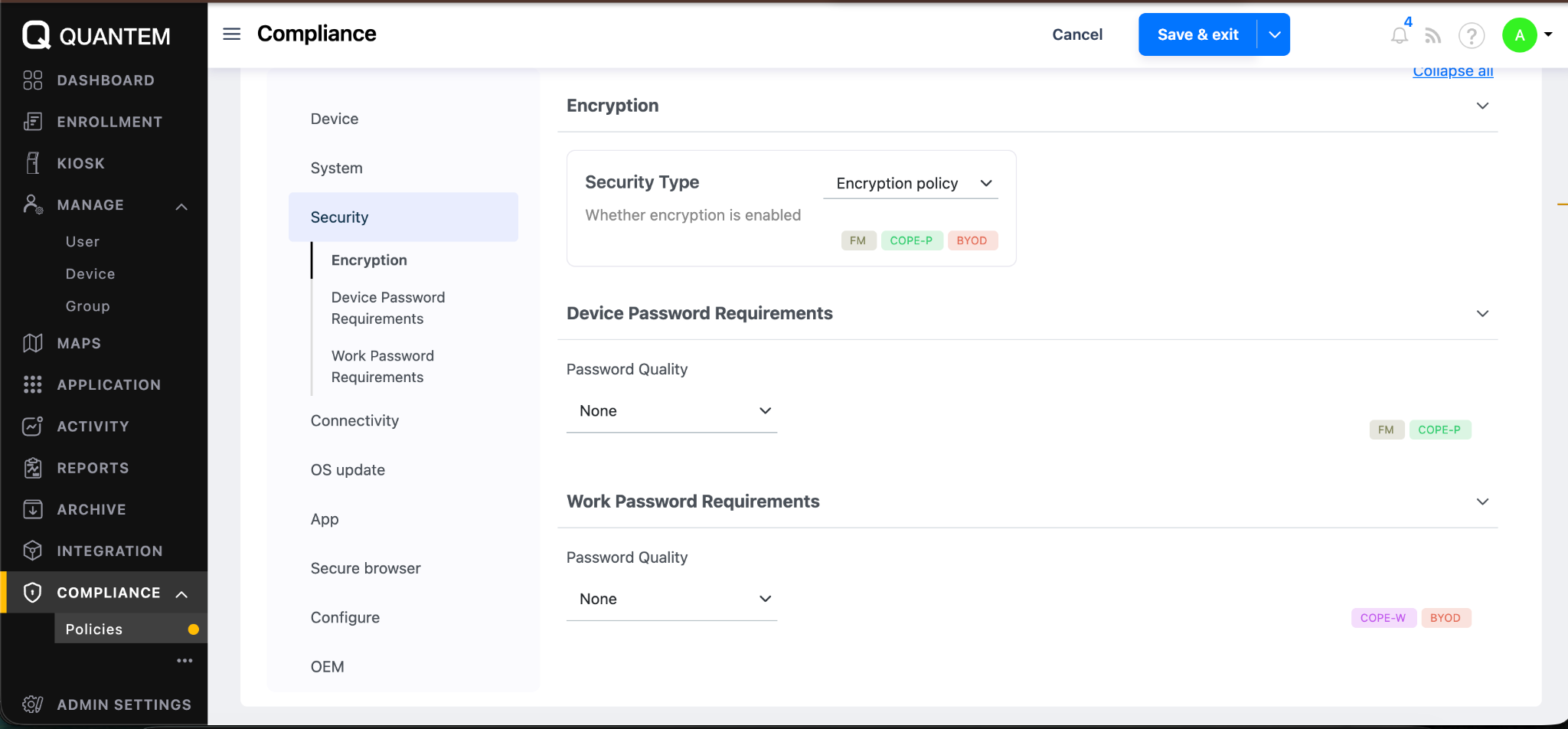
6: Configure Work Password Requirements
The Work Password Requirements section provides settings for configuring the password requirements for the work profile.
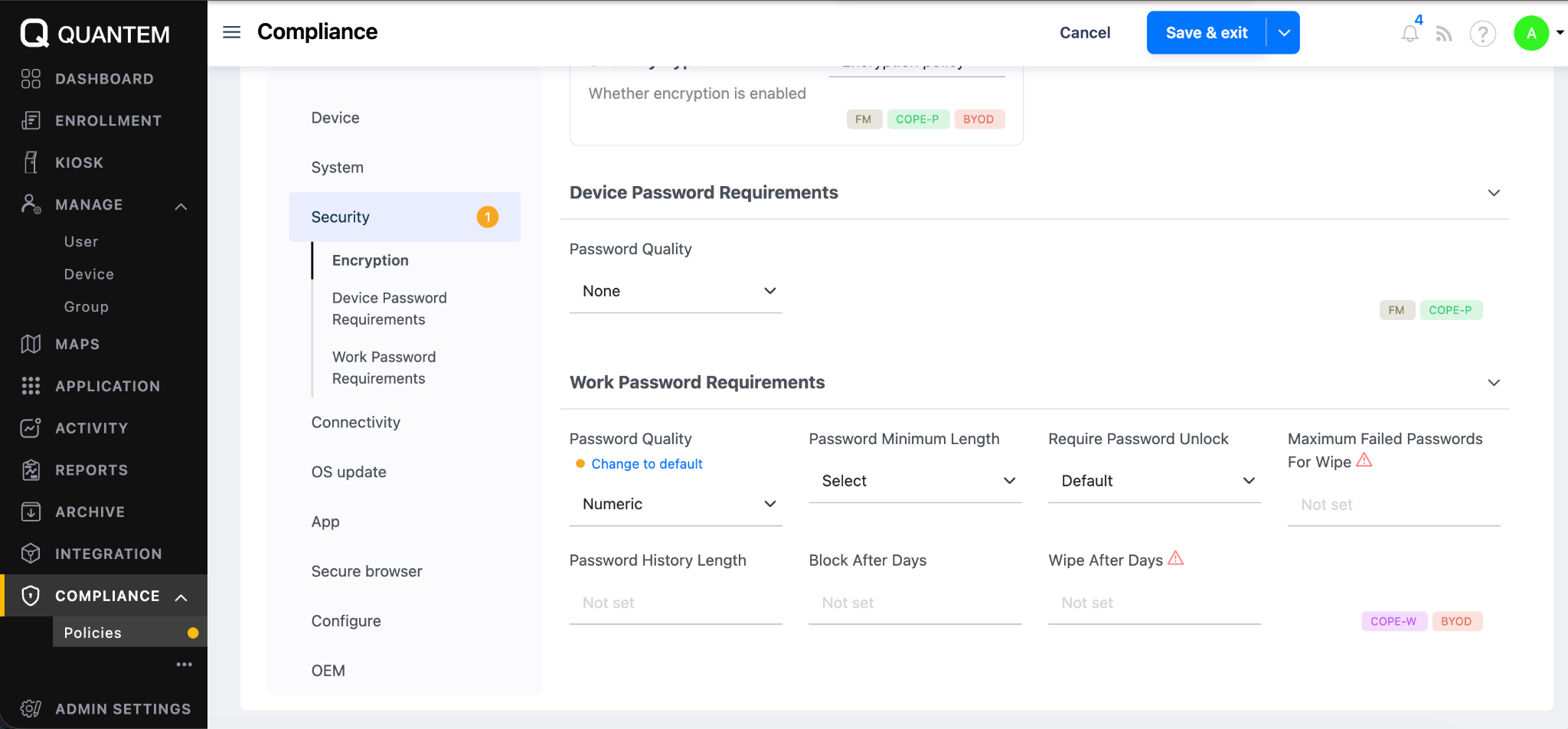
7: Save the Policy
After completing the required policy configuration, click Save & exit in the top-right corner.
Step 3: Device-Side Work Profile Enrollment
After the Work Profile policy is configured and saved in the Quantem Console, the Android device can be enrolled through the Work Profile setup flow.
1. Start Work Profile Setup
On the Android device, start the Work Profile setup using the enrollment method provided by the administrator.

2. Review Work Profile Information
Review the information displayed about the Work Profile and continue with the setup.

3. Open the Work Checklist
When the work setup checklist is displayed, select Install work apps to continue.

4. Install Quantem MDM
Under Required apps, locate Quantem MDM and proceed with the installation. Complete the required work-app installation and return to the Work Profile setup.

5. Enter the Verification Code
Enter the 6-digit verification code provided by the IT administrator and continue.

6. Grant Required Permissions
Grant the permissions requested by Quantem MDM, including Manage All Files, Usage Access, and Display Over Other Apps. Then continue.

7. Complete Enrollment
After the requested permissions are granted, complete the Work Profile setup. The device is then configured with the Work Profile and Quantem MDM as the work management application.
What Are the Common Android Work Profile Issues and How to Fix Them?
Even with the right setup, employees may occasionally face issues with their Android Work Profile. Most problems are related to device compatibility, enrollment, app access, or profile settings.
Here are some common issues and ways to fix them:
1. Android Work Profile is Not Appearing
If the Work Profile does not appear after enrollment:
- Check that the device supports Android Work Profile.
- Restart the device and try the setup process again.
- Verify that the device was enrolled correctly.
- Check whether the MDM enrollment was completed successfully.
If the issue continues, IT administrators should review the device enrollment status and Android Enterprise configuration.
2. Employees Cannot Install Work Apps
If employees cannot download or access required work apps:
- Check whether the required app has been assigned to the user or device.
- Ensure the app is available within the managed Work Profile.
- Verify that corporate policies do not restrict app installation.
- Restart the device and try again.
Employees should also ensure they are accessing the Work Play Store rather than the personal Play Store when installing managed apps.
3. Work Profile Keeps Turning Off
If the Work Profile appears disabled or keeps pausing:
- Check whether the Work Profile has been manually paused.
- Turn the Work Profile back on from the device settings or Quick Settings.
- Review battery optimization settings for managed work apps.
- Check for device or management policies that may affect Work Profile availability.
4. Unable to Access Work Emails or Files
If employees cannot access work emails, documents, or other business resources:
- Verify that the employee is using the correct work credentials.
- Check the device's internet connection.
- Confirm that the required work app is active and up to date.
- Sync the Work Profile if required.
- Contact IT support if access issues continue.
Most Android Work Profile issues can be resolved by checking enrollment, app assignments, device settings, and management policies. For larger BYOD deployments, an MDM solution also gives IT teams a centralized way to identify and troubleshoot device issues.
Simplify Android Work Profile Setup and BYOD Management with Quantem MDM
An Android Work Profile gives businesses a practical way to protect corporate data without taking over an employee's entire personal device. It creates a clear boundary between work and personal use, making it easier to support secure BYOD programs.
With Quantem Android MDM, IT teams can simplify Android Work Profile setup, enroll employee-owned devices, manage work apps, and apply security policies from a centralized platform. Administrators can also manage corporate data throughout the device lifecycle without affecting personal content.
Whether you are managing a small BYOD program or a large workforce, Quantem helps make Android Work Profile management easier to scale.
Make Android BYOD Management Simple with Quantem
FAQ
1. What is an Android Work Profile?
An Android Work Profile is a separate, managed space on an Android device that keeps work apps and company data separate from personal apps and content. IT teams can manage and secure the work profile without controlling the employee's personal data.
2. How Do I Set Up a Work Profile on Android?
To set up a Work Profile on Android, your organization typically uses an Android Enterprise-supported MDM solution. Employees enroll their device using a QR code, enrollment link, or other method, after which the managed Work Profile is created.
3. Can I Add a Work Profile to My Personal Android Phone?
Yes. An Android Work Profile is commonly used for BYOD programs, allowing employees to access work apps and data on their personal devices while keeping personal content separate.
4. How Do I Turn On My Work Profile on Android?
You can usually turn on a Work Profile on Android through the device's Quick Settings or Settings menu. Once enabled, work apps and notifications become available again.
5. Can My Employer See My Personal Apps and Data?
With a Work Profile, your employer manages the work environment rather than your personal profile. Personal apps, photos, messages, and other personal content remain separate from managed work apps and data.
6. Can IT Remove Work Data Without Deleting Personal Data?
Yes. IT teams can perform a selective wipe to remove managed work apps and corporate data from the Android Work Profile without deleting personal apps, photos, or other personal content.
7. Why is My Android Work Profile Not Showing?
An Android Work Profile may not appear because of an incomplete enrollment, unsupported device configuration, or an issue with the MDM or Android Enterprise setup. Restarting the device and checking the enrollment status can help resolve the issue.
8. Can I Turn Off My Work Profile on Android?
Yes. Employees can usually pause or turn off the Work Profile on Android when it is not needed. This temporarily disables work apps and notifications without removing the Work Profile or its data.



Get the latest blogs directly delivered to your mail fly arrow