How to Turn On Guided Access For Android Devices? A Detailed Guide
Have you ever handed someone your Android phone or tablet to show them something and immediately thought, I hope they don't open anything else?
Maybe you want a child to use one game without accessing other apps. Maybe you're demonstrating an app at an event. Or perhaps you need to hand someone a tablet for a quick task without giving them access to everything stored on the device.
Apple has a built-in feature for situations like these called Guided Access. On Android, things work a little differently.
So, if you're searching for Guided Access for Android, you're probably looking for one of three things: a way to lock an Android device to one app, an alternative to Apple's Guided Access, or a stronger solution for managing locked-down Android devices.
This guide covers all three. We'll explain what App Pinning is, how to use it, what it can and cannot do, and when an Android kiosk mode or MDM solution makes more sense.
What is Guided Access on Android Devices?
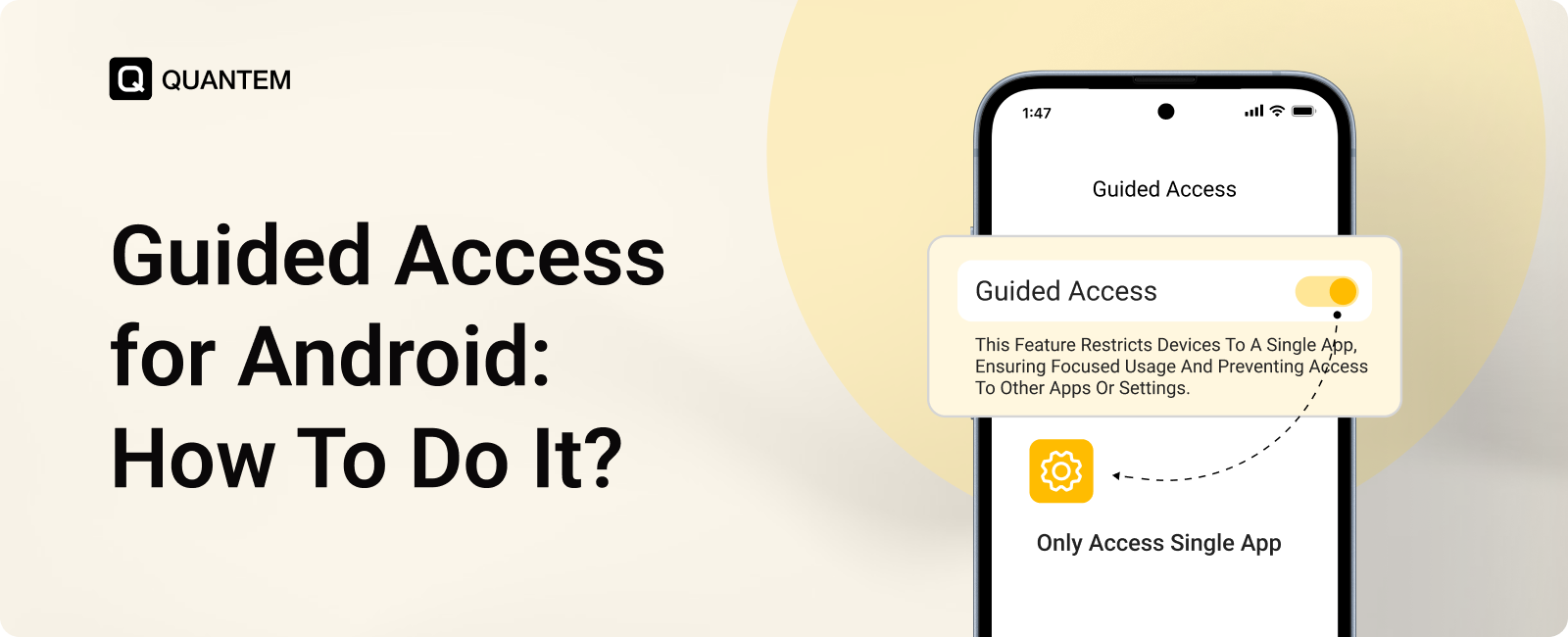
Android does not have a feature officially called Guided Access. Its built-in equivalent is App Pinning, also known as Screen Pinning, which restricts an Android device to a selected application.
The terminology can be confusing because Guided Access is Apple's name for a similar feature on iPhone and iPad. So, when people search for Guided Access for Android, Android Guided Access, or Guided Access Android, they're generally looking for App Pinning.
With App Pinning enabled, users can stay within the pinned app instead of freely switching to other applications on the device. The session can be ended using the device's required exit action and authentication.
App Pinning is useful for simple situations such as sharing a device temporarily, keeping children inside a particular app, or running a basic demonstration. However, it provides basic app restriction rather than full device management.
What Can You Do With Guided Access for Android?
Guided Access for Android is useful when the goal is straightforward: keep someone inside one application for a limited period of time.
Some common situations include:
1. Keep Children Inside One App
If you hand your phone to a child to play a game or watch a video, App Pinning can prevent them from casually switching to other applications.
This can also help avoid accidental purchases or changes to other apps.
2. Keep Students Focused
Teachers can pin a learning or assessment application on a shared Android tablet. Students remain within the application instead of switching to unrelated apps during the activity.
3. Run a Simple Demonstration
A business demonstrating an Android application can pin that application so visitors interact only with the intended experience.
4. Share a Device Temporarily
Sometimes someone only needs access to one application on your device. Pinning that application lets you share the device without handing over unrestricted access to everything else.
These are all situations where a simple app restriction can do the job without requiring a full device management platform.
How to Enable Guided Access on Android?
The exact steps can differ slightly depending on your Android device and software version, but the process generally follows this path.
Step 1: Open Settings
Open the Settings app on your Android device.
Step 2: Find App Pinning
Search for App Pinning or Screen Pinning in Settings. On many devices, you'll find it under Security or Security & privacy.
Step 3: Turn On App Pinning
Enable the feature and configure the required security option. Your device may ask you to use a PIN, password, or other authentication method when ending a pinned session.
Step 4: Open the Application
Launch the app you want to keep on the screen.
Step 5: Pin the App
Open the recent apps screen and select the pin option for the application. The device will now remain within the selected app until the pinned session is ended.
Guided Access vs App Pinning: What's the Difference?
Guided Access and App Pinning serve a similar purpose, but they are built for different platforms and offer different levels of control. Guided Access is Apple's feature for restricting an iPhone or iPad to a specific app, while Android provides App Pinning for a similar single-app experience.
The main difference is how much control each feature gives the user. Android App Pinning focuses on keeping the device within one application, while Guided Access provides additional options to control specific parts of the screen and device hardware.
So, if you're looking for Guided Access for Android, App Pinning is the closest built-in option, but it does not offer all the controls available with Apple's Guided Access.
Why Guided Access and Android Screen Pinning Aren't Enough for Enterprise Protection?
Guided Access and App Pinning are useful for basic app restriction, but they are not designed to provide the level of protection businesses need for enterprise devices. They can keep a device focused on a specific application, but they do not fully protect the device, corporate data, or connected business resources from misuse.
For example, App Pinning does not control what happens within the pinned application or protect the data that the application can access. It also provides limited control over device functions and requires manual intervention when managing individual devices. This becomes difficult when organizations use Android devices for business operations across multiple users and locations.
Enterprise deployments often require stronger controls to protect sensitive business and customer data, enforce security requirements, restrict device functionality, and maintain consistent protection across managed devices. These requirements go beyond what basic app restriction can provide.
For these scenarios, businesses need Android Enterprise and an MDM solution that can provide broader device controls, security policies, application management, and centralized oversight.
Quantem Android MDM: A Complete Alternative to Android Guided Access
For organizations that need more than basic app restriction, Quantem MDM provides centralized Android device management with Kiosk Mode. IT teams can manage devices remotely, control application access, enforce device policies, and protect business data from a single dashboard.
With single-app and multi-app Kiosk Mode, Quantem can turn Android devices into focused business devices while giving administrators greater control over how those devices are used.
Here's how it works:
1. Determine whether the device should run a single application, a set of approved apps, or a specific business workflow.
2. Configure the required applications, restrictions, and device settings through the Quantem MDM dashboard.
3. Enable single-app or multi-app Kiosk Mode and define what users can access on the device.
4. Push the configured policy to enrolled Android devices without manually setting up each device.
5. Users can access only the applications and functions permitted by the configured policy, keeping devices aligned with their intended purpose.
6. Administrators can change policies, add or remove applications, modify restrictions, or disable Kiosk Mode as requirements change.
Why Choose Quantem?
While Guided Access and App Pinning provides basic app restriction, Quantem MDM offers broader controls for organizations managing Android devices at scale.
- Manage devices at scale: Quantem MDM lets IT teams configure and manage Kiosk Mode across multiple Android devices from a centralized dashboard instead of manually pinning apps on individual devices.
- Apply granular device restrictions: Administrators can control supported device functions and settings, including Wi-Fi, Bluetooth, screen recording, brightness, task management, status bars, and physical buttons.
- Manage public and enterprise apps: Quantem supports application deployment and management, including public apps, enterprise applications, web apps, and app restrictions based on business requirements.
- Troubleshoot devices remotely: IT teams can use remote access capabilities to diagnose and resolve supported device issues without requiring physical access to devices.
- Strengthen device and data protection: Quantem provides security controls such as remote wipe, corporate wipe, and location or IP-based restrictions to help protect business data if devices are lost, stolen, or used outside approved conditions.
If you are ready to take greater control of your Android devices and deliver a secure, seamless user experience, see how Quantem MDM can help.
Frequently Asked Questions
1. What is Guided Access on Android?
Android does not have Apple's Guided Access feature. App Pinning, also called Screen Pinning, is the closest built-in Android option for restricting a device to one application.
2. Does Android Have Guided Access?
No. Android uses App Pinning or Screen Pinning instead of Apple's Guided Access. It provides basic single-app restrictions on supported Android devices.
3. How Do You Enable Guided Access on Android?
You can't enable Apple's Guided Access on Android. To get similar functionality, enable App Pinning or Screen Pinning in your Android device's security settings.
4. What is the Difference Between iOS Guided Access and Android App Pinning?
Guided Access is an Apple feature, while App Pinning is Android's built-in equivalent. Guided Access provides additional controls for restricting touch areas and hardware buttons that standard App Pinning does not offer.
5. What Are the Main Use Cases for Guided Access on Android?
App Pinning can be useful when sharing a device temporarily, supervising children's app usage, keeping students inside a learning app, or demonstrating an application without giving access to the rest of the device.
6. What Are the Limitations of Android App Pinning?
App Pinning is intended for basic single-app restriction. It does not provide centralized fleet management, comprehensive device policies, application lifecycle management, or the broader controls available through Android Enterprise and MDM.
7. What Is the Best Android Alternative to Guided Access?
For basic personal use, App Pinning is the closest built-in Android alternative. For business deployments, Android Kiosk Mode managed through an MDM solution provides stronger control, centralized management, and greater scalability.
8. Do Samsung Devices Have Guided Access?
Samsung devices do not have Apple's Guided Access feature. Instead, Samsung Android devices offer App Pinning, which can keep the device restricted to a selected application. To enable it, look for the App Pinning toggle in your device's security settings. The exact name and location may vary by Samsung device and Android version.



Get the latest blogs directly delivered to your mail fly arrow