Lockdown Android Tablet for Business Use with Quantem MDM
Android tablets are widely used across retail, healthcare, logistics, education, and field operations because they are affordable, flexible, and easy to deploy. But when a tablet is used for a specific business task, giving users unrestricted access to the device can create unnecessary problems.
Users may install unauthorized apps, change system settings, access unrelated websites, or use business tablets for personal activities. For organizations managing a large fleet, manually controlling these devices is neither practical nor scalable.
This is where Android lockdown mode comes in. Businesses can restrict tablets to approved applications, websites, and device functions based on how each device is used. An Android MDM solution makes this easier by allowing IT teams to configure and enforce these restrictions remotely from a centralized console.
In this blog, we will explain how to lockdown an Android tablet for business, the different Android kiosk mode options available, and how MDM can streamline Android tablet management at scale.
What is Android Lockdown Mode?
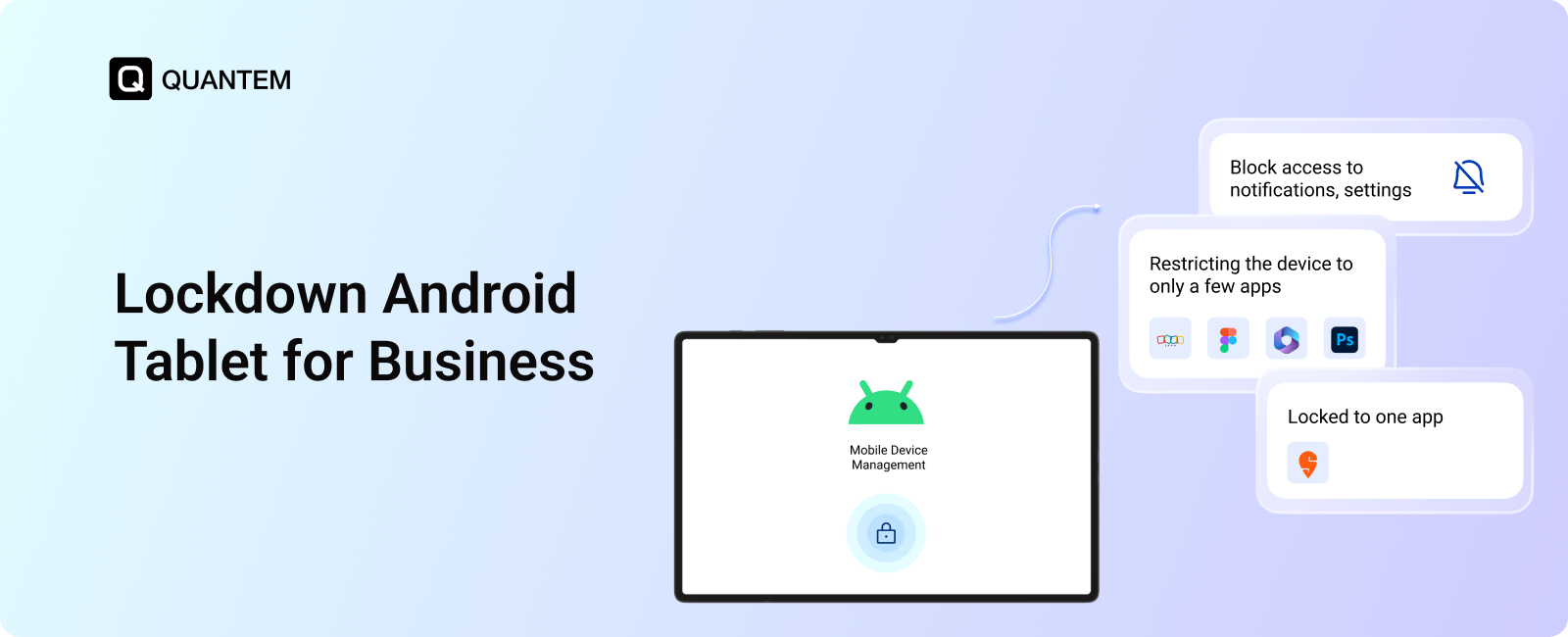
Android lockdown mode is the process of restricting a tablet's access to specific applications, websites, settings, and device functions. Instead of allowing users to freely interact with the entire operating system, businesses can configure the tablet around a defined purpose.
For example, an organization can:
- Restrict a tablet to a single business application.
- Allow access to a selected group of work apps.
- Limit browsing to approved websites.
- Block access to system settings and unwanted device functions.
- Prevent users from installing unauthorized applications.
- Create a consistent interface for shared or customer-facing devices.
This approach is particularly useful for dedicated Android devices that perform a specific business function. A warehouse tablet may only need inventory and barcode-scanning apps, while a retail tablet may need POS and product catalog applications.
With an Android device lockdown strategy, organizations can turn standard tablets into purpose-built business tools without giving users unnecessary control over the device.
Why Should Businesses Lock Down Android Tablets?
Business tablets are often deployed for a specific purpose, such as processing payments, managing inventory, collecting customer information, or supporting field operations. Giving users unrestricted access to the device can interfere with these workflows.
Employees may install unauthorized applications, modify system settings, browse unrelated websites, or misuse business devices for personal activities. On shared or customer-facing tablets, users may also access information or functions that should remain restricted.
Android tablet lockdown allows businesses to define what users can access and how the device can be used. IT teams can restrict applications, websites, system settings, and other device functions based on the tablet's role.
With an Android MDM solution, these restrictions can be configured centrally and applied across multiple devices instead of setting up each tablet individually.
Common Business Use Cases for Android Tablet Lockdown
Android tablet lockdown is useful whenever a device needs to perform a defined business task without giving users unrestricted access to the underlying device.
Common use cases include:
- Retail: Restrict tablets to POS, inventory, product catalog, or customer self-service applications.
- Healthcare: Limit access to approved healthcare applications and workflows on shared or dedicated tablets.
- Logistics: Keep tablets focused on navigation, delivery tracking, barcode scanning, and communication tools.
- Education: Restrict student tablets to learning applications and approved educational websites.
- Field Services: Provide technicians with only the applications and resources required for their assigned tasks.
- Hospitality: Configure tablets for guest check-in, ordering, feedback, or other self-service workflows.
- Corporate: Deploy locked-down tablets for reception desks, meeting rooms, visitor management, or shared workspaces.
These use cases can require different levels of restriction. An Android MDM solution allows businesses to configure the lockdown experience according to the device's purpose and user requirements.
Android Lockdown Mode vs. Android Kiosk Mode: What's the Difference?
Android offers several ways to restrict device access, but Android Lockdown Mode and Android Kiosk Mode are built around different management needs. Understanding how they differ can help businesses determine which approach fits their device usage and operational requirements.
Here's a quick comparison:
The main distinction is the level of control each approach provides.
Android Lockdown Mode is primarily focused on restricting access to certain device functions. It can be useful when businesses need to limit specific access options without turning the entire device into a dedicated-purpose environment.
Android Kiosk Mode provides broader control over how a device is used. Businesses can determine which applications or websites are available while restricting access to the rest of the Android environment. Depending on the workflow, this can include single app mode, multi app mode, or kiosk browser mode.
How to Lock Down Android Tablets for Business Use?
The most practical way to lockdown Android tablets for business is through an Android MDM solution. With MDM, IT teams can configure device restrictions remotely, manage tablet access, and enforce lockdown policies across multiple devices from a centralized console.
After enrolling the tablets, administrators can select the lockdown approach that matches the business workflow: Single-App Kiosk Mode, Multi-App Kiosk Mode, or Kiosk Browser Mode.
1. Single App Kiosk Mode
Single-app kiosk mode turns an Android tablet into a dedicated-purpose device by limiting it to one approved application. Instead of giving users access to the regular Android interface, the tablet opens the assigned app and keeps the user within that application.
This is useful when a tablet has one clearly defined job. For example, a customer-facing tablet used for check-in does not need access to other apps, system settings, or the rest of the Android interface. The kiosk configuration keeps the device focused on that single workflow.
An Android MDM solution can configure the tablet to:
- Automatically launch the assigned application when the device starts.
- Keep users within the approved application during normal use.
- Restrict Home, Back, and Recent Apps controls.
- Block access to system settings, notifications, and other applications.
- Relaunch the application if it is closed or interrupted.
Single-app kiosk mode is commonly used for POS terminals, customer check-in, self-service kiosks, digital menus, ticketing, and feedback systems.
2. Multi-App Kiosk Mode
Multi-app kiosk mode provides more flexibility when users need several applications to complete a business workflow. Instead of restricting the tablet to one app, IT administrators create a controlled environment containing only the applications employees are authorized to use.
Users can switch between the approved applications as needed, while the rest of the device remains restricted. This makes multi-app kiosk mode particularly suitable for employees who need multiple tools throughout their workday but should not have unrestricted access to the tablet.
Administrators can:
- Display only selected business applications on the device.
- Control which applications users can open.
- Prevent unauthorized app installation, removal, or modification.
- Restrict access to system settings and notification controls.
- Configure the tablet interface around a specific business workflow.
Android multi-app kiosk deployments are well suited for warehouse and logistics teams, healthcare staff, retail employees, delivery personnel, and field service workers who rely on multiple business applications.
3. Kiosk Browser Mode
Kiosk Browser Mode is designed for Android tablets that primarily need to access websites or web applications. Instead of allowing users to browse the internet freely, the tablet is configured to provide access only to the websites required for the intended business task.
For example, a tablet used for a customer survey can open the survey page while preventing users from navigating to unrelated websites. The browser becomes a controlled interface rather than a general-purpose browsing tool.
With Android kiosk browser mode, administrators can:
- Create a list of approved websites and domains.
- Prevent users from accessing unauthorized web content.
- Hide browser elements such as the address bar and bookmarks.
- Restrict private browsing and other unwanted browser functions.
- Update permitted URLs remotely through the MDM console.
This configuration works well for digital catalogs, educational portals, event registration, online forms, customer surveys, and web-based self-service kiosks.
Common Mistakes to Avoid When Locking Down Android Tablets for Business
Locking down Android tablets for business is only effective when the right restrictions remain in place after deployment. Overlooking a few important settings can leave users with more access than intended or make managed tablets harder to maintain.
Here are some common gaps to watch for:
- Failing to review MDM policies: Business requirements change over time. Regularly reviewing lockdown policies helps ensure devices continue to follow the required configuration.
- Leaving Developer Options enabled: Developer Options can expose additional device settings that may interfere with the restrictions applied to a managed tablet.
- Keeping factory reset options accessible: If users can reset a tablet without authorization, the device may lose its intended configuration and require additional IT intervention.
- Ignoring device analytics: Usage and device insights can help IT teams identify unusual activity, recurring issues, or tablets that may need attention.
- Using the same lockdown configuration everywhere: Different devices may support different workflows. Applying profiles based on device purpose helps avoid unnecessary restrictions or missing controls.
Taking care of these areas helps businesses maintain more consistent Android tablet management and ensures lockdown policies continue to work as intended after deployment.
Key Benefits of Using MDM for Android Tablet Lockdown
Using an MDM solution to manage lockdown mode gives businesses centralized control over how Android tablets are configured and used. Beyond restricting access, it helps IT teams manage the devices throughout their lifecycle.
1. Strengthen Device Security
IT teams can enforce security policies across locked-down tablets and take remote action if a device is lost or compromised. This helps reduce unauthorized access to business devices and data.
2. Control How Tablets Are Used
Organizations can restrict tablets to approved applications, websites, and device functions. This keeps devices aligned with their intended business purpose and reduces unnecessary use.
3. Manage Devices from One Console
Instead of configuring tablets individually, IT administrators can manage the entire fleet from a centralized MDM platform. Policies and configurations can be applied to groups of devices, saving time as deployments grow.
4. Create Purpose-Built Device Experiences
Different teams may require different tablet configurations. Administrators can create device profiles based on specific roles, workflows, or locations and provide users with only the tools they need.
5. Simplify Application Management
Required applications can be distributed and maintained remotely through Managed Google Play across managed devices. IT teams can also control which applications are available on locked-down devices, ensuring users have access only to the apps needed for their work to support productivity.
6. Support Compliance Requirements
Organizations in regulated industries can use device restrictions and security policies to support their broader compliance requirements. This helps maintain more consistent configurations across managed tablets.
7. Reduce IT Workload
Centralized management reduces the need for technicians to manually configure, update, or troubleshoot individual tablets. IT teams can handle routine management tasks remotely through the MDM console.
8. Keep Business Tablets Ready for Use
Administrators can maintain device configurations, manage applications, and apply required updates remotely. This helps keep tablets aligned with their intended workflows and reduces unnecessary downtime.
9. Support Different Device Ownership Models
An Android MDM solution can support different deployment scenarios, including corporate-owned and BYOD devices. For personal devices, work profiles can help separate business applications and data from personal content.
10. Improve the Customer Experience
For customer-facing tablets, lockdown creates a focused and consistent interface. Customers can interact with the required application or website without being exposed to unrelated apps, settings, or device functions.
Absolutely. Here’s the updated section with that line added and “On supported devices and plans” removed:
Why Lockdown Android Tablets for Business with Quantem MDM?
Locking down an Android tablet is only part of the equation. Businesses also need a way to manage those devices after deployment, update configurations, control applications, and respond to issues remotely.
Quantem MDM brings these capabilities together in a centralized platform, helping IT teams manage locked-down Android tablets alongside their broader device environment.
Here's a closer look at why businesses trust Quantem MDM to manage their Android tablets:
1. Centralized Device Management
Quantem provides a centralized dashboard where IT teams can manage enrolled tablets, apply configurations, distribute applications, and monitor device status without handling each device individually.
2. Multi-OS Device Management
Android may be your primary platform, but business environments often include multiple operating systems. Quantem supports Android, iOS, macOS, Windows, and Linux, allowing IT teams to manage different device types from one console.
3. Faster Device Onboarding and Support
Deploying an MDM solution across a fleet can require planning and configuration. Quantem provides onboarding assistance and customer support to help teams get their device management environment up and running.
4. Role-Based Administration
IT environments often involve multiple administrators with different responsibilities. Quantem supports role-based access control (RBAC), allowing organizations to assign management permissions based on each administrator's role.
5. Application and Content Distribution
IT teams can distribute approved applications and content to managed tablets through supported management workflows. This helps ensure users have access to the resources required for their specific business tasks.
6. Remote Cast and Control
Administrators can remotely view and control Android tablet screens to investigate issues and troubleshoot problems without requiring physical access to the device.
7. Remote Device Actions
When a managed tablet is lost, misplaced, or requires immediate intervention, administrators can perform supported remote actions from the MDM console, including:
- Locking the device.
- Wiping business data.
- Rebooting or resetting the device where supported.
- Sending notifications or alerts to users.
These controls are particularly useful when business tablets are distributed across multiple locations or used by mobile and frontline teams.
8. Compliance-Ready Features
Quantem provides device management and security controls that can help organizations maintain consistent configurations and support compliance with GDPR, HIPAA, SOC 2, CCPA, ISO 27001, and industry-specific guidelines. IT teams can apply policies, monitor managed devices, and maintain visibility across the tablet fleet.
Simplify Android Tablet Lockdown with Quantem MDM
Locking down Android tablets for business helps organizations maintain tighter control over device usage, protect business data, and keep tablets focused on their intended tasks. The right approach also makes it easier to manage these restrictions as the device fleet grows.
Quantem gives IT teams a centralized way to configure Android device profiles, manage approved applications and websites, and apply supported restrictions across enrolled business tablets. This helps organizations maintain consistent configurations across devices without relying on manual setup.
Whether you are deploying tablets for retail, healthcare, logistics, field services, or other business workflows, Quantem helps turn Android tablets into purpose-built devices that are easier to manage and maintain.
Lock down your Android tablets with Quantem MDM
1. Do Android tablets have Kiosk Mode?
Yes. Modern Android tablets can support kiosk-style restrictions through features such as app pinning. However, built-in options provide limited centralized control. For advanced Android kiosk mode management, businesses can use an MDM platform like Quantem to manage app access and device restrictions remotely.
2. How do you lock an Android tablet to one website?
You can use Kiosk Browser Mode through an Android MDM platform like Quantem. It allows administrators to specify approved websites while restricting access to other sites and browser functions.
3. How do you turn off lockdown mode on Android?
Turning off lockdown restrictions generally requires administrator access. On an MDM-managed tablet, the administrator can modify or remove the applicable lockdown policy from the management console. The exact process depends on the device and its configuration.
4. How to lock an Android device to single app mode?
You can lock an Android device to one app using native Android settings such as App Pinning or Single-App Kiosk Mode through an MDM solution. App Pinning provides basic device-level restriction, while MDM-based kiosk mode offers centralized control over apps and system settings.
5. What are the best practices for locking down Android tablets for business use?
To maintain a secure and well-managed Android tablet lockdown, businesses should:
- Use an Android MDM solution to configure and manage lockdown policies centrally.
- Restrict tablets to approved applications and websites required for business tasks.
- Disable access to unnecessary system settings and device functions.
- Choose Single-App, Multi-App, or Kiosk Browser Mode based on the device's intended use.
- Monitor managed tablets regularly and keep policies and configurations up to date.
Following these practices helps organizations maintain consistent control over Android tablets while reducing the risk of unauthorized use.
6. Can I use a third-party lockdown app from the Play Store instead of an MDM?
Yes, but standalone lockdown apps generally offer more limited device management than an enterprise MDM platform. They may also be easier for users to bypass and could introduce security or privacy risks if they are not properly vetted. An MDM solution provides broader device-level controls and centralized policy management across multiple tablets.
7. Does Quantem support Android tablet kiosk management with Samsung Knox?
Yes. Quantem supports Android tablet kiosk management with Samsung Knox, allowing businesses to configure Samsung tablets for dedicated business use. IT teams can apply kiosk policies, control approved applications, and manage device settings centrally.



Get the latest blogs directly delivered to your mail fly arrow