Key Takeaways
- Android Work Profile creates a software-isolated container on personally-owned devices, keeping personal data completely invisible to IT admins.
- Setup requires Android 5.0 or later, an EMM/MDM solution, and a managed Google Play account bound to the organization.
- Work apps are visually marked with a briefcase badge and appear in a separate Work tab in the app drawer.
- IT admins can enforce security policies, remotely wipe only the work profile, and silently push apps — without touching personal content.
- Android 7.0+ users can pause the work profile instantly, silencing work notifications without deleting any data.
Introduction
Employees resist carrying two phones. IT teams can't let personal devices access corporate data without protection. This tension is real, and it causes friction at every organization that allows remote or hybrid work.
Android Work Profile resolves it. By creating a managed, isolated environment directly on a personally-owned device, it keeps corporate apps and data completely separate from personal photos, messages, and browsing — on a single phone.
That separation matters. NIST identifies BYOD as a genuine security risk when personal devices are inadequately secured — and Work Profile is the mechanism Android Enterprise uses to address it without requiring employees to surrender their device or their privacy.
This guide covers: what Work Profile actually is, how to set it up correctly, what IT can and cannot manage, common problems and fixes, and how to scale enrollment across a device fleet.
What Is an Android Work Profile?
According to Google, Android Work Profile separates work apps and data, managed by your organization, from employee personal data on employee and company-owned devices. The personal side remains entirely private: personal apps, photos, messages, and browsing history are not visible or accessible to the organization.
Two Deployment Scenarios
Google documents two work profile configurations:
- Personally-owned device (BYOD) — the employee owns the phone; the organization manages only the work profile
- Company-owned device — the organization owns the hardware but still maintains a clear personal/work separation
This guide focuses on the personally-owned scenario, where employee privacy expectations are highest and the stakes of getting the setup wrong are most significant.
Understanding what's covered also means understanding the boundaries. The work profile is a software container — not total device control — which is exactly why employees tend to accept it.
What a Work Profile Is NOT
- It is not full device management (MDM) — the organization does not control the whole phone
- It cannot read personal messages, call logs, photos, or personal app usage
- It cannot wipe the entire device — only the work profile container
- It is a profile-level software boundary managed by the Android OS, not a hardware partition
Before You Begin: Requirements and Prerequisites
Skipping prerequisites is the most common reason enrollment fails silently. Verify these before any device touches the enrollment flow.
Technical Requirements
- Android 5.0 or later — required for work profile support; Android 5.1+ for DPC-first provisioning
- Android 8.0+ — required for company-owned work profile scenarios and advanced features (Always-On VPN, advanced certificate management)
- Google Play Services must be working and up to date on the device
- The device must not already be enrolled as a fully managed (Device Owner) device
Organizational Requirements
Before the first device is enrolled, the organization needs:
- An EMM or MDM platform configured and ready
- A managed Google Play account bound to the organization
- Enrollment policies defined in the EMM console
Enrollment Conditions
These must be confirmed before enrollment begins:
- The user must be signed into the primary account — secondary accounts are not supported for work profile creation
- Android Enterprise must be available in the device's country or region (Google maintains a country availability list)
- Any legacy Device Admin policies must be removed before enrollment
How to Set Up an Android Work Profile: Step-by-Step
Each step below must complete in order — skipping one typically results in a work profile that's provisioned but not enforcing any IT policies.
Step 1: Install the EMM Agent and Sign In
Download your organization's MDM agent from Google Play — this could be Android Device Policy or your EMM provider's branded app. Open it and sign in with corporate credentials. This must be done on the primary user account, not a secondary profile.
Step 2: Initiate Work Profile Creation
The app will present a summary of what the organization can and cannot see on the device. The Google Workspace setup flow prompts users to tap Accept & continue to begin work profile creation. The Android OS then automatically provisions the isolated work profile container.
If your organization uses the Android Management API instead of Google Workspace, users scan a QR code or enter an enrollment token after downloading Android Device Policy — this path is common for fully managed BYOD deployments.
Step 3: Activate and Register the Work Profile
Once the container is created, the user signs in again with their work account — this time inside the work profile. This step:
- Registers the device with the EMM
- Applies initial policy enforcement
- Activates managed Google Play for the work profile
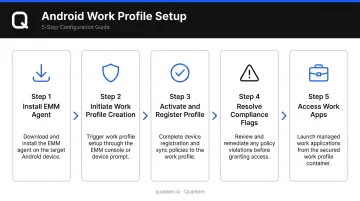
Step 4: Resolve Any Compliance Flags
The MDM agent checks device settings against organizational policy. Common flags include:
- Insufficient screen lock strength
- OS version below the required minimum
- Missing security configurations
The user must resolve each flag before enrollment completes. Some settings get enforced automatically by the EMM.
Step 5: Confirm Setup and Access Work Apps
A Work tab appears in the app drawer. All IT-approved apps install without user interaction. Work apps display a briefcase badge to distinguish them from personal apps.
If users open the unbadged version of an app for work tasks, that data falls outside the managed container — IT has no visibility or control over it.
What IT Admins Can Monitor and Manage in the Work Profile
Security Controls
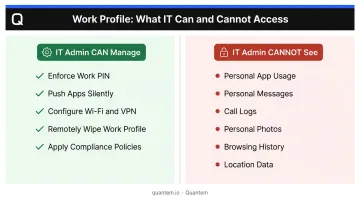
IT admins have meaningful enforcement capabilities within the work profile boundary:
- Enforce a separate PIN or password for work apps (Android 7.0+), independent of the device lock
- Set password complexity rules — minimum length, character types, and expiry intervals
- Remotely lock or wipe the work profile without touching personal data; Google confirms the personal profile stays fully intact
App Management
From the EMM console, admins can:
- Silently push apps to work profiles without user interaction
- Block installation of unauthorized apps within the work profile
- Pre-configure managed app settings (email server addresses, VPN credentials)
- Control app update timing
No scripting required. No manual device access needed.
Network and Certificate Management
- Silently provision enterprise Wi-Fi (SSID, password, certificates) on Android 6.0+ devices
- Deploy identity certificates via
installKeyPair()on Android 7.0+, granting app access without user prompts - Enable Always-On VPN (Android 7.0+) to route all work profile traffic through a designated VPN — even on unsecured networks
The Privacy Boundary
This is where the technology earns employee trust. Google's official policy page states explicitly: personal apps, data, and usage details are not visible or accessible to the organization.
IT admins cannot see:
- Personal app usage or browsing history
- Personal messages or emails
- Call logs from the personal side
- Personal photos or files
- Location data (unless explicitly enabled by the user)
Compliance Enforcement
That same boundary extends to compliance. EMM platforms automatically restrict work profile access when a device falls out of policy — outdated OS, disabled screen lock, or a rooted device. IT teams don't chase down individual devices; the platform enforces the rules and flags violations in the console.
Common Android Work Profile Problems and How to Fix Them
Work Profile Fails to Create During Enrollment
Symptoms: Enrollment stalls or throws an error at the profile creation step.
Likely causes:
- Google Play Services is not working correctly — verify it's running and up to date
- User is signed into a secondary account, not the primary
- A legacy Device Admin app is still active on the device
Fix: Go to Settings > Security > Device Admin Apps and remove any conflicting policies. Confirm the primary account is active. Verify Google Play Services is functioning before retrying enrollment.
Work Apps Appear Grey or Unresponsive
Symptoms: Work app icons display as grey and won't launch.
Likely cause: The work profile is paused — either manually by the user or triggered by battery optimization settings.
Fix: Navigate to the Work tab in the app drawer or Settings > Work Profile and toggle the work profile back on. Check that battery optimization is not configured to disable work profile processes in the background.
Work Profile Disappeared After a Device Update or Reset
Symptoms: The Work tab and all work apps are gone after a software update or factory reset.
Likely cause: A factory reset erases all data and apps on the device, which removes the work profile. Some major OS updates can also deactivate the profile container.
Fix: Re-enroll through the MDM agent. Work data stored server-side (email, cloud documents) will be restored. Any data saved locally within the work profile is lost permanently.
Tips for Managing Work Profiles at Scale
Managing BYOD enrollment for dozens or hundreds of employees is a different problem than managing a single device. The following practices reduce manual overhead without requiring IT to touch every device.
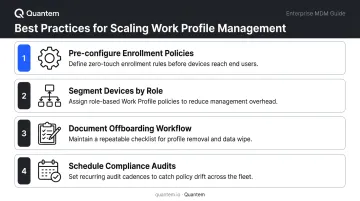
Pre-configure enrollment policies first. Define app assignments, security requirements, and compliance rules in the EMM console before any device reaches an employee. For BYOD work profiles, the standard path uses Android Device Policy with a QR code or enrollment token — employees scan and go, no IT intervention per device.
Segment devices by role. Retail staff, field technicians, and office employees have different app and security requirements. A single blanket policy either over-restricts or under-restricts depending on the role. Quantem supports group and device-level targeting, so different configurations for different teams require no scripting.
Document the offboarding workflow before you need it. When an employee leaves, the admin triggers a remote work profile wipe from the EMM console — corporate data is removed immediately, no phone surrender required. Communicate this process at onboarding to prevent end-of-employment disputes about data access.
Schedule regular compliance audits. Most EMM platforms flag non-compliant devices automatically, but don't rely on alerts alone. Build a periodic review into IT operations so devices running outdated OS versions or with disabled screen locks don't linger unprotected.
Frequently Asked Questions
How does an Android work profile work?
Android Work Profile creates a profile-level managed environment on the device where corporate apps and data are controlled by the IT admin. The personal side of the phone remains completely separate — the two environments cannot share data unless explicitly permitted by policy.
Where did my work profile go on Android?
The most common reason is that the work profile was paused — check the Work tab in the app drawer or the quick settings toggle to re-enable it. If the device was factory reset, the work profile is deleted and must be re-enrolled through the MDM agent.
Can my employer see my personal data through the work profile?
No. IT admins can only see and manage content within the work profile. Personal apps, messages, photos, browsing history, and call logs on the personal side are completely invisible to the organization.
What Android version is required for a work profile?
Android 5.0 is the minimum. Android 8.0 or later is required for specific features including company-owned work profile scenarios, Always-On VPN, and advanced certificate management.
What happens to my work profile if I leave the company?
The IT admin remotely wipes the work profile, removing all work apps and data from your device. Your personal data, apps, photos, and settings are completely unaffected.
Can I pause or turn off my work profile temporarily?
Yes — on Android 7.0 or later, you can pause the work profile from quick settings, the Settings app, or the Work tab in the app drawer. Pausing disables all work apps and stops work notifications without deleting any data.