Introduction
Shipping 50 Android devices to remote employees sounds straightforward — until IT realizes each one needs manual configuration. Someone has to image the device, install apps, set policies, and hand it off. Multiply that by 200 devices across five locations, and you're looking at days of lost time, inconsistent setups, and real security exposure.
According to the Verizon 2025 Mobile Security Index, 85% of organizations report mobile device attacks are increasing — and more than half have experienced a cyberattack that caused system downtime. Unmanaged or inconsistently configured devices are a direct contributor to that exposure.
Zero-touch enrollment eliminates manual setup entirely. An employee powers on the device, connects to Wi-Fi, and receives every app, policy, and security setting automatically — no IT involvement at the endpoint.
This guide covers:
- What zero-touch enrollment is and how it works
- Prerequisites before you start
- A step-by-step setup walkthrough
- Common failure points to avoid
- Best practices for scaling across large or distributed fleets
Key Takeaways
- Zero-touch enrollment automatically provisions corporate-owned Android devices on first boot, requiring no IT involvement at the employee's end.
- Devices must run Android 9.0 or later (Pixel devices from Android 7.0+) and be purchased from a Google-authorized reseller.
- Setup requires three components: a zero-touch customer account, an MDM platform, and a configuration linking both.
- After a factory reset, devices automatically re-enroll using the assigned configuration — users can't bypass management.
- Most enrollment failures trace back to an unregistered device in the portal or a misconfigured/expired enrollment token.
What Is Zero-Touch Enrollment and How Does It Work?
Zero-touch enrollment is an Android Enterprise provisioning method where devices are pre-registered with a management configuration before they ship. When an employee powers on the device for the first time, it contacts Google's servers, detects its assigned configuration, and downloads the Device Policy Controller (DPC) app. All organizational policies apply automatically — no one needs to physically touch the device.
The Underlying Mechanism
The process relies on the device's hardware identifier — its IMEI or serial number — being registered in the zero-touch portal by the reseller. According to Google's Android Enterprise documentation, on first boot the device checks whether an enterprise configuration has been assigned. If yes, it immediately starts fully managed provisioning and installs the correct DPC app to complete setup.
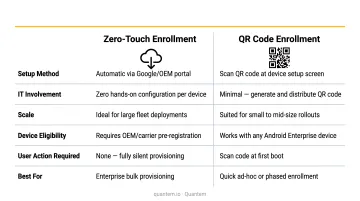
Zero-touch and QR code enrollment differ in ways that matter at scale:
| Feature | Zero-Touch Enrollment | QR Code Enrollment |
|---|---|---|
| Setup action required | None (fully automated) | Manual QR scan per device |
| Survives factory reset | Yes — auto re-enrolls | No — requires re-scan |
| Best for | Large fleets, remote workers | Small batches, in-person setup |
| IT presence at endpoint | Not required | Required or user-guided |
Who Configures What Before the Device Ships
Two parties must complete their steps before a device ships:
- Reseller: Registers the device IMEI or serial number in the zero-touch portal and provisions the customer account.
- IT admin: Builds the enrollment configuration in the MDM console and links it to the zero-touch account.
Both steps must be complete before the device reaches the end user. If either is missing, the device bypasses zero-touch and sets up in an unmanaged state.
Before You Begin: Prerequisites and Requirements
Device Eligibility
- Must run Android 9.0 (Pie) or later for most hardware
- Select Pixel devices support Android 7.0 (Nougat) or later
- Must be Google Mobile Services (GMS) compatible with Google Play services enabled
- Must be purchased from a Google-authorized zero-touch reseller — consumer retail purchases are not eligible
Find authorized resellers through the Android Enterprise Solutions Directory.
Reseller Requirement
The reseller creates the zero-touch customer account when the initial device order is placed. You'll need to provide a Google Account tied to a corporate email address (not a personal Gmail) so the reseller can set up the account correctly.
MDM/EMM Platform
You need an MDM platform that supports zero-touch enrollment to define policies, push apps, and receive enrolled devices. Quantem includes zero-touch enrollment across all plan tiers, starting with the Essential plan at $1/device/month. You don't need a premium license to access this capability.
Admin Access Level
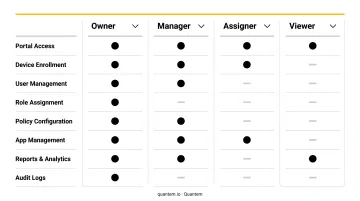
The Google Account linked to the zero-touch portal must hold Owner-level permissions. Lower roles — Manager, Assigner, Viewer — cannot link to an EMM, accept terms of service, or create the initial configuration. Confirm this before you begin setup.
When Not to Proceed
If any of the following apply, resolve them before moving forward — proceeding without addressing these will result in failed or ineffective enrollment:
- Devices were purchased from a non-authorized reseller
- Your MDM platform doesn't support zero-touch enrollment
- Your organization uses basic mobile management — basic management doesn't enforce policies in zero-touch mode, making enrollment functionally ineffective
How to Set Up Zero-Touch Enrollment: Step-by-Step
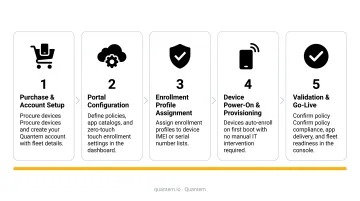
Follow this sequence to avoid provisioning failures: reseller purchase → MDM configuration → zero-touch portal linking → configuration assignment → device validation. Each stage depends on the previous one — skipping any step causes provisioning failures on first boot.
Step 1: Enable Android Enterprise in Your MDM
In your MDM console, enable advanced mobile management for Android and register your Android Enterprise account. This creates the managed Google Play instance required to push apps and policies. Confirm Android Enterprise registration is active before moving to Step 2.
In Quantem, this setup is toggle-based — no scripting required. Once your Android Enterprise account is linked, the platform is ready to receive and manage enrolled devices.
Step 2: Create an Enrollment Configuration in Your MDM
Navigate to the zero-touch or enrollment configuration section in your MDM console:
- Select the device group or policy that will apply to enrolled devices
- Set a token validity period. Tokens expire, so choose an appropriate window and note the expiration date
- Copy the JSON-formatted DPC extras string generated by the MDM. You'll paste this into the zero-touch portal in the next step
Do not manually edit the JSON string — even minor formatting errors cause provisioning failures.
Step 3: Link Your Zero-Touch Account and Create a Configuration
Sign in to the zero-touch portal at enterprise.google.com/android/zero-touch using the Owner-level Google Account provided to your reseller. Then:
- Navigate to Configurations and create a new configuration
- Select your MDM's DPC app from the dropdown
- Paste the JSON DPC extras string from Step 2
- Enter your company name, support email, and support phone number (these display to users during device setup)
- Set this as the default configuration so all future devices added by your reseller receive it automatically
If different departments need different policies, you can assign configurations individually to specific device groups rather than using a single default.
Step 4: Validate on a Test Device
Test with one device before shipping the full batch:
- Verify the device's IMEI or serial number appears in the portal's Devices tab with a configuration assigned (not "No config")
- Power on the device, connect to Wi-Fi, and confirm it enters automatic provisioning. It should not show the standard Android setup wizard
- Watch for: the organization's company name and support info appearing on screen, the MDM app installing automatically, and the device showing up in the MDM's enrolled device list
If the device reaches the standard Google setup screen, provisioning did not trigger. Before shipping additional units, check the portal for a missing or unassigned configuration.
Common Zero-Touch Enrollment Issues and How to Fix Them
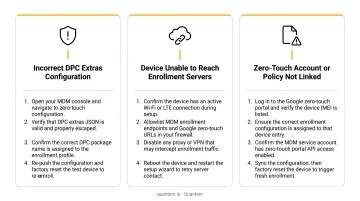
Even well-configured zero-touch deployments run into a handful of predictable issues. Here are the three most common ones and how to resolve each.
Device Not Provisioning on First Boot
What happens: The device powers on and proceeds through the standard Android setup wizard instead of entering zero-touch provisioning.
Likely cause: The device's IMEI or serial number wasn't registered by the reseller, or no configuration has been assigned (portal shows "No config").
Fix:
- Look up the device in the portal using its IMEI or serial number
- If missing, contact the reseller to register it
- If registered but unassigned, apply the correct configuration in the portal, then factory reset the device (Google confirms users receive a one-hour warning before the reset triggers)
Device Bypasses Zero-Touch Without Wi-Fi
What happens: A user powers on the device without a Wi-Fi connection, partially completes setup, and the device later forces a factory reset once it connects to the internet.
Likely cause: Zero-touch requires an internet connection on first boot to contact Google's provisioning servers. Without it, the device sets up in an unmanaged state. Once it does connect, Google automatically resets it to trigger correct provisioning (as described above).
Fix: Include a simple instruction card in every device shipment: Connect to Wi-Fi before tapping through the welcome screen. This is especially critical for remote workers receiving devices at home.
Enrollment Token Expired or Configuration Mismatch
What happens: Devices that enroll after the token's expiry date don't provision correctly, or they land in the wrong device group, despite the portal showing a configuration assigned.
Likely cause: The enrollment token in the MDM has expired, or the JSON DPC extras string was pasted with formatting errors — causing the DPC to fail without a visible error message.
Fix:
- Check token validity in the MDM console — regenerate if expired
- Re-copy the JSON string directly from the MDM (don't retype it)
- Re-paste into the portal configuration and save
- Factory reset a registered test device to confirm enrollment works correctly
Best Practices for Deploying Zero-Touch at Scale
Control Portal Access Before Anything Else
Set up role-based access in the zero-touch portal before any configuration work begins:
- Owner/Admin roles — senior IT staff only; these roles can create configurations, link EMMs, and manage the portal
- Manager/Assigner roles — operational staff who apply configurations but shouldn't create or delete them
- Audit portal user access quarterly and remove accounts for staff who have left
Actively Track Token Expiration
Expired tokens are the most common cause of provisioning failures on new device batches that arrive weeks after initial setup. Set calendar reminders to renew tokens at least two weeks before expiration. Don't rely on memory — this is the kind of thing that causes a batch of 50 devices to arrive and fail silently.
Use CSV Bulk Assignment for Large Batches
For large or distributed deployments, use CSV bulk assignment to apply configurations to entire device batches at once. Assigning configurations one device at a time is impractical at scale. Before uploading, confirm the CSV includes the correct IMEI or serial number format required by the portal.
Maintain Audit Logs as a Compliance Habit
The zero-touch portal records all configuration changes, device assignments, and user actions with timestamps. Google introduced these audit logs in March 2025, with a one-year retention window. Review logs monthly and export them before they age out.
For organizations with compliance requirements, pairing zero-touch portal audit logs with Quantem's activity logging gives auditors a traceable record from device assignment in the portal through to active policy enforcement across the fleet. Quantem holds SOC-2, GDPR, and CCPA certifications — documentation auditors commonly request during device provisioning reviews.
Frequently Asked Questions
What is zero-touch enrollment?
Zero-touch enrollment is an Android Enterprise feature that automatically provisions corporate-owned devices on first boot — apps, security policies, and settings all deploy without any manual IT setup. Employees simply power on, connect to Wi-Fi, and get to work.
How much does zero-touch enrollment cost?
Zero-touch enrollment is a Google Android Enterprise feature with no standalone cost. You pay for the MDM platform that manages enrolled devices. Quantem includes zero-touch enrollment across all plan tiers starting at $1/device/month, with no premium license required.
What is zero-touch enrollment for Chromebook?
ChromeOS zero-touch enrollment uses a pre-provisioning token generated in the Google Admin console. An authorized partner — manufacturer, distributor, or reseller — registers the device before it ships, so it auto-enrolls into the organization's domain on first boot.
Which Android devices support zero-touch enrollment?
Devices must run Android 9.0 (Pie) or later and be GMS-compatible. Select Pixel devices support zero-touch from Android 7.0. Devices must also be purchased from a Google-authorized reseller — the Android Enterprise Partners directory lists compatible devices and authorized resellers.
What happens if a device is factory reset after zero-touch enrollment?
Zero-touch enrollment is tied to the device's hardware identifier, not the user. After a factory reset, the device re-checks Google's servers on first boot and automatically re-enrolls using the assigned configuration — users cannot bypass management through a factory reset.
What is the difference between zero-touch enrollment and QR code enrollment?
The key differences:
- Zero-touch: Fully automated, no user action needed, scales to large fleets, survives factory resets
- QR code: Requires a scan during setup, better suited for small batches, does not auto-re-enroll after a factory reset