Introduction
Many Android users hit the same wall: they open work profile security settings, look for fingerprint or face unlock, and find the option grayed out or absent entirely. The natural assumption is that something is broken. It isn't. This is intentional Android behavior, and the setup path to enable it is specific enough that skipping one step keeps the option permanently unavailable.
This guide covers two audiences:
- **End users on BYOD devices** who want biometric access to work apps without entering a PIN every time
- IT administrators who need to understand how MDM policy interacts with device-level biometric settings and why users keep raising support tickets about it
By the end, you'll understand why work profile biometrics are restricted by default, what has to be in place before you can enable them, and how to complete setup without running into policy conflicts.
Key Takeaways
- Work profile biometrics are separate by design (a privacy feature, not a device flaw)
- Enabling fingerprint unlock requires disabling "Use one lock" on most Android devices
- MDM policy overrides user settings - admin-restricted biometric quality cannot be changed at the device level
- Biometrics always require a fallback PIN or password; biometric-only unlock is not supported
- Android 7.0 or later is required to set a separate work profile lock
Why Biometrics Aren't Automatically Available in Your Android Work Profile
The Work Profile Is a Separate User Environment
Android's managed profile architecture treats the work profile as a distinct user container with its own app data, storage, and credentials. Accounts in the work profile are unique from the primary user, and no credential crosses the profile boundary.
Android's biometric system scopes templates per user, so the work profile and personal profile don't share authentication credentials - they can't, by design.
The "Use One Lock" Default
Most Android devices ship with "Use one lock" enabled. When active, the work profile borrows the device's lock screen credential rather than maintaining its own. From the user's perspective, biometrics appear to work for the work profile - but they're actually applied as a unified device credential, not a work-profile-specific one.
The distinction matters when your organization's MDM policy requires a separate, stronger credential for work access. That requirement conflicts with a shared lock - and biometric options disappear.
How MDM Policy Overrides Everything
If your device is enrolled in an MDM platform, the administrator's authentication policy for the work profile overrides any local device setting:
- Setting the work profile password quality to
BIOMETRIC_WEAKallows fingerprint and face unlock - Using keyguard restriction flags like
KEYGUARD_DISABLE_BIOMETRICSorKEYGUARD_DISABLE_FINGERPRINTblocks biometric authentication entirely - No amount of local configuration changes this - policy wins
BYOD vs. Corporate-Owned Devices
The scope of admin control differs between device types:
| Device Type | Admin Control Scope | User Control |
|---|---|---|
| BYOD with work profile | Work profile only | Retains full personal profile control |
| Corporate-owned fully managed | Entire device | Minimal or none |
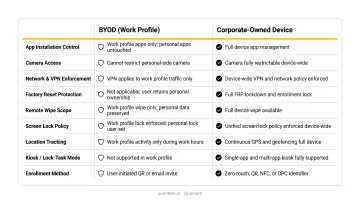
On a BYOD device, your organization can lock down the work profile's authentication without touching your personal profile settings. On a corporate-owned device, the admin has full control over both.
Android Version Requirements
Version support determines what's actually enforceable. According to Google's Android Enterprise Help, a dedicated work profile lock requires Android 7.0 Nougat or later. Admin-enforced separation of work and personal passcodes requires Android 9.0 Pie or later, using the DISALLOW_UNIFIED_PASSWORD policy restriction.
What You Need Before Enabling Work Profile Biometrics
Before touching any settings, confirm all three prerequisites are in place:
- Android 7.0 or later - earlier versions don't support a separate work profile lock
- At least one biometric enrolled - fingerprint or face must already be registered on the device
- A backup credential configured - Google requires a pattern, PIN, or password before biometric enrollment is permitted for the work profile
Confirming MDM Policy Allows Biometrics
If your device is enrolled in an MDM platform, the work profile authentication policy must be set to permit biometric quality. The relevant policy setting is PASSWORD_QUALITY_BIOMETRIC_WEAK in the DevicePolicyManager API, or BIOMETRIC_WEAK in the Android Management API's PasswordRequirements.
IT admins using Quantem can check and adjust work profile authentication settings through the platform's policy configuration controls, with no scripting required. If you're unsure whether your current policy blocks biometrics, check with your IT administrator before attempting device-level setup.
Once your policy is confirmed, decide which lock strategy fits your situation:
- Shared lock - device and work profile share one credential; biometrics may appear to work but aren't profile-specific
- Separate work profile lock - work profile carries its own biometric, independent of the device lock screen
- For organizations managing BYOD fleets, a separate lock is the right call - it keeps personal and work credentials cleanly isolated
How to Set Up Biometric Authentication in Your Android Work Profile
Biometric setup follows a specific sequence. The most common failure point is attempting to enroll a work profile fingerprint without first separating the work profile lock from the device lock.
Before you start, confirm you have:
- A device running Android 8.0 or later with a work profile enrolled
- Your device PIN or password on hand (required during enrollment)
- At least one biometric (fingerprint or face) already registered on the device
Step 1: Separate the Work Profile Lock
- Open Settings
- Navigate to Security and Privacy > More Security Settings > Work Profile Security
- Turn off "Use one lock"
This separates the work profile's authentication from the device lock screen, creating a distinct credential slot for the work profile.
Note (Samsung devices): The path may appear as Security and Privacy > Work profile security. Labels vary by One UI version - check under Security and Privacy if the path differs.
Step 2: Set a Work Profile Fingerprint (or Face)
- After disabling "Use one lock," tap Work profile lock
- Select Fingerprint (or Face recognition if available on your device)
- Enter your device PIN when prompted - Android requires identity confirmation before enrolling a new credential
- Follow the on-screen enrollment steps to register your biometric
Step 3: Verify the Biometric is Active
Lock the device or close all work profile apps, then attempt to reopen a work app. Android will prompt for your fingerprint instead of PIN.
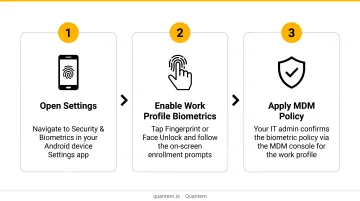
Important: After every device reboot, Android requires the backup PIN or password before biometrics become active again. This is normal - it's a security checkpoint, not a setup error.
Common Work Profile Biometric Issues and How to Fix Them
Fingerprint Option Is Grayed Out or Missing
Problem: The fingerprint option doesn't appear under Work Profile Security settings, or is visible but can't be selected.
Likely causes:
- MDM policy has set a password quality that excludes biometric authentication (via keyguard restriction flags or a
KEYGUARD_DISABLE_FINGERPRINTpolicy) - "Use one lock" is still enabled
Fix: Disable "Use one lock" first. If the option remains unavailable, ask your IT administrator to verify that the work profile authentication policy explicitly permits biometric quality. This is a policy-level change, not a device setting.
Authenticator App Still Prompts for PIN After Fingerprint Is Set
Apps like Microsoft Authenticator sometimes continue requesting a PIN even after fingerprint enrollment. This happens because the app maintains its own internal authentication policy, separate from the work profile lock - and MDM platforms can enforce per-app PIN requirements independently of profile-level settings.
Check whether the specific app has a biometric toggle within its own settings. Microsoft Authenticator, for example, requires biometric to be enabled inside the app independently. Also confirm with IT that no app-level PIN requirement is enforced through your MDM policy.
Biometrics Stop Working After Device Restart
After restarting, fingerprint no longer unlocks the work profile - and that's by design. Android disables biometric authentication after a reboot and requires a PIN or password before biometrics can resume in that session.
Enter the backup PIN once after each reboot. Biometric unlock will work normally for all subsequent attempts until the next restart. This is expected security behavior, not a malfunction.
Pro Tips for IT Admins Managing Work Profile Biometric Policies
Four practices consistently separate smooth biometric rollouts from ones that generate support tickets.
Set Password Quality to Allow Biometrics
The work profile password quality must be set to BIOMETRIC_WEAK (or the equivalent setting in your MDM platform) to enable fingerprint and face unlock. Setting quality to ALPHANUMERIC or higher blocks biometrics entirely, even on fully compatible devices. Always test policy changes on a pilot group before broad deployment.
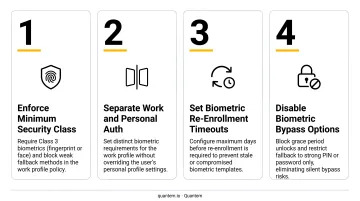
Configure Strong Authentication Timeout Deliberately
The setRequiredStrongAuthTimeout setting (Android 8.0+) forces users to re-enter their PIN or password after a defined interval, even while biometrics are active. This ensures biometric convenience doesn't permanently replace credential verification. NIST SP 800-63B recommends reauthentication intervals of no more than 24 hours at AAL2. Your organization's risk posture will determine the right interval.
Prepare Users for Dual Authentication Prompts
If your compliance policy requires a separate work profile credential with specific complexity, users will see two distinct authentication prompts during enrollment. This surprises people who aren't expecting it. A brief written guide sent before enrollment - explaining that the second prompt is intentional - noticeably reduces support ticket volume.
Keep a Record of Policy Decisions
Document which keyguard flags and password quality settings are applied to each work profile, along with the reasoning behind each choice. When users report biometric issues, that documentation is the fastest path to diagnosis.
Frequently Asked Questions
Can I lock my Android work profile?
Yes. Android 7.0 and later supports a separate work profile lock with options including PIN, pattern, password, fingerprint, and face recognition (subject to device support). IT administrators can also require a work profile lock via MDM policy on Android 9.0 and later.
Is the Android work profile managed with MDM or MAM?
Both are possible. MDM manages device enrollment and enforces work profile authentication policies across the device. MAM manages specific apps without full device enrollment. Biometric policy control, including password quality settings, is typically an MDM capability.
Why is the fingerprint option grayed out in my work profile?
The two most common causes are an MDM policy restricting biometric authentication via keyguard flags, or "Use one lock" still being enabled. To resolve:
- Disable "Use one lock" in work profile settings
- If the option remains grayed out, contact your IT administrator to review the work profile authentication policy
Does enabling biometrics for my work profile affect my personal profile?
No. Work and personal profiles are isolated. Setting a fingerprint for the work profile does not change, override, or share biometric data with the personal profile. Your personal profile security settings remain as you configured them.
What happens when I restart my device with biometric work profile unlock enabled?
After every reboot, Android requires the backup PIN or password to be entered once before biometrics become active again. This is a built-in security requirement on all Android devices and cannot be bypassed.
Which Android version is required to use fingerprint unlock in a work profile?
Android 7.0 Nougat or later is required to set a separate work profile lock. Admin-enforced separation of work and personal credentials requires Android 9.0 or later. Availability may also vary by device manufacturer and current MDM policy configuration.