Introduction
BYOD programs are now a standard part of enterprise mobility - but the mechanics of enrolling personal Android devices securely remain poorly understood by many IT teams. According to Lookout's Q2 2024 Mobile Threat Landscape Report, 14.19% of BYOD enterprise devices were exposed to at least one phishing or malicious-content attack in a single quarter. That's a measurable exposure gap - one that unsecured BYOD programs leave open every day.
Android Enterprise BYOD enrollment is the process of registering a personal Android device with your organization's MDM system, triggering a sandboxed work profile that keeps corporate apps and data completely separate from personal content.
This guide is written for IT administrators, operations leads, and IT decision-makers building or refining a BYOD program. You'll learn exactly how enrollment works, what security controls the work profile enforces, what can go wrong, and when BYOD enrollment isn't the right deployment mode at all.
Key Takeaways:
- The Android work profile is an OS-level sandbox: IT manages only the work container, with no access to personal data
- Enrollment requires Android 5.1+ and a Managed Google Play binding on the IT side
- IT can selectively wipe only the work profile, leaving personal data untouched
- BYOD enrollment is ongoing management, not a one-time setup
- Regulated industries need an MDM platform with SOC-2, GDPR, and CCPA compliance built in
What Is Android Enterprise BYOD Enrollment?
Google describes Android Enterprise as a framework of APIs and tools that enables organizations to manage Android devices for work - including BYOD scenarios - through Enterprise Mobility Management (EMM) platforms. An Android Enterprise solution combines an EMM console, Android Device Policy for applying configurations, and Managed Google Play for app distribution.
Enrollment means registering a personal device with that system. When an employee enrolls, the Android OS creates a work profile - a sandboxed container that houses all corporate apps, data, and processes, kept entirely separate from personal apps, photos, and messages that IT cannot access.
BYOD Mode vs. Other Android Enterprise Deployments
Android Enterprise supports several deployment modes. Understanding which mode applies to your situation matters - especially for BYOD, where the boundary between corporate control and employee privacy is the whole point:
| Mode | Device Ownership | IT Control Scope | Use Case |
|---|---|---|---|
| Work Profile (BYOD) | Employee-owned | Work container only | Personal devices used for work |
| Fully Managed | Company-owned | Entire device | Work-only devices |
| Dedicated Device | Company-owned | Entire device, kiosk-style | Frontline/field workers |
| COPE | Company-owned | Full device + work profile | Mixed work/personal, company hardware |
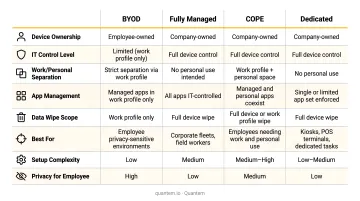
BYOD mode - also called Profile Owner mode - is specifically designed to give IT the management access it needs without exposing employee personal data. In practice, IT can wipe the work profile remotely without touching a single personal file - a distinction employees notice and appreciate.
How Android Enterprise BYOD Enrollment Works
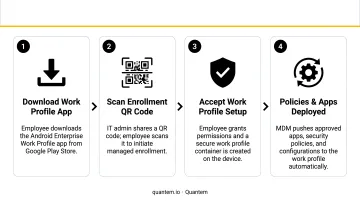
The enrollment process follows four clean steps: the employee authenticates with corporate credentials, the Android OS builds the work profile container, and IT pushes apps and policies into that container - without touching anything on the personal side.
Prerequisites Before You Start
On the device side:
- Android 5.1 or later (newer versions unlock additional controls)
- Active Google Play Services
On the IT side:
- MDM/EMM platform configured for Android Enterprise
- Managed Google Play binding completed in the console
- User authentication configured (SAML, directory, or local credentials)
- App policies and compliance rules pre-staged before enrollment begins
Platforms like Quantem support policy pre-staging - IT admins can configure app catalogs, security settings, and compliance rules in the console before a single employee starts enrollment. That preparation directly affects how quickly devices become productive post-enrollment.
With prerequisites in place, the actual enrollment steps move quickly.
Step 1: Employee Downloads the MDM App and Initiates Enrollment
The employee downloads the company's MDM agent from the Google Play Store, signs in with corporate credentials, and grants the permissions needed to begin work profile setup. Enrollment methods vary by platform:
- Google Play Store download: Standard path for most employees
- QR code: Faster, no manual credential entry required
- Email invite link: Useful for remote or distributed teams
Quantem supports QR code enrollment across all plans, with zero-touch and Knox enrollment available in higher tiers.
Step 2: Android OS Creates the Work Profile Container
This is the critical architectural point. The work profile isn't created by a third-party app - the Android operating system itself builds the container as a native OS-level sandbox. Work apps appear on the home screen badged with a briefcase icon, running in a fully isolated environment. File URIs and most intents don't cross the profile boundary unless an IT admin explicitly permits it.
Step 3: IT Pushes Apps, Policies, and Configurations Remotely
Once the work profile is active, the MDM console takes over. IT can:
- Push approved apps from Managed Google Play to the work container
- Apply security policies (screen lock requirements, encryption, copy/paste restrictions)
- Configure VPN or certificates
- Set compliance rules that trigger automated responses if a device falls out of policy
Quantem's platform includes 250+ pre-built policy controls with a toggle-based interface - no scripting required. It also supports auto-update schedules for apps across entire device fleets simultaneously.
Security Controls the Work Profile Enforces
The work profile isn't just logical separation - it's enforced at the OS level. Android Enterprise's security documentation outlines specific APIs that give IT granular control over the work container.
Data Loss Prevention (DLP)
- Copy/paste control:
setCrossProfileCopyPasteDisabledprevents data copied in work apps from being pasted into personal apps - Inter-app sharing:
DISALLOW_SHARE_OUT_OF_MANAGED_PROFILEblocks files and data from leaving the work container - Screenshot blocking:
setScreenCaptureDisabledprevents users from capturing work app screens
These controls operate at the OS layer - users cannot bypass them through workarounds.
Authentication and Encryption
IT can enforce a separate work profile security challenge - a PIN or password specifically for the work container - without imposing those requirements on the employee's personal profile. Available controls include:
- Minimum password complexity via
setRequiredPasswordComplexity - Device-level storage encryption via
setStorageEncryption - Re-authentication after a defined idle period
App Governance via Managed Google Play
IT explicitly allowlists which apps can exist in the work profile. Unauthorized apps cannot access corporate data. Approved apps can be silently pushed, updated, or removed without any employee action required.
Selective Wipe
According to Google's Android Enterprise security documentation, when an employee leaves or a device is lost, IT can remotely wipe only the work profile. The personal side of the device stays completely intact.
A selective wipe removes:
- All corporate apps and their data
- Work email and calendar
- Business contacts and documents
Personal photos, apps, and messages are never touched. This boundary is built into the Android Enterprise architecture itself - the MDM enforces it, not just configures it.
For regulated industries like healthcare and education, the MDM platform executing these actions needs to meet its own compliance bar. Quantem holds SOC-2, GDPR, and CCPA certifications, so the enrollment and data management process meets established standards end to end.
Common Misconceptions About Android Enterprise BYOD
Employee pushback is one of the most predictable obstacles in any BYOD rollout. A 2023 study published in the Journal of Computer Information Systems found that legal concerns significantly influenced perceived BYOD risks (β = 0.597), with employees specifically worried that MDM would expose their location, photos, or messages. These concerns don't apply to Android Enterprise work profiles - but IT teams need to communicate that clearly before enrollment, not after.
"IT can read my personal messages and see my browser history." Wrong. Google's official guidance is explicit: personal apps, personal data, and personal usage details are not visible or accessible to the organization. On Android 11 and later, work profile apps cannot access SMS or MMS data from the personal profile. IT admins see security posture signals and manage only the work container.
"IT can wipe my entire phone." Not in Profile Owner (BYOD) mode. IT can only selectively wipe the work profile. Personal photos, apps, and data are untouched. This is architectural - it's not a policy setting that can be changed.
"Enrollment is a one-time setup." Enrollment starts an ongoing management relationship. Devices must remain compliant to retain work profile access. That means planning for:
- Current OS patches and screen lock requirements staying active
- Periodic compliance checks as security requirements evolve
- Device offboarding when employees leave or change roles
Understanding these realities upfront prevents surprises during rollout.
When Android Enterprise BYOD Enrollment Isn't the Right Choice
BYOD with a work profile is the right fit for most standard enterprise scenarios. It's not right for all of them.
Scenarios Where BYOD Falls Short
- PCI-scoped payment processing: The PCI Security Standards Council advises against BYOD for mobile payment acceptance - merchants can't control the full device configuration
- Highly classified data handling: Environments requiring full device control cannot rely on work profile isolation alone
- Legacy Android devices: Employees using Android 5.0 or earlier cannot support work profiles at all
Alternative Deployment Modes to Consider
- Fully managed: Company-owned devices for work-only use, with IT controlling the entire device. Appropriate for roles where personal use creates unacceptable risk
- Dedicated device (kiosk): Locked to one app or a defined set of apps; designed for frontline or field workers who don't need general smartphone functionality
- COPE (company-owned, personally enabled): Company-owned hardware that permits limited personal use via a work profile (Android 8.0+). Balances control and employee flexibility without BYOD's privacy architecture constraints
The right mode depends on three factors: your security posture, who owns the device, and the employee's role. IT teams managing mixed fleets, some BYOD and some fully managed, benefit from a single console that handles every deployment mode. Quantem supports all Android Enterprise enrollment types from one interface, regardless of plan.
Frequently Asked Questions
What is a BYOD Android phone?
A BYOD Android phone is a personally owned device that an employee also uses for work. When enrolled in an organization's MDM system, it receives a work profile that keeps corporate apps and data separate from personal content, with no IT visibility into anything personal.
What is an Android Enterprise device?
An Android Enterprise device is any Android device (personal or company-owned) managed using Google's Android Enterprise framework. The framework provides IT-grade controls, work profile separation, and Managed Google Play integration. Google also maintains an "Android Enterprise Recommended" list of devices that meet strict enterprise requirements.
How does the Android work profile protect employee privacy?
The work profile is an OS-level container. IT admins can only view and manage what's inside it: work apps and data. Personal apps, messages, photos, and browsing history remain invisible to the organization and completely inaccessible.
Can IT admins wipe personal data from an enrolled BYOD device?
No. In Android Enterprise BYOD (Profile Owner) mode, IT can only perform a selective wipe of the work profile, removing only corporate apps and data. The personal profile and all personal data remain completely untouched.
What Android version is required for Android Enterprise BYOD enrollment?
Work profiles are supported on Android 5.1 and later. Newer Android versions unlock additional controls: Android 10 added QR code-based work profile provisioning, and Android 12 introduced enrollment-specific IDs for enhanced privacy.