This guide is written for IT admins and IT managers responsible for connecting an MDM platform to existing organizational systems. It covers the full integration lifecycle: prerequisites, step-by-step setup, troubleshooting the three most common failure categories, and best practices to avoid rework.
If you're just getting started or are mid-deployment hitting issues, this is where to begin.
Key Takeaways
- MDM integration connects your platform to identity providers, directories, and app infrastructure, not just the MDM console itself
- Prerequisites must be verified before configuration begins: identity provider readiness, firewall clearance, and defined enrollment policies
- The three failure points to watch: authentication token errors, enrollment endpoint misconfiguration, and GPO/MDM policy conflicts
- Post-integration validation is required - test enrollment, compliance reporting, and policy propagation before fleet rollout
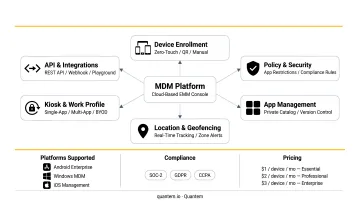
- Platforms certified for SOC-2, GDPR, and CCPA (like Quantem) reduce compliance verification overhead after integration
What Is an MDM Integration Service?
MDM integration is the process of connecting a Mobile Device Management platform to an organization's existing infrastructure (identity providers like Active Directory, Microsoft Entra ID, Google Workspace, and Okta), HR systems, managed app stores, and network access controls - so devices can be enrolled, managed, and monitored from a single console.
Installing the MDM gives you the management console. Integration is what makes that console aware of your users, directories, device groups, and policy structure - without it, you have a dashboard with nothing connected.
What Proper Integration Actually Enables
A correctly configured MDM integration delivers:
- Automated device enrollment tied to user identity - no manual per-device setup
- Policy enforcement based on directory group membership
- Compliance status reporting written back to the identity provider
- Controlled app distribution from managed app sources without manual sideloading
Without those connections, IT teams manage devices manually, catch policy drift after the damage is done, and spend time troubleshooting enrollment failures that proper setup would have prevented entirely.
Prerequisites for MDM Integration Setup
Every item below must be confirmed before configuration begins. Missing even one - particularly around identity provider readiness or firewall rules - is a common cause of failed or incomplete integrations.
Identity Provider Readiness
- Directory (Entra ID, Google Workspace, Okta, or equivalent) must be fully provisioned - not in setup or transition
- Admin credentials must have sufficient permissions to create app registrations, assign API scopes, and modify MDM/mobility settings
- User accounts must follow a consistent UPN or naming structure the MDM can map to
- Quantem natively supports Google Workspace and Okta for directory integration, with Professional and Enterprise plans enabling directory import
Network and Firewall Requirements
Firewall rules must be reviewed and approved before integration starts. Port and protocol requirements vary by platform:
| Platform | Ports Required |
|---|---|
| Windows MDM (OMA-DM) | HTTPS/TLS (confirm with your vendor's network endpoint docs) |
| Apple devices (APNs) | TCP 443 (activation), TCP 5223 (APNs), TCP 2197 (management services) |
| Android Enterprise | TCP 443, TCP/UDP 5228–5230, UDP 123 (NTP during provisioning) |
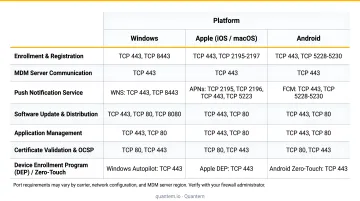
Sources: Apple APNs documentation and Google Android Enterprise network requirements.
Enrollment Policy Decisions
Define before setup:
- Corporate-owned enrollment
- BYOD with work profile separation
- Hybrid co-management with existing directory services
These decisions determine which endpoints you configure and which Terms of Use flows must be in place.
Compliance and Legal Prerequisites
Verify data residency requirements and applicable regulations before integration:
- HIPAA: Requires access control, audit controls, authentication, and transmission security for ePHI
- GDPR Articles 28 and 32: Require processor contracts and appropriate technical/organizational security measures
- CCPA: Requires consumer rights controls and notice-at-collection obligations
Confirm your MDM platform holds the relevant certifications before rollout. Quantem is SOC-2, GDPR, and CCPA certified, which matters most for healthcare and enterprise deployments where compliance gaps can surface post-integration.
Do not proceed if: the identity provider is not fully provisioned, admin credentials are temporary or insufficiently scoped, or firewall rules have not been reviewed by the security team.
How to Set Up MDM Integration (Step-by-Step)
MDM integration follows a defined sequence. Running phases out of order is a primary cause of misconfigured enrollments and downstream troubleshooting.
The six steps below move from identity provider registration through full fleet validation. Work through them in order.
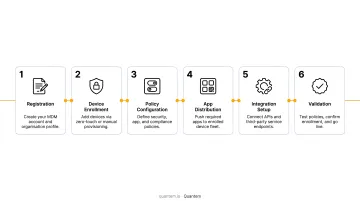
Step 1: Register the MDM Application with Your Identity Provider
Register the MDM as a trusted application in your organization's identity provider.
For Microsoft Entra ID:
- Cloud-based MDM platforms use multitenant app registration in the vendor's home tenant
- On-premises MDM instances require per-tenant registration in the customer's tenant
- Assign the correct API permissions for the operations your MDM will perform:
Device.ReadWrite.Allfor device object read/writeDeviceManagementManagedDevices.ReadWrite.Allfor managed device updatesDeviceManagementConfiguration.ReadWrite.Allfor compliance policy updates
- Generate the client ID and key pair the MDM will use to authenticate
For Google/Android Enterprise: Registration flows through the Android Management API. Google no longer accepts new registrations for custom DPCs using the legacy Play EMM API, so use the Android Management API path exclusively.
Step 2: Configure Enrollment Endpoints and URLs
Set the following within the identity provider's MDM/mobility settings:
- MDM enrollment URL - the endpoint devices contact to initiate enrollment
- Terms of Use endpoint URL - if your organization requires acceptance before enrollment
- MDM discovery URL - used by the device to locate the enrollment service
These URLs must be reachable from the device network and must match the SSL certificate the MDM server presents. Microsoft documents specific enrollment errors for this: error 0x80180012 for invalid SSL certificates and 0x8018000D for invalid certificate dates.
Step 3: Define Enrollment Policies and Device Groups
Scope which users or groups are enrolled, and whether enrollment is:
- Automatic - triggered when a user joins the directory-managed environment
- User-initiated - the user completes enrollment manually after authentication
Poorly scoped enrollment policies cause either unintended enrollments (too broad) or missed devices (too narrow) - define the scope before moving forward.
Step 4: Configure App Distribution and Policy Profiles
Connect the MDM to managed app sources:
- Google Play Managed for Android
- Windows Store for Business or private enterprise repositories for Windows
- Private enterprise app catalogs for line-of-business applications
Create initial compliance and configuration policy profiles at this stage. Platforms that consolidate policy and app assignment in a single console - without requiring separate scripting - significantly reduce setup time here. Quantem's built-in private app management with version control handles this within the same interface.
Step 5: Run the Initial Enrollment Test
Before touching the full fleet, enroll a single test device manually and verify:
- The device appears in the MDM console
- User identity is correctly mapped to the device record
- Assigned policies apply as configured
- Compliance status is correctly reported back to the identity provider
Document the expected state. This baseline is what you measure against during full rollout.
One note on enrollment task signals: When confirming enrollment success in step 3 above, don't rely on Task Scheduler event 102 alone - Microsoft flags that it fires on both success and failure. Check enrollment events 75 and 76 to confirm actual outcome.
Step 6: Post-Integration Validation
After the test device passes, validate the integration end-to-end:
- Add a new user to the directory and confirm automated enrollment triggers
- Make a policy change and verify it propagates within the expected sync interval
- Remove a device from the directory and confirm unenrollment triggers
- Compare the MDM's compliance report against the identity provider's device list for discrepancies
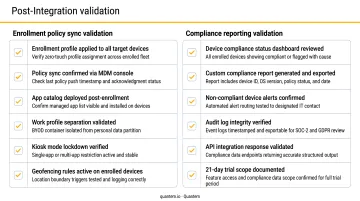
Validate that compliance write-back to Microsoft Graph is succeeding - expect HTTP 204 No Content on successful update operations for device, managedDevice, and compliance policy objects.
Common MDM Integration Problems and Fixes
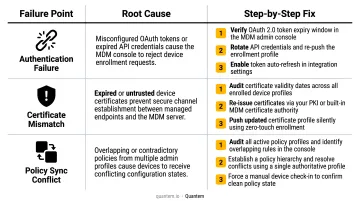
Most integration issues surface within the first 72 hours of rollout. The problems below cover the three failure points that account for the overwhelming majority of support tickets at that stage.
Enrollment Authentication Failures
Problem: Devices fail enrollment - users see authentication errors or the flow stalls after the identity provider login step.
Likely cause: The MDM application's client ID or key pair is incorrect, expired, or the app registration lacks required API permissions. In federated environments, password authentication may not be enabled on the federation service.
Fix:
- Revalidate the app registration in the identity provider console
- Confirm the client ID, regenerate the key if expired
- Verify that required permissions have been granted and admin-consented - consent is a separate step from permission assignment
- For federated setups, confirm the authentication service URL is correctly configured
Enrollment Endpoint Errors (404 / Connectivity Failures)
Problem: Authentication succeeds but device registration fails, returning a 404 or connectivity error.
Likely cause: The enrollment URL, Terms of Use endpoint, or discovery URL in the identity provider settings is incorrect, firewall-blocked, or the SSL certificate doesn't match the configured URL.
Fix:
- Test URL reachability from a device not on corporate Wi-Fi - this isolates firewall blocking from URL errors
- Confirm SSL certificates are valid and match the configured enrollment URLs exactly
- Review firewall logs for blocked outbound traffic on the relevant ports
Policy Sync and Compliance Reporting Conflicts
Problem: Devices enroll successfully but applied policies don't match configuration, or the identity provider still shows enrolled devices as non-compliant.
Likely cause: Missing or revoked Graph API compliance write-back permission, sync interval longer than expected, or a conflict between MDM policy and an existing Windows Group Policy Object (GPO).
Fix:
- Check MDM management session logs for compliance reporting calls - expect HTTP 204 on success
- For GPO/MDM conflicts on Windows, Group Policy wins by default when both configure the same setting. To give MDM policy precedence, set
MDMWinsOverGP = 1in the ControlPolicyConflict CSP where supported - Define a clear precedence rule for co-managed Windows devices - ambiguity here causes persistent policy drift
Best Practices for a Successful MDM Integration
Roll Out in Phases, Not All at Once
Microsoft's Intune planning guide advises starting with a pilot group before wider deployment - and this holds for any MDM platform. Start with 10–20 devices across different OS versions and device types, validate every integration touchpoint, then expand. A failed pilot affects 15 devices. A failed fleet rollout affects thousands.
Maintain a Documented Integration Map
Keep a living document that records:
- Every endpoint URL (enrollment, Terms of Use, discovery)
- App registration IDs and associated permission scopes
- Scope groups and enrollment policy assignments
- Policy profile names, configurations, and owners
- Who configured each element and when
This document is the single most valuable troubleshooting asset. Organizations that skip it reliably reproduce the same issues months later with no starting point for diagnosis.
Separate BYOD and Corporate Device Policies from Day One
Configure distinct enrollment profiles and policy sets for corporate-owned and personal devices. BYOD devices should use Android Enterprise Work Profile separation, which isolates corporate apps and data from personal apps and data on the same device.
Per Google's Android Enterprise documentation, the organization manages the work profile while the user retains full privacy over the personal profile. That separation is enforced at the OS level - the MDM never touches personal apps or data. The EDPB has explicitly advised that personal devices used for work must have appropriate technical security measures in place.
Note: Work profile separation is a technical privacy control, not a standalone legal compliance solution. Confirm with your legal team what additional organizational measures your context requires under GDPR or CCPA.
Rotate API Keys and Service Account Credentials Regularly
The application keys the MDM uses to authenticate with the identity provider are high-value credentials. If leaked, they provide access to device management and compliance reporting at scale.
Google Cloud IAM recommends rotating service account keys at least every 90 days to reduce exposure from leaked credentials. Apply this rotation schedule to MDM service account keys where applicable.
For Entra-integrated MDM applications, review Microsoft's Entra app registration security best practices for credential management guidance.
Conclusion
MDM integration quality determines whether device management actually works at scale. A misconfigured integration creates a false sense of control - the console looks functional, but enrollment is incomplete, policies aren't applying, and compliance data is inaccurate.
Treat integration setup as a phased project: prerequisites → configuration → validation → pilot → fleet rollout. Revisit integration health whenever the identity provider, directory structure, or device fleet changes. If you're evaluating platforms, Quantem's API playground and zero-touch enrollment make it straightforward to test integrations end-to-end before committing to a full fleet rollout - the 21-day free trial requires no credit card.
Frequently Asked Questions
What is the MDM integration service?
MDM integration service connects a Mobile Device Management platform to your existing IT infrastructure - identity providers, directories, and app stores - so devices can be enrolled, managed, and monitored centrally. Unlike simply installing the MDM console, integration is what makes it aware of your users, groups, and policies.
What are the four types of MDM?
The main MDM deployment types are: cloud-based MDM (vendor-hosted, multi-tenant), on-premises MDM (deployed within the organization's own infrastructure), hybrid MDM (on-premises directory combined with cloud management), and Unified Endpoint Management (UEM), which extends MDM to cover all endpoint types including desktops and IoT devices.
What prerequisites are needed before setting up MDM integration?
Key prerequisites: a fully provisioned identity provider with admin access, confirmed network and firewall readiness for enrollment endpoints, defined enrollment policies (corporate vs. BYOD), and verified MDM platform compatibility with target operating systems. Do not begin configuration until all four are confirmed.
How do I troubleshoot MDM enrollment failures?
Start with the identity provider: verify the client ID, key validity, and that permissions have been admin-consented. Then confirm enrollment endpoint URLs are externally reachable and SSL certificates are valid. Finally, check MDM session logs for the specific error code from the failed attempt.
What is the difference between MDM and MAM?
MDM manages the entire device, enforcing policies, controlling apps, and enabling remote wipe. MAM (Mobile Application Management) manages only specific applications without requiring full device enrollment. MAM is the preferred approach for BYOD scenarios where full device control isn't appropriate or consented to.
Can MDM integration be used for BYOD devices?
Yes. MDM integration supports BYOD through Android Enterprise Work Profile separation, which creates an isolated container for corporate apps and data on personal devices. Corporate policies apply only within that container, and IT has no visibility into the personal profile - satisfying both security requirements and employee privacy expectations.