Introduction
IT teams managing distributed device fleets face a compounding problem: as fleets grow, manual enrollment and compliance verification simply can't keep pace. A device configured by hand introduces inconsistencies. A compliance audit run at 9 AM misses the policy violation that happens at noon. Meanwhile, IT staff spend hours on repetitive provisioning tasks that add no strategic value.
The operational math is unforgiving. According to a 2024 Forrester Total Economic Impact study, traditional PC setup consumed 2–3 hours per device - reduced to under 30 minutes with automated MDM tooling, representing 80% faster device onboarding across a composite organization of 30,000 endpoints.
Automation closes that gap. Every device gets provisioned consistently from first boot, monitored continuously against defined policies, and remediated the moment it drifts out of compliance. This article covers the practices to make that work: from zero-touch enrollment and policy frameworks to continuous compliance monitoring and remediation workflows.
Key Takeaways
- Automated enrollment configures every device correctly from first boot, eliminating setup inconsistencies and manual overhead.
- Continuous compliance checks replace point-in-time audits with real-time policy enforcement across the entire fleet.
- Tiered remediation scales response severity to match violation risk, from alerts to forced correction.
- BYOD requires a separate automation strategy centered on work profile separation, not lighter versions of corporate policies.
- Pilot with 20–50 devices first, then layer automation incrementally to avoid fleet-wide disruption.
Why Manual Device Enrollment and Compliance Fails at Scale
Configuration Drift Is Cumulative
When each device is set up individually, variation creeps in. One admin enables BitLocker; another forgets. One device ships with the correct OS version; a second doesn't get updated before handoff. Each inconsistency is small in isolation. Across hundreds of devices, these small gaps compound into compliance violations that are nearly impossible to audit retroactively.
This is configuration drift - and it's not a rare edge case. Jamf's 2025 security analysis found that 53% of organizations had at least one critically out-of-date OS across their device fleet, a direct consequence of inconsistent manual update management.
The Compliance Snapshot Problem
Manual compliance checks capture device state at a single moment in time. A device passes its Friday audit. By Monday, a user has disabled a security service, installed an untrusted app, or let an OS update lapse. No one knows until the next scheduled review.
Automated compliance engines work on a continuous cycle instead. Workspace ONE's compliance engine defaults to a 15-minute scheduler interval. Microsoft Intune syncs device policy approximately every 8 hours and flags devices as non-compliant the moment a policy action triggers.
The Scalability Ceiling
Manual enrollment doesn't scale - it grows linearly with headcount. Every new hire, every device refresh, every new office location adds hours of IT labor. The Forrester study cited above measured the impact of automating enrollment and update workflows:
- 50% time savings for endpoint management teams
- 25% fewer help desk tickets across the organization
For IT teams managing hundreds of devices, those numbers translate directly into reclaimed hours and fewer fires to fight.
Best Practices for Automating Device Enrollment
Zero-Touch Enrollment: How It Works
Zero-touch enrollment removes IT from the physical setup process entirely. Devices are pre-registered with the MDM platform before leaving the warehouse. When a user powers one on and connects to the internet, it automatically enrolls, downloads its configuration profile, and arrives fully managed - no IT hands required.
The major platforms each implement this differently:
- Android Zero-Touch Enrollment - Google pre-registers devices in the zero-touch portal; they provision automatically on first boot
- Apple Automated Device Enrollment (ADE) - Apple's equivalent, which lets organizations configure and manage devices from the moment they leave the box
- Windows Autopilot - Microsoft's pre-configuration technology that applies OEM images and policy profiles without manual imaging
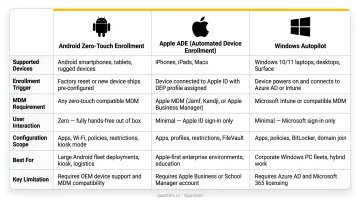
For teams that want this without scripting overhead, Quantem's zero-touch enrollment is available on Professional and Enterprise plans for Android, with toggle-based policy controls that require no scripting to configure.
Dynamic Device Groups
Rather than manually assigning policies to each enrolled device, admins configure rules - by device type, OS version, department, ownership model - so newly enrolled devices are automatically sorted into the correct group and receive the right policy bundle instantly.
Jamf Pro implements this through Smart Groups, which update dynamically based on device criteria. Intune uses assignment filters and dynamic Azure AD groups. The principle is the same across platforms: enrollment triggers automatic group assignment, which triggers automatic policy application.
Enrollment Method Selection by Environment
| Deployment Scenario | Recommended Method |
|---|---|
| Remote corporate devices shipped to users | OEM zero-touch (Android Zero-Touch, Apple ADE, Autopilot) |
| Internet-connected remote fleet, mixed OEM | Cloud-based MDM enrollment with QR or link-based flow |
| Kiosk or shared devices, no individual user accounts | Bulk/batch enrollment via QR code or Knox Mobile Enrollment |
Two practices separate clean rollouts from painful ones:
- Standardize three enrollment profiles before scaling - corporate-owned managed, BYOD, and kiosk/shared. Retroactively updating enrollment profiles on hundreds of live devices is far more disruptive than validating them during a 20–50 device pilot. Skipping this step is the most common cause of MDM rollout rework.
- Bind compliance policies at enrollment, not after. Automation breaks down when compliance policies are applied after enrollment rather than at enrollment. Linking compliance baselines directly to enrollment profiles ensures no device exists on the network in an unconfigured or unmonitored state - even temporarily.
Best Practices for Automating Compliance Checks
A compliance policy defines the "desired state" of a managed device. The MDM platform checks each device against that desired state on a scheduled cycle and flags any deviation - without requiring manual audits.
Use a Tiered Compliance Policy Structure
Applying one strict policy to every device is a reliable way to generate alert fatigue. A frontline retail worker's shared tablet does not need the same controls as a healthcare worker accessing patient records.
Structure compliance in at least two layers:
- Universal baseline - Applied to every device. Covers encryption, minimum OS version, screen lock, and jailbreak/root detection.
- Role-specific policies - Layered on top for sensitive use cases. Healthcare workers, finance teams, or anyone accessing regulated data should meet stricter controls.
This approach keeps the signal-to-noise ratio manageable and ensures that high-risk violations stand out rather than getting buried in low-priority alerts.
What to Include in Your Automated Compliance Baseline
Start with these five controls from day one:
- Device encryption status - BitLocker on Windows, FileVault on Mac, hardware-level encryption on mobile
- Minimum OS version enforcement - Flag any device running below the approved threshold
- Screen lock / PIN policy - No unattended device should be accessible without authentication
- Confirm real-time antivirus and malware protection is active and definitions are current
- Jailbreak / root detection - A rooted device has bypassed the security model the MDM depends on
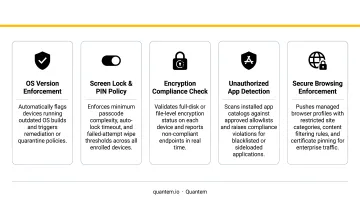
These five controls address the most common vectors for enterprise data exposure on managed devices. They apply across virtually every device type and ownership model - but OS-level compliance alone doesn't tell the full story.
Extend Checks to Third-Party Applications
Many organizations assume their fleet is compliant once OS-level checks pass - and miss a significant exposure hiding in their application layer. Jamf's analysis found that 72.94% of Mac devices contained at least one vulnerable application, while Zimperium reported sideloaded apps on 23.5% of enterprise devices.
Extend compliance checks to include version requirements for critical third-party apps - browsers, communication tools, productivity suites - alongside OS-level controls. An up-to-date OS running an unpatched browser is not a compliant device.
Connect Compliance Status to Access Control
The most effective compliance automation doesn't just flag violations - it acts on them. A device that fails a compliance check should automatically lose access to corporate apps, email, and internal systems until it re-establishes compliance.
This removes the human step of manually revoking access and closes the exposure window. Intune's Conditional Access integration is the most widely deployed example of this pattern. Any MDM platform worth deploying - including cloud-native options like Quantem - should support compliance-gated resource access out of the box, not as a premium add-on.
How to Automate Remediation for Non-Compliant Devices
Not all compliance failures carry equal risk. Remediation should match the severity of the violation.
The Three-Tier Remediation Framework
Tier 1 - Notification-based: Alert the user and IT team when a device fails a check, then give users a defined grace period to self-remediate. Works well for low-risk drift like a pending OS update or an expired certificate.
Tier 2 - Access restriction: If the device stays non-compliant past the grace period, automatically block access to corporate resources. Intune supports this natively - the built-in "Mark device noncompliant" action can trigger at 0 days, with access restriction following at a configurable interval.
Tier 3 - Forced remediation: Push a corrective script or configuration update that resolves the issue without user action. Common examples include re-enabling a disabled encryption setting, restarting a stopped security service, or reverting an unauthorized registry change.
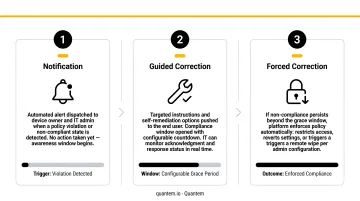
Categorize Non-Compliance by Severity Before Configuring Responses
| Violation Type | Recommended Response |
|---|---|
| OS version one release behind | Tier 1 alert + scheduled update push |
| Screen lock disabled | Tier 1 alert + 24-hour grace period |
| Antivirus stopped or outdated | Tier 2 access restriction after grace period |
| Rooted/jailbroken device | Immediate Tier 2 or Tier 3 response |
| Malware detected | Immediate access restriction; consider remote wipe |
Proactive Remediation Scripts
Detection-and-fix scripts run on a schedule across your device fleet, targeting known configuration drift - a registry key that keeps reverting, a service that gets disabled by user action - and correcting it before a formal compliance violation ever fires. On mature MDM deployments, this approach can cut compliance alert volume by 30–50% while requiring zero user involvement and no IT intervention.
Set a Compliance Validity Period
The compliance validity period determines how long a device can go without checking in before it's flagged as non-compliant by default. Intune defaults this to 30 days, configurable from 1 to 120 days.
- Too long (60+ days): Devices that have gone offline for weeks appear compliant
- Too short (1–3 days): Legitimate travel or connectivity gaps generate excessive false violations
- Recommended range: 14–30 days for most enterprise environments, shorter for high-security roles
BYOD Compliance Automation: Key Considerations
BYOD devices require a fundamentally different automation strategy. Full device management policies appropriate for corporate-owned hardware - including full remote wipe - are legally and practically inappropriate for personally owned devices. Work profile separation is the right architecture for this.
Work Profile Separation
Work profile separation creates an isolated, managed workspace on the personal device where corporate apps and data are subject to compliance policies, while the personal partition remains entirely untouched by IT.
- Android Work Profile - Google's native separation of work and personal apps and data
- Apple User Enrollment: Designed specifically for BYOD, so the user's personal Apple Account and personal data are never accessed by management
Quantem's MDM platform supports Android Enterprise Work Profile across all plan tiers, enabling organizations to enforce compliance on the managed work container without accessing personal data - which matters most for organizations under GDPR, CCPA, or HIPAA.
Verizon's 2025 Mobile Security Index reported that 70% of mobile devices impacted by an attack were personal, not corporate-issued, which makes getting BYOD compliance right a security priority, not just a policy formality.
Pre-Access Compliance Gate
Before any BYOD device touches corporate resources, automate a pre-access check. Minimum requirements:
- Screen lock / PIN active
- Minimum approved OS version
- Device not rooted or jailbroken
Devices that fail this gate should be automatically redirected to an enrollment and remediation flow - not simply blocked with no guidance. Guided remediation keeps users moving toward compliance instead of hitting a dead end.
BYOD Offboarding Automation
When an employee leaves, automated selective wipe removes only the managed work profile and its data, leaving personal data intact. This process should trigger automatically when HR systems record a departure. Key steps to automate:
- HR system logs employee exit
- MDM API receives the offboarding signal
- Selective wipe executes on the work profile only
- Personal data remains untouched throughout
Relying on an IT team member to initiate this manually introduces delays and risks data lingering on former employees' devices.
From Pilot to Full Deployment: Getting Started
Start With a Representative Pilot Group
Before rolling automation to the full fleet, run a pilot with 20–50 devices that mirrors your actual environment: mixed device types, OS versions, ownership models, and user roles.
Microsoft Intune's own documentation recommends assigning enrollment policy to a pilot group before broad assignment, and Jamf's migration guidance suggests phasing MDM migrations over 4–8 weeks.
Use the pilot to validate:
- Enrollment profiles apply correctly across device types and OS versions
- Compliance policies produce the expected results for each user role
- Remediation actions trigger at the right thresholds
Sequence Your Automation Layers
Attempting to activate all automation simultaneously is the most reliable way to disrupt your users and lose stakeholder confidence. Use this sequence instead:
- Enrollment automation and dynamic groups - Get every device onto the platform with the correct profile assigned before moving forward
- Baseline compliance policies (notification-only) - Observe how policies behave in your environment without blocking anyone
- Access-restriction remediation - Enable only after baseline results are validated and policies are tuned
- Proactive remediation scripts - Address persistent drift issues surfaced during steps 2 and 3
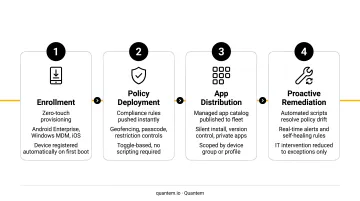
For teams without dedicated scripting resources, Quantem's toggle-based policy controls and zero-touch enrollment simplify this phased rollout - no custom scripts required to work through each stage.
Frequently Asked Questions
What is the difference between device enrollment and device provisioning?
Enrollment is the act of registering a device with an MDM platform to bring it under management. Provisioning is the broader process of configuring it with the right apps, policies, and settings for its intended role. Modern MDM platforms automate both steps together, so enrollment triggers provisioning automatically.
How does zero-touch enrollment work?
Devices are pre-registered with the MDM platform before shipping. When the end user powers on the device and connects to the internet, it automatically enrolls, downloads its configuration profile, and arrives fully managed, with no IT hands-on handling required at any point.
What compliance checks should I automate first?
Start with the five universal baseline controls: device encryption, minimum OS version, screen lock/PIN enforcement, antivirus status, and jailbreak/root detection. These address the most common breach vectors and apply across virtually every device type and ownership model.
How do you handle BYOD devices in automated compliance checks?
Use work profile separation to apply compliance policies only to the managed work container on personal devices. Configure a pre-access compliance gate that checks screen lock, OS version, and root status before granting any access to corporate resources.
Do I need scripting skills to automate compliance policies?
No. Most modern MDM platforms (including Quantem) offer toggle-based or policy-template-driven compliance automation that requires no scripting. Proactive remediation scripts for advanced use cases like configuration drift correction are optional and can be added incrementally.
How often should automated compliance checks run?
Most MDM platforms evaluate compliance on a scheduled interval: Intune syncs approximately every 8 hours, while Jamf Pro checks in every 15 minutes by default. Set your compliance validity period (the window before an unresponsive device is flagged) to no more than 30 days for most enterprise environments.