Introduction
Picture this: a shared tablet at a hospital reception desk. A patient steps away, and the next person who picks it up can browse the internet, open settings, or stumble across another patient's appointment details. That one wrong tap is exactly what multi-app kiosk mode prevents.
Multi-app kiosk mode is a device management configuration that locks a device to a curated set of approved applications. Users see only a restricted launcher or Start menu with permitted apps — no system settings, no unauthorized software, no way to navigate outside the defined environment.
This guide covers:
- What multi-app kiosk mode is and how it works under the hood
- How it compares to single-app kiosk mode
- Real-world use cases across healthcare, retail, and education
- Key features and how to deploy it with an MDM platform
By the end, you'll have a clear picture of whether multi-app kiosk mode fits your deployment — and how to set it up.
Key Takeaways
- Multi-app kiosk mode restricts devices to a defined set of approved apps with no access to system settings
- Designed for workflows requiring two or more tools — unlike single-app mode, which locks to one full-screen application
- Windows uses Assigned Access; Android uses lock task mode via an MDM-enforced launcher
- Common deployments include healthcare check-in terminals, retail POS stations, and school tablets
- MDM platforms like Quantem deploy kiosk configurations at scale — no scripting required
What Is Multi-App Kiosk Mode?
Multi-app kiosk mode is a device management configuration that restricts a device to a specific set of permitted applications. Instead of a standard home screen or desktop, users see a curated launcher or Start menu showing only pre-approved apps. They cannot install new software, change system settings, or navigate outside the defined environment.
How It Works on Windows and Android
The mechanics differ by platform, but the goal is the same: enforce a locked-down experience through policy.
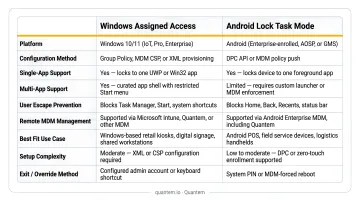
On Windows 10/11, multi-app kiosk mode runs through a feature called Assigned Access. Microsoft configures it via an XML file containing two key elements:
- Profiles — define which apps are permitted (using the
AllAppListprofile type, which supports both UWP and desktop apps) - Configs — associate specific user accounts, domain users, or Microsoft Entra ID groups with those profiles
AppLocker rules are automatically generated for listed apps, adding a second enforcement layer. Supported editions include Windows Pro, Enterprise, Education, and IoT Enterprise.
On Android, kiosk mode is implemented through Android Enterprise's lock task mode. A device policy controller (DPC) allowlists app package names using DevicePolicyManager.setLockTaskPackages().
The Android Management API supports a kioskCustomLauncherEnabled setting that replaces the default home screen with a managed launcher, giving users access to one or more approved apps from a controlled interface.
Important Distinction: Device Restriction vs. User Restriction
Multi-app kiosk mode restricts the device experience, not just user permissions. Even if a different user logs in — or the device auto-logs into a shared kiosk account — the same restricted environment applies. This makes it distinct from standard user permission controls.
That distinction is by design. These configurations target shared or dedicated-purpose devices where the hardware serves a fixed function — a hospital reception tablet, a warehouse scanning terminal, a retail POS station. The device's role doesn't change based on who's holding it.
Single-App vs. Multi-App Kiosk Mode: What's the Difference?
Single-App Kiosk Mode
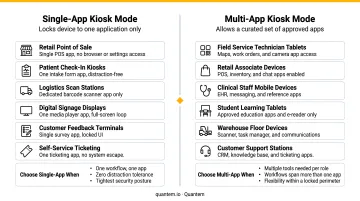
Single-app kiosk mode locks a device to exactly one application running full-screen. There's no home screen to return to, no app switcher, and no way to exit without administrator intervention. Common examples include:
- Self-checkout terminals
- Digital menu boards and signage
- Customer satisfaction survey kiosks
- Payment processing stations
The user experience is intentionally minimal. The device does one thing — full stop.
Multi-App Kiosk Mode
Multi-app kiosk mode allows access to a curated set of applications through a restricted launcher. Users can switch between permitted apps but cannot reach the broader OS, system settings, or unauthorized software. This controlled flexibility suits workflows that genuinely require more than one tool.
Choosing Between the Two
| Scenario | Best Mode |
|---|---|
| Single fixed function (payment, signage, survey) | Single-app |
| Maximum tamper-resistance, no navigation needed | Single-app |
| Employee workflow requiring 2+ apps | Multi-app |
| Shared device serving related but distinct tasks | Multi-app |
| Different role types need defined tool subsets | Multi-app |
Both modes prioritize security over open device access. The choice comes down to workflow complexity. If the task requires only one application, single-app mode offers tighter lockdown. If employees need to move between two or more purpose-specific tools — say, a barcode scanner, an inventory app, and a communication platform — multi-app mode provides the flexibility employees need without sacrificing security.
Choosing the right mode has real business implications. The global self-service kiosk market was valued at $34.36 billion in 2024 and is projected to reach $62.46 billion by 2030 — which means more organizations are deploying dedicated-purpose devices than ever, and the stakes of misconfiguration grow with scale.
Common Use Cases for Multi-App Kiosk Mode
Healthcare
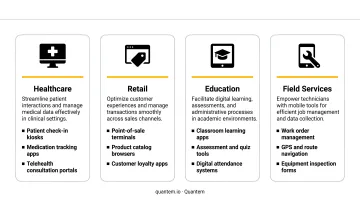
Hospitals and diagnostic labs deploy tablets and terminals running patient check-in apps, appointment schedulers, wayfinding maps, and co-payment collection tools — but block access to EHR systems, personal browsers, or any unrelated software.
HHS HIPAA technical safeguards require unique user identification, audit controls, automatic logoff, and access controls for systems containing ePHI. Kiosk devices that restrict unauthorized app access and enforce session boundaries directly support these requirements, though kiosk mode alone isn't sufficient for full HIPAA compliance.
Quantem counts ATHMA Hospitals among its customers , deploying managed kiosk environments across patient-facing terminals.
Retail and Logistics
Roughly 40% of employees at large retailers either share a mobile device or go without one, according to Zebra and Coresight Research. When multiple staff members share a device, controlling what that device can do becomes a security and operational necessity.
Multi-app kiosk mode in retail typically covers:
- POS application
- Inventory lookup tool
- Customer loyalty or CRM app
In warehouse environments, the app set shifts to inventory scanning, route management, and team communication — all locked down so workers stay focused rather than fielding accidental settings changes.
Education
96% of U.S. public schools provided digital devices to students who needed them by 2021–22, and districts managing thousands of shared devices need to ensure those devices run only approved learning apps. Multi-app kiosk mode lets IT teams lock tablets to specific curriculum apps while blocking social media, browsers, and settings menus.
Field Services
Field technicians typically need three things: work-order management, GPS navigation, and photo documentation. Locking devices to exactly those apps reduces unauthorized software use, extends battery life, and keeps crews focused on the job.
Key Features and Capabilities of Multi-App Kiosk Mode
App Allowlisting
Only explicitly approved applications appear on the device. Any app not on the allowlist is hidden or inaccessible — even if it's technically installed. Administrators define the permitted list centrally and push it to devices via MDM policy.
NIST SP 800-167 defines allowlisting as a control that restricts which software can execute, blocking malware, unlicensed software, and unauthorized programs. CIS Controls v8.1 (Safeguard 2.5) independently recommends it as a technical safeguard for ensuring only authorized software runs on managed systems.
Customized Launcher or Start Menu
The home screen or Start menu is replaced with a curated interface showing only permitted app tiles:
- Windows: A locked Start layout managed through Assigned Access XML
- Android: An MDM-enforced launcher (via
kioskCustomLauncherEnabled) replaces the default home screen
Either way, the interface is administrator-defined — users have no path to apps or settings outside of it.
User and Group-Based Profile Assignment
Kiosk configurations can be assigned to specific user accounts, security groups, or applied as a global profile for all non-admin sign-ins. This lets the same physical device serve different roles — a shift supervisor might see additional management tools that a frontline worker doesn't.
Quantem supports device-level, group-level, and user-level policy targeting, so IT admins can assign different kiosk profiles to different employee roles without managing separate device fleets.
Auto-Logon Support
Devices can be configured to automatically log into a kiosk account on startup — no credentials required. This is standard for public-facing installations or shared devices that need to be immediately usable the moment they're turned on or picked up.
Browser and Web App Access Control
Permitted apps can include managed browsers locked to specific URLs or internal web applications. This enables web-based workflows — completing a form, accessing an internal portal, running a web app — without giving users open internet access.
How to Set Up Multi-App Kiosk Mode
The General Setup Process
Regardless of platform, the workflow follows four steps:
- Define permitted apps: Identify which applications the device needs and nothing more
- Create the kiosk configuration: An XML-based profile on Windows via Assigned Access, or an MDM policy on Android
- Assign the configuration: Push it to the correct devices, users, or groups through your MDM platform
- Validate the experience: Sign into the kiosk account and confirm only permitted apps appear, with no access to settings or unauthorized software
The Role of an MDM Platform
Windows multi-app kiosk mode can be configured manually through PowerShell scripts, provisioning packages, or direct XML editing. In practice, that approach doesn't scale. Each device requires hands-on attention, and XML errors can break the configuration silently.
Most enterprises manage kiosk deployments through an MDM solution, which enables:
- Remote deployment at scale — push kiosk profiles to hundreds of devices simultaneously
- Central policy management — update permitted apps without touching individual devices
- Real-time monitoring — track device status, connectivity, and policy compliance from a dashboard
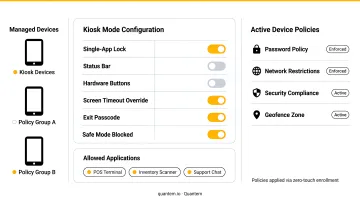
Quantem includes built-in kiosk mode configuration across all plans. IT teams define and push kiosk profiles to Android and Windows devices through a toggle-based console interface, with 250+ pre-built controls that eliminate the need for scripting or manual XML editing.
Key Configuration Decisions Before Deployment
Before pushing a kiosk profile, IT teams need clear answers to these questions:
- Permitted apps: Keep the list minimal — only what the workflow genuinely requires, nothing extra
- Logon model: Public-facing devices typically use auto-logon; role-specific deployments assign profiles by user or group
- Session and restart behavior: Define what happens when the device reboots or a session ends
- Admin exit mechanism: On Windows, this is typically a breakout key sequence (Ctrl+Alt+Del); on Android, an admin PIN or MDM-controlled override
Locking down these decisions before deployment avoids configuration rework and keeps the kiosk environment aligned with the actual operational workflow.
Frequently Asked Questions
What is the difference between single-app and multi-app kiosk mode?
Single-app kiosk mode locks a device to one full-screen application with no ability to switch apps or return to a home screen. Multi-app kiosk mode allows access to a curated set of approved apps through a restricted launcher. Both modes block system settings and unauthorized software.
What is the purpose of kiosk mode?
Kiosk mode restricts a device to a defined set of functions, preventing users from accessing unauthorized apps, system settings, or sensitive data. It's designed for shared or public-facing devices where unrestricted access creates security or operational risk.
What operating systems support multi-app kiosk mode?
Windows 10 and 11 support multi-app kiosk mode natively through Assigned Access (Pro, Enterprise, Education, and IoT Enterprise editions). Android supports it via Android Enterprise managed through an MDM platform. iOS/iPadOS offers supervised restrictions but doesn't support a native multi-app kiosk mode equivalent.
Can users exit multi-app kiosk mode?
End users typically cannot exit the kiosk environment. On Windows, administrators can configure a breakout key sequence accessible only to authorized personnel. On Android, an admin PIN or MDM-controlled override is required to exit lock task mode.
Is multi-app kiosk mode secure?
Multi-app kiosk mode enforces app allowlisting, blocks system settings access, and limits the device's attack surface to permitted applications only. When deployed through an MDM platform, policies are pushed remotely across all enrolled devices, keeping every device consistently configured.
Can multi-app kiosk mode be managed remotely?
When deployed via an MDM solution, kiosk configurations can be created, updated, and pushed to devices remotely. IT teams can add or remove permitted apps, update policies, and monitor device status without physical access to individual devices.