Configuring a single-app kiosk with Assigned Access isn't complicated once the underlying concepts click — but the gaps between what the documentation implies and what actually works in production are where most IT admins lose hours.
This guide covers the complete process: what Assigned Access does, what you need before you start, how to build and deploy the configuration (including the XML structure), and how to troubleshoot the failures that come up most often. Whether you're setting up one device for a front-desk check-in terminal or rolling out a fleet of retail kiosks, this walkthrough gets you there without the guesswork.
Key Takeaways
- Assigned Access locks Windows to one UWP app or Microsoft Edge, running full-screen with automatic login
- Before starting, verify you're on Windows 10 version 2004+ (Pro, Enterprise, Education, or IoT Enterprise) with UAC enabled
- For managed fleets, deploy via the AssignedAccess CSP in your MDM — not the Settings app
- The Settings app works for single-device testing only — it doesn't produce a reusable policy
- When things break, the cause is almost always one of three things: wrong account type, Conditional Access blocking auto-login, or malformed XML
What Is a Single-App Kiosk with Assigned Access?
Assigned Access is a Windows configuration feature that locks a device to a single app. When the designated account signs in, that app launches automatically in full screen, above the lock screen. If it crashes or closes, it restarts on its own. The user has no access to the taskbar, Start menu, or any other Windows UI element.
Supported App Types
Assigned Access supports two app types for single-app kiosks:
- UWP apps — identified by their App User Model ID (AUMID). Use this for custom business apps, POS software built as UWP, or any Microsoft Store app
- Microsoft Edge — available in two modes:
- Digital/Interactive Signage (
--edge-kiosk-type=fullscreen): one fixed URL, no user interaction - Public Browsing (
--edge-kiosk-type=public-browsing): limited InPrivate session with restricted multi-tab browsing
- Digital/Interactive Signage (
Use Digital Signage mode for lobby displays and menu boards. Use Public Browsing mode for self-service terminals where users need limited browsing within a controlled environment.
Assigned Access vs. Shell Launcher
| Scenario | Use |
|---|---|
| UWP app or Edge, full screen above lock screen | Assigned Access |
| Legacy Win32/desktop app as the Windows shell | Shell Launcher |
| Available on Windows Pro | Assigned Access only |
| Requires Enterprise or Education edition | Shell Launcher only |
Shell Launcher replaces the Windows shell entirely with a desktop application and requires Enterprise or Education editions. Assigned Access works on Windows Pro, which matters for organizations that haven't licensed up to Enterprise.
Prerequisites and Requirements
Before configuring Assigned Access, verify three things: your Windows edition, the kiosk account setup, and the target app. Gaps in any of these are the most common reason kiosk deployments fail at first launch.
Windows Edition and Version
- Supported editions: Pro, Enterprise, Enterprise LTSC, Education, IoT Enterprise, and IoT Enterprise LTSC
- Minimum version: Windows 10 version 2004 (OS Build 19041) with KB4601382 or later — this is specifically required for Microsoft Edge kiosk mode with Assigned Access
- Shell Launcher (if you need it for Win32 apps) requires Enterprise or Education — Assigned Access does not
Account Requirements
- UAC must be enabled — Assigned Access will not function without it
- The kiosk account must be a standard (non-admin) local account, domain account, or Entra ID account
- Admin accounts cannot be associated with an Assigned Access profile
- The account must not be subject to Conditional Access policies requiring MFA — any interactive authentication prompt breaks auto-login
- Kiosk sign-in requires console access; remote desktop connections are not supported
App Requirements
- UWP apps: must be installed for the kiosk user account before the policy is applied
- Microsoft Edge: Stable Channel version 87 or later required
- Retrieve an app's AUMID (the identifier used in your XML config) using the
Get-StartAppsPowerShell cmdlet before building your XML
How to Configure a Single-App Kiosk with Assigned Access
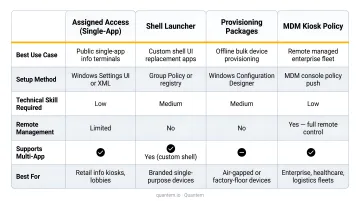
There are four configuration methods: Settings, PowerShell, Provisioning Package, and MDM/CSP. Here's how to choose:
| Method | Use Case |
|---|---|
| Settings app | Single-device testing only |
| PowerShell | Scripted single-device setup (local accounts only) |
| Provisioning Package | Offline deployment, no MDM |
| MDM/CSP | Recommended for any managed fleet |
Building the Assigned Access XML Configuration File
The XML has three structural blocks:
- Schema declaration — namespace definitions at the root
- Profiles block — contains the
KioskModeAppelement specifying your app, plus an optionalBreakoutSequence - Configs block — maps the profile to a specific user account
For a Microsoft Edge Public Browsing kiosk, the KioskModeApp entry uses v4:ClassicAppPath and v4:ClassicAppArguments:
<v4:KioskModeApp
  v4:ClassicAppPath="%ProgramFiles(x86)%\Microsoft\Edge\Application\msedge.exe"
  v4:ClassicAppArguments="--kiosk https://contoso.com
    --edge-kiosk-type=public-browsing
    --no-first-run
    --kiosk-idle-timeout-minutes=5" />
Key command-line arguments:
--kiosk [URL]— the starting URL--edge-kiosk-type=public-browsingor--edge-kiosk-type=fullscreen(for digital signage)--no-first-run— suppresses the Edge first-run experience--kiosk-idle-timeout-minutes— sets the idle reset timer
Important correction: The correct value for digital signage mode is fullscreen, not digital-signage. Microsoft does not document --edge-kiosk-type=digital-signage as a valid argument.
For the Configs block, use <AutoLogonAccount> to create an auto-login account managed by Windows. This avoids the complexity of managing a separate local account. Microsoft's documentation uses a display name set at configuration time — keep whatever display name you choose consistent, as changes to it after deployment can cause login issues.
Avoid using admin accounts or Entra accounts subject to MFA in the AutoLogonAccount block.
Deploying via MDM (Recommended Method)
For managed fleet deployments, push the Assigned Access XML via a custom OMA-URI policy. The path is:
./Vendor/MSFT/AssignedAccess/Configuration
Upload your XML file as the value. This works with any MDM solution that supports the AssignedAccess CSP.
Two rules that prevent most MDM deployment failures:
- Assign the policy to a device group, not a user group — Microsoft explicitly recommends device group assignment for kiosk policies
- Don't target users under MFA-requiring Conditional Access policies — this breaks the auto-login flow
If you're deploying across multiple devices, an MDM platform like Quantem removes the need to manually author XML — kiosk mode configuration is built into all plans. It also tracks device online/offline history with status sync down to 2-minute intervals on the Enterprise plan, useful for monitoring kiosk uptime across locations.
Once you've validated your MDM policy on a test device, the Settings app offers a quick way to verify the same configuration locally before fleet rollout.
Configuring via the Settings App (Single Device Testing Only)
Navigate to: Settings > Accounts > Other Users > Set up a kiosk > Get started
Steps:
- Select or create a local standard user account
- Choose your app (Edge or a UWP app from the list)
- If using Edge, configure the URL and idle timeout
- Reboot and verify
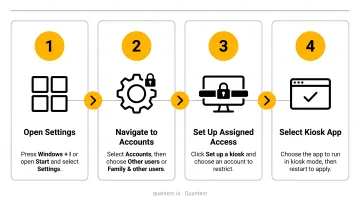
This method is local configuration only — it doesn't produce a reusable policy you can export and apply to other devices. Use it to verify your setup before building the XML for fleet deployment.
Post-Configuration Checks and Common Issues
After the policy applies, reboot the device and confirm:
- Device auto-logs into the kiosk account without a credential prompt
- Designated app launches in full screen
- No Windows UI elements (taskbar, Start menu, system tray) are visible
- Ctrl+Alt+Del (the default breakout sequence) exits the kiosk session for admin access
The default idle timeout on the sign-in screen is 30 seconds — after which the kiosk app relaunches.You can configure a custom breakout sequence using the BreakoutSequence element in the XML.
If the device doesn't behave as expected after rebooting, the issues below cover the most common failure points.
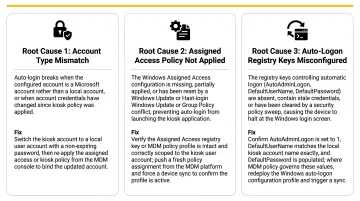
Issue: Device Prompts for Login Instead of Auto-Logging In
Symptoms: After the policy applies, the device boots to the Windows login screen instead of auto-logging into the kiosk account.
Likely causes:
- A Conditional Access policy requiring MFA is in scope for the device or user
- The policy was assigned to a user group instead of a device group
- The AutoLogonAccount display name was changed after initial deployment
Fix: Verify no MFA-requiring CA policies apply to the kiosk account. Reassign the policy to a device group. If the display name was modified, revert it to the original value used when the policy was first applied.
Issue: "This Operation Has Been Cancelled Due to Restrictions" Error
Symptoms: After the kiosk loads, a pop-up error appears reading "This operation has been cancelled due to restrictions in effect on this computer."
This error appears in community discussions and the Microsoft kiosk known issues documentation, typically caused by background Windows processes attempting to launch at startup and being blocked by kiosk restrictions.
The specific apps and registry-based fixes that circulate in community forums have not been officially confirmed by Microsoft documentation. Treat community-sourced fixes as starting points, not guaranteed solutions.
Fix: Test on a clean VM before pushing to production. Reduce any pre-applied security restrictions and add them back one at a time to isolate the conflict.
Issue: Policy Changes Don't Take Effect on an Existing Kiosk Device
Symptoms: After updating the Assigned Access XML in MDM, the device continues running the old configuration.
Microsoft notes that deleting an Assigned Access configuration may not revert all changes. For XML updates that aren't applying cleanly, test changes on a fresh VM first. For production devices where the policy has silently stopped applying, a full device reset is often the fastest resolution.
Pro Tips for Managing Kiosk Devices at Scale
Resist the urge to layer on extra restrictions. Microsoft's Assigned Access policy guidance explicitly warns against configuring policy settings to different values through other channels and against creating AppLocker rules that conflict with Assigned Access-generated rules. Stacking additional security baselines on top of an existing Assigned Access config is the leading cause of kiosk malfunction. Let Assigned Access handle the lockdown.
Plan for app updates. Intune's kiosk template includes a maintenance window setting for app restarts — use it. Build a regular maintenance window into your configuration to apply patches and updates without disrupting operational hours. Set power policies to prevent kiosks from sleeping during business hours.
Use purpose-built MDM once your fleet grows. For organizations managing more than a handful of kiosk devices, manual XML authoring and OMA-URI policy management gets expensive fast in time and effort. Quantem includes built-in kiosk mode configuration across all pricing tiers, starting at $1/device/month, with zero-touch enrollment and real-time online/offline status sync. A 21-day free trial requires no credit card — use it to validate your specific kiosk configuration before rolling out to a full fleet.
Frequently Asked Questions
What Windows editions support Assigned Access for single-app kiosk?
Assigned Access is supported on Windows Pro, Enterprise, Enterprise LTSC, Education, IoT Enterprise, and IoT Enterprise LTSC, running Windows 10 version 2004 or later. Pro support is a key differentiator: Shell Launcher requires Enterprise or Education.
What is the difference between Assigned Access and Shell Launcher?
Assigned Access runs a UWP app or Microsoft Edge in full screen above the lock screen with automatic login, and works on Windows Pro. Shell Launcher replaces the Windows shell with a desktop (Win32) application and requires Enterprise or Education editions; it does not run above the lock screen.
Can I use an Entra ID (Azure AD) account as the kiosk account?
Entra accounts can be referenced in the Configs block, but any Conditional Access policy requiring MFA or interactive sign-in will prevent auto-login. For unattended kiosks, use the AutoLogonAccount element instead. It creates a locally managed auto-login account and is the more reliable approach.
How do I exit a single-app kiosk?
Press Ctrl+Alt+Del to trigger the default breakout sequence. After exiting the kiosk session, an admin can sign in with a different account. You can configure a custom breakout key sequence using the BreakoutSequence element in the Assigned Access XML.
Why isn't my kiosk auto-logging in after the policy is applied?
Check these three causes first: a Conditional Access policy requiring MFA is in scope, the policy was assigned to a user group instead of a device group, or the AutoLogonAccount display name was changed from its original value.
Can I use a UWP app other than Microsoft Edge for a single-app kiosk?
Yes. Specify the app's AUMID in the KioskModeApp element of the Assigned Access XML. Retrieve the AUMID using the Get-StartApps PowerShell cmdlet on any device with the app installed.