Introduction
Configuring multi-app kiosk mode on Windows 11 requires a hand-crafted XML file with precise namespace declarations, valid app identifiers, correctly formatted user account references, and a matching GUID between the Profile and Config sections. One misplaced attribute or wrong namespace alias breaks the entire configuration, often without a clear error message.
Getting this right isn't guesswork - it's a structured process with specific rules at every step.
This guide is written for IT admins and MDM engineers managing Windows 11 shared devices in healthcare, retail, logistics, or education environments where locked-down kiosk experiences are required.
What you'll find here:
- The complete XML structure with correct namespace declarations
- A step-by-step build process for assembling the config file
- MDM deployment instructions for pushing the policy at scale
- The most common failure modes that cause configurations to silently fail
Key Takeaways
- Windows 11 multi-app kiosk requires a custom Assigned Access XML (Intune's built-in kiosk UI targets Windows 10 only)
- Every XML needs two sections: Profiles (allowed apps + Start layout) and Configs (user-to-profile mapping assignment)
- UWP apps use
AppUserModelId; Win32 apps useDesktopAppPath- AppLocker rules generate automatically for both - Deploy via OMA-URI:
./Vendor/MSFT/AssignedAccess/Configurationwith data type String - The kiosk user account must exist on the device before the XML is applied
Prerequisites Before Building Your XML
Windows Version and Intune Compatibility
Multi-app kiosk mode via Assigned Access XML supports both Windows 10 and Windows 11. However, the v5:StartPins element - which controls the Windows 11 Start menu layout using JSON - requires Windows 11 version 22H2 or later.
A common point of confusion: Intune's built-in multi-app kiosk settings currently target Windows 10 devices. For Windows 11 multi-app kiosk configuration, Microsoft's documentation directs admins to deploy a custom Assigned Access XML via OMA-URI instead.
Checklist Before You Write a Single Line of XML
Confirm all of the following before opening your editor:
- Device enrollment - the device must be enrolled in an MDM solution and reachable for policy push
- User account exists - the kiosk user account (local, Active Directory, or Entra ID) must already exist on the device; the configuration will fail if the account is absent when the policy is applied
- Apps are installed - all apps in the kiosk profile must be installed on the device before the XML is applied; provisioning them for the assigned access account beforehand prevents policy failures
- Tools ready - VS Code (with an XML extension for linting) and an elevated PowerShell session on a device with the target apps installed
Finding AUMIDs Before You Build
For UWP apps, you'll need the Application User Model ID (AUMID). Run this in an elevated PowerShell session on a device where the app is installed:
Get-StartApps
Microsoft documents this cmdlet as the standard method for retrieving AUMIDs for Assigned Access configuration. Copy the AUMID directly - don't retype it manually.
Understanding the XML Structure for Multi-App Kiosk Mode
Every Assigned Access XML file has two required top-level sections. Both must be present for the configuration to apply.
| Section | Purpose |
|---|---|
| Profiles | Defines one or more named configurations - allowed apps, Start layout, taskbar visibility |
| Configs | Associates a user or group to a Profile by its GUID |
With that structure in mind, each section has its own rules - starting with the root element itself.
Namespace Declarations
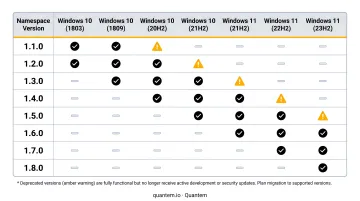
The root element must declare the correct xmlns namespaces. Using a namespace alias without declaring it causes a schema validation failure. Here's the reference table:
| Alias | Namespace URI | Introduced |
|---|---|---|
| (default) | http://schemas.microsoft.com/AssignedAccess/2017/config |
Windows 10 1709 |
rs5 |
http://schemas.microsoft.com/AssignedAccess/201810/config |
Windows 10 1809 (rs5) |
v3 |
http://schemas.microsoft.com/AssignedAccess/2020/config |
Windows 10 2004 |
v5 |
http://schemas.microsoft.com/AssignedAccess/2022/config |
Windows 11 22H2 |
Source: Assigned Access XML Schema Definition - Microsoft Learn
Once namespaces are declared, the next step is defining which apps the kiosk can run.
AllowedApps and AppLocker
The AllAppsList/AllowedApps block declares every app permitted to run. When the configuration is applied, Windows automatically generates AppLocker rules from this list. Any process not listed - including dependencies - will be blocked.
- UWP apps: use the
AppUserModelIdattribute with the AUMID - Win32/desktop apps: use the
DesktopAppPathattribute with the full executable path (environment variables like%ProgramFiles(x86)%are accepted) - Dependencies matter: if an app spawns a helper process or relies on a second executable, that process must also appear in AllowedApps
Start Layout Configuration
| Windows Version | Element | Format |
|---|---|---|
| Windows 10 | StartLayout |
Embedded XML (export via Export-StartLayout) |
| Windows 11 22H2+ | v5:StartPins |
Embedded JSON (pinnedList format) |
Every app pinned to the Start menu must also appear in AllowedApps. If it doesn't, AppLocker blocks it and the tile won't render.
With the Profile fully defined, the Configs section maps that Profile to the users or groups who will run it.
Configs Section: Account Format Reference
| Account Type | Format in XML |
|---|---|
| Local account | username or .\\username or devicename\\username |
| Active Directory | domain\\samAccountName |
| Entra ID (Azure AD) | AzureAD\\user@tenant.onmicrosoft.com |
| Entra ID Group | AzureActiveDirectoryGroup type with group Object ID |
Group assignments only work with AllAppList profiles. KioskModeApp profiles can only be assigned to individual users. Once your Profiles and Configs are both defined, you're ready to validate the file and deploy it.
Step-by-Step: Building Your Multi-App Kiosk Configuration XML
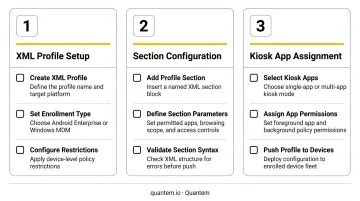
Build the XML in sequence: root element first, then profiles, then configs. Out-of-order or broken tags cause the entire configuration to fail silently at deployment.
Step 1: Declare the Root Element and Namespaces
Open your XML file with the AssignedAccessConfiguration root element. Include all namespaces for features you plan to use. For a Windows 11 22H2+ deployment:
<?xml version="1.0" encoding="utf-8"?>
<AssignedAccessConfiguration
  xmlns="http://schemas.microsoft.com/AssignedAccess/2017/config"
  xmlns:rs5="http://schemas.microsoft.com/AssignedAccess/201810/config"
  xmlns:v3="http://schemas.microsoft.com/AssignedAccess/2020/config"
  xmlns:v5="http://schemas.microsoft.com/AssignedAccess/2022/config">
Each namespace corresponds to a specific feature set. Including unused namespaces is harmless - but referencing a feature whose namespace isn't declared triggers a schema validation failure at deployment.
Step 2: Build the Profile Section
Generate a GUID for the Profile ID using PowerShell:
New-Guid
Then build the Profile block:
  <Profiles>
    <Profile Id="{YOUR-GENERATED-GUID-HERE}">
      <AllAppsList>
        <AllowedApps>
          <!-- UWP app example -->
          <App AppUserModelId="Microsoft.MicrosoftEdge.Stable_8wekyb3d8bbwe!App" rs5:AutoLaunch="false"/>
          <!-- Win32 app example -->
          <App DesktopAppPath="%ProgramFiles%\YourApp\yourapp.exe"/>
        </AllowedApps>
      </AllAppsList>

      <!-- Windows 11 22H2+ Start layout -->
      <v5:StartPins>
        <![CDATA[
          {
            "pinnedList": [
              { "packagedAppId": "Microsoft.MicrosoftEdge.Stable_8wekyb3d8bbwe!App" },
              { "desktopAppLink": "%ALLUSERSPROFILE%\\Microsoft\\Windows\\Start Menu\\Programs\\YourApp.lnk" }
            ]
          }
        ]]>
      </v5:StartPins>

      <Taskbar ShowTaskbar="true"/>
    </Profile>
  </Profiles>
Before moving to Step 3, confirm these three things:
- Use the exact same GUID in both
Profile IdandDefaultProfile Id- case and hyphens must match - List every app referenced in
v5:StartPinsinsideAllowedAppsas well - Point
DesktopAppPathto the.exedirectly, not to a shortcut.lnkfile
Step 3: Build the Configs Section
Associate a user account with the profile using its exact GUID:
  <Configs>
    <!-- Local account example -->
    <Config>
      <Account>kioskuser</Account>
      <DefaultProfile Id="{YOUR-GENERATED-GUID-HERE}"/>
    </Config>

    <!-- Entra ID user example -->
    <Config>
      <Account>AzureAD\user@contoso.onmicrosoft.com</Account>
      <DefaultProfile Id="{YOUR-GENERATED-GUID-HERE}"/>
    </Config>
  </Configs>
</AssignedAccessConfiguration>
The DefaultProfile Id must match the Profile Id exactly, including case and hyphens. If they differ, Windows applies no restrictions to the account - the kiosk profile is silently ignored with no deployment error. Verify both values side-by-side before pushing the configuration.
Deploying the XML File to Windows Devices
Primary Method: MDM Custom Policy via OMA-URI
Create a Custom configuration profile in your MDM solution with these settings:
| Setting | Value |
|---|---|
| OMA-URI | ./Vendor/MSFT/AssignedAccess/Configuration |
| Data type | String (XML file) |
| Value | Paste or upload your XML content |
Assign the policy to a device group, not a user group. The configuration takes effect on the next sign-in of the targeted user account. Source: AssignedAccess CSP - Microsoft Learn
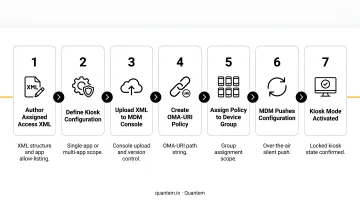
Quantem's MDM console supports this OMA-URI path directly - IT teams can push the Assigned Access XML to enrolled Windows devices and monitor policy application status across their entire fleet from a single dashboard. Kiosk mode is included in all Quantem plan tiers, including Windows multi-app configurations.
Alternative Methods
If MDM isn't available, two other deployment paths work for most environments.
PowerShell via MDM Bridge WMI Provider
- Must run as SYSTEM (use PSExec or a scheduled task)
- Target class:
MDM_AssignedAccessinRoot\cimv2\mdm\dmmap - Set the
Configurationproperty to your XML string
Provisioning Packages
- Setting path:
AssignedAccess/MultiAppAssignedAccessSettings - Build using Windows Configuration Designer
Common XML Configuration Errors and How to Fix Them
These three failures account for the majority of broken multi-app kiosk deployments - and each one typically surfaces as a vague error code with no obvious pointer to the actual problem.
Error 1: Policy Fails in MDM Console
Symptom: The configuration policy shows an error code in the MDM deployment report and the kiosk mode never activates.
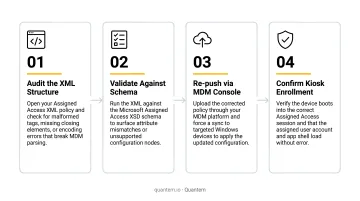
Root cause: Malformed XML. Common culprits:
- Smart/curly quotation marks introduced by copy-pasting from a blog post or Word document
- Namespace declarations broken across multiple lines instead of appearing as attributes on a single element tag
- GUIDs mismatched between
Profile IdandDefaultProfile Id
Fix:
- Open the XML in VS Code with an XML linting extension
- Manually retype any quotation marks - don't trust copy-paste
- Ensure all
xmlnsattributes are on theAssignedAccessConfigurationopening tag - Verify the GUIDs match character-for-character
Error 2: App Is Listed in AllowedApps but Won't Launch
Symptom: The kiosk session starts, but clicking a specific app produces no response or shows a blocked notification.
Why it happens: A dependency is missing from AllowedApps. AppLocker blocks any process not explicitly listed. Common scenarios:
- A UWP app spawns a helper process
- A Win32 app relies on a WebView2 runtime or launcher stub
- The app was installed per-user rather than for all users
Fix:
- Open Event Viewer on the device
- Navigate to:
Applications and Services Logs > Microsoft > Windows > AppLocker > EXE and DLL - Look for Event ID 8004 (blocked executable) entries that occurred when the app was launched
- Add any blocked paths to the
AllowedAppslist - Verify the app is installed machine-wide, not per-user
Source: Using Event Viewer with AppLocker - Microsoft Learn
Error 3: AutoLogon Fails or Kiosk User Can't Sign In
Symptom: The device returns to the sign-in screen after reboot instead of auto-logging into the kiosk account, or the account isn't found.
Likely causes:
- The kiosk user account didn't exist on the device when the policy was applied
- Exchange ActiveSync (EAS) password restrictions are active - Microsoft confirms this disables autologon by design
- Incorrect Entra ID account format in the XML
Fix:
- Pre-create the local account via script or CSP before applying the kiosk policy
- For Entra ID accounts, use the exact format:
AzureAD\user@tenant.onmicrosoft.com - Check for conflicting EAS policies in your environment
- On domain-joined devices, enable "Enumerate local users on domain-joined computers" to make the local account visible at sign-in
Pro Tips for a Reliable Kiosk XML Configuration
A well-formed XML file is only half the equation. These three configuration practices prevent the most common deployment failures before they reach production.
Use AutoLogonAccount Instead of a Named Local Account
The AutoLogonAccount element tells Assigned Access to create and manage a local standard user account automatically. For public-facing devices - retail check-in stations, healthcare registration kiosks - this eliminates the need to pre-create and maintain a named account, reducing setup steps and ongoing maintenance.
Test on a Freshly Wiped Device
Kiosk configurations persist across re-enrollments. Start menu layouts from a previous configuration can carry over and interfere with your validation results. Always test on a clean, reset device before production rollout.
Watch App Update Paths for UWP Apps
UWP apps installed in %ProgramFiles%\\WindowsApps\\ include a version number in their path (e.g., AppName_2.0.633.0_x64__...). If an update changes that version string, any DesktopAppPath entry pointing to the old path will silently stop working. Build post-update path validation into your deployment checklist.
Frequently Asked Questions
What is the difference between KioskModeApp and AllAppList in the XML?
KioskModeApp locks the device to a single UWP app or Microsoft Edge running full-screen. AllAppList creates a restricted desktop experience where multiple apps are accessible from a customized Start menu. Only one KioskModeApp profile is allowed per XML file, and it cannot be assigned to groups.
How do I find the AUMID of an installed app to use in the XML?
Run Get-StartApps in an elevated PowerShell session on a device where the app is installed. The output lists app names with their AUMIDs - copy the value directly into the AppUserModelId attribute of the App element.
What Windows version is required for multi-app kiosk XML to work?
The v5:StartPins element for Windows 11 Start menu configuration requires Windows 11 version 22H2 or later. Intune's built-in multi-app kiosk settings target Windows 10 - for Windows 11 multi-app kiosk, a custom XML policy deployed via OMA-URI is required.
Why does my kiosk XML fail with error 0x87d1fde8 in Intune?
This error means the policy couldn't be applied, usually from malformed XML. Check for smart quotation marks from copy-paste, namespace declarations broken across lines, or mismatched GUID values between Profile Id and DefaultProfile Id.
Can I assign the kiosk XML profile to an Entra ID user or group?
Yes. Entra ID users must be referenced as AzureAD\\user@tenant.onmicrosoft.com. Groups use the AzureActiveDirectoryGroup type with the group's Object ID - but group assignments only work with AllAppList profiles, not KioskModeApp, and the device needs internet connectivity at sign-in.
What happens if an app is listed in StartPins but not in AllowedApps?
The app won't appear on the Start menu in the kiosk session. Every app referenced in v5:StartPins or StartLayout must be present in the AllowedApps list - AppLocker blocks anything missing, and the Start menu tile won't render.