Introduction
A distributed Windows device fleet — spread across corporate offices, remote setups, and BYOD scenarios — creates dozens of potential entry points into your organization's data and systems. Managing all of them consistently is one of the harder problems in modern IT.
The risk is real. According to the Microsoft Digital Defense Report 2024, unmanaged devices were involved in over 90% of ransomware attacks that progressed to the encryption stage. Meanwhile, the Verizon 2025 DBIR reports that vulnerability exploitation is now the most common breach entry point, with the median remediation time sitting at 43 days — far too long for unmanaged endpoints.
Windows endpoint management solves this by centralizing control over device configuration, security policy, patching, and compliance — regardless of where devices physically are. This guide walks through the full picture: core architecture, enrollment methods, security capabilities, best practices, and how to choose the right platform for your organization's size and budget.
Key Takeaways
- Windows endpoint management unifies lifecycle, configuration, compliance, and security enforcement from a single management plane
- Microsoft Intune, Configuration Manager, and Autopilot form the core architecture stack for most organizations
- Enrollment method choice (Azure AD Join vs. Hybrid vs. BYOD) determines cloud vs. on-premises dependency
- Conditional Access ties device compliance directly to application access, blocking non-compliant devices automatically
- Consolidating tools, automating patch rings, and auditing stale devices are the three highest-impact best practices
What Is Windows Endpoint Management?
Windows endpoint management is the centralized control, configuration, monitoring, and security enforcement of all Windows devices — desktops, laptops, and tablets — that connect to an organization's network or cloud resources. Understanding what falls under that definition — and how Windows management differs from generic MDM — shapes every architecture decision that follows.
What Qualifies as a Windows Endpoint
Any Windows device that touches company data or systems falls under this umbrella:
- Corporate-owned PCs in offices or data centers
- Domain-joined workstations managed by Active Directory
- Remote laptops used by distributed or hybrid employees
- BYOD Windows devices that access corporate email, SharePoint, or internal apps
How Windows Management Differs from Generic MDM
Standard mobile device management (MDM) protocols work for smartphones and tablets — but Windows endpoints have considerably deeper management hooks. Four capabilities set it apart:
- Configuration Service Providers (CSPs) map directly to registry keys, files, and system permissions — giving administrators OS-level control well beyond standard mobile MDM
- ADMX-backed Group Policy enforcement works through MDM clients without running the Group Policy Service at all
- The WMI-to-CSP bridge lets tools like Configuration Manager configure CSPs through familiar WMI interfaces
- Driver and firmware patching is a Windows-specific layer that Android and iOS management rarely addresses
Endpoint Management vs. Endpoint Security
These two disciplines are related but distinct:
| Endpoint Management | Endpoint Security | |
|---|---|---|
| Focus | Lifecycle, configuration, compliance | Threat detection and response |
| Tools | Intune, ConfigMgr, Autopilot | Defender for Endpoint, EDR, antivirus |
| Output | Compliance status, device inventory | Threat alerts, incident response |
In practice, the two work together. Compliance policies can pull threat intelligence from Defender to automatically block compromised devices — a workflow covered in the security section below.
Windows Endpoint Management Architecture: Core Components
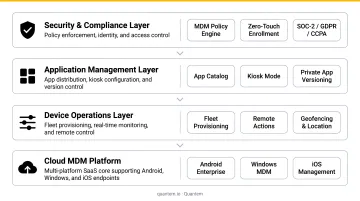
Modern Windows endpoint management architecture layers several components on top of each other:
- Cloud management plane — MDM/MAM policies delivered over the internet (Microsoft Intune)
- On-premises infrastructure — agent-based control for domain-joined environments (Configuration Manager)
- Identity layer — device registration and access gating (Microsoft Entra ID / Azure AD)
- Device-level agents — the Intune Management Extension (IME) for scripts, Win32 apps, and remediations
Microsoft Intune: The Cloud Management Layer
Microsoft Intune is Microsoft's primary cloud-based MDM/MAM solution for Windows. Once a device is enrolled, Intune pushes policies, app deployments, and compliance checks directly over the internet — no VPN or on-premises server required.
Key capabilities within Intune:
- Settings Catalog: A GUI-driven interface covering thousands of Windows settings — from BitLocker encryption to Windows Update behavior to app restrictions — without manual scripting
- Configuration Profiles: Templates for specific policy sets (firewall rules, VPN, Wi-Fi) that apply to device groups automatically
- Intune Management Extension (IME): Supplements standard MDM for PowerShell scripts, Win32 app deployment, and proactive remediations
Configuration Manager and Co-Management
Microsoft Configuration Manager (formerly SCCM) handles the on-premises side: it manages domain-joined devices through Group Policy Objects and an agent-based control model. It fits environments with substantial on-premises infrastructure or complex legacy software deployments that cloud-only tools can't yet handle cleanly.
Co-management bridges these two worlds. A Windows device can be simultaneously managed by Configuration Manager and Intune, with IT choosing which workloads run where. Microsoft's shiftable workloads include:
- Compliance policies
- Windows Update policies
- Endpoint protection
- Device configuration
- Client apps
This lets organizations migrate to cloud management incrementally — moving compliance to Intune first, for example, while keeping complex app deployment in ConfigMgr until it's ready to migrate.
Windows Autopilot and Zero-Touch Provisioning
Windows Autopilot eliminates imaging and manual device setup. When a new Windows device is powered on for the first time, it:
- Connects to the internet automatically
- Authenticates against Microsoft Entra ID
- Downloads its assigned configuration profile from Intune
- Self-configures apps, policies, and restrictions without IT touching the device
Endpoint Analytics
Endpoint Analytics rounds out the architecture by surfacing device health scores, startup performance data, and app reliability metrics. Its proactive remediation scripts detect and fix issues before users notice them — shifting IT from reactive troubleshooting to preventive management.
Third-party MDM platforms like Quantem extend this zero-touch model further, letting IT teams enroll and configure Windows devices remotely from day one across multiple sites — without requiring dedicated on-site staff.
Windows Endpoint Enrollment Methods
The enrollment method you choose determines your infrastructure footprint — how much your management approach relies on cloud services versus on-premises domain infrastructure.
The Three Main Enrollment Pathways
| Enrollment Type | Use Case | Cloud Dependency |
|---|---|---|
| Azure AD Join | Modern, cloud-first organizations with no on-premises AD | Fully cloud — no domain controller needed |
| Hybrid Azure AD Join | Existing Active Directory environments transitioning to cloud | Requires periodic domain controller connectivity |
| BYOD / Workplace Join | Personal devices accessing corporate resources | Work profile scoped — management limited to corporate apps |
Automated Enrollment Options
Administrators have three primary options for automating enrollment at scale:
- Windows Autopilot: For new devices purchased from OEMs — zero-touch from first boot
- Group Policy-based auto-enrollment: For existing AD domain environments — a GPO triggers MDM enrollment automatically for all joined devices
- Bulk enrollment via provisioning packages: Built with Windows Configuration Designer to enroll device batches without individual user sign-ins
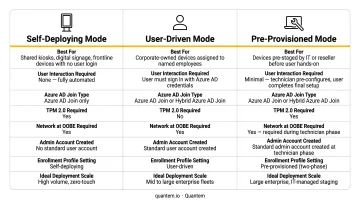
Prerequisites across all methods include an Intune license, a configured Microsoft Entra tenant, and appropriate admin roles.
A Note on Offline Devices
Cloud-based management removes the on-premises network dependency for most tasks. Devices that are offline still enforce cached policies — but they must reconnect to receive new policy pushes, compliance re-evaluations, or remote actions. Hybrid Azure AD Join scenarios can still require VPN or domain-controller line-of-sight during initial setup, unlike cloud-native Azure AD Join which handles provisioning entirely over the internet.
Security and Compliance Capabilities
Compliance in Windows endpoint management works through policy evaluation: devices are checked against defined requirements and either pass, fail, or get remediated automatically.
Windows compliance checks in Intune cover:
- Minimum OS version requirements
- BitLocker encryption status
- Microsoft Defender Antivirus running and updated
- Firewall enabled
- Secure Boot status
- Device health attestation
Conditional Access and Identity-Based Control
Conditional Access is Microsoft's Zero Trust policy engine. It gates application access based on device compliance status. No device is inherently trusted — every access request is evaluated against health and identity signals before being granted.
In practice, this means a device that fails a compliance check (outdated OS, missing BitLocker, Defender disabled) can be automatically blocked from email, SharePoint, or any corporate application — without IT manually intervening. Intune quarantines the device until it remediates the failing policy.
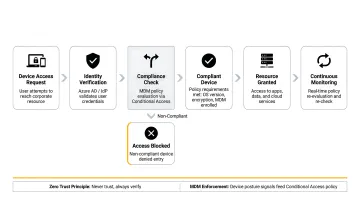
That tight coupling between device health and identity security is what Conditional Access brings to Windows management — and it carries directly into how Defender and BitLocker enforcement work at the platform level.
Built-In Windows Security Integration
Microsoft Defender for Endpoint (the current name for what was previously called Microsoft ATP) integrates directly with Intune to provide threat-informed compliance. Intune can assess device risk scores from Defender in real time and use those signals in compliance decisions — a device actively under attack can be automatically blocked from corporate resources while remediation occurs.
BitLocker enforcement through Intune lets administrators:
- Mandate encryption across all Windows devices via silent encryption policy
- Escrow recovery keys automatically to Microsoft Entra ID
- Verify encryption status from the management console at any time
This encryption enforcement is directly relevant to regulatory requirements. HHS HIPAA Security Rule guidance identifies encryption as an addressable technical safeguard, and NIST SP 800-111 provides storage encryption guidance for end-user devices. For IT teams operating in regulated industries, the MDM platform itself needs to meet the same bar: Quantem is SOC-2, GDPR, and CCPA certified, so the tool enforcing your compliance policies isn't creating its own audit exposure.
Windows Endpoint Management Best Practices
A well-managed Windows environment isn't just functional — it's consistent, auditable, and hard to compromise. These five practices separate shops that stay on top of their fleet from those that are always catching up.
Consolidate into a single management platform. Fragmented tooling — separate products for MDM, patching, inventory, and compliance reporting — creates visibility gaps and multiplies administrative overhead. Manage Windows devices from one console.
Automate patch management with update rings. The Verizon 2026 DBIR reports that vulnerability exploitation is now the leading breach vector and median remediation takes 43 days. Update rings in Intune (pilot → broad → production) let you test patches before broad rollout while setting mandatory compliance deadlines so devices don't drift.
Implement RBAC for the management console. Intune's role-based access control lets administrators define granular permissions — who can push policies, wipe devices, or view sensitive device data. Scope tags restrict which device groups each admin can see. Not every IT team member needs full access to everything.
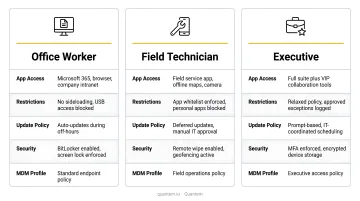
Standardize configurations by user role. Build baseline configuration profiles for common personas:
- Office worker (standard apps, productivity settings)
- Field technician (restricted apps, kiosk-adjacent controls)
- Executive (full access, stricter encryption requirements)
New devices receive the correct apps, security settings, and restrictions automatically upon enrollment — no manual setup required.
Audit and decommission inactive endpoints regularly. Intune's cleanup rules let you surface devices that haven't checked in for a configurable threshold (30–270 days). Stale devices carry outdated policies and missed patches, creating both a security exposure and wasted licensing costs. Automate the report and maintain a documented offboarding process.
How to Choose the Right Windows Endpoint Management Tool
The right platform depends on your environment's complexity, team size, and budget.
Key Evaluation Criteria
Before committing to a platform, verify:
- Enrollment method support: Does it cover Autopilot, GPO auto-enrollment, Azure AD Join, and hybrid scenarios?
- Co-management capability: Can it work alongside Configuration Manager for hybrid environments?
- Compliance reporting: Does it produce the audit evidence your regulatory framework requires (HIPAA, SOC-2, GDPR)?
- Total cost: Licensing, implementation, and ongoing support — not just the per-device price
Understanding the Cost Reality
Microsoft Intune Plan 1 starts at $8.00 per user per month (billed annually), with Intune Plan 2 as a $4.00/user/month add-on and the full Intune Suite at $10.00/user/month additional. For mid-sized organizations without a Microsoft Enterprise Agreement, that adds up quickly, and the implementation complexity is real. According to an IDC 2024 assessment, more than 70% of enterprises that deployed UEM tools use at least two products, and over one-third use three or more.
Quantem offers a lower-cost entry point with enterprise-grade capabilities:
- Zero-touch provisioning for hands-off Windows device deployment
- Real-time device visibility and policy enforcement from a single console
- $1–$3 per device per month — no EA licensing or large IT team required
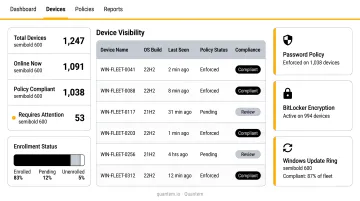
For organizations that need enterprise-grade control on a tighter budget, that pricing gap matters.
Start with a Pilot
Regardless of which platform you evaluate, don't roll out to your full device fleet on day one. Run a pilot on a defined device group — 25 to 50 devices across different user personas — to validate:
- Enrollment flows work as expected for each method
- Policy configurations apply correctly without unintended restrictions
- The management console fits your IT team's actual workflows
Quantem offers a 21-day free trial with no credit card required, which is enough time to run a meaningful pilot on a Windows device subset before committing.
Frequently Asked Questions
What can my employer see on Microsoft Intune?
On corporate-owned devices enrolled in Intune, employers can see device compliance status, installed applications, OS version, serial number, hardware details, and location (if enabled). They cannot see personal files, browser history, email content, or private communications. On BYOD devices, management is scoped to the work profile — personal data remains private.
How did endpoint protection get on my computer?
IT administrators deploy endpoint protection through the endpoint management platform during enrollment. It's applied as a required policy that mandates Defender or a third-party antivirus be running before the device is marked compliant.
Does Microsoft Endpoint Manager still exist?
Microsoft Endpoint Manager (MEM) was the umbrella brand combining Intune, Configuration Manager, Autopilot, and Endpoint Analytics. Microsoft retired the MEM name in October 2022. Cloud-based management is now called Microsoft Intune; on-premises management continues as Microsoft Configuration Manager.
What is Microsoft ATP called now?
Microsoft Advanced Threat Protection (ATP) was rebranded to Microsoft Defender for Endpoint. It remains the enterprise endpoint detection and response (EDR) solution that integrates with Intune for threat-informed compliance enforcement and real-time device risk assessment.
What is co-management in Windows endpoint management?
Co-management allows a Windows device to be simultaneously managed by both Microsoft Configuration Manager (on-premises) and Microsoft Intune (cloud). IT teams can shift individual workloads — compliance policies, Windows Update, endpoint protection — to Intune incrementally, without abandoning existing on-premises infrastructure.
What is the difference between MDM and Windows endpoint management?
MDM (Mobile Device Management) is a protocol for managing devices over the internet. It's one mechanism within Windows endpoint management, which is the broader practice that combines MDM, Group Policy, co-management, on-premises agents, and identity-based access controls to cover the full device lifecycle.