For IT administrators managing device fleets in healthcare, education, logistics, or enterprise environments, this distinction matters. Manual device setup at scale creates inconsistent configurations, security policy gaps, and hours of avoidable labor. A school district managing 42,000 devices - like Riverside Unified, cited by EdTech Magazine - cannot afford to set up each laptop individually.
This guide covers what bulk enrollment is, why organizations use it, how the process works across different methods, what factors affect success, and when it may not be the right approach.
Key Takeaways
- Bulk enrollment configures and enrolls multiple Windows devices into an MDM without individual manual setup
- Three primary methods: provisioning packages (WCD), Windows Autopilot, and Group Policy MDM auto-enrollment
- Method choice depends on your scenario: new device rollouts, existing fleets, or hybrid AD environments
- Bulk tokens expire after 180 days and must be renewed proactively
- Most failures stem from token expiry, admin account scope issues, or misconfigured enrollment restrictions
What Is Bulk Enrollment for Windows Devices?
According to Microsoft, bulk enrollment joins new Windows devices to Microsoft Entra ID and Intune using a provisioning package created in Windows Configuration Designer (WCD). The result: every enrolled device receives the same baseline configuration - policies, apps, certificates, and security settings - without IT touching each machine individually.
The key distinction from standard enrollment is that bulk enrollment is device-centric and userless. No specific user account is assigned during provisioning - configuration applies at the device level, with no personal credentials prompted, no per-user policy assignment, and no reliance on end-user action during setup.
What a Provisioning Package Actually Contains
Microsoft defines a provisioning package (.ppkg) as "a container for a collection of configuration settings." In practice, a single .ppkg file can bundle:
- Enrollment credentials (bulk token tied to a cloud admin account)
- Device naming scheme and network (Wi-Fi) configuration
- Application packages and certificates
- Target MDM policy scope settings
Apply that file during OOBE (out-of-box experience) or post-setup, and the device enrolls and configures itself - no per-device IT intervention required.
Why IT Teams Use Bulk Enrollment for Windows
One-by-one device setup doesn't scale - and IT teams feel that ceiling fast.
Warehouses, hospitals, school systems, and retail branches routinely deploy dozens or hundreds of devices at once - during fleet refresh cycles, facility expansions, or when standing up shared-use hardware like POS terminals, kiosk stations, or clinical workstations. Manual setup in these contexts means:
- Inconsistent configurations across the fleet
- Missed certificate deployments and security policy gaps
- IT hours lost to repetitive, low-value work
- No guarantee that device 47 is configured identically to device 1
Microsoft's own Forrester Total Economic Impact study for Windows Autopilot found that automated device deployment saves several hours per device implementation, representing a three-year present value of $93,000 in savings for organizations that make the switch.
Who Typically Adopts Bulk Enrollment
Most IT teams reach the same breaking point. The triggers are consistent:
- Onboarding a new batch of corporate devices
- Redeploying existing hardware after a refresh
- Standing up kiosk or shared-use devices (POS, ATMs, school computers, industrial machinery)
- Scaling operations without proportionally scaling IT headcount
In regulated industries - healthcare and finance especially - there's an added compliance dimension. Uniform policy enforcement from day one means audit-ready device states without retroactive remediation. That's where MDM platforms like Quantem become practical: zero-touch provisioning with toggle-based policy controls eliminates scripting requirements, so compliance posture is built into the deployment - not bolted on after.
How Bulk Enrollment Works: Methods and Process Flow
The high-level flow is straightforward: IT creates an enrollment configuration - either a provisioning package or a pre-registered device identity - then distributes it to target devices. From there, each device automatically joins the identity platform and pulls down management policies without any per-device admin interaction.
Step 1: Choose Your Enrollment Method
Four main methods exist, each suited to different fleet scenarios:
| Method | Best For |
|---|---|
| Provisioning Package via WCD | New or existing devices where a .ppkg can be applied via USB or after setup |
| Windows Autopilot | New out-of-box devices requiring zero-touch enrollment using pre-registered hardware hashes |
| Group Policy MDM Auto-Enrollment | Hybrid Azure AD environments with existing Active Directory infrastructure |
| PowerShell (Install-ProvisioningPackage) | Remote deployment of .ppkg files to existing devices without physical access |
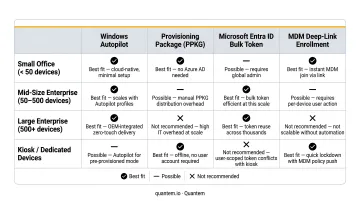
Microsoft's guidance is that provisioning packages are particularly useful for deployments from tens to a few hundred computers. For larger, newer fleets, Autopilot typically scales better.
Step 2: Create the Provisioning Package or Enrollment Profile
For the provisioning package path:
- Open Windows Configuration Designer (WCD)
- Specify device settings and obtain a bulk enrollment token (tied to a cloud admin account)
- Optionally embed apps and certificates
- Export the .ppkg file
The bulk token is valid for a maximum of 180 days. After that, the package stops enrolling new devices. A new package with a fresh token must be created and redistributed - no automatic renewal.
For the Autopilot path:
Capture hardware hashes (device fingerprints) from each device using the Get-WindowsAutopilotInfo.ps1 script and upload them to Intune before the end user powers the device on. Once registered, the device automatically receives its policy assignment the moment it connects to the internet during first boot.
Step 3: Deploy and Verify Enrollment
Deployment options depend on which method you chose:
- Provisioning package during OOBE: Apply via USB during initial device setup
- Provisioning package post-setup: Double-click the .ppkg file, or run
Install-ProvisioningPackagevia PowerShell - Autopilot: Triggers automatically on first internet connection at first boot
To verify successful enrollment, check the MDM admin console for:
- Device appearing under the correct policy group
- Assigned apps and configurations confirmed as received
- Device status showing as compliant
If provisioning fails, Microsoft's retry logic handles it automatically: three consecutive retry attempts, followed by four more at progressively longer intervals if all initial attempts fail.
Key Factors That Affect Windows Bulk Enrollment
Several variables determine whether bulk enrollment succeeds or produces silent failures:
- Admin account scope - The account used to generate the bulk token must be included in the MDM user scope in Microsoft Entra ID. If it isn't, enrollment fails without a clear error message to the end user.
- Token expiry - Bulk tokens expire after 180 days. A package using an expired token will silently fail to enroll new devices.
- Network connectivity - Devices must reach Microsoft enrollment endpoints during setup. Because bulk enrollment is userless, devices cannot use user-targeted certificates for Wi-Fi - device-level certificates are required for non-open networks.
- Device edition compatibility - Bulk enrollment via provisioning packages is supported on Windows 10/11 Pro, Enterprise, and Education. Windows Home is not in the supported editions list.
- Conditional Access / MFA - If your tenant enforces MFA via Conditional Access, the bulk enrollment account must be excluded. MFA is not supported during bulk token generation.
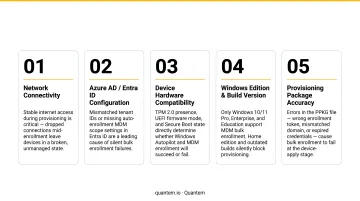
Knowing where failures originate helps you pick the right enrollment method for your fleet.
Scale and Method Selection
Fleet size and composition should drive your method choice:
- Hundreds of new devices: Autopilot with pre-staged hardware hashes scales better than distributing .ppkg files individually
- Smaller redeployment batches: Provisioning packages or PowerShell-applied packages are more practical
- Hybrid AD environments: Group Policy MDM auto-enrollment removes the need for package distribution entirely
Before deploying any method, confirm three tenant-level prerequisites: Windows automatic enrollment is enabled, enrollment restrictions allow the Windows platform, and the correct service principal is present for WCD token retrieval. A misconfigured restriction will silently block bulk enrollment with no error surfaced to the device user.
Common Issues, Misconceptions, and When to Skip Bulk Enrollment
Three Misconceptions That Cause Real Problems
Misconception 1 - Devices get assigned to users automatically. They don't. Bulk enrollment is userless by default. User-device association must be handled separately after enrollment through the MDM console or directory integration.
Misconception 2 - Any admin account can generate a bulk token. Accounts scoped to an administrative unit in Microsoft Entra ID cannot create bulk enrollment tokens. This is a documented Microsoft limitation that regularly catches teams off guard.
Misconception 3 - Bulk enrollment and Windows Autopilot are interchangeable. They're not. Autopilot uses pre-registered hardware identities and triggers at first boot. You manually distribute provisioning packages and can apply them at any point during or after setup. Different mechanism, different use case.
These misconceptions are distinct from simply choosing the wrong tool - the next section covers when bulk enrollment is the wrong approach entirely.
When Bulk Enrollment Isn't the Right Choice
- Small fleets (under 10-20 devices): Setup overhead rarely pays off - standard user-driven enrollment is faster at this scale
- BYOD environments: Provisioning packages apply corporate config at the device level, which conflicts with personal device ownership
- Cloud-only Entra ID direct join: The Provisioning CSP does not support bulk join for direct Entra join scenarios - only the WCD Entra enrollment flow covers this
Signs Bulk Enrollment Is Being Misapplied
Watch for these patterns:
- IT repackaging and redistributing .ppkg files for individual device additions rather than batches
- Expired tokens causing silent enrollment failures that go undetected for days
- Teams recreating provisioning packages frequently because no token renewal process exists
Each pattern points to the same root cause: bulk enrollment was deployed without an operational process behind it. The fix isn't to abandon the approach - it's to build the renewal, distribution, and monitoring steps before rollout, not after.
Frequently Asked Questions
How many devices can a Device Enrollment Manager account enroll?
A Device Enrollment Manager (DEM) account can enroll up to 1,000 devices in Intune. DEM-enrolled devices are not linked to a specific user, so some user-specific features like Conditional Access may be limited.
Is there a limit on devices per Microsoft account?
Microsoft Entra ID has a configurable maximum devices per user, with a default of 50 (adjustable up to 100 in Entra ID > Devices > Device Settings). Bulk enrollment via provisioning packages uses a shared service account, so this per-user limit does not directly apply to bulk-enrolled devices.
Can a Windows device be enrolled in multiple MDM platforms simultaneously?
No. Windows supports only one MDM authority at a time. Enrolling a device in a second MDM will either fail or override the existing enrollment. Unenroll from the current MDM before switching, or use co-management configurations if dual management is genuinely required.
What is a provisioning package and how is it used?
A provisioning package is a .ppkg file created with Windows Configuration Designer that bundles enrollment credentials, device settings, apps, and certificates into a single deployable file. When opened on a Windows device, it automatically applies all configurations and enrolls the device into the target MDM without user intervention.
How long does a bulk enrollment token last?
Bulk enrollment tokens are valid for a maximum of 180 days from creation. After expiry, the provisioning package will no longer enroll new devices - plan token renewal into your deployment calendar accordingly.
Does bulk enrollment work on all Windows editions?
Bulk enrollment via provisioning packages is supported on Windows 10/11 Pro, Enterprise, and Education editions. Microsoft doesn't support Windows Home for MDM enrollment. Note that Windows 10 reached end of support on October 14, 2025 - Windows 11 is the recommended platform for new bulk deployments.