This guide is written for IT administrators and enterprise device managers responsible for configuring MDM enrollment during OOBE. It covers prerequisites, step-by-step setup, post-enrollment validation, and the most common failure modes - with specific attention to recent changes in how Microsoft handles quality updates during provisioning.
Key Takeaways
- OOBE MDM enrollment automates device provisioning before first user sign-in, ensuring compliance from day one
- Prerequisites include Windows 11 22H2 or later, Microsoft Entra ID join, a licensed MDM service, and access to required Microsoft endpoints
- Windows Autopilot and the Intune Enrollment Status Page (ESP) control what gets configured - and when - during provisioning
- Quality update installation during OOBE can add 20+ minutes to provisioning - requiring deliberate admin decisions
- Misaligned Update Ring policies and skipped post-setup validation are the top causes of enrollment failures
Prerequisites and Requirements for Windows 11 OOBE MDM Setup
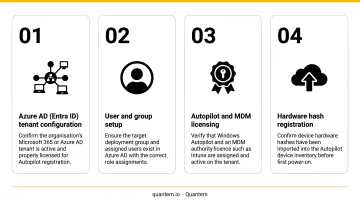
Four prerequisite categories must all be satisfied before OOBE MDM enrollment can succeed: software, networking, licensing, and configuration. A gap in any one of them reliably produces either a stuck OOBE screen or a device that completes setup without enrolling in MDM. This guide uses Microsoft Intune as the primary management plane - confirm your MDM vendor supports Autopilot ESP integration before committing to an alternative.
Software Requirements
Windows Autopilot supports Windows 11 Pro, Pro Education, Pro for Workstations, Enterprise, Education, and Enterprise LTSC. Windows 11 Home cannot join Microsoft Entra ID - attempting Autopilot enrollment on Home returns error 0x80180022.
For Autopilot device preparation specifically, the OS floor is:
- Windows 11 24H2, or
- Windows 11 23H2 or 22H2 with KB5035942 or later installed
Networking Requirements
All required Microsoft endpoints must be reachable from the provisioning network before setup begins. Key requirements:
- Ports: TCP 80 (HTTP), TCP 443 (HTTPS), UDP 123 (NTP/time sync)
- Autopilot service URLs:
https://ztd.dds.microsoft.comandhttps://login.live.com - Entra ID / auth:
login.microsoftonline.com,graph.windows.net - Intune management:
*.manage.microsoft.com,*.dm.microsoft.com - Windows Update:
*.windowsupdate.com,*.update.microsoft.com - TPM attestation:
*.microsoftaik.azure.net,ekcert.spserv.microsoft.com,ekop.intel.com,ftpm.amd.com
Environments using restrictive proxies or firewalls need explicit allow-list entries for the full Microsoft Intune endpoint list. Blocking even one critical URL can cause enrollment to fail silently.
Licensing Requirements
Automatic MDM enrollment requires Microsoft Entra ID P1 or P2. Qualifying subscriptions include:
- Microsoft 365 Business Premium, E3, E5, or E7
- Enterprise Mobility + Security (EMS) bundles with Entra ID P1/P2
- Standalone Intune Plan 1 + Entra ID P1/P2
Critical note: Licenses must be assigned to individual users, not just provisioned at the tenant level. A tenant-level subscription without per-user assignment will fail enrollment.
Configuration Prerequisites
Before any device is powered on:
- Enable Entra automatic MDM enrollment in the Intune admin center
- Grant Entra join permissions to the signing user (user-driven scenarios)
- Register devices in Windows Autopilot - hardware hash imported via OEM, reseller, or CSV/PowerShell upload
- **Create and assign an Autopilot deployment profile** to the target device group
Non-Negotiables
Do not proceed with OOBE MDM enrollment if:
- The device lacks TPM 2.0 (required for Windows 11 and mandatory for self-deploying mode)
- The device is already domain-joined to another environment
- Required network endpoints are blocked on the provisioning network
With all four prerequisite categories confirmed, the next step is walking through the actual OOBE enrollment flow.
How to Set Up MDM Support During Windows 11 OOBE
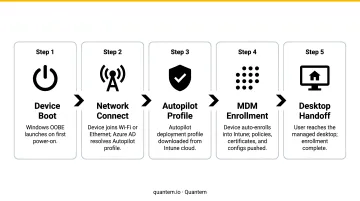
OOBE MDM setup follows a defined sequence: device registration → profile configuration → enrollment trigger → policy sync → optional update installation. Skipping or reordering any step is the fastest path to provisioning failures.
Preparing Devices and Autopilot Profiles
All preparation happens before the device is powered on - the hardware hash must be registered and profiles assigned before the first boot.
Step 1: Register the hardware hash in Autopilot Import the device hardware hash via OEM delivery, reseller registration, or manually through PowerShell/CSV upload in Intune (Devices → Windows → Autopilot devices).
Step 2: Create an Autopilot deployment profile In Intune, configure:
- Join type: Entra join (cloud-only) or hybrid join (requires line-of-sight to domain controller)
- Deployment mode: User-driven (requires user authentication) or self-deploying (kiosks/shared devices - requires TPM attestation)
Assign the profile to the target device group.
Step 3: Configure the Enrollment Status Page (ESP) Navigate to Devices → Enrollment → Enrollment Status Page (or Devices → Device onboarding → Enrollment → Windows → Windows Autopilot → Enrollment Status Page).
Key ESP decisions:
- Block desktop access until required apps and policies are installed: recommended for regulated environments
- Install Windows quality updates: Microsoft introduced this toggle in 2025. The current ESP Learn page states new profiles default to Yes - but a December 2025 editor note clarified that Microsoft would not enable it by default starting with the January 2026 security update. Verify current default behavior in your tenant and make a deliberate choice either way
- Adding quality updates can add 20+ minutes to provisioning time depending on update size and network conditions
Assign the ESP profile to the same Autopilot device group.
Setting Up the OOBE MDM Enrollment Flow
When the device is powered on and connected to the provisioning network:
- Device contacts the Windows Autopilot Deployment Service and retrieves its assigned profile
- OOBE displays the organization's branded sign-in page (if custom branding is configured in Entra ID)
- User authenticates via Entra credentials (or TPM attestation completes automatically in self-deploying mode)
- Device joins Entra ID; Entra triggers automatic MDM enrollment into Intune
- ESP tracks app and policy installation before handing off to the user desktop
For self-deploying mode specifically, TPM attestation must succeed before enrollment can proceed. Confirm that *.microsoftaik.azure.net and firmware TPM-specific URLs for Intel, AMD, or Qualcomm chipsets are not blocked on the provisioning network.
Aligning Windows Update Ring Policies
For OOBE quality update installation to respect your deferral and pause policies, assign Windows Update ring profiles to the same device group as the ESP profile. This assignment must be in place before the device reaches the update check phase.
If Update Ring policies are not synced in time, the device may install an unapproved update version regardless of your ring configuration. When the quality update toggle is enabled, this group alignment is required - there is no fallback.
Post-Setup Validation and Compliance Checks
A device that completes OOBE without an enrollment error can still land in a pending compliance state - blocking access to corporate resources at first login. Running post-setup validation across three areas catches these issues before they become day-one support requests: Intune, the device itself, and functional access enforcement.
Intune-Side Checks
- Navigate to Devices → Windows and confirm the device appears with:
- Compliant status
- Correct enrollment type (Autopilot)
- Expected policy assignments
- Check Devices → Monitor → Windows Autopilot deployment status for deployment report details
Device-Side Checks
- Open Settings → Accounts → Access work or school and confirm the MDM connection is listed
- Trigger a manual sync and verify policies are applying correctly
Access and Conditional Access Verification
- Confirm the device shows as Entra joined (not just registered) in Entra ID under Devices
- Verify required apps deployed via Intune have installed successfully
- Test Conditional Access enforcement: attempt to access a protected resource with the enrolled account to confirm the device's compliance status is enforced before access is granted
Common OOBE MDM Setup Problems and Fixes
Most OOBE MDM enrollment failures fall into three recurring categories. Diagnosing them quickly starts with checking:
- Autopilot diagnostics logs
- Windows Update event logs
- The Intune device enrollment record
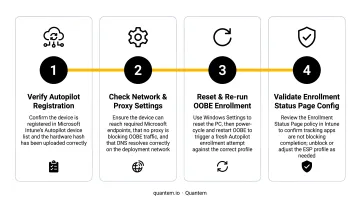
Device Gets Stuck at OOBE or Fails to Enroll
Problem: Device stalls at the ESP screen, fails to join Entra ID, or completes OOBE without MDM enrollment appearing in Intune.
Likely causes:
- Device was not registered in Autopilot before setup began
- Autopilot deployment profile was not assigned to the device's group
- Required network endpoints were unreachable during setup (especially
ztd.dds.microsoft.comor Entra authentication URLs)
Fix:
- Verify device registration: Intune → Devices → Windows → Autopilot devices
- Confirm the deployment profile assignment and group membership
- Validate that the provisioning network allows access to all required Microsoft endpoints
- Use built-in Autopilot diagnostics: press Shift+F10 during OOBE to open a command prompt, then run
MDMDiagnosticsToolto capture failure codes
Application Version Mismatch - KB5065083
Problem: After OOBE updates install on older Windows 11 devices, the application version in the enrollment request changes (for example, build 26100.4770 becomes 26100.4771). Third-party MDM controllers that don't recognize this signal may misread the device state and reject or delay policy delivery.
Cause: OOBE update packages KB5065848 and KB5065813 trigger a CSP restore policy that increments the application version. MDM providers not recognizing the "restore-capable" signal may reject or mishandle the enrollment request.
Fix: Microsoft's guidance under KB5065083 recommends that MDM providers treat the version increment as the detection mechanism for restore-capable devices and send the restore CSP accordingly. If you're using a third-party MDM, confirm your vendor has addressed this behavior with a provider-side update.
Temporary Access Pass Expiry During OOBE Updates
Problem: Enrollment appears to proceed normally but fails at the authentication step after updates install. Users cannot complete first sign-in.
Cause: When quality updates are enabled in the ESP profile, the additional 20–30 minutes of installation time can cause short-lived Temporary Access Passes (TAP) to expire before the user reaches the sign-in screen. TAP minimum lifetime defaults to 1 hour, which is a real exposure in update-heavy deployments where provisioning routinely exceeds that window.
Fix:
- Extend TAP validity windows in Entra ID before broad rollout to accommodate longer OOBE duration
- For deployments where provisioning time is constrained, disable the quality update toggle in ESP and rely on post-enrollment update rings instead
Pro Tips for Deploying MDM via OOBE at Scale
Start with a Pilot Group
Create a test ESP profile assigned to a small IT-owned device group. Measure real OOBE completion times across representative hardware models and validate that all policies, apps, and update ring assignments behave as expected. Promote settings to broader groups only after the pilot produces clean enrollment data.
Account for Network Load During Bulk Events
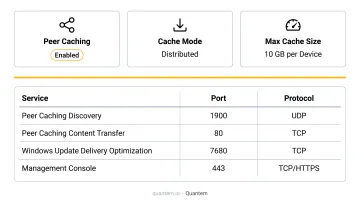
When deploying dozens or hundreds of devices simultaneously - school term starts, corporate refresh cycles - configure Delivery Optimization peer caching to reduce per-device download load. Confirm these DO ports are open:
- TCP 7680 (peer-to-peer content sharing)
- HTTPS 443 (DO cloud service)
- UDP 3544 (Teredo NAT traversal for Group/Internet modes)
Build a Recovery Runbook Before You Need It
Every OOBE MDM deployment needs a written remediation procedure on file. Cover at minimum:
- How to access Autopilot diagnostics (Shift+F10 → MDMDiagnosticsTool)
- Steps to re-enroll a device after enrollment failure
- Instructions for recovering a device stuck mid-update
Platforms that show real-time enrollment status and device-level diagnostics cut mean-time-to-resolution significantly. Quantem's fleet management dashboard, for instance, surfaces provisioning failures directly in the console so IT staff can act without combing through raw log files.
Frequently Asked Questions
What is OOBE in Windows 11?
OOBE (Out-of-Box Experience) is the initial setup sequence that runs the first time a Windows 11 device is powered on, guiding the user or an automated deployment system through language selection, network connection, and account sign-in. In enterprise deployments, OOBE also triggers MDM enrollment automatically before the user reaches the desktop.
Is TPM 2.0 still required for Windows 11?
Yes. TPM 2.0 remains a minimum system requirement for Windows 11. Microsoft states that installing Windows 11 on non-compliant devices is unsupported and not recommended. Self-deploying Autopilot mode has an additional hard dependency on TPM attestation succeeding during OOBE.
Is Fly OOBE in Windows 11 safe for enterprise devices?
No. "Fly OOBE" (also called OOBE bypass or Fly mode) is a community method to skip OOBE steps. Using it on enterprise-managed devices bypasses the MDM enrollment trigger entirely, leaving the device unmanaged, unenrolled, and non-compliant with corporate policy. Microsoft does not document or support this approach for enterprise deployments.
What MDM policies can be applied during OOBE?
Through the Enrollment Status Page in Intune, IT admins can enforce app installation, device configuration policies, compliance policies, and (depending on current ESP defaults) quality update installation. These controls ensure the device meets organizational requirements before the user reaches the desktop.
Can you enroll Windows 11 in MDM without Windows Autopilot?
Yes. Enrollment can occur through Settings → Accounts → Access work or school → Connect, via deep links distributed by IT, or through Entra ID join during OOBE without Autopilot. Autopilot still delivers the most automated, policy-consistent zero-touch experience when deploying at enterprise scale.
What happens if MDM enrollment fails during OOBE?
If enrollment fails, the device may complete OOBE unmanaged and missing required apps and policies - or, in ESP-configured deployments, be blocked from reaching the desktop entirely. Run MDMDiagnosticsTool (Shift+F10 during OOBE) to capture failure codes, then re-enroll after identifying the root cause.