How to Remote Wipe Android Devices?
Android devices have become a common part of modern workplaces, from company smartphones and tablets to rugged devices used by frontline teams. As more business data moves onto these devices, organizations need a reliable way to protect that information when a device is lost, stolen, replaced, or compromised.
The challenge becomes even greater with BYOD. An employee's personal Android phone may contain corporate emails, work applications, documents, and other business information alongside their private data. Simply losing control of the device should not mean losing control of the company's data.
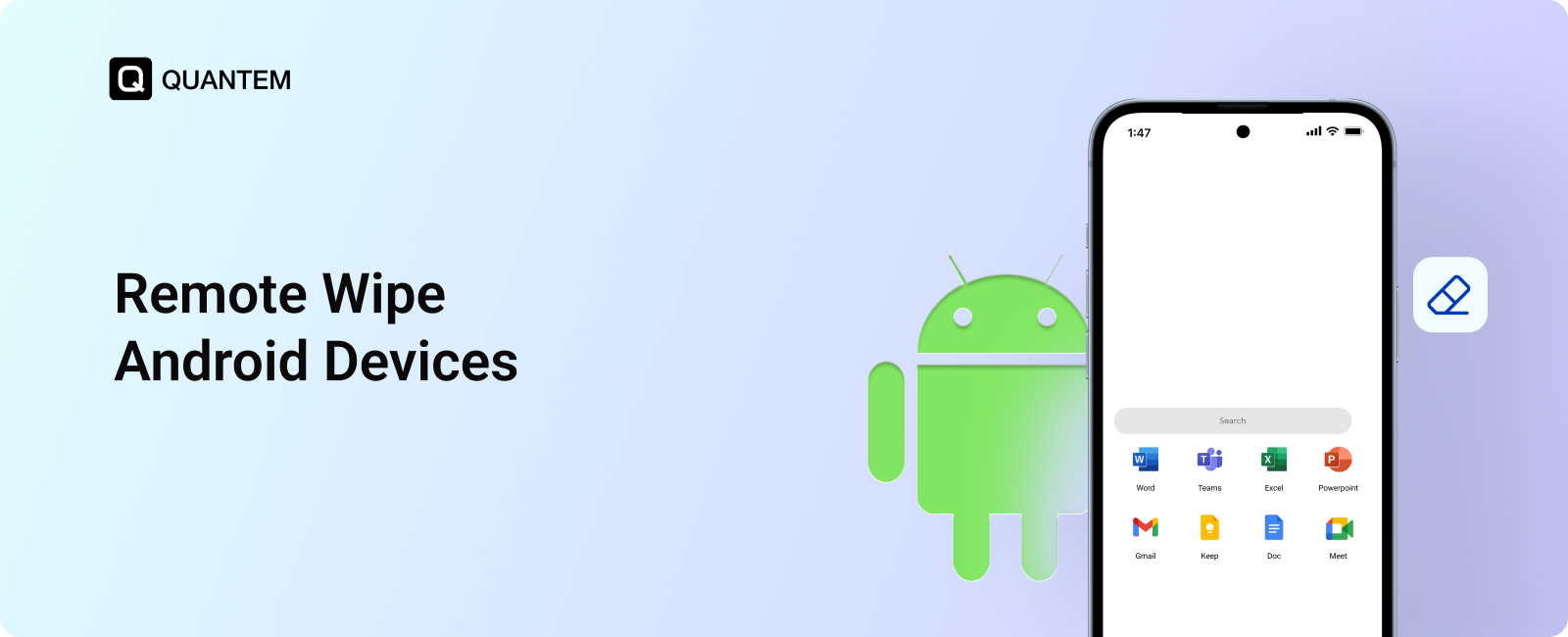
This is where remote wipe Android capabilities become important. Businesses can use remote wiping to protect corporate information and reduce the risk associated with lost, stolen, or compromised devices.
In this blog, we will explore how to remotely wipe an Android device, how remote wipe works, the different ways to erase Android data remotely, and how businesses can use an MDM solution to protect corporate information.
What is Remote Wipe on Android?
Remote wipe is a security measure that allows an organization to remove data from an Android device when it is no longer safe or appropriate to keep that data on the device. It is particularly useful for business devices where corporate information may remain accessible after a device is lost, stolen, compromised, or reassigned.
Common situations where an organization may need to remote wipe an Android device include:
- Lost or stolen devices: Prevent sensitive business information from remaining accessible to someone who finds or takes the device.
- Compromised devices: Remove corporate information when a device may have been exposed to unauthorized access or other security threats.
- Employee offboarding: Remove company data from a device when an employee leaves the organization.
- Device reassignment: Clear information belonging to a previous user before giving the device to someone else.
- BYOD scenarios: Remove corporate data from an employee-owned Android device without necessarily affecting their personal information.
For IT teams, remote wipe provides a way to respond to these situations without waiting for the device to be physically recovered.
How Does Remote Wipe Work on Android?
A remote wipe starts when an administrator sends a wipe command from the device management console to the targeted Android device. Once the device receives the command, it begins removing the data according to the type of wipe configured by the organization.
For a full device wipe, the Android device is restored to its factory state, removing apps, data, and management configurations stored on the device.
The command is typically delivered over the internet. If the device is offline when the command is issued, the wipe request can remain pending and be carried out once the device reconnects.
This allows IT teams to respond to lost, stolen, or decommissioned devices without needing to physically access them.
Why Should Businesses Use Remote Wipe for Android Devices?
For businesses, remote wipe is an important part of protecting corporate data throughout the device lifecycle. When an Android device leaves the organization's control, having the ability to remove business information remotely can reduce the risk of unauthorized access.
Here are some key reasons to include remote wipe in an Android device management strategy:
1. Protect Sensitive Business Data
Work devices can contain emails, customer information, business documents, credentials, and other sensitive data. A remote wipe Android capability gives IT teams a way to remove that information when a device is lost, stolen, or compromised.
2. Support Compliance Requirements
Organizations in industries such as healthcare, finance, and government often have requirements for protecting sensitive information. Remote wipe can form part of a broader security strategy for handling data when devices are no longer under authorized control.
3. Reduce the Impact of Data Breaches
The longer sensitive information remains on a lost or compromised device, the greater the potential exposure. Being able to wipe an Android device remotely allows IT teams to respond quickly and reduce the amount of data that could be accessed.
4. Simplify BYOD Security
With BYOD, employees may use personal Android devices to access corporate apps and data. Remote wipe helps organizations remove corporate information from these devices when necessary, while allowing employees to retain their personal files and apps. This makes it easier to protect business data without compromising employee privacy.
5. Prepare Devices for Reassignment
Before an Android device is handed to another employee or repurposed for a different business function, wiping the previous user's data provides a clean starting point and helps prevent residual corporate information from being accessed by the next user.
What Are the Ways to Wipe Android Phone Data Remotely?
When an Android device is lost, stolen, compromised, or being reassigned, IT teams need a reliable way to remove its data. The right method depends on whether the device is individually managed or part of a business device fleet.
1. Use Google Find My Device
For an individual Android phone, Google Find My Device can be used to remotely erase the device. The phone must be linked to a Google account and have Find My Device enabled.
The general process is:
- Open Google Find My Device from a browser.
- Sign in with the Google account linked to the phone.
- Select the Android device.
- Choose Erase Device.
- Confirm the action.
Once the phone connects to the internet, the erase command can be executed.
However, this method performs a full device wipe and does not provide separate control over personal and business data. It is also not designed for managing large device fleets.
2. Use an Enterprise MDM Solution
For organizations managing Android devices, an MDM solution provides a more centralized approach. IT administrators can send a remote wipe command from the management console rather than handling devices individually.
Depending on the device and management setup, administrators can perform a full wipe or a selective wipe. Corporate-owned devices can be fully reset, while BYOD devices using an Android work profile can have corporate apps and data removed without affecting personal content.
How to Wipe an Android Device Remotely with Quantem MDM?
Quantem MDM gives IT administrators a centralized way to remotely wipe Android devices without requiring physical access. The process can be used to remove data from managed Android devices when they are lost, compromised, decommissioned, or ready for reassignment.
Steps:
- Access the Quantem Admin Dashboard: Sign in to the Quantem MDM console to view and manage enrolled Android devices.
- Select the Android Device: Open the Devices section and choose the device you want to wipe.
- Start the Wipe Process: From the available device options, select Deprovision and initiate the action.
- Confirm the Command: Confirm the action and sync the device to send the wipe command.
- Complete the Wipe: Once the command reaches the device, its data is erased and the device is restored to its factory state.
This allows IT teams to wipe Android devices remotely and respond quickly when a device needs to be cleared of business data.
How Does Remote Wipe Work on Android BYOD Devices?
Remote wiping works differently on BYOD Android devices because the device contains both personal and corporate information. A full factory reset could unnecessarily delete the employee’s private photos, files, apps, phone numbers, passwords, and other personal data.
With an Android work profile, IT administrators can perform a selective wipe that removes corporate apps and data while leaving the employee’s personal information intact. This allows organizations to protect business information without interfering with the employee’s personal use of the device.
How to Wipe an Android Phone Remotely with MDM After Employee Offboarding?
When an employee leaves an organization, their Android device may still contain corporate apps, files, accounts, and other business data. Removing this information should be part of the offboarding process, particularly for devices used under a BYOD policy.
For a managed BYOD device, IT administrators can:
- Open the Devices section in the MDM console.
- Select the employee's Android device.
- Choose the option to remove or delete the device.
- Once the device is deleted, the associated work profile and its corporate data are automatically removed.
This selective wipe removes business information while leaving the employee's personal data and apps intact.
Securely Manage Android Devices and Protect Corporate Data with Quantem
Remote wipe is an important part of protecting business data, but it works best as part of a broader Android device management strategy. Quantem MDM gives IT teams a centralized way to manage corporate-owned and BYOD Android devices while responding quickly when data needs to be removed.
With Quantem, administrators can remotely manage devices, enforce security policies, and remove corporate data when a device is lost, compromised, decommissioned, or assigned to another user. For BYOD environments, selective wiping helps remove work data while keeping personal information intact.
By bringing these controls into a single management console, Quantem helps organizations simplify remote Android device management and maintain greater control over corporate data throughout the device lifecycle.
Take the first step toward secure Android device management
FAQs
1. What do you do if your Android phone gets lost?
If an Android phone containing sensitive business information is lost, IT teams should act quickly to prevent unauthorized access. A remote wipe can erase the device and help protect corporate data.
2. Can you recover data after an Android device is remotely wiped?
Generally, no. A remote wipe is designed to permanently erase data from the device. Maintaining regular backups is important if the data needs to be restored later.
3. What's the difference between a factory reset and a remote wipe?
A factory reset erases the device and returns it to its original settings. A remote wipe performs the same type of data removal remotely, allowing IT administrators to erase an Android device without physical access.
4. How do I erase an Android phone using Google Find My Device?
Sign in to Google Find My Device with the Google account associated with the phone, select the device, and choose Erase Device. The phone must meet Google's requirements for remote erasure.
5. Does remote wipe work if an Android device is offline?
The device generally needs an internet connection to receive the wipe command. If it is offline when the command is issued, the request can be executed when the device reconnects.
6. Can Quantem MDM help locate and remote lock or wipe data on missing phone?
Yes. Quantem MDM helps IT teams locate lost devices and take remote actions such as locking the device or wiping its data. This allows administrators to quickly respond to lost devices and reduce the risk of unauthorized access to corporate information.
7. How to set up Android devices for business using Android device manager Like Quantem?
Organizations can enroll Android devices in Quantem and configure them for business use. They can choose the right management mode and apply the required device and security policies using Zero-touch, QR code, or EMM token enrollment.



Get the latest blogs directly delivered to your mail fly arrow