Android Zero Touch Enrollment (ZTE) Explained
Deploying Android devices at scale sounds straightforward until IT has to prepare every device individually. With hundreds or thousands of phones and tablets, manual enrollment quickly turns into a repetitive process. Devices need the right apps, security settings, and management policies before employees can use them.
This becomes even harder when devices are distributed across offices, remote locations, or a large frontline workforce. Sending every device to IT for setup simply doesn't scale.
Android Zero-Touch Enrollment solves this by automating device provisioning from the first startup. IT teams can assign devices to an organization before they reach the user. When a device is turned on and connected to the internet, it can automatically retrieve its assigned configuration and enroll with the organization's device management platform.
This means devices can arrive ready for business use with the required apps, policies, and restrictions already configured. It also reduces the amount of hands-on work required from IT.
In this blog, we will explain what Android Zero-Touch Enrollment is, how it works, what you need before getting started, and how to configure it with Quantem MDM.
What is Android Zero-Touch Enrollment (ZTE)?
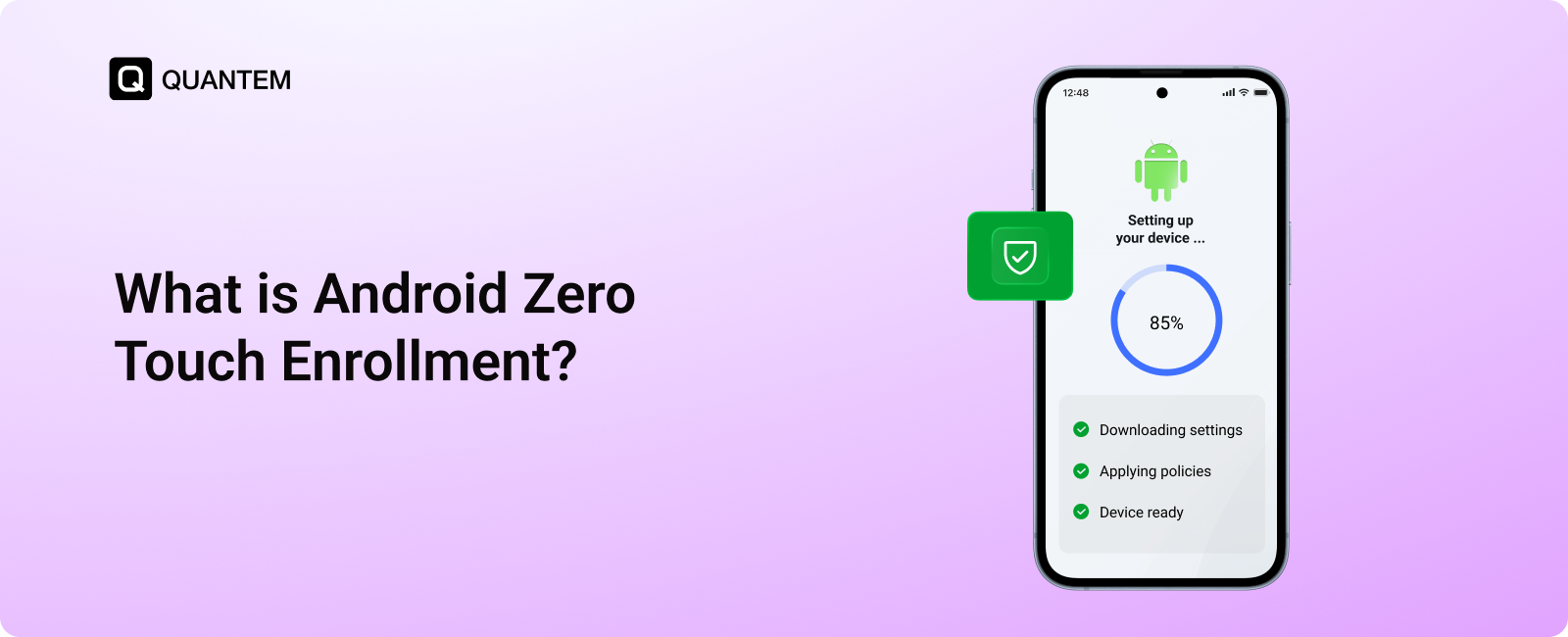
Android Zero-Touch Enrollment (ZTE) is an automated provisioning method that allows businesses to enroll supported, company-owned Android devices into management with little to no manual setup.
Instead of having IT teams configure each device before handing it to an employee, the device can retrieve its assigned configuration when it is first turned on and connected to the internet. The required management settings, apps, and restrictions can then be applied automatically.
When integrated with a Mobile Device Management (MDM) platform such as Quantem, Android Zero-Touch Enrollment can help organizations:
- Automatically enroll supported Android devices.
- Deploy required business applications.
- Apply predefined security policies and restrictions.
- Configure devices for fully managed, dedicated, or Android COPE use.
- Standardize device setup across large fleets.
The process is tied to the device rather than the individual user. This means a device can remain associated with the organization's management even after a factory reset, provided it remains assigned in the Zero-Touch system.
How Does Android Zero-Touch Enrollment Work?
Android Zero-Touch Enrollment connects the device, reseller, Google Zero-Touch enrollment portal, and MDM platform to automate device setup. The configuration is prepared before the device reaches the user, so there is far less manual work during deployment.
The process typically works like this:
1. Device is purchased through an authorized zero-touch reseller
The eligible Android device is registered with the organization's Zero-Touch account by the reseller partner.
2. IT creates an enrollment configuration
The IT admins create a device profile in the MDM platform, defining how the device should be managed. This can include enrollment settings, security policies, applications, and restrictions.
3. Configuration is linked to the device
The administrator assigns the appropriate configuration to devices in the Google Zero-Touch portal.
4. User powers on the device
When the device is turned on for the first time and connected to the internet, Android checks whether it has an organization-assigned Zero-Touch configuration.
5. Device automatically starts enrollment
The device retrieves the assigned configuration and connects with the organization's MDM solution. The user does not need to manually enter enrollment details or configure the device for management.
6. Management policies are applied
The MDM platform applies the configured policies, apps, restrictions, and other settings. The device is then ready for business use.
Deploying Android Zero-Touch Enrollment allows IT teams to configure devices centrally and ship them directly to employees or locations, rather than receiving every device for manual provisioning. It is particularly useful when deploying large numbers of corporate-owned Android devices across different locations.
What Are the Requirements for Android Zero-Touch Enrollment?
Before setting up Android Zero-Touch Enrollment, organizations need to meet a few device, reseller, account, and management requirements. Having these in place ensures devices can be automatically enrolled and configured when they are powered on.
1. Compatible Android Devices
The device must support Android Zero-Touch Enrollment. Supported devices generally include Android 8.0 and later, while Google Pixel devices support Zero-Touch Enrollment from Android 7.0. Organizations should check Google's current list of compatible devices before purchasing in bulk.
2. Devices Purchased Through an Authorized Reseller
Devices must be purchased through an authorized Android Zero-Touch reseller. The reseller registers eligible devices with the organization's Zero-Touch account, allowing administrators to assign enrollment configurations to them.
3. An MDM Solution That Supports Zero-Touch Enrollment
Organizations need an MDM, EMM, or UEM solution that supports Android Zero-Touch Enrollment. The management platform handles the device configuration, policies, applications, and restrictions after enrollment.
4. A Business Google Account
A Google account associated with the organization is required to manage the Zero-Touch environment. Organizations should use a corporate account rather than a personal Google account for device management.
What Are the Benefits of Android Zero-Touch Enrollment?
For organizations managing a large fleet of Android enterprise devices, manual enrollment can quickly become a time-consuming IT task. Android Zero-Touch Enrollment simplifies deployment by automating much of the setup process and keeping devices tied to their assigned management configuration.
1. Simplifies Large-Scale Device Deployment
IT teams can prepare and assign configurations to multiple devices without manually enrolling each one. This makes Zero-Touch Enrollment useful for deploying devices in bulk across offices, remote locations, and distributed teams.
2. Automatically Re-Enrolls Devices After a Factory Reset
A factory reset does not necessarily remove the organization's Zero-Touch assignment. When the device starts again and connects to the internet, it can retrieve its assigned configuration and begin enrollment again.
3. Configure Once and Apply at Scale
Administrators can create an enrollment profile once in the management console and assign it to multiple devices. Devices can then inherit the required policies, applications, mobile content management rules, and configurations without separate setup for each device.
4. Gets Devices Ready Faster
Users can receive a device, turn it on, connect to Wi-Fi, and let the automated enrollment process handle the rest. This reduces the need for IT staff to physically configure every device before deployment.
5. Makes Device Reassignment Easier
Because the Zero-Touch configuration is associated with the device, organizations can reuse devices when employees change roles or leave the company. IT can assign the device to the appropriate configuration and prepare it for its next user.
Android Zero-Touch Enrollment vs. Other Enrollment Methods: What’s the Difference?
Android offers several enrollment methods, but they differ significantly in automation, deployment scale, and setup effort.
Zero-Touch Enrollment stands out when an organization needs to deploy a large number of supported Android devices with minimal user or IT involvement. The device can be assigned a management configuration before deployment and automatically enroll when it is powered on and connected to the internet.
QR Code Enrollment is more hands-on. The user or IT administrator needs to scan a QR code during device setup, making it a practical option when devices are not registered for Zero-Touch or when only a smaller number of devices need to be enrolled.
Knox Mobile Enrollment offers a similar automated experience but is designed specifically for supported Samsung devices. Organizations with a mixed Android fleet may prefer Zero-Touch because it can support devices from multiple participating manufacturers.
For enterprise Android deployments, the choice ultimately depends on the device fleet and deployment model. Zero-Touch Enrollment is particularly well suited to organizations looking for a scalable, automated enrollment process across supported Android devices.
How to Configure Android Zero-Touch Enrollment with Quantem?
Setting up Android Zero-Touch Enrollment with Quantem involves configuring the enrollment settings, creating the required device profile, assigning configurations to devices, and completing the enrollment process. Follow the steps below to configure Zero-Touch Enrollment and automatically enroll Android devices with Quantem.
Step 1: Link the Zero-Touch Account and Configure Enrollment (Quantem Console)
1. Navigate to Android Zero Touch Enrollment
From the left-hand navigation menu in the Quantem MDM dashboard, select Enrollment, then Android. On the Android enrollment page, select the Zero touch tab.
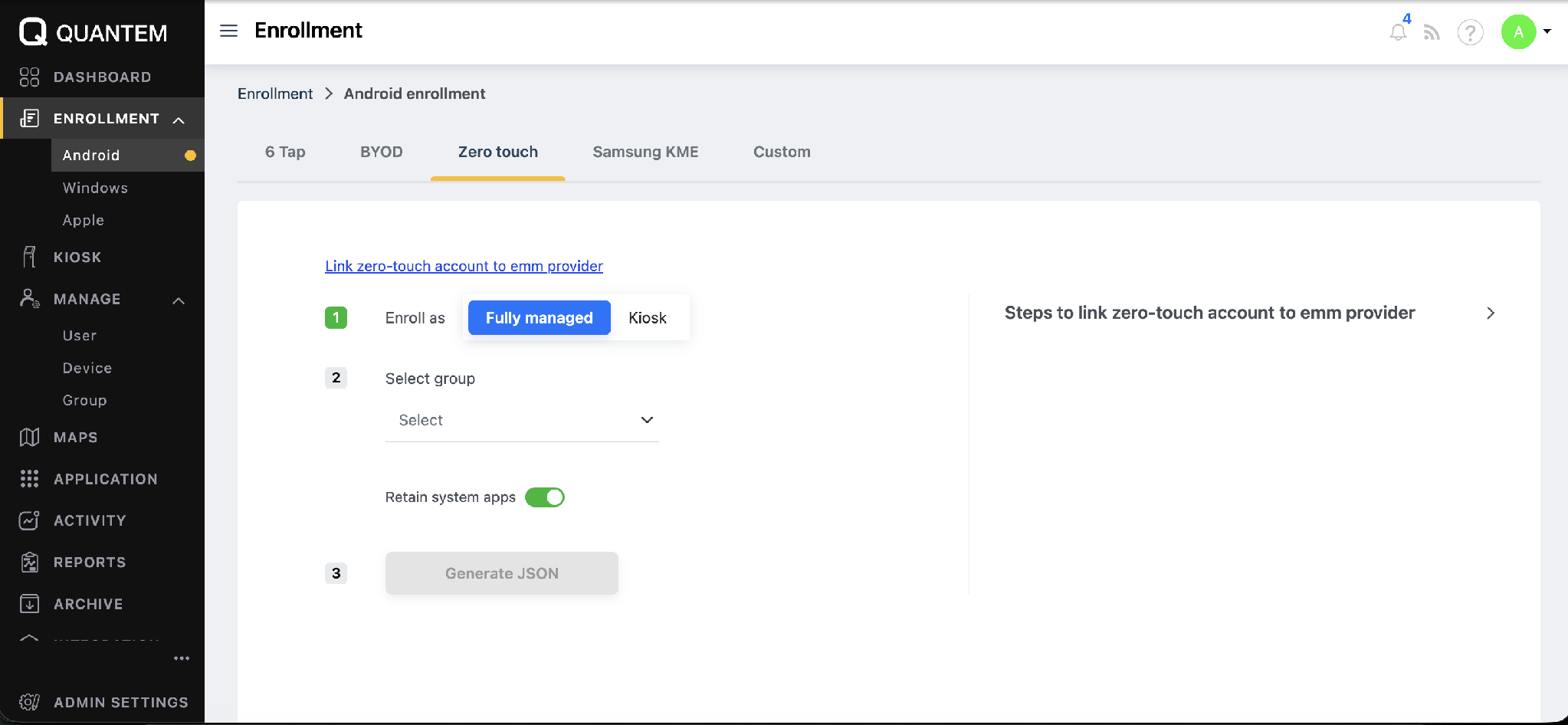
2. Link the Zero-Touch Account to the EMM Provider
Click Link zero-touch account to emm provider, then complete the linking flow:
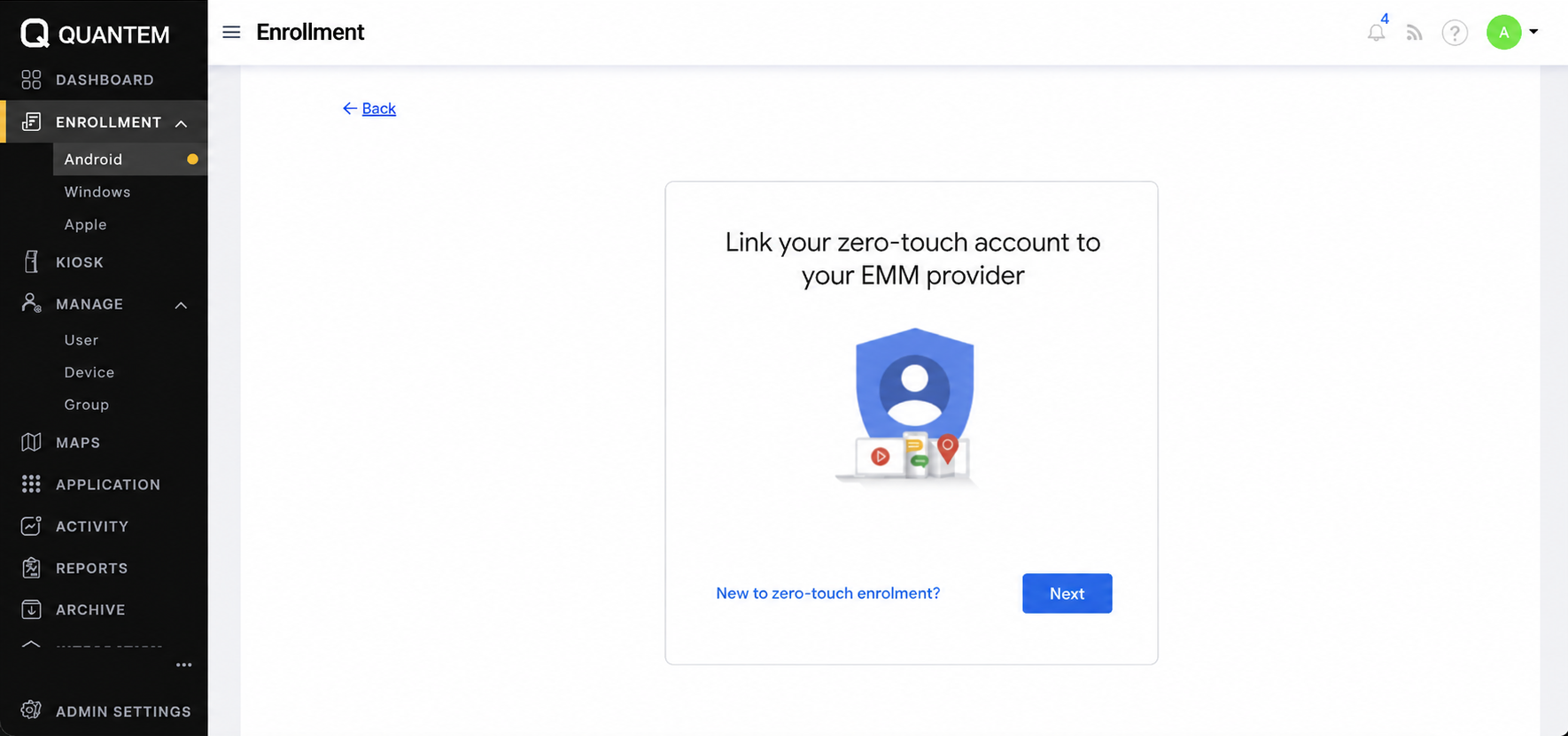
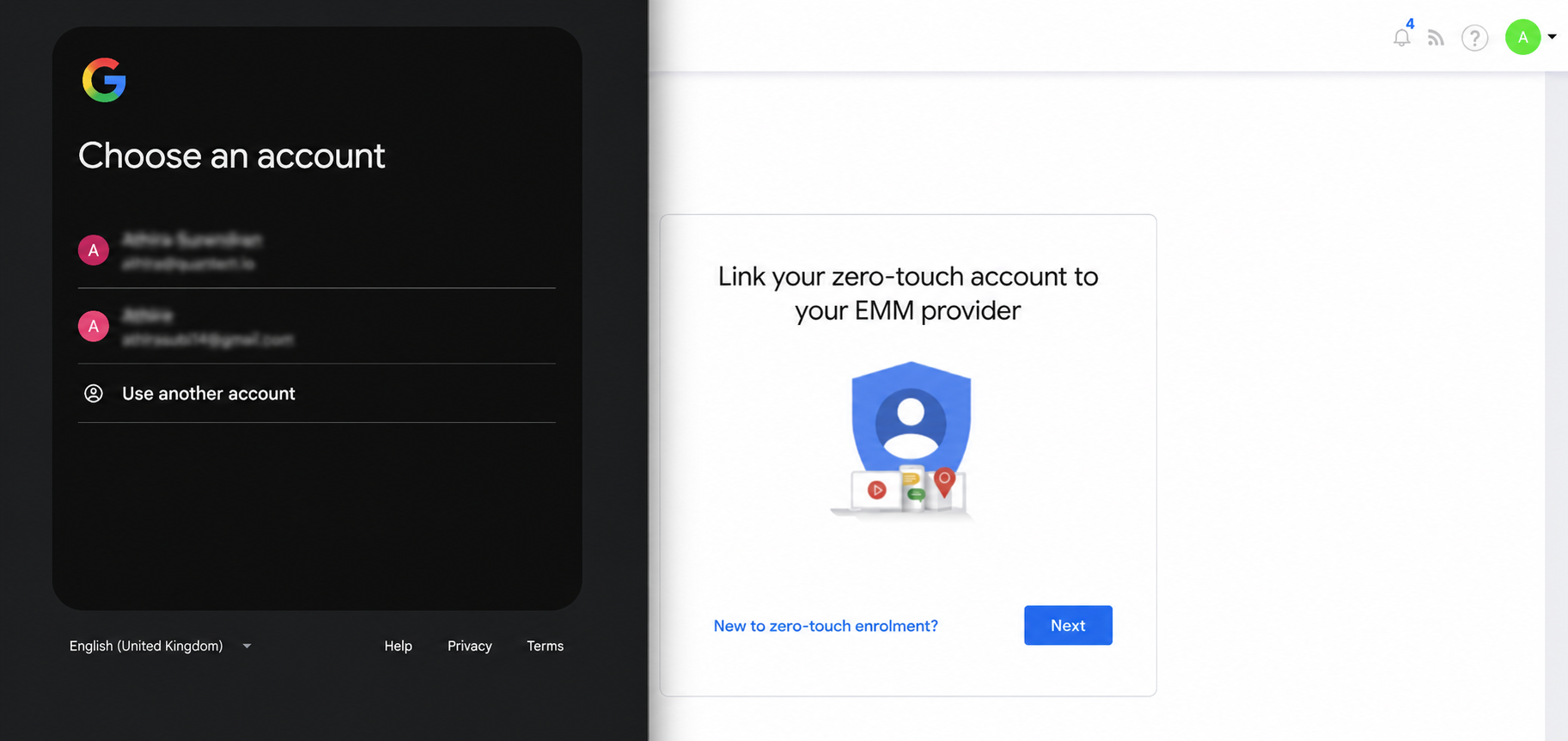
3. Choose the Enrollment Type
Under Enroll as, choose how the device should be provisioned: Fully managed or Kiosk.
4. Select the Group
Under Select group, choose the group the device should be enrolled into.
5. Configure Retain System Apps
Toggle Retain system apps on or off, depending on whether the device's pre-installed system apps should be kept after provisioning.
6. Generate the Configuration JSON
Click Generate JSON. This produces the configuration (DPC extras) that will be pasted into the Zero-touch portal.
Step 2: Configure the Device Profile (Google Zero Touch Customer Portal)
Once the account is linked and the configuration JSON has been generated in the Quantem Console, the matching device profile must be created in Google's Zero-touch portal so that enrolled devices pick it up automatically on first boot.
1. Open the Zero-Touch Portal
On the Zero-touch linked accounts screen in the Quantem Console, click View devices in the zero-touch portal. This opens the Zero-touch configuration screen, where device profiles are created and assigned.
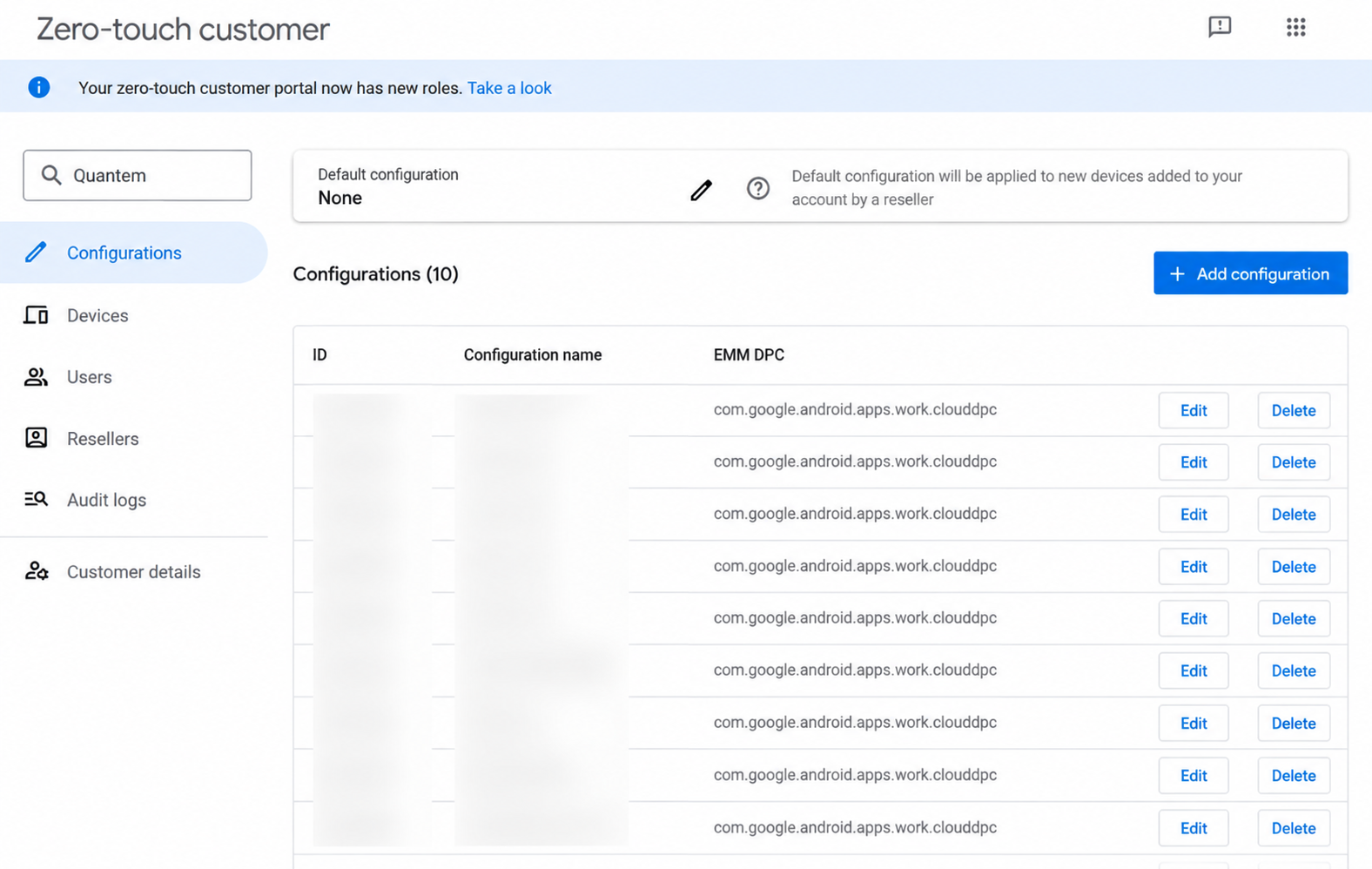
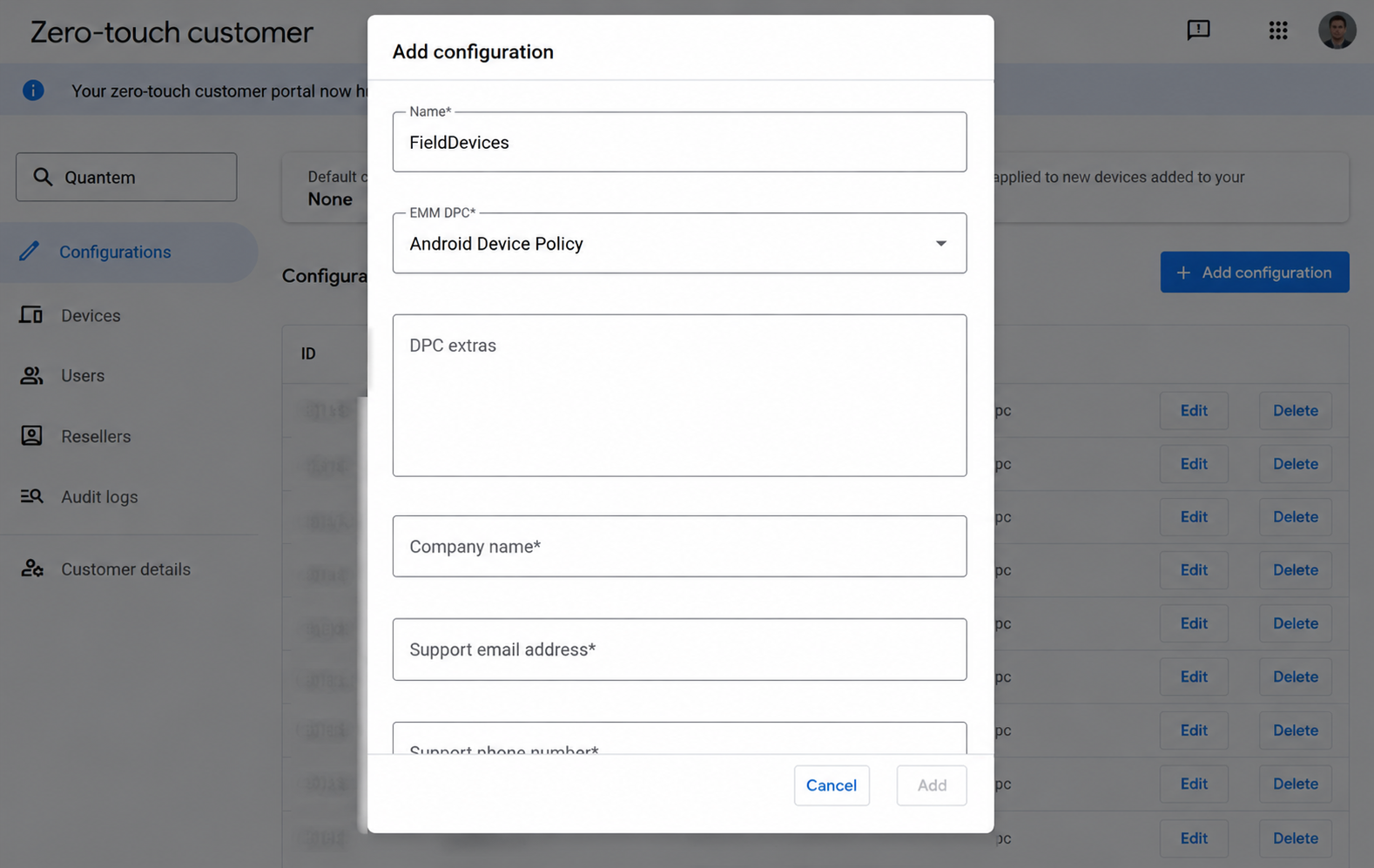
2. Add a Configuration
In the Zero-touch portal, click the + symbol at the top to add a new configuration, then enter:
Click Add to save the configuration. Repeat this step to create each additional configuration required.
3. Assign Configurations to Devices
Go to Devices and assign a configuration to each device, or use Upload batch configurations to configure multiple devices at once. Once assigned, the policy and apps are automatically applied when the device next boots.
Step 3: Device Enrollment
1. Device Activation
Turn on the device or factory reset the device that has been already added to the Zero-touch portal.
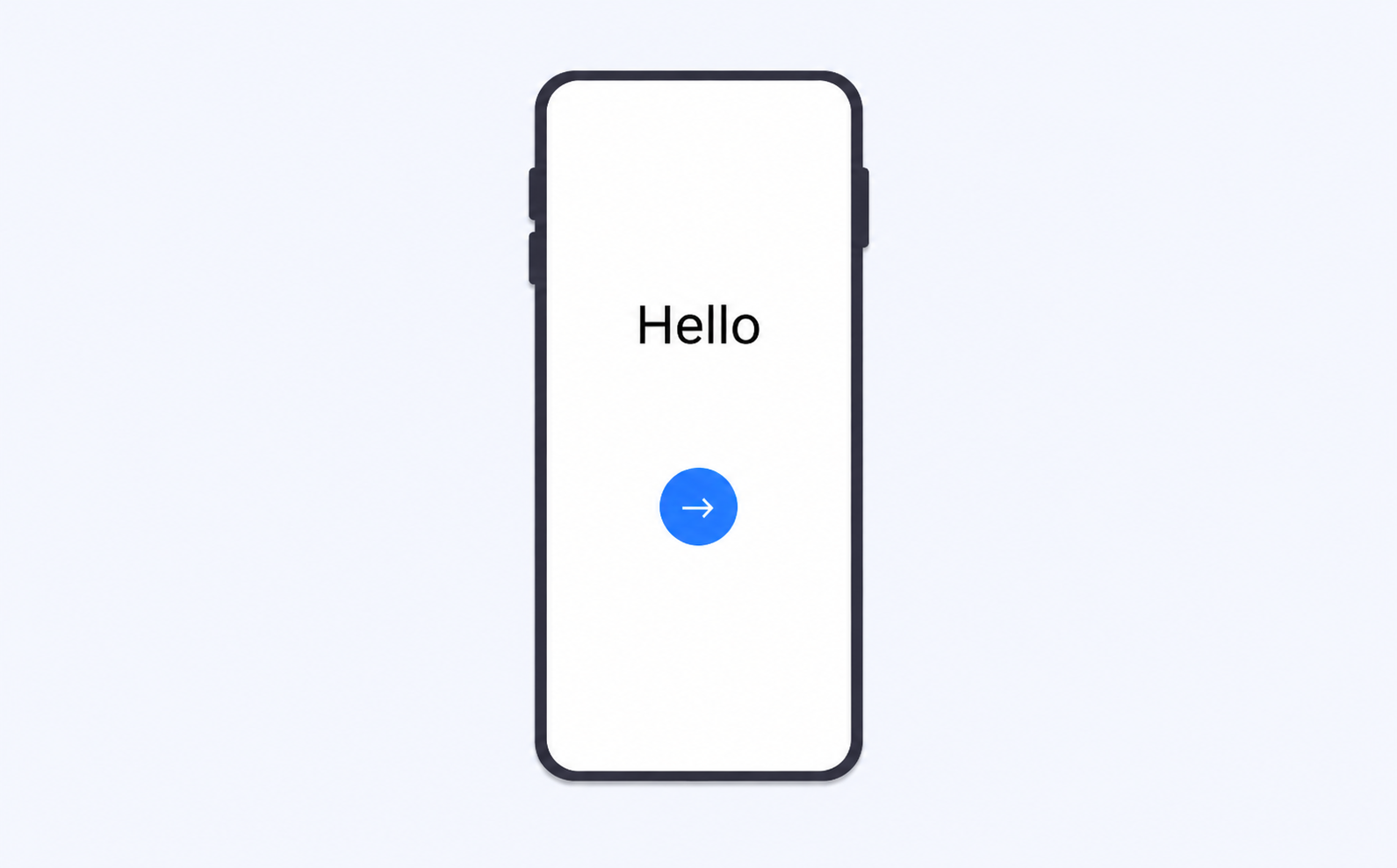
Connect the device to Wi-Fi to begin the initial setup process.
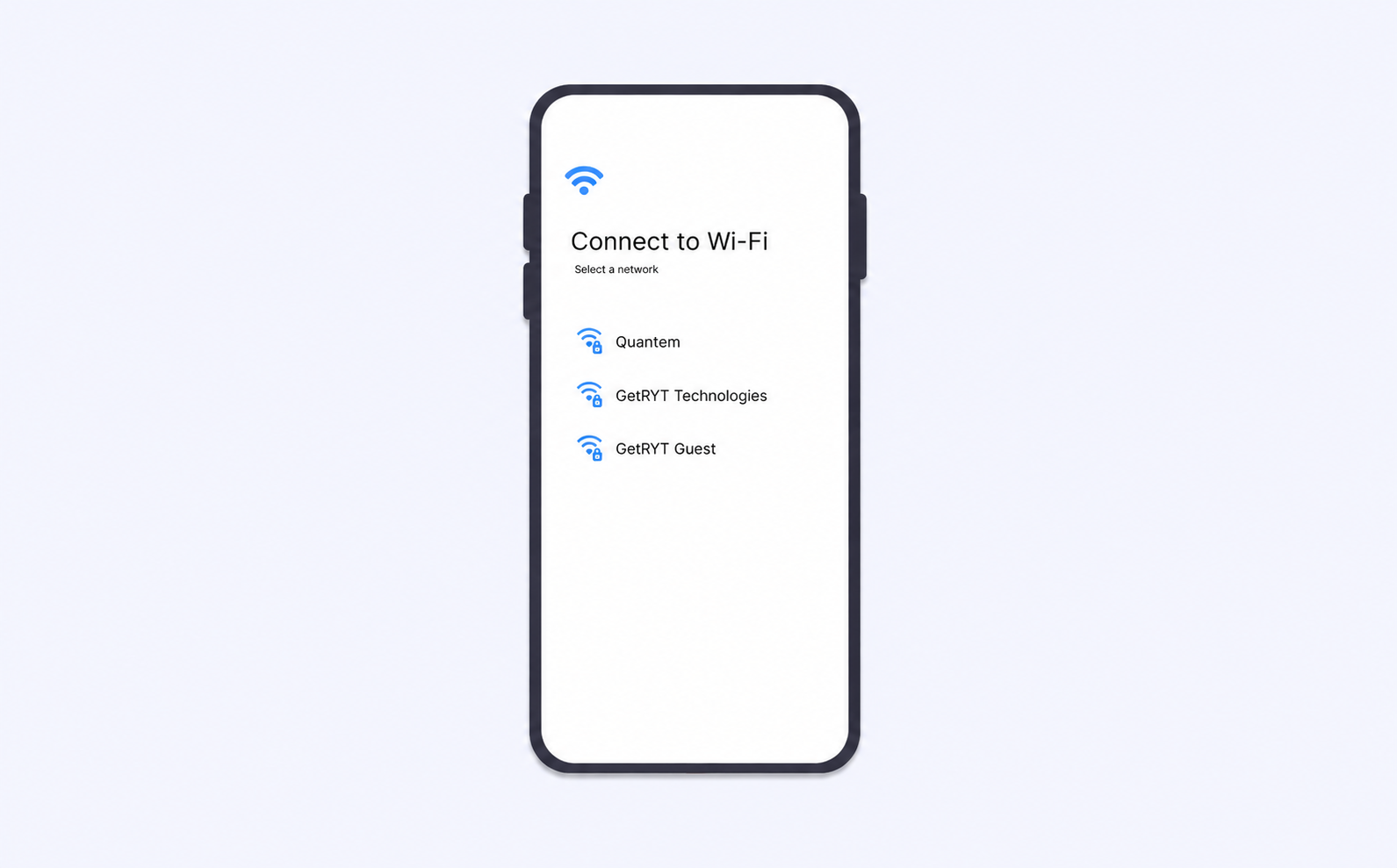
2. Automatic Enrollment
The device will automatically start enrolling with Quantem MDM. Once enrollment begins, the device cannot be set up in an unmanaged mode.
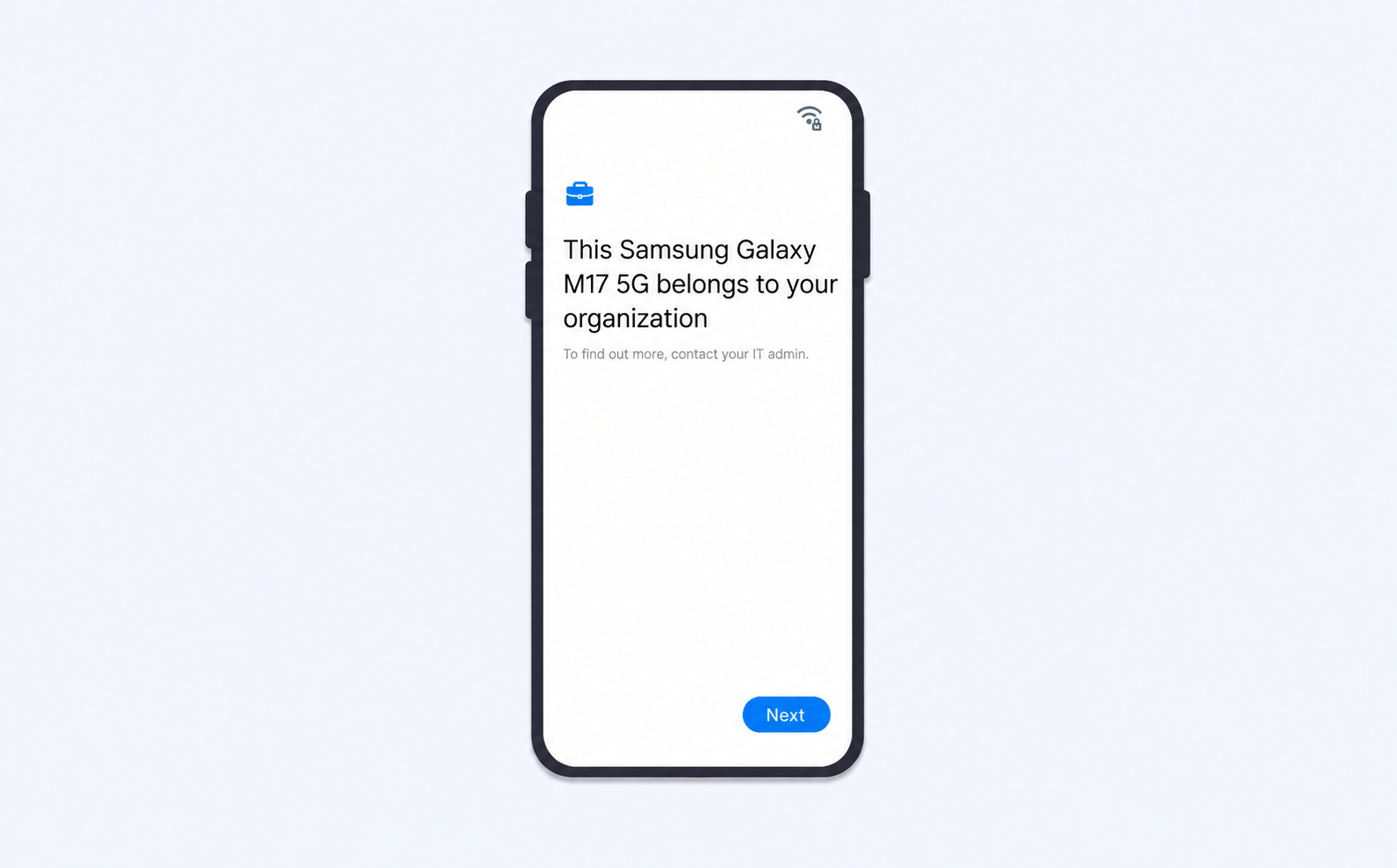
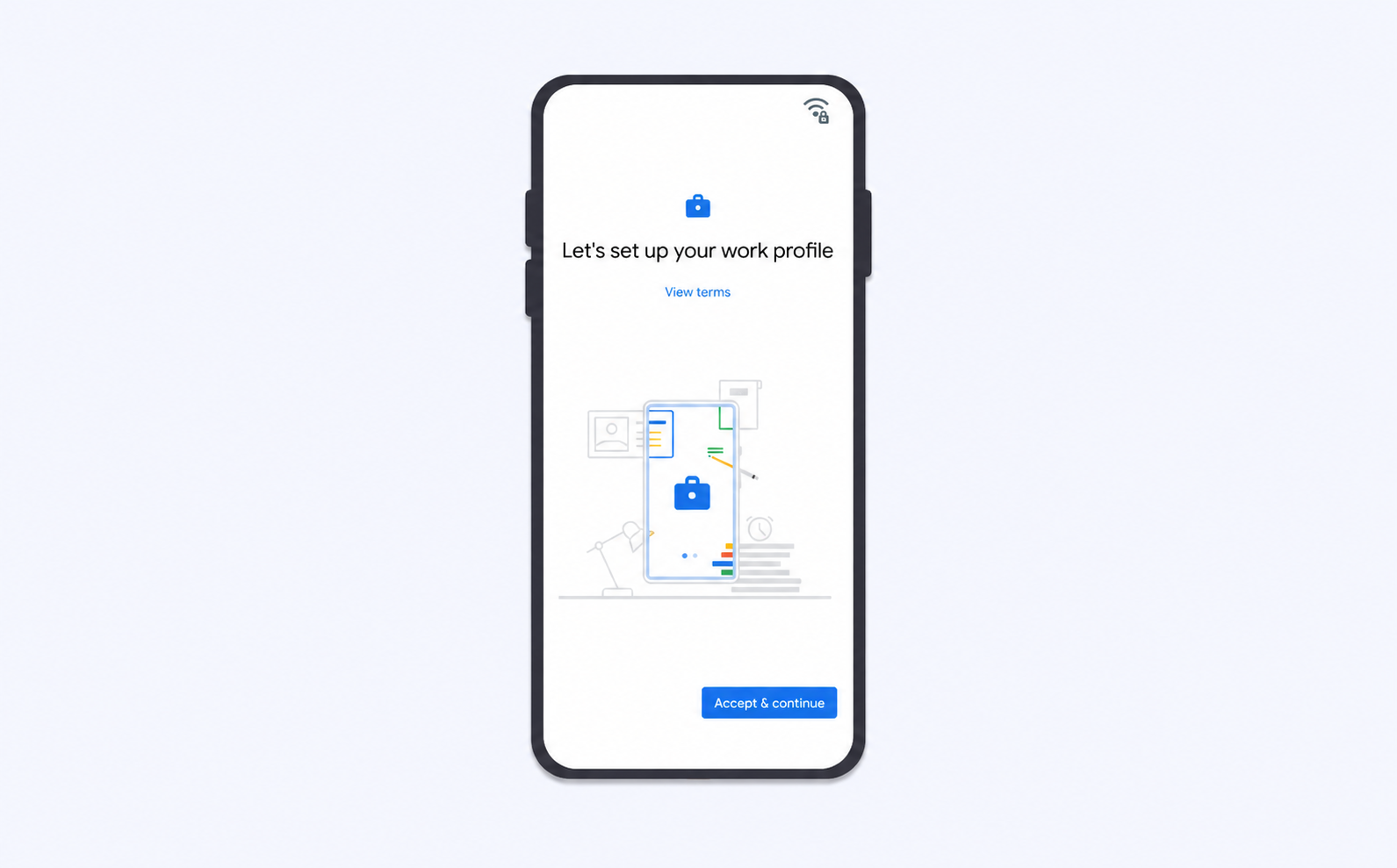
3. Setup Complete: Fully Managed Device
Click Accept and Continue and follow the on-screen instructions. Once the setup is complete, the device will be fully managed and ready for business use.
Best Practices for Android Zero-Touch Enrollment
A well-planned Zero-Touch deployment can save IT teams significant time, but the initial configuration still needs careful attention. The following practices can help organizations avoid enrollment issues and keep device deployments consistent.
1. Test the Configuration Before Large-Scale Deployment
Enroll a small number of devices first to verify that the required policies, apps, and restrictions are applied correctly.
2. Use Clear Configuration Profiles
Create separate profiles when different teams or device types need different settings. This makes it easier to manage devices without changing configurations unnecessarily.
3. Verify Device Assignments
Check that each device is assigned to the correct Zero-Touch configuration before shipping it to the user or deployment location.
4. Keep MDM Configurations Consistent
Make sure the settings in the Zero-Touch Portal and the MDM platform match. Incorrect configuration details can prevent devices from enrolling as expected.
5. Link and Unlink Carefully
If you delete or migrate your Android Enterprise setup, unlink the Zero-Touch account first. Failing to do so may cause the Zero-Touch account to become locked or unusable.
6. Monitor Enrollment Token Expiration
Keep track of expiration dates for Zero-Touch configurations or tokens and renew them before they expire. This helps prevent interruptions to device enrollment.
7. Apply Role-Based Access Control
Give Owner, Admin, or Manager access only to trusted IT staff. Use Viewer access where full administrative permissions are not required, and review assigned roles regularly.
8. Plan for Overseas and Remote Shipping
When devices are shipped across regions, verify that the Zero-Touch setup, reseller permissions, and regional support requirements are valid for the destination.
9. Plan for Device Reassignment
When devices move between users, teams, or locations, review their assigned configurations and update them before redeployment.
10. Document the Enrollment Process
Maintain records of Zero-Touch configurations, device assignments, tokens, and responsible administrators. This makes troubleshooting and large-scale deployments easier.
11. Review Configurations Regularly
Update enrollment profiles when security requirements, applications, or device management policies change. This helps ensure newly deployed devices receive the latest approved configuration.
Simplify Android Device Deployment at Scale With Zero Touch Enrollment Powered by Quantem MDM
Manual Android enrollment can become a bottleneck as device fleets grow. IT teams need a way to deploy devices quickly without configuring each one individually.
Android Zero-Touch Enrollment helps automate this process by getting devices into management from their first startup. With Quantem MDM, administrators can configure enrollment profiles, assign policies, distribute applications, and apply security settings without manually preparing every device.
Once devices are enrolled, Quantem provides centralized management throughout the device lifecycle. IT teams can manage applications, handle OS updates through automated patch management, configure restrictions, enforce compliance policies, manage network settings, and remotely troubleshoot devices from a single console.
For organizations managing Android devices at scale, combining Zero-Touch Enrollment with Quantem MDM can reduce administrative effort while keeping device management consistent across the fleet.
Simplify Android Device Deployments with Quantem’s Automated Enrollment Methods
FAQ
1. What is Android Enterprise Zero Touch Enrollment?
Android Enterprise Zero Touch Enrollment is an automated enrollment method for supported, company-owned devices. It allows organizations to assign a device management configuration before deployment. When the device is powered on and connected to the internet, it can automatically enroll with the organization's MDM solution and receive the required apps, policies, and restrictions.
2. What Are Zero-Touch Devices?
Zero-Touch devices are supported, company-owned Android devices that can be automatically enrolled and configured for enterprise management when they are first powered on and connected to the internet. Instead of requiring IT teams to manually configure each device, the assigned Zero-Touch configuration is applied automatically and the device enrolls with the organization's MDM solution.
3. Which Android Devices Support Zero-Touch Enrollment?
Zero-Touch supported devices generally include Android devices running Android 8.0 or later, while Google Pixel devices support Zero-Touch Enrollment from Android 7.0. Device eligibility can vary by manufacturer and model, so organizations should verify whether their devices are supported before purchasing them in bulk.
4. Can Existing Android Devices Be Added to Zero-Touch Enrollment?
Zero-Touch Enrollment is primarily designed for new devices purchased through participating authorized resellers. Existing devices generally cannot simply be added to Zero-Touch by an administrator after purchase. Organizations should confirm device eligibility and registration options with their reseller before deployment.
5. How is Zero-Touch Different From Manual Enrollment?
Manual enrollment requires IT administrators or users to complete enrollment steps on each device. Zero-Touch Enrollment automates this process by assigning the device a management configuration before deployment. Once the device starts up and connects to the internet, enrollment can begin automatically, making Zero-Touch more suitable for large-scale deployments.
6. What Happens If a User Skips Wi-Fi and Tries to Set Up the Device Offline to Avoid Zero-Touch Enrollment?
The device needs an internet connection to communicate with the Zero-Touch service and retrieve its assigned configuration. If the user cannot complete the required network connection, the automated enrollment process cannot proceed at that point. Once the device connects to the internet, the Zero-Touch configuration can be retrieved and the enrollment process can continue.
7. Can I Use Android Zero-Touch Enrollment for Personal Devices?
Android Zero-Touch Enrollment is intended for corporate-owned devices managed by an organization, rather than personal Android devices. Personal or BYOD devices typically use other Android Enterprise enrollment methods that are designed to maintain a separation between work and personal data.
8. How to Enroll Devices with Zero-Touch Enrollment Using Knox Mobile Enrollment?
Knox Mobile Enrollment (KME) is Samsung's automated enrollment service for supported Samsung devices. To configure it, register eligible devices with a Knox account, connect KME with your MDM or EMM solution, create an enrollment profile, and assign it to the required devices. When an assigned device is powered on and connected to the internet, it can automatically retrieve the profile and enroll with the management platform.



Get the latest blogs directly delivered to your mail fly arrow