How to Increase Android Device Uptime?
Your Android device can stay powered on for days or even weeks without restarting. But that does not always mean it is performing at its best. Apps can start crashing, storage may fill up, battery performance can decline, and connectivity issues may interrupt important tasks. Over time, these problems can affect Android device uptime and lead to unexpected device downtime.
Android device uptime refers to how long an Android phone, tablet, kiosk, POS system, or rugged device remains powered on, connected, and available without unexpected shutdowns or interruptions. Maintaining high uptime requires regular attention to battery health, storage, applications, network connectivity, software updates, and overall device health.
For businesses that rely on Android devices for daily operations, unexpected downtime can directly affect employee productivity and business continuity. Whether devices are used by field teams, retail staff, delivery personnel, or customers, keeping them available when needed is essential.
In this blog, we will explore how to increase device uptime on Android, common causes of device downtime, and practical ways to keep Android devices running reliably.
What is Device Uptime on Android?
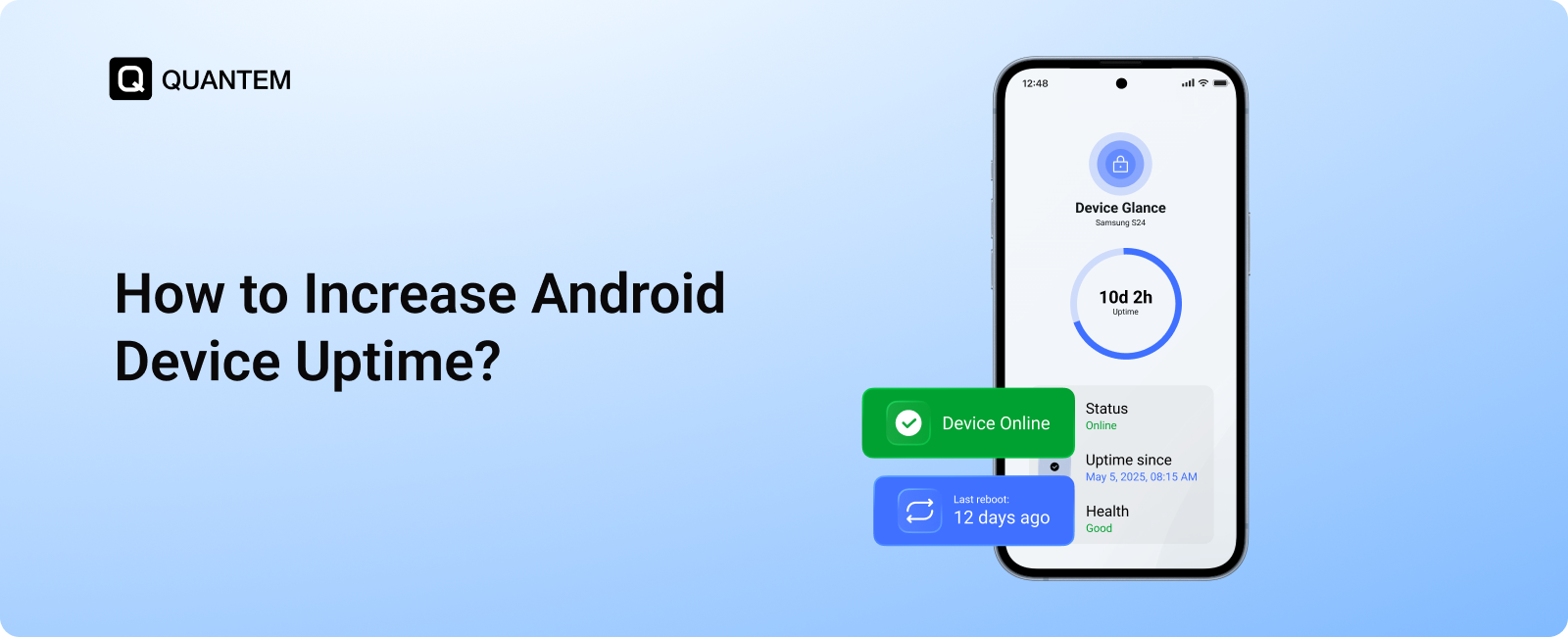
Device uptime on Android refers to the amount of time a device has been running without a restart. In simple terms, it tells you how long your Android phone, tablet, kiosk, or other device has remained powered on without rebooting.
Uptime does not mean the device has been actively used for that entire period. The screen may be turned off for hours while the Android system and background processes continue running.
The opposite of uptime is downtime. This refers to the period when a device is powered off, restarting, or otherwise unavailable for normal use. Once the device restarts and Android boots up again, the uptime counter resets.
Checking Android device uptime can be useful when troubleshooting issues such as slow performance, app crashes, freezing, or unexpected shutdowns. While a high uptime is not necessarily a problem, restarting a device occasionally can help clear temporary processes and resolve minor performance issues.
How is Android Uptime Measured and Calculated?
Android uptime is measured from the device's most recent system boot. Every time an Android device is restarted, the uptime counter resets and begins tracking again once the system starts running.
The calculation is simple:
Uptime = Current time − Last boot time
For example, if a device was last restarted in the morning, its uptime continues to increase until the next restart or shutdown.
This information can be useful when investigating unexpected restarts or device issues. If a user reports that a device restarted overnight, checking its Android uptime can help determine whether a recent reboot occurred.
When viewed alongside other device information, uptime can also help identify potential issues. Devices that repeatedly show short uptime periods along with freezing, crashes, or unexpected shutdowns may require further investigation.
How to Check Uptime on Phone Using its Built-in Feature?
Android devices include a built-in option to check how long the system has been running since its last restart. The exact location may vary depending on the device manufacturer and Android version, but you can usually find it by following these steps:
- Open Settings on your Android device.
- Scroll down and select About phone or About device.
- Tap Status or Status information.
- Look for the Uptime value.
On some Android devices, you may need to open Detailed info and specs before accessing the Status section.
If your Settings app includes a search option, you can also search for “uptime” to find the relevant setting more quickly.
The uptime value shows how long the Android system has been running since the device was last rebooted. This built-in option works well when checking an individual device.
Common Android Device Uptime Issues and How to Fix Them?
Android devices can experience downtime for several reasons. Some issues are related to hardware, while others result from applications, connectivity, updates, or limited storage. Identifying the cause early can help reduce device downtime and keep devices available when they are needed.
Here are some common Android device uptime issues and ways to address them:
1. Device Shuts Down Unexpectedly
Possible causes: Battery degradation, charging issues, or excessive background activity can cause a device to shut down unexpectedly.
How to fix it: Monitor battery health and charging status, replace weak batteries when necessary to improve battery life, and limit unnecessary background processes that consume power.
2. Business Applications Keep Crashing
Possible causes: An outdated app, Android OS compatibility issues, or insufficient memory can cause applications to crash repeatedly.
How to fix it: Keep business apps updated, test app compatibility with the Android version in use, and monitor crash logs or application health to identify recurring issues.
3. Device Stops Checking In
Possible causes: Poor network connectivity, disabled Wi-Fi or mobile data, VPN issues, or an offline device can prevent regular communication.
How to fix it: Check Wi-Fi or mobile data connectivity, review VPN settings, and ensure the required device connectivity settings are enabled.
4. Updates Interrupt Device Availability
Possible causes: Operating system or application updates may restart devices or interrupt work when they are deployed without proper scheduling.
How to fix it: Schedule OS and application updates during maintenance windows or outside active business hours to minimize disruption.
5. Storage Fills Up Quickly
Possible causes: Large files, application logs, media, and unused applications can gradually consume available storage.
How to fix it: Remove unnecessary content and applications, control what users can install, and monitor storage levels to identify devices that may need attention before storage issues affect performance.
Business Consequences of Prolonged Device Downtime
When business Android devices remain unavailable for extended periods, the impact goes beyond the device itself. Prolonged downtime can disrupt employees, delay critical tasks, and affect day-to-day operations.
Here are some of the key consequences of prolonged device downtime:
1. Reduced Employee Productivity
Employees may be unable to access business applications, communicate with teams, or complete assigned tasks when their devices are unavailable. This can lead to delays and lost productive time.
2. Operational Disruptions
Many businesses rely on Android devices for tasks such as order processing, field service, inventory management, deliveries, and customer interactions. Device downtime can interrupt these workflows and slow down operations.
3. Increased IT Support Costs
Devices that frequently fail or require physical troubleshooting increase the workload for IT teams. Repeated support requests, repairs, and manual interventions can consume valuable time and resources.
4. Poor Customer Experience
When customer-facing devices such as POS systems, kiosks, or digital displays stop working, customers may experience delays or service disruptions. This can directly affect customer satisfaction.
5. Potential Revenue Loss
For businesses that depend on Android devices to process transactions or deliver services, extended downtime can result in missed sales and revenue opportunities.
By proactively monitoring device health and addressing issues early, businesses can reduce the impact of device downtime and keep critical operations running smoothly.
7 Practical Ways to Increase Android Device Uptime
Maintaining high Android device uptime requires more than simply keeping a device powered on. Regular maintenance can help prevent performance issues, unexpected shutdowns, and other problems that interrupt device availability.
Here are seven practical best practices to increase uptime on Android devices:
1. Keep Applications Updated
Outdated applications can cause crashes, compatibility issues, and unnecessary battery or resource consumption. Regular updates help address known bugs and improve compatibility with the Android version running on the device. For business-owned devices, IT teams can use centralized app management to ensure required applications remain updated across the fleet.
2. Monitor and Protect Battery Health
Battery problems are one of the most common reasons for unexpected device downtime. Monitor battery performance for signs of rapid draining, overheating, or sudden shutdowns. For organizations managing multiple devices, tracking battery status can help identify devices that may require maintenance or replacement before they fail during business operations.
3. Keep Sufficient Storage Available
Low storage space can affect device performance and contribute to slow response times, application crashes, and other issues. Regularly remove unused apps, unnecessary junk, clear temporary files, and outdated content to maintain sufficient free space. Businesses can also control app installations and monitor storage levels remotely to prevent storage-related issues across managed devices.
4. Restart Devices When Needed
Restarting an Android device can clear temporary processes, refresh system resources, and resolve minor software issues. While a long uptime is not automatically a problem, an occasional reboot can help maintain smooth device performance. For dedicated or business-critical devices, restarts should be planned around usage requirements to avoid unnecessary interruptions.
5. Manage Android OS Updates
Operating system updates can improve device stability, performance, and security. However, poorly timed updates can also interrupt active work. Schedule Android OS updates during maintenance windows or non-working hours to ensure devices remain available when users need them most.
6. Monitor Device Health Proactively
Regular monitoring helps identify potential problems before they result in device downtime. Keep track of key indicators such as battery status, storage availability, application performance, connectivity, and overall device health. For large Android fleets, proactive monitoring makes it easier for IT teams to identify devices that require attention before issues affect their availability.
7. Manage Devices with an MDM Solution
Managing Android devices manually becomes difficult as the fleet grows. A Mobile Device Management (MDM) solution for Android provides a centralized platform to monitor devices, configure settings, manage apps, enforce policies, and perform remote actions. This helps IT teams resolve issues remotely, maintain consistent configurations, and reduce device downtime across the fleet.
Increase Android Phone Uptime and Productivity with Quantem
For enterprise Android devices, maintaining uptime requires more than occasional restarts and manual troubleshooting. As device fleets grow across teams and locations, IT teams need a centralized way to monitor device health, identify issues, and resolve problems before they affect daily operations.
Quantem MDM helps IT teams manage, monitor, and support Android devices from a single platform, reducing the manual effort involved in maintaining device availability across the fleet.
Quantem Android MDM provides the following capabilities to help improve Android device uptime:
- Device Health Monitoring: Track device vitals such as battery status, data usage, and storage health.
- Automated Updates: Schedule OS and app updates during non-peak hours to minimize disruptions.
- Application Management: Deploy required applications, control app access, and manage installations remotely.
- Content Management: Distribute and manage business content across managed devices remotely.
- Network and Browser Control: Apply policies to support secure connectivity and control access to unwanted websites.
- Remote Troubleshooting: Remotely mirror device screens, identify issues, and troubleshoot devices without physical access.
- Remote Actions: Remotely lock, locate, or wipe devices when required.
By bringing these capabilities together, Quantem MDM helps IT teams reduce device downtime and keep Android devices available, secure, and ready for work.
Maximize Android Device Uptime & Minimize Disruptions with Quantem MDM.
FAQ
1. What Does Uptime Mean on an Android Phone?
Uptime shows how long an Android phone has been running since its last restart. It measures how long the device's operating system has remained active and does not represent screen-on time or battery usage.
2. How Can I Maintain Uptime on Android Devices for Business Use?
To maintain uptime on business Android devices, keep the operating system and apps updated, monitor battery and storage health, maintain stable network connectivity, and address device issues early. Regular device monitoring and remote troubleshooting can also help reduce downtime.
3. What Do Long Uptime and Short Uptime Mean?
Long uptime means a device has been running for an extended period without a reboot, while short uptime means the device was restarted more recently. However, long uptime does not always mean better performance, as temporary issues and background processes can accumulate over time.
4. What Causes Android Device Downtime?
Android device downtime can result from battery problems, low storage, unstable network connections, app crashes, software issues, or hardware failures. Identifying and resolving these issues early can help maintain device availability and reduce disruptions.
5. How Do Phone Settings and Network Connections Affect Device Uptime?
Incorrect device settings or unstable network connections can affect app performance, cause disconnections, and interrupt critical business tasks. Optimizing device settings and maintaining reliable Wi-Fi or mobile connectivity can help improve overall device availability and may increase device's uptime.
6. Can Restarting an Android Device Help Improve Uptime?
Yes. Restarting your device can resolve temporary software issues, clear background processes, and improve device performance. For business devices, scheduled maintenance and restarts can help prevent minor issues from affecting daily operations.
7. Can a Factory Reset Help Increase a Phone's Uptime?
A resetting your phone can help resolve persistent software issues that cause frequent crashes or unexpected restarts. However, it removes apps, data, and settings, so simpler troubleshooting steps should be attempted first and important data on mobiles phone should be backed up.
8. How Can Businesses Monitor Android Devices to Reduce Downtime?
Businesses can use a device management solution to monitor Android device health, battery, storage, connectivity, and application performance. Proactive monitoring helps IT teams identify potential issues early and troubleshoot mobile devices before they cause extended downtime.



Get the latest blogs directly delivered to your mail fly arrow