This guide covers everything IT administrators need to know: what Device Owner Mode is, its key features, how it compares to Work Profile, how to enable it, and where it makes the most business sense.
Key Takeaways
- Device Owner Mode gives IT full administrative control over corporate-owned Android devices
- It can only be provisioned during out-of-box setup or after a factory reset
- Supports kiosk lockdown, silent app management, remote wipe, and security policy enforcement
- Zero-touch enrollment is the recommended option for large-scale fleet deployments
- Best suited for dedicated-use devices - not BYOD scenarios
What Is Android Enterprise Device Owner Mode?
Device Owner Mode is the highest level of administrative control available within the Android Enterprise framework. It allows IT admins to fully manage a corporate-owned device - apps, settings, security policies, and hardware-level controls - through a Device Policy Controller (DPC) app, which Google defines as the bridge between an EMM console and the device. Once the DPC holds Device Owner authority, it enforces policies across the entire device - not just a contained work profile.
When Can Device Owner Mode Be Provisioned?
Many IT teams hit a hard wall here: Device Owner Mode can only be provisioned during the initial setup of a new device or immediately after a factory reset. Google requires this for two reasons: preventing malware from establishing device owner authority, and avoiding privacy conflicts with existing user data or apps already on the device.
After enrollment, the DPC holds device-owner authority and standard users cannot remove it through normal device settings.
Where It Fits in Android Enterprise
Android Enterprise has two primary management modes:
- Device Owner Mode (also called fully managed) - complete control over corporate-owned, work-only devices
- Work Profile Mode (Profile Owner) - a managed work container on personal devices
A third option - Work Profile on Company-Owned Device (COPE) - sits between the two, adding a personal profile to a corporate device while keeping work data separate.
Version requirements at a glance:
| Enrollment Method | Minimum Android Version |
|---|---|
| NFC / legacy provisioning | Android 5.0+ |
DPC identifier (afw#setup) |
Android 6.0+ |
| QR code enrollment | Android 7.0+ |
| Zero-touch enrollment | Android 8.0+ (Pixel: 7.1+) |
Key Features of Android Enterprise Device Owner Mode
App Control and Allowlisting
Admins define exactly which apps can exist on a device. Through Android Management API policies like FORCE_INSTALLED, BLOCKED, and playStoreMode, IT can:
- Silently install or remove apps without user interaction
- Restrict the Play Store to an approved app catalog only
- Block employees from downloading unauthorized software
This eliminates shadow IT - no personal apps, browser-based workarounds, or unauthorized tools on company hardware.
Kiosk Mode (Lock Task Mode)
Google's dedicated device framework allows IT to lock a device to a single app or defined set of apps in an immersive, full-screen mode. Users cannot exit, access settings, or install anything outside the approved set.
Common kiosk applications include:
- Point-of-sale terminals in retail
- Patient intake tablets in healthcare
- Self-service ordering kiosks in hospitality
- Inventory scanning devices in warehouses
Security Policy Enforcement
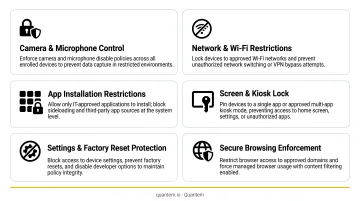
Where Kiosk Mode controls what users can do, Security Policy Enforcement controls what the device itself can do. Device Owner Mode unlocks device-level controls unavailable in Work Profile mode - admins can configure:
- Password enforcement - set complexity requirements across the full device, not just the work profile
- Data roaming - disable roaming charges via
dataRoamingDisabled - Bluetooth - turn off entirely or restrict contact sharing
- USB transfers - block unauthorized data movement at the port level
- Always-on VPN - force all traffic through a mandatory VPN connection
- Factory reset protection (FRP) - require specific admin emails to unlock a device after a reset
Remote Management Capabilities
Through the Android Management API, admins can execute remote commands - lock, reboot, wipe - via enterprises.devices.issueCommand, and request bug reports through DevicePolicyManager.requestBugreport(). In practice, this means:
- Push app updates without touching the device
- Lock a device the moment it's reported lost
- Issue a remote wipe if a device goes missing in the field
- Retrieve diagnostic reports without requiring physical return
Quantem surfaces all of these commands through a central dashboard with toggle-based controls - no scripting required. A single IT admin can lock, wipe, or push updates to hundreds of devices from anywhere.
Device Owner Mode vs. Work Profile Mode: What's the Difference?
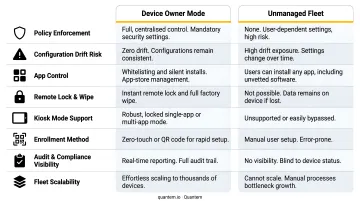
| Feature | Device Owner Mode | Work Profile Mode |
|---|---|---|
| Device ownership | Company-owned | Employee-owned (BYOD) |
| Control level | Full device | Work container only |
| Data separation | No personal/work split | Work and personal apps isolated |
| IT management scope | All apps, settings, hardware | Work profile only |
| Factory reset required | Yes, to enroll | No |
| Best use case | Dedicated work devices | BYOD / mixed-use personal phones |
When to Use Each Mode
Three distinct modes cover most enterprise scenarios:
- Device Owner Mode - Best for hardware issued exclusively for work: warehouse scanners, clinical tablets, POS terminals, or any device that should never serve a personal purpose.
- Work Profile Mode - Best for BYOD deployments where employees use personal smartphones for both work and personal tasks. IT manages only the work container; personal data stays private and untouched.
- COPE (Work Profile on Company-Owned Device) - Best when you issue corporate hardware but want to allow limited personal use. IT retains full device-level controls while employees get a personal profile with privacy protections for personal data.
How to Enable Device Owner Mode on Android
Before starting any enrollment method, the device must be factory fresh or recently reset, with no Google accounts added. Your organization also needs to be enrolled in Android Enterprise through your MDM provider.
Method 1 – QR Code Enrollment (Android 7.0+)
The fastest method for most deployments:
- Tap the welcome screen six times to trigger the QR code scanner
- Scan the enrollment QR code generated by your MDM console
- Connect to Wi-Fi if not pre-configured in the QR payload
- Grant required device permissions
- Complete enrollment - the DPC installs automatically
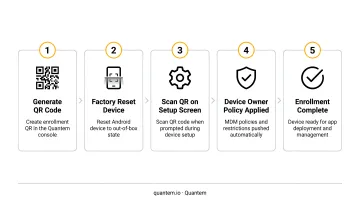
This works well for bulk deployments where devices are staged in batches. IT generates one QR code; field staff scan it on each device.
Method 2 – DPC Identifier / afw#setup (Android 6.0+)
Steps to enroll using the DPC identifier:
- On the initial setup screen, tap the email field (Google account prompt)
- Enter
afw#setup- or your MDM vendor's specific identifier - instead of an actual email - Follow the prompts to download and install the MDM agent
- The agent provisions Device Owner Mode automatically
Useful for older devices or environments where QR scanning isn't practical.
Method 3 – Zero-Touch Enrollment (Recommended for Scale)
Zero-touch lets you pre-configure devices before they ship to employees. The device enrolls automatically the moment it's powered on for the first time - no IT staff intervention at the device level.
This is the most scalable approach for organizations managing dozens to thousands of endpoints. Quantem includes zero-touch enrollment across all pricing tiers, so there's no per-device setup cost regardless of fleet size.
Method 4 – ADB Command Line (Technical Fallback)
For older devices or those without a camera, IT teams can use Android Debug Bridge:
adb shell dpm set-device-owner [package/DeviceAdminReceiver]
This requires a PC, USB cable, USB debugging enabled on the device, and comfort with command-line tools. Treat it as a last resort - it doesn't scale and introduces setup variability.
Business Benefits of Running Devices in Device Owner Mode
Enhanced Security and Compliance Readiness
Unmanaged mobile devices are a real risk. According to Verizon's 2025 Mobile Security Index, 47% of organizations that experienced a mobile-related security incident reported downtime, 45% reported data loss, and 40% reported financial impact.
Device Owner Mode directly addresses this exposure by enforcing device-level policies that align with frameworks like HIPAA, PCI-DSS, and GDPR. Device Owner Mode directly addresses this exposure by enforcing device-level policies that align with frameworks like HIPAA, PCI-DSS, and GDPR. For organizations evaluating MDM vendors, Quantem holds SOC-2, GDPR, and CCPA certifications - so the platform managing your policies meets the same compliance bar it helps you enforce.
Reduced IT Support Burden Through Remote Management
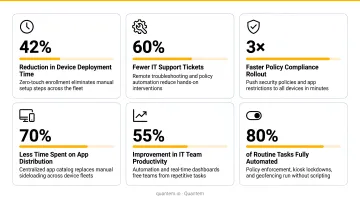
When an IT team manages 50+ devices manually - dispatching technicians, shipping devices back for updates, troubleshooting configuration issues on-site - the hours add up fast. Remote management through Device Owner Mode eliminates most of that overhead.
With policies enforced at the device level, IT teams can:
- Push configuration changes instantly across the entire fleet
- Deploy app updates silently, without user interaction
- Fix a locked or misconfigured device remotely, no physical access needed
Research from Forrester found that organizations using centralized endpoint management saw 25% fewer endpoint-management tickets and 80% faster new-device onboarding compared to unmanaged environments.
Consistency Across the Fleet
Configuration drift is one of the most underappreciated risks in device fleet management. When each device is set up slightly differently - different app versions, different security settings, different restrictions - troubleshooting becomes unpredictable and compliance audits become nightmares.
NIST SP 800-128 identifies misconfigurations as a primary source of security vulnerabilities. Device Owner Mode eliminates drift by ensuring every device in the fleet operates from the same policy baseline, regardless of who enrolled it or when.
Industry Use Cases for Android Device Owner Mode
Healthcare
Clinical tablets in hospitals and diagnostic centers are prime candidates for Device Owner Mode. Devices locked to EHR or patient intake apps cannot be reconfigured by staff, protecting patient data and supporting HIPAA compliance requirements for mobile access to electronic protected health information (ePHI).
Quantem serves hospital networks, diagnostic labs, and home healthcare agencies - including ATHMA Hospitals - where kiosk-locked devices keep clinical workflows focused and auditable.
Retail and Hospitality
POS terminals and customer-facing ordering kiosks need to run exactly one app, consistently, across every location. Device Owner Mode ensures staff can't browse social media, open personal apps, or accidentally change payment configurations during a shift.
Google's Android Enterprise program lists Walmart, DoorDash, and Peninsula Hotels among organizations using Android Enterprise for employee and merchant device management - the same branded, locked-down consistency Device Owner Mode is built to deliver.
Warehouse, Logistics, and Field Services
Rugged handheld scanners running inventory management or delivery tracking apps benefit directly from dedicated device mode. When Zebra Technologies deployed managed mobile computers for warehouse workflows at a John Deere dealer in Brazil, the organization reached 98% inventory accuracy in under two months and improved receiving and storage time by 40%.
Those results depend on devices staying on-task. Restricting scanners to relevant operational apps reduces misconfiguration risk, keeps data accurate, and ensures a device in the field behaves identically to one at the distribution center.
Device Owner Mode makes that consistency enforceable at scale:
- Blocks access to non-operational apps and settings
- Prevents accidental configuration changes between shifts
- Ensures uniform behavior across geographically distributed fleets
Frequently Asked Questions
What is Android Device Owner Mode?
Android Device Owner Mode is the highest level of enterprise management in Android Enterprise, giving IT full administrative control over a corporate-owned device - including app management, security policy enforcement, and remote actions - through a Device Policy Controller app.
How do I remove Android Enterprise from my phone?
End users cannot unenroll themselves from Device Owner Mode. Only IT admins can remove the device owner designation - either through their MDM console or by triggering a remote factory reset, which wipes the device entirely.
Does enabling Device Owner Mode require a factory reset?
Yes. Device Owner Mode can only be provisioned during out-of-box setup. Any device already in use must be factory reset first to clear existing accounts and set up the management chain correctly.
What's the difference between Device Owner Mode and Profile Owner Mode?
Device Owner Mode gives IT full control over an entire corporate-owned device. Profile Owner (Work Profile) Mode only manages a secure work container on a personal device, leaving personal data completely untouched by IT.
Which Android versions support Device Owner Mode?
Device Owner Mode is supported across multiple Android versions, each with its own provisioning method:
- Android 5.0+: NFC or legacy provisioning
- Android 6.0+: DPC identifier
- Android 7.0+: QR code enrollment
- Android 8.0+ (Pixel 7.1+): Zero-touch enrollment