Introduction
Setting up the Android Management API (AMAPI) requires a Google Cloud project, a service account with the right permissions, and an enterprise binding before a single device comes under management. Working knowledge of REST APIs is expected.
Get this right, and you gain full programmatic control over an Android device fleet - without writing or maintaining a custom Device Policy Controller.
This guide is written for IT developers, EMM solution builders, and enterprise IT teams who want to manage Android devices programmatically or build an in-house device management integration. It covers the full setup sequence - from Google Cloud prerequisites through enrollment and policy validation - so your team can avoid the configuration mistakes that cause most post-deployment failures.
Key Takeaways
- AMAPI requires a Google Cloud project, a service account with the
roles/androidmanagement.userrole, and an enterprise binding before any API calls work. - Google's Android Device Policy app handles all on-device enforcement - no custom DPC needed.
- Setup sequence: create project → enable API → bind enterprise → create enrollment token → enroll device → apply policy.
- Devices must run Android 6.0+ with Google Play Services installed; company-owned work profiles require Android 8.0+.
- Always validate enrollment by checking
appliedPolicyName- silent policy failures can occur even on enrolled devices.
What Is the Android Management API (AMAPI)?
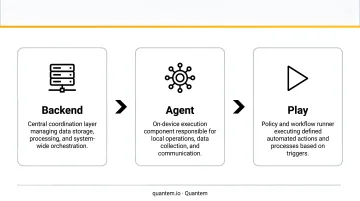
AMAPI is a Google Cloud Platform API that lets your back end manage Android Enterprise devices entirely through REST calls. The key distinction from older approaches: you don't write a Device Policy Controller. Google's own Android Device Policy app acts as the on-device management agent, handling all enforcement automatically.
Google no longer accepts new EMM Community registrations for custom DPCs, making AMAPI the only supported path for new implementations. For any new Android Enterprise implementation, there's no alternative path forward.
Three Core Components
| Component | Role |
|---|---|
| Your management back end | Makes REST API calls to configure devices and policies |
| Android Device Policy app | On-device agent that enforces policies (Google-provided) |
| Managed Google Play | App distribution and management across the fleet |
Understanding this split - your back end owns policy logic, Google's agent owns enforcement - is what makes AMAPI significantly lighter to implement than building a custom DPC from scratch.
Setting Up the Android Enterprise API: Step-by-Step
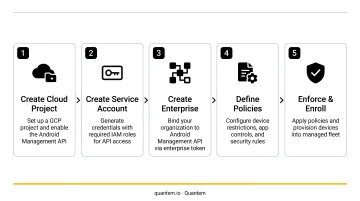
The setup process runs in four sequential phases: account and project preparation, API enablement, enterprise binding, and device enrollment with policy deployment. Skipping or rushing any phase causes failures in the next.
Expect the initial setup to take several hours on first attempt. Once the foundation is in place, subsequent enrollments and policy changes reduce to a handful of REST calls.
Prerequisites Before You Begin
Account requirements:
- A Google account (Gmail or Google Workspace) to create the Cloud project
- A Google Cloud project with the Android Management API enabled in the API Library
- An Android Enterprise EMM token bound to that project
Device requirements:
- Android 6.0 (Marshmallow) or above with Google Play Services installed
- Android 8.0+ for company-owned work profile deployments
- Android 5.1+ is sufficient for basic work profile and fully managed modes per Google's provisioning documentation (applies to legacy provisioning paths only - 6.0+ is recommended for all new deployments)
- Devices below these thresholds cannot be enrolled via AMAPI
Non-negotiables:
- The Android Management API must be explicitly enabled in the Cloud project's API Library - it is not enabled by default
- A service account with the
roles/androidmanagement.userIAM role must exist; without it, all API calls return authentication errors - The service account's JSON key file must be stored securely and never committed to version control
Compliance note: AMAPI routes device data through Google's infrastructure. Teams in healthcare or finance should review the Google Cloud Data Processing Addendum and confirm their broader MDM or integration layer meets applicable standards. Quantem, for instance, holds SOC-2, GDPR, and CCPA certifications - meaning developers building device management workflows on top of Quantem inherit those compliance guarantees at the platform layer.
Tools You Need
- Access to Google Cloud Console
- A REST client: curl, Postman, or Google's APIs Explorer (fastest for initial validation without writing code)
- A factory-reset Android 6.0+ test device with Google Play installed
- A Gmail or Google Workspace account not previously bound to an Android Enterprise organization
Step 1 - Create a Google Cloud Project and Enable the API
- Open console.cloud.google.com and create a new project
- Navigate to APIs & Services → Library
- Search for "Android Management API" and click Enable
Do this before anything else - calls against a project without the API enabled return errors immediately, with no indication of which step was skipped.
Step 2 - Create a Service Account and Download Credentials
- Go to IAM & Admin → Service Accounts and create a new service account
- Assign the role: Android Management User (
roles/androidmanagement.user) - Create and download the JSON key file
- Store that key file somewhere secure - a secrets manager, not a code repository
The JSON key generates OAuth 2.0 bearer tokens. Every AMAPI call requires the scope https://www.googleapis.com/auth/androidmanagement - set this when initializing your API client library.
Step 3 - Bind an Enterprise
Call enterprises.create (POST https://androidmanagement.googleapis.com/v1/enterprises) to bind an Android Enterprise organization to your Cloud project. For customer-managed enterprise creation, call signupUrls.create first to generate a signup URL, then pass the resulting signupUrlName to enterprises.create.
Every device enrollment, policy, and management action in AMAPI lives under this enterprise resource. Once it's created, you're ready to generate enrollment tokens.
Step 4 - Create an Enrollment Token
Call enterprises.enrollmentTokens.create to generate a token (returned as both a QR code and an alphanumeric string).
Key facts about enrollment tokens:
- Default duration: 1 hour
- Configurable range: 1 minute to effectively unlimited (the
durationfield accepts string seconds, e.g.,\"3600s\") - Critical: If a device enrolls but is not linked to a valid policy within 5 minutes, it is automatically factory reset
Generate a fresh token immediately before each enrollment session to avoid expiry issues.
Step 5 - Enroll a Device and Apply a Policy
- Factory-reset the test device (a restart is not sufficient)
- During the Android setup wizard, scan the QR enrollment token
- Confirm the device appears via
enterprises.devices.list
Once the device is visible, create and apply a basic policy using enterprises.policies.patch (PATCH https://androidmanagement.googleapis.com/v1/{name=enterprises/*/policies/*}).
A simple test policy looks like this:
{
  "cameraDisabled": true
}
Patch this policy to the device, then verify enforcement directly on the device - open the camera app and confirm it's blocked. A successful block confirms the full enrollment-to-policy pipeline is working.
Post-Setup Validation
Skipping this step is the single most common mistake in AMAPI implementations. Devices can appear enrolled while silently failing to receive or enforce policies - especially when FCM connectivity is blocked by corporate firewalls.
What to Check
API-level validation:
- Call
enterprises.devices.listand verify the enrolled device appears with the correctmanagementMode - Check that
appliedPolicyNameon the device resource matches the policy you created - A mismatch means the policy hasn't been applied yet - or there's a conflict
Functional validation:
- Confirm the camera is blocked on the device after applying
"cameraDisabled": true - Attempt a remote action via
enterprises.devices.issueCommandand confirm the device responds
Network validation:
- Verify outbound connectivity to
fcm.googleapis.comis not blocked by corporate firewalls - Google's Android Enterprise network requirements specify this traffic should also bypass SSL inspection
If validation fails at this stage, fix it before scaling. An FCM block or policy mismatch that goes undetected during setup will silently affect every device you enroll after it.
Common Android Enterprise API Setup Errors and Fixes
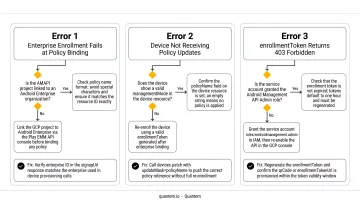
Most AMAPI setup failures trace back to one of three issues: auth token misconfiguration, enrollment token expiry, or policy not being pushed to the device. Here's how to diagnose and fix each one.
Authentication Errors (401/403 on API Calls)
API calls return 401 Unauthorized or 403 Forbidden immediately after setup. This almost always means the service account JSON key is not generating a valid OAuth 2.0 bearer token, or the service account was never assigned roles/androidmanagement.user.
- Verify the service account role in IAM & Admin
- Confirm you're generating a bearer token using the JSON key with scope
https://www.googleapis.com/auth/androidmanagement - Regenerate and redownload the JSON key when troubleshooting
Device Not Appearing After Enrollment
The device completes the setup wizard but never shows up in enterprises.devices.list. The two most common culprits: the enrollment token expired mid-process, or the device was restarted instead of factory-reset.
- Generate a fresh enrollment token immediately before attempting enrollment
- Perform a full factory reset on the device (not a restart)
- Complete enrollment within the token's validity window
- Ensure a valid policy is linked within 5 minutes of enrollment
Policy Not Enforcing on Enrolled Device
The device shows up in the API but policy settings simply aren't taking effect. Either the policy was never patched to the device, or a higher-priority policy is silently overriding it.
- Run a GET call to
enterprises.devices/{deviceId}and checkappliedPolicyName - If the policy name is correct but enforcement hasn't happened, use
enterprises.devices.issueCommandto trigger an immediate device action - Confirm the device has connectivity to Google's infrastructure - blocked endpoints are a common culprit in enterprise network environments
Pro Tips for Android Enterprise API Integration
Use a dedicated test enterprise. Keep a separate enterprise for development and policy testing, distinct from production. Policy errors applied to a production fleet can be difficult to reverse without physical device access.
Think in policies, not transactions. AMAPI is designed around desired-state management - define the full configuration you want in a policy object and let the API handle delivery. Issuing individual commands for each setting increases API call volume and creates harder-to-maintain configurations.
Protect your enterprise binding from day one. Document the Gmail or Google Workspace account used to create the enterprise, along with the service account credentials, in a secure central location. If that account is lost or deactivated, re-binding requires factory-resetting every enrolled device.
Consider whether you need to manage the API layer at all. For teams that want Android Enterprise management without handling Google Cloud project setup, enterprise binding, and credential management themselves, an MDM platform like Quantem handles the full stack - enterprise binding, device provisioning, and policy management - so your team can focus on deployment rather than infrastructure setup.
Conclusion
The quality of your AMAPI setup determines the reliability of everything built on top of it. Authentication misconfigurations, skipped enterprise binding steps, and unvalidated enrollments are the root causes of most fleet management failures discovered post-deployment.
Follow the sequence: prerequisites → Cloud project → enterprise binding → enrollment → policy validation. Test with a small pilot group before scaling. Each step in that sequence has a dependency on the one before it - skipping ahead is where most post-deployment debugging originates.
For organizations that want enterprise-grade Android management without owning the API integration layer, Quantem's MDM platform handles the full stack with zero-touch enrollment, BYOD work profile support, and kiosk management across all plans, starting at $1/device/month.
Frequently Asked Questions
Is the Android Management API free?
AMAPI operates under a quota model: 1,000 queries per 100 seconds per project, an initial device quota of up to 500 devices, and 60 queries per minute per resource. Quota increases require a request via Google's quota form. Review Google's Permissible Usage documentation for current limits before planning for free access at scale.
What is an enterprise API platform?
An enterprise API platform is a set of server-side APIs that lets businesses programmatically manage devices, enforce policies, and distribute apps across a fleet. AMAPI is Google's enterprise API platform for Android: it provides the REST endpoints your back end calls to control enrolled devices.
What Android version is required to use the Android Management API?
The AMAPI quickstart requires Android 6.0 (Marshmallow) or above. For work profiles, Android 5.1+ is supported; for company-owned work profiles, Android 8.0+ is required. Zero-touch enrollment requires Android 8.0+ or a Pixel device running 7.1+.
What is the difference between the Android Management API and the Google Play EMM API?
AMAPI is the current standard: it uses Google's Android Device Policy app for on-device enforcement, so no custom DPC is required. The Google Play EMM API is the legacy path, requiring EMMs to build and maintain their own DPC. Google is no longer accepting new EMM Community registrations for custom DPC implementations.
Can I use the Android Management API for BYOD devices?
Yes. AMAPI supports work profile deployments on personally-owned devices alongside fully managed and dedicated device modes. Work apps and data stay isolated from personal content - without giving your organization control over the personal side of the device.
Do I need to write a custom DPC app to use the Android Management API?
No custom DPC is needed. AMAPI uses Google's Android Device Policy app as the on-device management agent. In practice, this cuts implementation time substantially compared to legacy Google Play EMM API approaches that require building and maintaining your own DPC.