Introduction
Most app deployment problems don't start with the technology — they start with the gap between what IT controls and what employees actually install. Android Enterprise closes that gap by letting IT teams remotely distribute, configure, and manage apps across corporate and employee-owned devices without touching each one individually. Instead of users pulling whatever they want from the public Play Store, IT controls which apps are available, how they're configured, and when they update.
This guide is written for IT administrators and enterprise operations teams managing Android device fleets in healthcare, logistics, retail, and field services. In these environments, uncontrolled app installs aren't just inconvenient — they create real compliance and security exposure.
Android Enterprise appears constantly in MDM documentation, but most IT teams still lack a clear operational picture of how deployment actually works end-to-end — what triggers it, what controls it, and what breaks it. This guide answers those questions directly.
Key Takeaways
- Android Enterprise uses Managed Google Play and an MDM/EMM platform to push approved apps silently — no user action required.
- Three app types exist: public Play Store apps, private/LOB apps, and web apps — each suited to different use cases.
- Device mode (fully managed, work profile, dedicated) determines which app policies apply.
- Deployment is policy-based: IT approves apps, assigns them to device groups, and the MDM enforces distribution automatically.
- Permission re-approval gaps and incorrect assignment types are the leading causes of deployment failure.
What Is Android Enterprise App Deployment?
Android Enterprise app deployment is the structured, policy-driven process of approving, distributing, and managing Android applications across an organization's device fleet using Google's enterprise APIs and an MDM platform — without requiring user-initiated installs from the public Play Store.
The outcome IT teams are after: central control over which apps are installed on which devices, under what conditions, and with what configuration — ensuring consistency, security, and compliance across the fleet.
How It Differs from Consumer App Installation
In a standard consumer setup, users install any app they choose. In Android Enterprise, the dynamic flips entirely:
- Only IT-approved apps appear in the managed Play Store
- Required apps install silently — users don't see permission prompts
- Users don't make install decisions for work-critical applications
- IT retains visibility into what's running on every enrolled device
That distinction matters. A fleet where users self-install apps isn't really managed — it's unverified.
Why Enterprises Need a Structured App Deployment Process
Enterprise environments place demands on app management that consumer installs cannot address. Regulatory frameworks like HIPAA and GDPR require documented control over what software accesses sensitive data.
HHS states that HIPAA rules generally don't protect health information on personal devices unless the app is provided by a covered entity. Unmanaged BYOD app installs can therefore create direct compliance exposure.
The risk is measurable. According to TechRepublic's 2023 survey, 71% of employees stored sensitive work passwords on personal phones, and 43% had been targeted with work-related phishing on personal devices. Without structured deployment, those devices are running whatever apps employees choose to install.
What Goes Wrong Without a Structured Process
- Unauthorized apps introduce unvetted security vulnerabilities
- Uncontrolled updates break business-critical workflows mid-shift
- BYOD devices leak corporate data into personal app storage
- IT has no visibility into what software is actually running on the fleet
- Audit requests expose gaps in documented app control
Android Enterprise app deployment is Google's designated framework for enterprise Android management. In regulated industries, documented app control is now treated as a baseline security requirement.
How Android Enterprise App Deployment Works
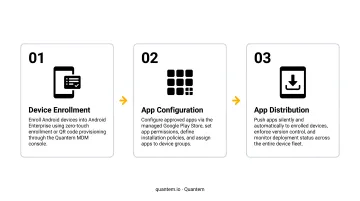
Android Enterprise app deployment runs on three core components, as defined by Google:
- EMM/MDM console — where IT configures and manages everything
- Android Device Policy — the on-device agent that enforces policies
- Managed Google Play — the enterprise app store and distribution layer
App deployment is policy-based, not command-based. IT assigns a policy to a device group, and the Android Management API handles distribution automatically. A device can only have one active policy at a time, typically applied during enrollment.
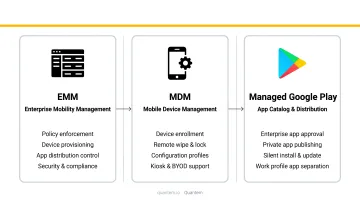
Step 1: Enroll Your Organization and Connect to Managed Google Play
The first step is binding the organization to Google by creating a Managed Google Play enterprise account through the MDM console. This establishes the enterprise identity that all app approvals, policies, and device enrollments operate under.
Devices are enrolled into this enterprise during setup. For bulk deployments, zero-touch enrollment handles this automatically: devices check for an assigned enterprise configuration on first boot and download the correct policy to complete setup.
Zero-touch requires GMS-compatible Android 9.0+ devices (with some 8.0/7.0 compatibility) purchased from authorized reseller partners.
Step 2: Approve Apps and Configure Deployment Settings
IT admins browse Managed Google Play from within the MDM console, approve the apps the organization needs, and configure:
- App permissions — approved on behalf of users, so no prompts appear on-device
- Update behavior — High Priority, Default (when charging and on Wi-Fi), or Postponed (up to 90 days)
- App visibility — managed devices only see IT-approved apps in their Play Store
Step 3: Assign Apps to Device Groups and Deploy
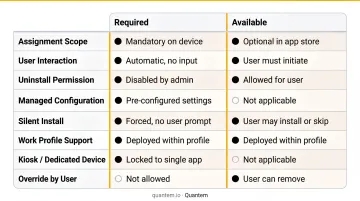
Once approved, IT assigns apps to device groups (by user, device type, location, or role) and designates each as:
- Required — silent, automatic install regardless of user action
- Available — user-initiated from the managed store
The MDM enforces distribution. Deployment status — including which devices have the app installed and which haven't — is tracked from the admin console.
Android Enterprise App Types and Where They're Used
Managed Google Play supports three app types, each suited to different operational needs.
Public Managed Google Play Apps
These are free or paid apps available in the standard Play Store — Slack, Microsoft Teams, Chrome, and similar tools. IT approves them for enterprise use, controls which apps are visible, and can silently install or restrict them. Best suited for productivity, communication, and standard business tools in work profile (BYOD) deployments.
Private / Line-of-Business (LOB) Apps
Internally developed or organization-specific apps published privately to Managed Google Play. They're invisible to the public and only available to enrolled devices within the organization.
Two publishing methods exist:
| Method | Speed | Requirements | Best For |
|---|---|---|---|
| EMM console (iframe) | ~10 minutes | No Google Developer account or fee required | Fast internal deployment |
| Google Play Developer Console | Slower | Developer registration required | Version management, developer-led releases |
Private apps cannot be converted to public apps after publishing. This makes them the preferred route for custom healthcare, logistics, or field service applications.
Web Apps
IT creates managed web app shortcuts — a URL, icon, and title — and pushes them to devices like native apps. They appear in the app drawer and open in Chrome. Useful for internal portals, SaaS tools, or intranet pages without building a native app. Web apps are organization-exclusive and cannot be made public.
Deployment Mode Determines App Policy Scope
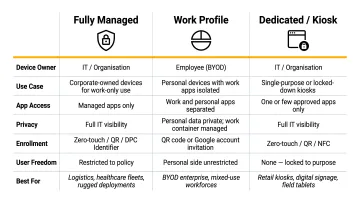
- Fully managed (company-owned, work-only): broadest control — silent installs, app blocklists, full lifecycle management; common for kiosk and field service deployments.
- Work profile (BYOD): creates an encrypted container for work apps while keeping personal apps private. IT manages the work profile only. Common for public store apps.
- Dedicated/kiosk: locked to a single app or curated set — common in retail, healthcare check-in, and logistics scanning environments.
Key Factors That Affect Deployment Outcomes
Even a well-configured Android Enterprise environment can have deployment failures. The factors below determine whether apps reach devices reliably.
Device enrollment mode — policies and app availability differ by mode. An app policy configured for fully managed devices won't behave the same way in a work profile deployment.
App permission approval timing — when an update introduces new permissions, existing approvals don't automatically carry over (unless allPermissions approval was configured upfront). With currentPermissionsOnly mode, IT must re-approve new permissions or the update requires manual action.
Network conditions — default app updates only occur when the device is charging, idle, on Wi-Fi, and not actively using the app. Wi-Fi-only update policies can delay critical patches on devices that primarily use mobile data.
Policy application timing — if a policy isn't successfully applied within 5 minutes of enrollment, enrollment fails and the device factory resets. Misconfigured policies at enrollment create immediate operational problems.
MDM platform capabilities — the admin console governs how policies are created and enforced. Platform limitations directly limit deployment control. Platforms vary significantly in complexity and cost — Quantem, for example, provides enterprise-grade Android Enterprise management at $1–$3/device/month with toggle-based policy controls and no scripting required, which matters for IT teams managing growing fleets without dedicated scripting resources.
Scale and governance — large fleets require structured group policies and delivery rules organized by device type, location, or role. Ad hoc assignment without a policy hierarchy produces inconsistency and audit failures.
Common Mistakes in Android Enterprise App Deployment
Mistake 1: Thinking You Can Skip the MDM Layer
Some IT teams assume they can configure Managed Google Play directly without an EMM platform. That won't work. Managed Google Play is the app store and distribution layer, not the device management console.
The Android Management API requires an EMM layer to create device policies, assign apps, and track compliance. Bypassing it results in devices that are either unmanaged or inconsistently managed, with no audit trail.
Mistake 2: Treating App Approval as a One-Time Action
App developers update apps with new permissions regularly. If the organization's approval was configured with currentPermissionsOnly, those new permissions require manual re-approval. Teams that skip regular permission audits discover this problem when apps silently stall on outdated versions, sometimes breaking business workflows in the process.
Audit app permissions on a scheduled basis. For apps from trusted developers, consider configuring allPermissions approval to reduce manual re-approval workload.
Mistake 3: Setting All Apps as "Available" Instead of "Required"
Many IT teams default to making apps "Available" in the managed store, expecting users to install them. For enterprise deployments, this is the wrong default for operational apps.
- Available = appears in managed store, user decides whether to install
- Required = silent, automatic install; reinstalled at next check-in if removed
Field service tools, patient management systems, and logistics scanning apps should be marked Required. Leaving them as Available means app reach depends on user behavior — and in enterprise deployments, that's not a reliable distribution strategy.
Conclusion
Android Enterprise app deployment transforms the default consumer experience — individual users installing whatever they choose — into a controlled, policy-driven system. IT approves what runs on the fleet, how apps are configured, and when they update. That control happens invisibly and at scale.
At that scale, the stakes go beyond convenience. Uncontrolled app environments create compliance gaps, security vulnerabilities, and audit failures — often invisible until an incident surfaces them. Understanding the full deployment process, from Managed Google Play binding to assignment modes to update governance, is what gives IT teams actual control rather than the assumption of it.
An MDM platform like Quantem handles this infrastructure directly, letting IT teams configure app policies, enforce update schedules, and manage work profiles without scripting or manual intervention. If you're ready to put this into practice, Quantem's 21-day free trial requires no credit card and gives full platform access from day one.
Frequently Asked Questions
What is the difference between fully managed and work profile deployment in Android Enterprise?
Fully managed devices are company-owned and used exclusively for work, giving IT complete device-level control over all apps and settings. Work profile devices (typically BYOD) create a separate, encrypted container for work apps while keeping the personal profile private — IT manages only the work container, not the entire device.
Do employees need a Google account for Android Enterprise app deployment?
For fully managed and dedicated devices, a Managed Google Play Account is provisioned automatically during enrollment — employees don't need a personal Google account. For BYOD work profile setups, managed accounts are typically created by the MDM without requiring personal Google credentials.
Can I deploy apps to Android devices without using Managed Google Play?
APK sideloading via MDM bypasses Google's verification layer, limits update management, and is not supported in work profile scenarios — Android Enterprise requires blocking installs from unknown sources. Managed Google Play is the recommended and most secure distribution path.
What happens to work apps when an employee leaves the organization?
IT can remotely wipe the work profile on BYOD devices through the MDM console, removing all work apps and corporate data without touching the employee's personal profile. On company-owned fully managed devices, IT can perform a full factory reset remotely.
How do app updates work in Android Enterprise?
Update behavior is governed by the MDM's update policy — admins set apps to update immediately (High Priority), by default (when charging and on Wi-Fi), or on a delayed schedule (Postponed, up to 90 days). When configured with currentPermissionsOnly approval, new permissions introduced by an update require IT re-approval before the update proceeds.
Is Android Enterprise app deployment suitable for small or mid-sized organizations?
Android Enterprise scales from small teams to large enterprises. Modern MDM platforms use per-device pricing and no-scripting setup to make enterprise-grade app management accessible to lean IT teams. Quantem, for example, offers tiered plans from $1–$3/device/month with zero-touch enrollment included across all tiers.