Introduction
Unencrypted Android devices are a real liability. In 2019, the University of Rochester Medical Center paid a $3 million HIPAA settlement after losing an unencrypted flash drive and laptop. A year later, Lifespan paid $1,040,000 to settle a similar breach involving a stolen unencrypted laptop. These aren't edge cases - they're the predictable outcome of skipping encryption enforcement.
This guide is for IT administrators managing enrolled Android devices through an MDM console. End users don't own this task, and ad hoc, device-level configuration without MDM oversight creates compliance blind spots that typically surface during audits, not before.
That risk is avoidable with the right MDM configuration in place. This guide covers the complete Android Enterprise encryption process: prerequisites, encryption type selection, step-by-step MDM setup, compliance validation, and common troubleshooting fixes.
Key Takeaways
- Android 10+ devices use File-Based Encryption (FBE) by default; older devices require explicit configuration
- FBE replaces full-disk encryption and provides stronger, more granular data protection using AES-256
- Enforce encryption through MDM policy - leaving it to users creates inconsistent coverage across your fleet
- On BYOD devices, MDM encryption policies cover only the work profile; personal storage is outside IT's control
- Validate encryption status on each device after deployment, not just at policy assignment, before clearing devices for production use
Android Enterprise Encryption Configuration Guide
Getting encryption right comes down to three steps: confirm your prerequisites, select the correct encryption type for your device fleet, then deploy and validate via MDM. On modern hardware, the MDM handles most of this automatically - but only if the groundwork is solid.
Prerequisites and Readiness Checks
Before pushing any encryption policy, confirm three things:
Android version - Devices running Android 10 or later use FBE by default. Devices on Android 9 or earlier may require explicit encryption activation. Per AOSP documentation, all devices launching with Android 10 or higher are required to use FBE.
MDM enrollment status - The device must be enrolled as Device Owner (fully managed) or Profile Owner (work profile/BYOD) under Android Enterprise. Devices still in legacy Device Admin mode cannot receive centrally pushed encryption policies. This mode is no longer the recommended path for Android 11 and above.
Lock screen / passcode policy - Encryption is functionally tied to device authentication. CE storage keys cannot be unlocked without the user's Lock Screen Knowledge Factor - PIN, pattern, or password. Without a lock screen configured, encryption cannot activate correctly.
Understanding Android Enterprise Encryption Types
File-Based Encryption (FBE)
Introduced in Android 7.0 and mandatory from Android 10 onward, FBE encrypts different storage areas with distinct keys that can be unlocked independently. There are two storage tiers:
- Device Encrypted (DE) storage - accessible during Direct Boot mode (before user unlock). This is where lock screen apps and alarms live.
- Credential Encrypted (CE) storage - available only after the user enters their PIN or password. Work profile apps, documents, and corporate data live here.
FBE file contents are encrypted using AES-256-XTS or Adiantum. CE keys are derived from each user's synthetic password, a unique high-entropy cryptographic secret generated per user at enrollment. Because that secret never leaves the device in plaintext, offline brute-force attacks against CE storage are not viable.
Full-Disk Encryption (FDE)
FBE replaced FDE as the standard because FDE's single-key model created operational problems - particularly around Direct Boot and per-user data separation.
FDE covered devices running Android 5.0–9.0, using a single 128-bit AES with CBC and ESSIV:SHA256 key for all user data. Android 13 removes FDE support entirely. Devices in your fleet still on FDE are a migration priority: frameworks like HIPAA and NIST SP 800-124 flag single-key full-disk encryption on aging hardware as non-compliant under current mobile security guidelines.
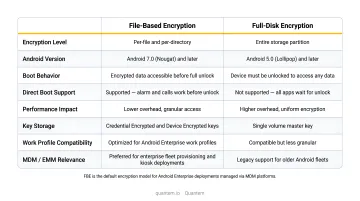
| FBE (File-Based) | FDE (Full-Disk) | |
|---|---|---|
| Android versions | 7.0+, mandatory from 10 | 5.0–9.0 only |
| Encryption scope | Per-file, per-user keys | Single key, entire partition |
| Direct Boot support | Yes (DE storage unlocked pre-login) | No |
| Key algorithm | AES-256-XTS or Adiantum | 128-bit AES / CBC / ESSIV:SHA256 |
| Current status | Active standard | Removed in Android 13 |
| Compliance posture | Meets current NIST/HIPAA guidance | Non-compliant on modern fleets |
How to Configure Android Enterprise Encryption Step-by-Step
Encryption configuration follows a defined sequence. Skipping steps (or assigning policies before enrollment is complete) commonly causes compliance reporting failures that are difficult to trace after the fact.
Configuring Encryption via MDM Console
Step 1: In your MDM admin console, navigate to the device policy or configuration profile section. Look for encryption settings under Security Configurations or Compliance Policies depending on the platform.
Step 2: Enable "Require Device Encryption" and pair it immediately with a passcode complexity requirement. Configure minimum PIN length, character type requirements, and maximum failed attempt thresholds in the same policy. The Android Management API exposes this through the encryptionPolicy field alongside passwordRequirements. These two work together - an encryption setting without a passcode policy is incomplete and will not enforce correctly.
Step 3: Assign the policy to the correct device group:
- Device Owner (fully managed) - policy covers the entire device
- Profile Owner (BYOD work profile) - policy governs the work profile container only
- COPE (Corporate-Owned, Personally Enabled) - some device-wide restrictions can apply alongside work profile controls
Step 4: Push the policy and monitor the MDM dashboard for device acknowledgment. On Quantem's MDM console, encryption and passcode policies are configured through toggle-based controls with no scripting required. Changes propagate to enrolled devices automatically, so fleet-wide rollouts stay consistent whether you're managing 50 devices or 5,000.
Enabling Encryption via Device Settings (Manual / Edge Cases)
MDM-driven policy handles the vast majority of deployments. Manual configuration applies in two specific scenarios: legacy Android devices (pre-10) that need explicit activation, or individual devices requiring a quick compliance check outside of an MDM push cycle.
The manual path:
- Go to Settings → Security (or search "encrypt")
- Select Encrypt Device
- Enable Secure Startup (require PIN at boot)
- Set a lock screen PIN or password
- Keep the device plugged in - it may restart multiple times
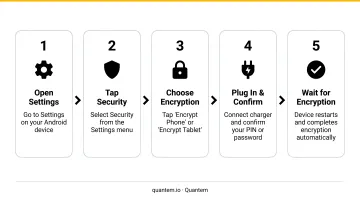
Manual encryption should be the exception. For any fleet larger than a handful of devices, MDM-driven policy is the only approach that's auditable, repeatable, and built to grow with your fleet.
Post-Configuration Validation and Compliance Verification
Deploying an encryption policy does not guarantee enforcement. Validation must confirm actual device-level encryption status - not just that a policy was assigned.
Verifying Encryption Status in the MDM Dashboard
In your MDM dashboard, pull up the compliance or device status report and filter by disk encryption status. Every enrolled device should report as encrypted. Android Enterprise Device Trust signals surface encryption status as a reportable device signal, making it the authoritative source for compliance checks rather than self-reported device settings.
Any device that fails to report compliant after a policy sync should be isolated for individual investigation. Don't treat a rollout as complete until you have 100% compliance across the fleet.
Functional Testing on Representative Devices
Run a functional test on at least one device from each hardware group in your fleet:
- Confirm DE storage functions (lock screen, alarm) are active before unlocking, with work profile data inaccessible
- Confirm CE storage (work apps, encrypted documents) becomes accessible after unlocking with credentials
This test confirms FBE is operating correctly - not just that the encryption flag is set.
Documenting the Compliance Baseline
Capture a timestamped record of encryption status across the fleet before deployment. Under HIPAA 45 CFR 164.312(a)(2)(iv), encryption is an addressable implementation specification - and auditors will expect evidence that it was enforced at a documented point in time. GDPR Article 32(1)(a) carries the same expectation, explicitly requiring encryption as a technical and organizational measure.
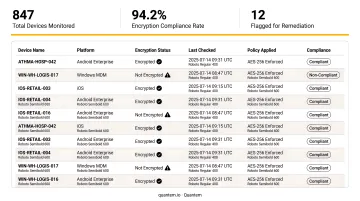
Quantem's compliance reports export a timestamped encryption posture snapshot across your full device fleet - giving you the documented evidence auditors look for under both frameworks.
Common Encryption Configuration Problems and Fixes
Even well-planned rollouts encounter predictable issues. Here are the three most common.
Issue 1: Encryption Option Is Greyed Out or Missing in Device Settings
Problem: The encrypt device option is unavailable or non-interactive.
Likely cause: The device is already encrypted. Android 10+ devices encrypt at factory setup and don't expose a manual re-encryption option - the greyed-out setting is expected behavior.
Fix:
- Check the MDM compliance report first - if the device reports as encrypted, no action is needed
- If the device is genuinely unencrypted and the option is unavailable, charge the battery above 80% and retry
- If the problem persists, verify the device model on the Android Enterprise Solutions Directory to confirm whether it carries Android Enterprise Recommended status, which requires encryption by default
Issue 2: MDM Reports Device as Non-Compliant Despite Encryption Appearing Active
Problem: The MDM dashboard flags a device as unencrypted after the policy has been pushed and appeared to apply.
Likely cause: No passcode is configured on the device. Android encryption is bound to the device credential - without a lock screen, encryption cannot be active regardless of what the policy says. Alternatively, the device hasn't synced with the MDM server yet.
Fix:
- Confirm a passcode policy is deployed alongside the encryption policy
- Trigger a manual check-in or policy sync from the MDM console
- If the issue persists post-sync, verify the device is assigned to the correct policy group
Issue 3: BYOD Personal Profile Flagged as Unencrypted in Compliance Reports
Problem: Compliance reports show personal storage on BYOD devices as not encrypted.
Likely cause: This is by design. On personally owned work profile devices, Android Device Policy automatically applies policy settings to the work profile only. IT has no enforcement authority over personal storage - Android Enterprise intentionally limits this visibility.
Fix:
- Update compliance report filters to distinguish between work profile encryption (IT-enforceable) and personal profile encryption (user-managed)
- Send users a brief note explaining why personal encryption matters and how to turn it on in device settings - MDM policy cannot and should not enforce this on personally owned devices
Pro Tips for Configuring Android Enterprise Encryption Effectively
Integrate encryption into enrollment, not after it. When encryption and passcode policies are included in the enrollment configuration, no device ever enters production unencrypted. This eliminates the most common source of compliance gaps before they can occur - rather than catching them after the fact during audits.
Always pair encryption with a passcode complexity requirement. An encrypted device with a weak PIN provides minimal real-world protection. Define minimum PIN length, character requirements, and maximum failed attempt thresholds in the same policy set. Without that credential layer, the encryption itself is only half the defense.
In regulated industries, document everything with timestamps. Auditors reviewing HIPAA or GDPR compliance need evidence that policy was enforced and verified at a specific point in time - not just that a policy exists. Establish a recurring schedule for compliance report exports and store them in a dated, auditable folder structure.
Brief BYOD users before deploying encryption policies. Users who understand what IT can and cannot see on their personal device - and why encryption is required - are far more receptive to enrollment. A short explanation of work profile isolation reduces friction and cuts support ticket volume on rollout day.
Frequently Asked Questions
Does Android have built-in encryption?
Yes. Devices running Android 10 and above use File-Based Encryption by default when a lock screen is set. Devices on Android 5.0–9.0 used full-disk encryption, which may require manual activation on older hardware. For enterprise-managed devices, always verify encryption status through MDM compliance reporting rather than assuming the default is active.
What is enterprise encryption?
Enterprise encryption is the centrally managed enforcement of device-level data encryption across an organization's Android fleet, pushed via MDM policy rather than configured device by device. It ensures corporate data on managed devices is unreadable without correct credentials, protecting against exposure from lost, stolen, or unauthorized devices.
How do I tell if my Android is being monitored?
On Android Enterprise work profile devices, IT manages only the work profile container - personal apps, messages, and browsing remain private. Users can identify MDM management by the briefcase badge on work apps or by checking Settings > Accounts for enrolled management applications.
What encryption standard does Android Enterprise use?
Android Enterprise uses AES-256-XTS for file content encryption under File-Based Encryption on Android 10 and later. Filename encryption uses AES-256-CBC-CTS, AES-256-HCTR2, or Adiantum, with AES-HCTR2 preferred on Android 14+. Credential-Encrypted storage keys are tied to user credentials, making them resistant to offline attacks.
Does enabling encryption affect device performance?
On devices with hardware-accelerated encryption (required by Android 11's Compatibility Definition for AES-capable hardware), performance impact during normal use is minimal. Older devices using software-only encryption may see minor slowdowns, but for enterprise fleets on current-generation hardware, encryption should not factor into the decision.
How do I verify encryption is active on managed Android devices?
The most reliable method is the MDM compliance dashboard, which surfaces disk encryption status as a reportable device signal for all enrolled Android Enterprise devices. Filter compliance reports by encryption status to identify non-compliant devices quickly. Individual device encryption status can also be checked under Settings > Security on the device itself, but MDM reporting is the authoritative source for fleet-level compliance.