This guide is written for IT administrators with Global Administrator access to the Microsoft Intune admin center. If you're a standard IT admin or Intune administrator without the Global Admin role, you'll need to involve someone who has it before you begin. What follows covers everything from licensing prerequisites through step-by-step configuration, scope decisions, and fixes for the most common enrollment failures.
Key Takeaways
- Automatic MDM enrollment requires Microsoft Intune + Microsoft Entra ID P1 or P2 (Intune alone won't surface the setting)
- Only a Global Administrator can configure automatic enrollment; Intune Administrator role is not sufficient
- MDM User Scope (None/Some/All) is the most critical configuration decision
- Assigning users to both MDM and WIP scopes simultaneously causes enrollment conflicts - assign each user to one scope only
- Always test with a pilot group before switching scope to "All" across the organization
Prerequisites Before Enabling Windows MDM Auto-Enrollment
Licensing Requirements
Automatic MDM enrollment requires both a Microsoft Intune subscription and Microsoft Entra ID P1 or P2. Having Intune without the Entra ID Premium license means the automatic enrollment option won't appear in the admin center.
Several Microsoft licensing bundles already include both:
| Bundle | Entra ID Tier | Intune Included |
|---|---|---|
| Microsoft 365 Business Premium | P1 | Yes |
| Enterprise Mobility + Security E3 | P1 | Yes |
| Enterprise Mobility + Security E5 | P2 | Yes |
| Microsoft 365 E3 | P1 | Yes |
| Microsoft 365 E5 | P2 | Yes |
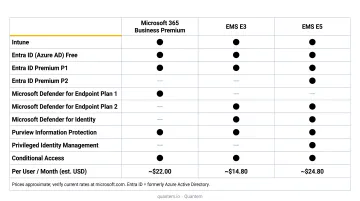
If your organization doesn't have a qualifying license, you can activate a free Entra ID Premium trial directly from the automatic enrollment settings page - more on this in Step 2 below.
Role Requirements
Only a Global Administrator in Microsoft Entra ID can configure automatic enrollment. The Intune Administrator role, despite its name, is insufficient for this specific configuration step.
Device Compatibility
- Supported OS versions: Windows 10 and Windows 11
- Supported editions: Pro, Enterprise, and Education
- Not supported: Windows Home - Home edition devices cannot join Microsoft Entra ID and must be upgraded before they can participate in MDM auto-enrollment
Entra ID Tenant Configuration
Your Microsoft Entra ID tenant must be active, and devices must fall into one of two categories:
- Entra ID-joined (corporate-owned devices)
- Entra-registered (BYOD personal devices)
If a device is already enrolled in a different MDM solution, it must be unenrolled before connecting to Entra ID for Intune enrollment.
How to Enable MDM Automatic Enrollment for Windows: Step-by-Step
Automatic enrollment follows a defined sequence in the Intune admin center. Skipping steps - particularly around MDM user scope - is the most common reason devices fail to enroll as expected.
Step 1 - Access the Intune Admin Center
Sign in at intune.microsoft.com using Global Administrator credentials.
Navigate to: Devices > Device Onboarding > Enrollment > Windows tab > Automatic Enrollment
Step 2 - Activate the Automatic Enrollment Feature
If the automatic enrollment settings aren't visible, look for the prompt indicating the feature is available only to Microsoft Entra ID Premium subscribers. Select it to activate the free Premium trial.
The trial is free for 30 days. Microsoft may ask for a payment method to verify identity but will not charge the card unless you make a purchase.
Step 3 - Configure MDM User Scope
Set the MDM user scope to None, Some, or All based on your rollout strategy. This is the single most impactful setting in the entire configuration: an incorrect choice here is the root cause of most enrollment failures.
The next section covers each scope option in detail.
Step 4 - Leave Default MDM URLs
Unless your organization uses a third-party MDM server, leave these three fields at their default values:
- MDM Terms of Use URL:
https://portal.manage.microsoft.com/TermsofUse.aspx - MDM Discovery URL:
https://enrollment.manage.microsoft.com/enrollmentserver/discovery.svc - MDM Compliance URL:
https://portal.manage.microsoft.com/?portalAction=Compliance
Changing these incorrectly will break enrollment. If you've previously changed them and enrollment is failing, use the Restore default MDM URLs option in the troubleshooting guidance.
Step 5 - Configure WIP User Scope and Save
Set WIP (Windows Information Protection) user scope to None unless your organization has an explicit WIP policy requirement. Microsoft deprecated WIP in July 2022, and new Windows versions will not receive new WIP capabilities.
Before saving, keep these scope conflict rules in mind:
- Never overlap scopes: any user in both MDM and WIP scopes will experience enrollment conflicts
- BYOD devices: WIP takes precedence, meaning those users won't enroll in Intune MDM
- Plan assignments: ensure the same users are not assigned to both scopes simultaneously
Select Save to apply all settings.
Understanding MDM User Scope: None, Some, and All
The Three Options Explained
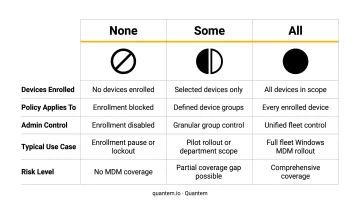
| Scope Setting | What Happens |
|---|---|
| None | Automatic MDM enrollment is disabled entirely; users must manually trigger enrollment |
| Some | Auto-enrollment applies only to members of a specified Entra ID security group |
| All | Auto-enrollment applies to every user whose device joins or registers with Entra ID |
When to Use "Some"
"Some" is the right starting point for most organizations. It lets you run a controlled pilot - typically with an IT team or a small volunteer group - before exposing auto-enrollment to every user. This surfaces licensing conflicts, policy gaps, and user experience issues while the blast radius is still small.
To configure it, create a security group in Entra ID, add your pilot users, and select that group under the "Some" option.
When to Use "All"
"All" is appropriate in two scenarios:
- Fully corporate-managed environments where every Windows device should be under MDM governance from day one
- BYOD auto-enrollment where you want personal devices to enroll automatically when users add their work account - provided WIP user scope is set to None or Some, and the same users aren't in both scopes
The MDM vs. WIP Scope Conflict
That second BYOD scenario is where most misconfigurations happen. When a user appears in both MDM and WIP scope groups, the device type determines which policy wins:
- Corporate-owned device: MDM takes precedence - device enrolls in Intune
- Personally-owned (BYOD) device: WIP takes precedence - device does not enroll in Intune MDM; only WIP policies apply
Keep MDM and WIP scope groups mutually exclusive to avoid this. Microsoft recommends setting WIP user scope to None, or using "Some" with non-overlapping groups.
Post-Configuration Validation
Test Enrollment End-to-End
After saving your settings, test with a user account that's in scope:
- On a Windows 10 or 11 device (Pro/Enterprise/Education), go to Settings > Accounts > Access work or school > Connect
- Add the work or school account
- Check the Intune admin center - the device should appear as enrolled within a few minutes
If it doesn't appear, confirm the test user is in the correct security group and that the scope setting was saved correctly.
Check for Duplicate Enrollment Records
If automatic MDM enrollment was previously disabled while devices were already Entra ID-joined, you may see two records for the same device in the admin center. To resolve this, have the user go to Settings > Accounts > Access work or school, disconnect the work account, then reconnect using the same credentials. This generates a single enrollment record.
Confirm MFA Is Configured
Multi-factor authentication is not enabled by default for auto-enrollment. Before a broad rollout, configure a Conditional Access policy in Microsoft Entra ID using the "Register or join devices" user action to require MFA during device registration. Skipping this step leaves device registration unprotected - it's a foundational zero-trust requirement.
Common Issues and How to Fix Them
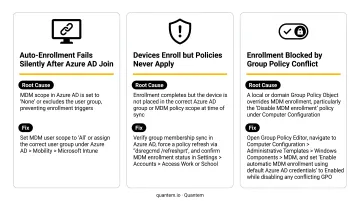
Even with auto-enrollment configured, a few setup gaps can silently block devices from appearing in Intune. Here are the three most common issues and exactly how to resolve them.
| Issue | Root Cause |
|---|---|
| Enrollment not triggering | MDM user scope misconfigured or user not in scope group |
| Settings missing or grayed out | No active Entra ID P1/P2 license on tenant |
| Duplicate records or wrong policy | Device joined before auto-enrollment was configured |
Automatic Enrollment Not Triggering for Users
Symptom: Devices are Entra-joined or registered but don't appear in the Intune admin center as enrolled.
Fix: MDM user scope is set to "None," or the user isn't a member of the security group selected under "Some." Verify group membership in Entra ID and confirm the scope setting was saved - the admin center doesn't always display a confirmation message.
Automatic Enrollment Settings Not Visible in Intune
Symptom: The automatic enrollment option is missing or grayed out.
Fix: The tenant doesn't have an active Microsoft Entra ID P1 or P2 license. Activate the free Premium trial from the enrollment settings page, or assign a qualifying license (such as Microsoft 365 Business Premium or EMS E3) to the admin account.
Devices Showing Duplicate Records or Wrong Policy
Symptom: Enrolled devices show duplicate entries, or expected policies aren't applying.
Fix: The device was Entra-joined before auto-enrollment was configured, leaving a stale record. To resolve it:
- Go to Settings > Accounts > Access work or school and disconnect the work account
- Reconnect with the same work account - this replaces the stale record with a clean enrollment
Pro Tips for Successful Windows MDM Enrollment
Pilot before full rollout. Start with scope set to "Some" targeting a small IT or test group. Validate that devices enroll cleanly, policies apply correctly, and no licensing conflicts appear before switching to "All." A Forrester Consulting study commissioned by Microsoft found that organizations using Intune for managed endpoints saw 80% faster new-device onboarding - gains that depend heavily on getting enrollment configuration right from the start.
Document your scope decisions. Capture why a particular MDM user scope was chosen, which security groups are included, and what users should expect when they first add their work account. For BYOD scenarios, brief users before rollout - the MDM enrollment prompt during account registration will alarm users who aren't expecting it.
Enable MFA before broad deployment. Configure Conditional Access policies in Microsoft Entra ID to require MFA during device registration. This blocks unauthorized enrollments and keeps device registration tied to verified identities. Also evaluate whether the "Disable MDM enrollment when adding work or school account" toggle (currently in public preview) fits your configuration, particularly if you're running Windows MAM alongside MDM.
Consider your long-term management tooling. Intune's automatic enrollment gets devices under management, but ongoing policy enforcement, app distribution, and fleet visibility still require a capable management platform. Teams managing Windows fleets at scale often benefit from platforms like Quantem, which offer toggle-based policy controls and real-time device visibility without scripting - reducing IT overhead well beyond the initial enrollment stage.
Frequently Asked Questions
What is MDM enrollment?
MDM enrollment is the process of registering a device with an MDM server so IT administrators can remotely manage, configure, and secure it. For Windows, this typically happens automatically when a user joins or registers their device with Microsoft Entra ID.
What does MDM stand for?
MDM stands for Mobile Device Management: a technology framework that lets IT teams manage, monitor, and secure devices (smartphones, tablets, laptops, PCs) from a centralized platform. It covers policy enforcement, app distribution, and remote wipe capabilities.
Do I need Microsoft Entra ID Premium for automatic MDM enrollment?
Yes. Automatic MDM enrollment is a premium Entra ID feature requiring at least a P1 or P2 license. Microsoft offers a free trial that can be activated directly from the Intune enrollment settings page if your organization doesn't have a qualifying subscription.
What is the difference between MDM user scope "All" and "Some"?
"All" auto-enrolls every user whose device connects to Entra ID. "Some" restricts auto-enrollment to a specified security group. "Some" is recommended for pilot rollouts before enabling enrollment organization-wide.
Can automatic MDM enrollment be used for BYOD Windows devices?
Yes. BYOD devices can auto-enroll when users add their work or school account on a personal Windows device. The MDM user scope must be set to "All" or "Some," and the WIP (Windows Information Protection) user scope must be configured so the same users don't appear in both scopes at once.
What happens to already-enrolled devices if I change the MDM user scope?
Changing the scope does not retroactively unenroll existing devices. It only affects future enrollments. Devices already managed in Intune stay enrolled until manually unenrolled or wiped.