This guide is written for IT administrators, operations managers, and enterprise teams managing Android or Windows device fleets. It covers what cloud MDM migration actually involves, how to prepare for it, the five-stage execution process, and the pitfalls most teams encounter - before you hit them.
Quick note on scope: This guide covers mobile device management (MDM) migration, not master data management.
TL;DR
- Cloud MDM migration moves device management from on-premises infrastructure to a cloud-hosted platform, enabling remote control, scalability, and lower IT overhead
- Successful migration starts with a full audit of device inventory, policies, profiles, and integrations - before touching any devices
- Migration follows five stages: audit and planning, cloud MDM setup, policy/profile recreation, device re-enrollment, and post-migration validation
- Device groups, users, profiles, and apps carry over - audit logs, location history, and OS update policies do not
- Running old and new MDM environments in parallel during cutover significantly reduces downtime risk
What Is Cloud MDM Migration?
Cloud MDM migration is the process of moving device enrollment, policy enforcement, app management, and security controls from an on-premises or server-based MDM solution to a cloud-native platform accessible from any web browser, regardless of location.
This is different from a routine MDM upgrade. A software upgrade updates the version running on your existing infrastructure. Migration restructures where device management lives - which means devices typically need to be re-enrolled and policies need to be rebuilt, not just transferred.
Three Migration Scenarios
Migration takes three distinct forms - each with a different scope and complexity level:
| Scenario | Description | Complexity |
|---|---|---|
| On-prem → Cloud MDM | Moving from self-hosted server to cloud platform | High - full re-enrollment usually required |
| Cloud MDM → Cloud MDM | Switching between two cloud vendors | Medium - policies rebuilt; enrollment methods vary |
| Hybrid → Cloud MDM | Consolidating mixed environment into cloud-only | High - coexistence management required during cutover |
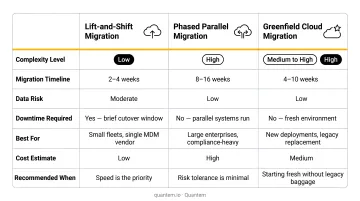
As NIST SP 800-124 Rev. 2 notes, on-premises EMM instances are now less common than cloud-based SaaS architectures - which means most IT teams will face at least one migration project as they retire aging on-prem infrastructure.
Why Migrate to Cloud MDM?
Limitations of On-Premises MDM
On-premises MDM made sense when device fleets were small and office-bound. Those conditions rarely exist now. The operational friction compounds quickly:
- Hardware maintenance and server patching falls entirely on internal IT
- Remote or distributed device fleets can't be managed in real time
- Scaling requires physical infrastructure procurement
- Total cost of ownership grows with every server, license, and maintenance cycle
What Cloud MDM Enables
Cloud MDM resolves these constraints:
- Zero-touch enrollment for remote device deployment without IT physically handling devices
- Real-time policy enforcement across all locations from a single dashboard
- Automatic platform updates without internal server patching
- Centralized visibility across Android, Windows, and iOS fleets
Platforms like Quantem offer these enterprise-grade capabilities - including zero-touch enrollment and kiosk mode across all pricing tiers - starting at $1 per device per month, well below the $3–$10+ per device that most on-premises and competing cloud MDM solutions typically run.
That cost gap is often what moves migration from a backlog item to a budget conversation. The triggers that accelerate the decision are usually one of these:
Common Migration Triggers
Most migrations are prompted by one of these:
- Vendor end-of-life announcements - Omnissa Workspace ONE UEM on-premises version 2410 reaches end of support on April 30, 2027, converting migration from optional modernization into deadline-driven risk management
- Remote or hybrid work adoption - distributed fleets expose the limits of on-prem management fast
- Fleet growth beyond server capacity - provisioning at scale demands cloud elasticity
- New compliance requirements - SOC-2, GDPR, and CCPA are easier to meet on cloud platforms with built-in compliance tooling
Stanford University's January 2025 transition from Workspace ONE to Microsoft Intune for Android device management illustrates the pattern well: the stated rationale was streamlining endpoint management and consolidating existing Microsoft licensing. No emergency prompted it - just a recognized opportunity to simplify operations.
Pre-Migration Preparation Checklist
This is where most migrations succeed or fail. Teams that skip preparation end up re-enrolling devices into a half-configured environment, which creates policy conflicts and user disruption. Don't touch devices until this checklist is complete.
Device Inventory Audit
Document every device in your fleet:
- Device types (Android, Windows, iOS) and OS versions
- Current enrollment status (managed vs. unmanaged)
- Organizational group assignment
- Ownership type (corporate-owned vs. BYOD)
This forms the scope baseline. Missing devices at this stage means surprise re-enrollment gaps mid-migration - the kind that trigger help desk calls at 2 PM on a Tuesday.
Policy and Profile Catalog
Export or document every active configuration in your current MDM:
- Compliance policies and security restrictions
- Wi-Fi and VPN configuration profiles
- Kiosk mode settings and dedicated device configurations
- BYOD/work profile separation rules
- App deployment rules and blacklists
Raw policy files rarely transfer between MDM platforms. You'll rebuild these manually in the new system, so the more detailed your documentation, the faster that rebuild goes.
Integration Mapping
Identify every system connected to your current MDM and document how each works today:
- Directory sync (Active Directory, LDAP, Google Workspace, Okta)
- Managed Google Play or corporate app stores
- Certificate authorities
- Email gateways or conditional access systems
- Third-party IT tools and APIs
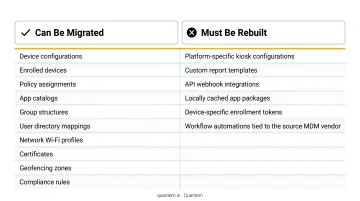
What Migrates vs. What Must Be Rebuilt
| Typically Migratable | Typically Must Be Rebuilt |
|---|---|
| Device groups and users | Audit logs |
| App assignments | Location history |
| Enrollment tokens | OS update policies |
| Configuration profiles | Legacy compliance baselines |
Timeline and Communication Plan
Scope and inventory alone won't carry the migration - you need a schedule and a communication plan that keeps users informed at every stage.
- Schedule a parallel-run period where both MDM environments operate during device cutover
- Identify pilot device group (representative sample of all device types and OS versions)
- Communicate migration schedule to device users before it happens - unexpected MDM prompts generate support tickets
How to Migrate to Cloud MDM: Step-by-Step
The migration process follows five sequential stages. Each builds on the previous one. Attempting to re-enroll devices before the new platform is fully configured is the single most common cause of configuration drift and policy gaps.
Step 1: Set Up and Configure the Cloud MDM Platform
Before any devices move, the new environment must be fully operational:
- Create the cloud MDM tenant and configure your organizational structure (groups, departments, ownership types)
- Set the MDM authority - Microsoft, for example, requires this to be configured before enrollment begins
- Connect directory sync - import user groups from Active Directory, Google Workspace, or Okta
- Configure Managed Google Play for Android app deployment
- Set up enrollment methods - zero-touch enrollment for Android, Autopilot or bulk enrollment packages for Windows
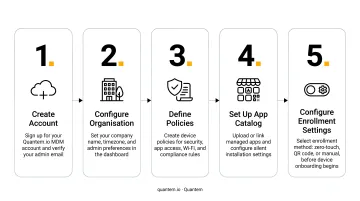
Complete this setup entirely before touching enrolled devices.
Step 2: Recreate Policies, Profiles, and App Configurations
Using your policy catalog from the pre-migration audit, rebuild everything in the new console:
- Configuration profiles (Wi-Fi, VPN, restrictions)
- Security and compliance policies
- App deployment rules and managed app assignments
- Kiosk mode and dedicated device settings
- BYOD work profile configurations
Test each policy type on a small pilot group before applying to the full fleet. This is where feature parity gaps surface. Some policies work differently in the cloud platform - treat those differences as a chance to simplify, not something to replicate exactly.
Step 3: Pilot Migration with a Test Device Group
Select a small, representative group covering all device types and OS versions in your fleet. Migrate them first and verify:
- Enrollment completes correctly
- Policies apply as expected and don't conflict
- Apps deploy successfully
- Users retain access to required resources
- BYOD work profile separation is intact
Document every gap before proceeding. The pilot exists to find problems at small scale.
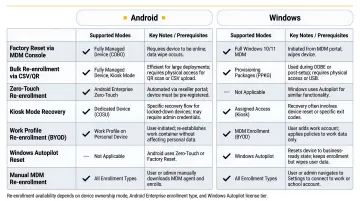
Step 4: Execute Full Device Re-Enrollment
Roll out migration to all remaining devices. Platform behavior differs:
- Android fully managed (Device Owner) devices: Google's provisioning methods - including QR code, NFC, and DPC identifier - require a new or factory-reset device. Plan for this in your timeline and user communication
- Android work profile (BYOD) devices: Can typically be migrated with less disruption, often via a pushed profile
- Windows devices: Microsoft requires devices to have only one MDM provider - users unenroll from the current MDM via Company Portal, then re-enroll through the new platform's selected method (Autopilot, bulk enrollment, automatic enrollment)
- Keep the old MDM server active until all devices confirm enrollment in the new platform
Step 5: Validate and Decommission the Old MDM
Run a post-migration validation before decommissioning anything:
- Device count matches expected inventory
- All policies are applied and enforced (not just assigned)
- Apps are deployed and functional
- Directory sync, certificates, and app store integrations are operational
- BYOD work profile data separation is intact
- Compliance reporting reflects current device state
Only after full validation should the legacy MDM server be decommissioned. Decommissioning early with unenrolled devices still in the wild is a hard mistake to recover from.
Common Challenges and How to Overcome Them
Feature Parity Gaps
Cloud MDM platforms handle certain policies differently than on-premises systems - OS update enforcement, legacy app sideloading, and granular restriction settings are common friction points. The fix isn't trying to replicate the old system exactly. Map your use cases to cloud capabilities and rebuild around them. Most teams end up with leaner, more efficient policy structures once they stop copying the old configuration wholesale.
Incomplete Preparation Before Re-Enrollment
Migrating devices into a half-configured MDM environment causes configuration drift, policy conflicts, and user-facing disruptions. The parallel-run period and pilot group approach exists specifically to prevent this. Rushing past either phase trades short-term speed for weeks of cleanup work after cutover.
Change Management
End users receiving unexpected prompts to install a new MDM profile or re-enroll their devices will escalate to IT immediately. This is the most underestimated challenge in MDM migrations. Proactive communication cuts support ticket volume during cutover significantly. Before the migration window opens, send users a plain-language notice covering three things: what will happen to their device, why it's changing, and exactly when to expect it.
All three challenges - policy gaps, configuration readiness, and user communication - are preventable with the right preparation sequence. The sections above walk through each step.
Frequently Asked Questions
What is cloud MDM?
Cloud MDM (Mobile Device Management) is a software platform hosted by a vendor that lets IT teams enroll, configure, secure, and manage mobile and endpoint devices remotely - without maintaining on-premises servers. IT administrators access it from a web browser from any location.
How long does a cloud MDM migration take?
Timeline varies by fleet size and policy complexity. Small fleets can move in days; large enterprise deployments with complex integrations may take several weeks. The parallel-run period adds time but reduces risk. Don't skip it to hit an arbitrary deadline.
What data gets migrated when switching MDM platforms?
Device groups, users, app assignments, enrollment tokens, and profiles are generally migratable. Audit logs, location history, and OS update policies typically cannot be transferred and must be rebuilt manually in the new system.
Can devices stay enrolled during an MDM migration?
Most devices need to be re-enrolled into the new platform, but the process can often be pushed silently via a migration profile - reducing disruption for employees. Devices should not be wiped unless the platform specifically requires it.
What is the difference between on-premises MDM and cloud MDM?
On-premises MDM runs on servers the organization hosts and maintains internally. Cloud MDM is hosted by the vendor and accessed via the internet. Cloud eliminates server maintenance overhead, enables remote management from anywhere, and scales without hardware procurement.
Do I need to wipe devices to migrate to a new cloud MDM?
Not universally. Windows and Android work profile (BYOD) devices typically re-enroll without a factory reset. Android Device Owner (fully managed) devices are the exception - Google's provisioning methods generally require a new or factory-reset device.
Conclusion
Cloud MDM migration is a structured, phased project - audit, build, test, enroll, validate - not a single cutover event. Preparation determines whether execution goes smoothly or generates days of cleanup work.
A methodical approach keeps risk firmly in check. Quantem's Enterprise plan includes free migration support, and the 21-day full-access free trial (no credit card required) gives IT teams room to validate policies, enrollment methods, and integrations against their full device requirements before committing.