Switching EMM providers isn't just an administrative task. Done out of order, it leaves devices orphaned, apps missing, and your help desk drowning in tickets. Done correctly, it's entirely manageable - even for large fleets.
This guide covers both switching paths (from a third-party EMM and from Google endpoint management), what to prepare beforehand, the variables that affect complexity, and the mistakes that derail otherwise well-planned migrations.
Key Takeaways
- Unbind your current EMM from your Google Account before onboarding a new provider - order matters
- Most devices will require factory reset and re-enrollment under the new EMM
- Manually re-create apps, managed configs, and policies in the new console - nothing carries over automatically
- Zero-touch enrollment cuts re-enrollment effort significantly for company-owned fleets
- Piloting with a small device group before full migration is the single best way to reduce risk
How to Change Your EMM Provider in Android Enterprise
Android Enterprise supports two main switching scenarios: moving away from a third-party EMM provider, or moving away from Google endpoint management. The sequence matters - skipping steps can leave devices unmanaged or in a conflict state where neither provider has reliable control.
Switching from a Third-Party EMM Provider
Step 1 - Request EMM unbinding. Contact your current third-party EMM provider and formally request that they remove Android management from your company's Google Account. This unbinds the EMM from your enterprise's managed Google domain or managed Google Play Account.
Step 2 - Verify the unbinding is complete. Confirm in the Google Admin console - under Devices > Mobile & endpoints > Settings > Third-party integrations > Android EMM > Manage EMM Providers - that the existing binding has been removed. Proceeding before this is confirmed is the most common cause of failed migrations.
Step 3 - Select and bind a new EMM provider. Connect Google endpoint management or sign up with a new third-party EMM. Follow the new provider's onboarding flow to create an Enterprise resource that binds your organization to the new solution. If migration support is available from your new provider, use it here - Quantem's Enterprise plan includes free migration support as part of onboarding.
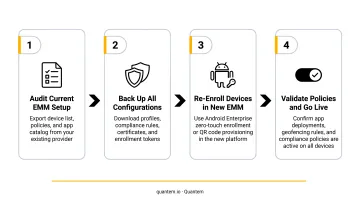
Step 4 - Re-enroll devices. Devices previously managed by the old EMM need to be re-enrolled. Zero-touch enrollment can significantly accelerate this for company-owned devices - they can be pre-configured to automatically enroll with the new EMM on factory reset.
Switching from Google Endpoint Management
If your organization currently uses Google's native endpoint management, the process is shorter - but the same rule applies: don't bind a new EMM until Google management is fully disabled.
- Sign in to the Google Admin console as an administrator and navigate to
Menu > Devices > Mobile & endpoints > Settings > Universal - Open
General > Mobile Managementsettings. Set all platforms to Basic, or use Custom to set only Android to Basic or Unmanaged. Avoid setting devices to Unmanaged unless you're switching to a new provider immediately - Save your settings, then follow the third-party EMM provider's setup flow
One important constraint: Google does not support using Google Mobile Management and a third-party EMM across different organizational units. Your organization must commit to one solution across all OUs.
What to Prepare Before Switching Your EMM Provider
Preparation is the single biggest factor separating a seamless migration from one that creates policy gaps and unmanaged devices.
Audit Your Current Device Fleet
Before initiating any unbinding, generate a full inventory:
- Device IDs and serial numbers
- Ownership type (BYOD, COPE, fully managed)
- Assigned users and policy groups
- Current enrollment method (zero-touch, QR code, manual)
Confirm what format your current EMM exports this data in - and whether it can be imported into the new provider's console.
Export and Document Existing Policies
Most EMM providers do not automatically transfer configurations. Capture everything manually:
- Wi-Fi credentials and network profiles
- App restrictions and managed configurations
- Kiosk settings and dedicated device policies
- Password policies and compliance rules
- Geofencing rules and location settings
Before moving forward, verify that your new EMM supports the same Android OS versions and device types - rugged hardware, tablets, kiosk terminals - as your current setup. Confirm it also covers the management modes you rely on: fully managed, work profile, and dedicated device.
Plan for Device Re-enrollment
Decide on your rollout approach:
- Phased rollout (recommended for large fleets): start with a pilot group of 5–10 devices to surface configuration or compatibility issues before they affect everyone
- Bulk migration: only suitable for smaller fleets where all devices can be reset and re-enrolled within a tight maintenance window
- Determine whether zero-touch enrollment or QR code provisioning will handle the bulk of re-enrollment
Communicate with End Users
BYOD users with work profiles need advance notice. Migration may require them to re-accept a work profile or reinstall the Device Policy app. In practice, poor communication drives most support ticket spikes during migrations. A short email with clear instructions sent before the switch dramatically reduces that burden.
Key Variables That Affect EMM Migration Complexity
Even when steps are followed correctly, migrations vary significantly. These four variables determine whether your migration goes smoothly or causes operational disruption.
Enterprise Binding Type
Google distinguishes two enterprise binding types: managed Google Play Accounts enterprises and managed Google domain enterprises.
| Binding Type | Key Characteristic | Migration Impact |
|---|---|---|
| Managed Google domain | Supports multiple EMM bindings per domain with unique Enterprise IDs | Smoother transition; identity sync available |
| Managed Google Play Accounts | Maps one-to-one to an EMM instance | More friction; enterprise deletion can trigger device factory resets |
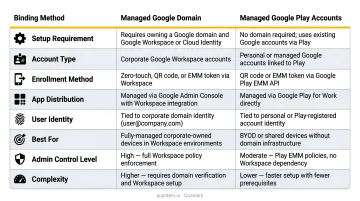
If you're on a managed Google Play Accounts enterprise, check whether upgrading to a managed Google domain before migrating makes sense - Google provides an upgrade path that preserves your Enterprise ID.
Device Enrollment Method
How devices were originally enrolled affects how much hands-on effort re-enrollment requires:
- Zero-touch enrolled devices: can be reconfigured via the zero-touch portal to point to the new EMM, then provision automatically on factory reset. For large fleets, this cuts manual effort substantially.
- QR code or manually provisioned devices: typically require a full factory reset and manual re-enrollment, which scales in effort with fleet size
App Management and Managed Google Play
Apps distributed through Managed Google Play under the old EMM are tied to that EMM's console and don't carry over automatically. Before re-enrolling any devices, set up the following in the new EMM:
- Approve all required public apps in the new Managed Google Play integration
- Re-create managed configurations (app-level settings) for each app
- Re-configure private app distribution and verify organization IDs
Devices that come online before apps are configured will be missing their work apps from the start, creating an immediate productivity gap.
Organizational Unit Structure
Complex OU hierarchies - different policies per department, region, or device type - must be replicated in the new EMM before devices are migrated into it. Devices enrolled before the OU structure is built default to root-level policies, which often means over-permissioning or under-restricting devices during the transition window.
Common Mistakes When Changing Your EMM Provider
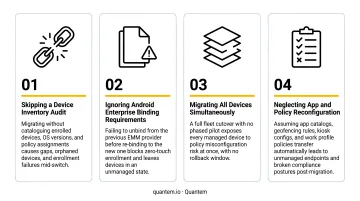
Most EMM migration failures trace back to the same handful of errors. Avoid these before you start:
Binding before unbinding. Connecting the new EMM while the old binding is still active creates a conflict state where neither provider has reliable control. Confirm the old binding is fully removed before proceeding.
Migrating the entire fleet at once. A pilot group of 5–10 devices surfaces compatibility and configuration problems while the impact is still contained. Skipping this step means discovering issues only after every device is disrupted.
Assuming policies transfer automatically. No EMM platform can import configurations from a competitor. Administrators who skip documentation end up reconstructing policies from memory - a slow, error-prone process.
Leaving zero-touch enrollment pointing to the old EMM. If devices in the zero-touch portal still reference the old provider, any factory reset will re-enroll them there. Update zero-touch configurations to point all affected IMEIs/serial numbers to the new EMM before any resets occur.
Troubleshooting Post-Migration Issues
Even well-planned migrations hit snags. Below are the four most common post-migration problems, their likely causes, and how to fix them.
Devices Still Showing as Enrolled in the Old EMM
This usually means unbinding wasn't completed before re-enrollment started, or the old EMM's agent app is still on the device.
- Confirm the Enterprise binding is fully removed via
Manage EMM Providersin the Admin console - Factory reset those devices and re-enroll them fresh
Work Apps Not Appearing After Re-Enrollment
Apps weren't approved or configured in the new EMM's Managed Google Play setup before enrollment ran.
- Log into the new EMM console and verify app approvals under Managed Google Play
- Confirm app assignment policies are applied to the correct device groups
Zero-Touch Devices Re-Enrolling into the Old EMM
The zero-touch enrollment portal still has the old EMM's DPC extras linked to those devices.
- Access the zero-touch enrollment portal and update the configuration to point to the new EMM
- Re-apply the updated configuration to all affected device IMEI/serial numbers
BYOD Work Profiles Not Activating After Migration
Employees' personal devices likely still have the old EMM's Device Policy app installed, which conflicts with the new enrollment attempt.
- Ask employees to remove the old work profile entirely and uninstall the old Device Policy app
- Have them follow the new enrollment invitation once the old profile is cleared
Conclusion
Switching EMM providers in Android Enterprise is entirely achievable, provided the sequence of unbinding, re-configuration, and re-enrollment is followed deliberately. The majority of migration failures come down to two things: starting the new binding before the old one is fully removed, and failing to pre-configure policies and apps before re-enrolling devices.
If your organization is evaluating a more cost-effective, easier-to-manage alternative, Quantem offers a 21-day full-access free trial with no credit card required. Enterprise plan customers get free migration support included, making it a low-risk way to evaluate before committing.
Frequently Asked Questions
Will devices be wiped when I change EMM providers?
In most cases, yes - devices need to be factory reset and re-enrolled, which removes local device data. Apps and data stored in your Google Account or cloud services can typically be restored after re-enrollment, but locally stored data will be lost.
Can I run two EMM providers at the same time during the transition?
No. Google does not support running Google Mobile Management and a third-party EMM across the same organizational units simultaneously. Your organization must complete the full switch before either system is considered active.
What is an EMM binding in Android Enterprise?
An EMM binding is the connection between your organization's managed Google Account (or Google domain) and a specific EMM provider. It determines which EMM console has control over your organization's enrolled Android devices.
Do I need to re-enroll all devices after switching EMM providers?
Yes. Devices enrolled under the previous EMM need to be unenrolled and re-enrolled under the new provider. Zero-touch enrollment can automate much of this process for company-owned device fleets, reducing manual work for larger fleets.
What happens to managed apps when I switch EMM providers?
Managed app approvals and configurations are tied to the EMM console, not to the Google account itself. Apps must be re-approved and re-configured in the new EMM's Managed Google Play integration before devices are re-enrolled.
How long does an EMM migration take?
It depends on fleet size and complexity. Small fleets under 50 devices can often complete migration in a few days. Larger enterprise fleets of hundreds or thousands of devices typically take several weeks using a phased rollout, which is the recommended approach for any fleet size.