What is Remote Desktop Protocol (RDP)? A Guide for IT Admins
An employee working from home cannot access their office computer. A critical application is running on a server in another location. Or an IT administrator needs to troubleshoot a machine without traveling to the site.
In each case, physically reaching the device is not always practical. Remote Desktop Protocol (RDP) makes it possible to connect to a remote Windows computer over a network and interact with it from another device.
For IT teams, this means they can access remote desktops, troubleshoot systems, manage servers, and support users without being physically present at the endpoint.
But how does RDP actually work? What can it do, where does it fall short, and when should organizations consider alternatives?
In this blog, we will break down what Remote Desktop Protocol (RDP) is, how it works, what it is used for, its key features and limitations, and the alternatives available for modern IT environments.
What is Remote Desktop Protocol (RDP)?
Remote Desktop Protocol (RDP) is a Microsoft-developed network protocol that allows a user to connect to and interact with another computer remotely. Through an RDP connection, the remote computer’s desktop appears on the user’s screen, allowing them to open applications, access files, and perform tasks as though they were physically using that machine.
RDP dates back to 1996, when Microsoft introduced it with Windows NT 4.0 Terminal Server Edition. It was originally designed to allow lightweight devices to access computing resources hosted on more powerful Windows servers, helping organizations centralize their infrastructure.
What is RDP Used For?
Remote Desktop Protocol (RDP) is primarily used for secure remote access and control of a computer or server from another location over a network. For IT teams, it provides a practical way to work with remote systems without needing to be physically present at the device.
Here are some of the common ways organizations use RDP:
1. Remote Access to Enterprise Systems
RDP allows employees and IT administrators to connect to desktops and workstations from different locations. This makes it easier to access business systems while keeping the actual computing environment in the organization's infrastructure.
2. IT Support and Troubleshooting
Support teams can use RDP to access a user's computer and investigate problems remotely. They can check configurations, run applications, and resolve many issues without waiting for an on-site visit.
3. Server and Infrastructure Management
Administrators can connect to remote servers to perform routine maintenance, configure settings, install updates, and manage applications. This is particularly useful when servers are hosted in data centers or cloud environments that IT teams cannot physically access.
4. Accessing Centrally Hosted Applications
Organizations can host applications on a central Windows system and provide users with access through remote sessions. This can simplify software deployment and give users a consistent application environment without installing every application locally.
5. Supporting Remote Work
RDP allows employees to connect to their work computers from home or other remote locations and continue working within their familiar desktop environment. This gives organizations a practical way to support remote employees while keeping applications and business resources within the managed environment.
How Does Remote Desktop Protocol (RDP) Work?
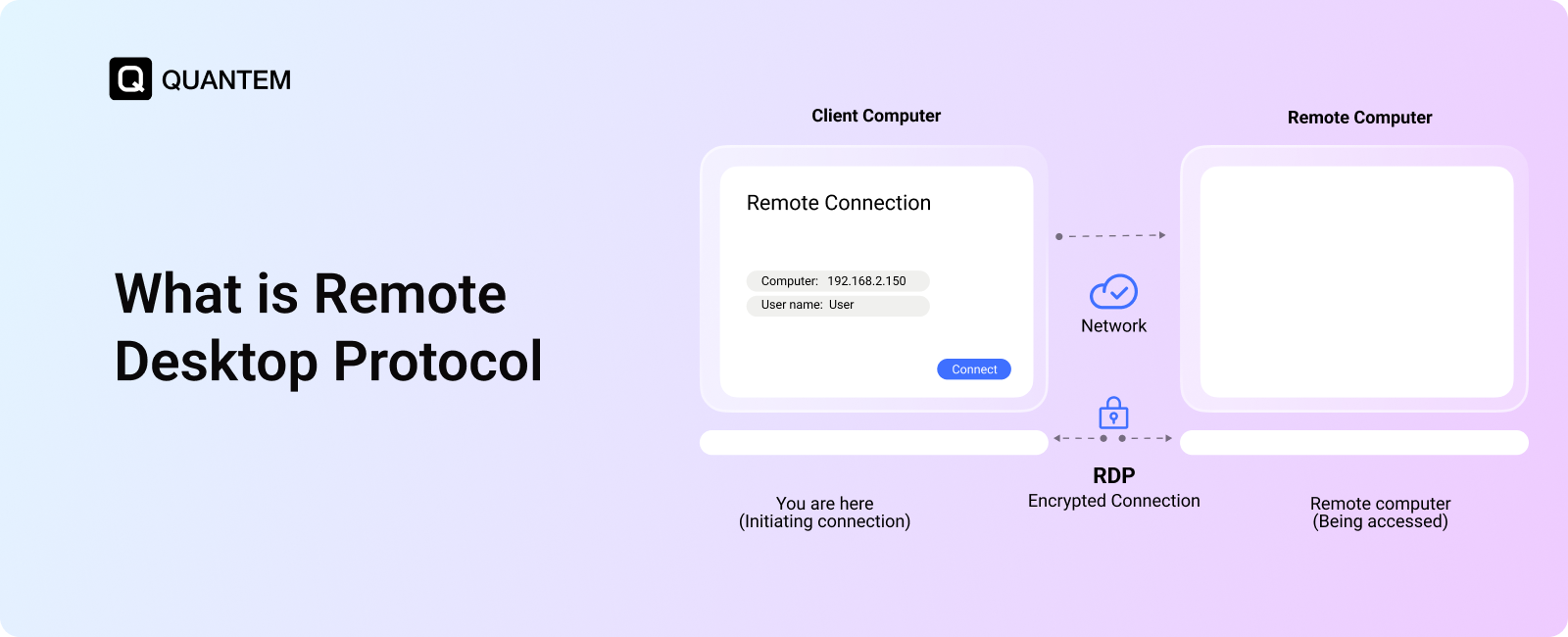
Remote Desktop Protocol (RDP) creates a connection between an RDP client and an RDP server, allowing a user to interact with a remote computer from another device. Once the connection is established, RDP transmits the remote computer's desktop to the client while sending the user's keyboard and mouse inputs back to the remote system.
Here’s how an RDP connection typically works:
Step 1. User Initiates the Connection
The process starts when a user opens an RDP client and enters the hostname or IP address of the remote computer. The client sends a connection request to the RDP server over the network.
Step 2. User Authentication
The remote system verifies the user's credentials before allowing access. Depending on the organization's security configuration, additional controls such as Network Level Authentication (NLA) or multi-factor authentication may also be required.
Step 3. Remote Session Is Established
After successful authentication, the RDP server creates a remote desktop session for the user. The session provides access to the applications, files, and system resources permitted by the user's assigned privileges.
Step 4. Data Transmission
During the session, RDP continuously exchanges information between the client and the remote computer. The remote system sends screen and display updates to the client, while keyboard, mouse, and other supported input from the client are transmitted back to the remote system.
Step 5. Session Management
Once the session is active, users can work with the remote computer based on their permissions. Administrators can manage active sessions by monitoring, disconnecting, or terminating them when necessary.
In simple terms, RDP works by creating a remote desktop session where the remote computer handles the processing, while the user's device displays the session and sends their inputs back to the remote system.
Key Features of RDP
Remote Desktop Protocol (RDP) includes several capabilities that make remote access practical for IT administration, user support, and distributed computing environments. Its features are designed to provide users with a responsive remote desktop experience while allowing administrators to control how remote sessions are accessed and managed.
- Remote Desktop Access: RDP lets users access a remote computer's desktop from another device over a network. Once connected, they can work with the remote system's applications, files, and settings based on their permissions.
- Secure Connection: RDP supports encrypted communication between the client and remote computer to help protect information exchanged during a session. Organizations can also apply additional security controls around RDP access to reduce exposure to unauthorized users.
- Multi-Session Support: RDP can support multiple users connecting to a server through separate remote sessions, depending on the Windows edition and licensing configuration. This makes it useful in environments where several users need access to centralized computing resources.
- Clipboard and Resource Sharing: RDP can allow users to share resources between their local device and the remote system, such as clipboard content and, when enabled by administrators, local drives or printers. These capabilities make it easier to move information and work with resources while using a remote desktop.
- Remote Audio and Device Support: RDP can redirect certain local resources and peripherals to the remote session, including audio and supported devices. This helps create a more seamless experience when users need to interact with applications running on the remote computer.
- Session Management: Administrators can manage active RDP sessions according to the organization's requirements. They can monitor connected sessions and disconnect or terminate sessions when necessary, helping maintain control over remote access.
Limitations of Remote Desktop Protocol: Why RDP Falls Short for Modern Enterprises?
RDP remains useful for accessing Windows computers remotely, but remote access is not the same as complete endpoint management. As organizations add more operating systems, devices, locations, and users, relying on RDP alone can create practical and security challenges.
1. Windows-Centric Approach
RDP is closely tied to the Windows ecosystem, which can become restrictive for organizations managing mixed-device environments. Businesses with Android, iOS, macOS, Linux, and other endpoints may need separate tools to manage devices that fall outside RDP's scope.
2. RDP Security Risks
RDP can become an attractive target for attackers when it is poorly configured or exposed directly to external networks. Stolen credentials, brute-force attempts, and ransomware attacks can turn an improperly secured RDP endpoint into a serious security risk.
3. Dependence on Network Quality
The quality of an RDP session is heavily influenced by the network connection between the client and remote system. High latency, limited bandwidth, or an unstable connection can cause noticeable delays and make remote work frustrating.
4. Platform and Hardware Restrictions
RDP hosting is not available across every Windows edition, and older hardware or operating systems may not provide a reliable environment for modern remote access. This can make supporting legacy systems particularly challenging.
5. Licensing and Session Limitations
Windows licensing and edition-specific restrictions can limit how many users can connect to a system simultaneously. Organizations that need to support larger numbers of concurrent users may therefore require additional infrastructure or alternative technologies.
What Are the Alternatives to Remote Desktop Protocol (RDP)?
RDP works well for accessing Windows computers remotely, but modern enterprises often need broader capabilities. Depending on their requirements, organizations may consider alternatives that offer easier cross-platform access, endpoint management, or virtual desktop environments.
1. Remote Access Tools
Tools such as TeamViewer, AnyDesk, Splashtop, and RustDesk provide remote access without relying solely on native RDP. They are commonly used by IT teams for remote troubleshooting, technical support, file transfers, and unattended device access across different operating systems.
2. Unified Endpoint Management (UEM) Platforms
UEM platforms go beyond remote desktop access by allowing IT teams to manage devices, applications, configurations, security policies, and compliance from one console. They are particularly useful for enterprises managing a mix of Android, iOS, Windows, macOS, rugged devices, and other endpoints.
3. Virtual Desktop Infrastructure (VDI) and Desktop as a Service (DaaS)
VDI and DaaS provide users with virtual desktops hosted on centralized infrastructure or cloud platforms rather than connecting directly to physical office computers. This gives IT teams greater control over desktop environments while allowing users to access their workspaces remotely.
4. Clientless HTML5 Remote Gateways
HTML5 remote gateways allow users to access remote desktops and servers directly through a web browser without installing a dedicated client. They can simplify remote access across different devices while providing browser-based connectivity to systems such as RDP, VNC, or SSH.
Quantem UEM: A More Complete Alternative to RDP
RDP is useful when IT teams need to connect to a Windows computer, but modern organizations often manage far more than Windows desktops. Smartphones, tablets, kiosks, rugged devices, and endpoints running different operating systems all require visibility, control, and remote support.
Quantem UEM brings these capabilities together through a single platform, allowing IT teams to manage and remotely support a wider range of enterprise endpoints.
Here’s how Quantem UEM goes beyond traditional RDP:
- Remote Cast and Control: IT teams can view and control supported Android devices remotely, while iOS devices support screen viewing. This makes diagnosing device issues easier without requiring physical access.
- Remote Troubleshooting: Administrators can investigate device problems and take corrective action remotely, helping reduce support time and minimize downtime.
- Multi-OS Remote Management: Manage Android, iOS, Windows, and other supported endpoints from one centralized console instead of relying on separate tools for different platforms.
- Remote OS and Application Updates: IT teams can remotely deploy operating system and application updates across managed devices, reducing the need for manual intervention.
- Remote Lock and Wipe: Lost or compromised devices can be remotely locked or remotely wiped to help prevent unauthorized access to business data.
By combining remote support with broader endpoint management, Quantem UEM helps organizations reduce tool sprawl and maintain better visibility across their device fleet.
Simplify Remote Device Management with Quantem
1. What does RDP stand for?
RDP stands for Remote Desktop Protocol. Developed by Microsoft, it enables users to connect to a remote Windows computer and interact with its desktop, applications, and resources over a network.
2. Is Remote Desktop Connection the same as RDP?
No. RDP is the underlying protocol that defines how the remote session communicates, while Remote Desktop Connection is a client application used to establish that session. In other words, the application uses RDP to connect you to the remote computer.
3. Is RDP the same as cloud computing?
No. RDP provides remote access to a particular computer or server, while cloud computing delivers computing resources through cloud infrastructure. An RDP session can connect to a physical or virtual machine, whereas cloud services abstract much of the underlying hardware from the user.
4. What is the difference between RDP and VPN?
A VPN provides secure access to a private network, while RDP provides remote access to a specific computer or server. They can also be used together, with a VPN securing network access and RDP providing the remote desktop session.
5. How does an RDP connection work?
An RDP client first connects to the remote computer and the systems establish a secure session after authentication. The remote computer then sends its desktop output to the client, while user inputs such as keyboard and mouse actions are sent back to the remote system. RDP uses a dedicated transport protocol to facilitate this exchange between the client and server.
6. What port does RDP use?
RDP protocol conventionally uses TCP port 3389 for remote desktop connections. Organizations can use firewalls, VPNs, and other network security controls to restrict access to the RDP service.
7. How do you set up an RDP connection?
Enable Remote Desktop on the Windows computer you want to access and make sure the necessary network access is available. Then use an RDP client on the connecting device, enter the remote computer's hostname or IP address, and sign in with an authorized account. For remote connections over the internet, additional security measures should be implemented before exposing the service.
8. Is RDP safe to use over the internet?
RDP includes security mechanisms for protecting remote sessions, but an internet-exposed RDP service can still present significant security risks. Organizations should follow RDP security best practices, including NLA, MFA, firewall restrictions, VPNs, strong authentication, and continuous monitoring.
9. What are the benefits of using RDP?
RDP allows users and IT administrators to work with remote Windows computers without being physically present. It can support remote work, technical troubleshooting, server administration, and access to centrally hosted applications while keeping the computing workload on the remote machine.
10. What devices does Quantem MDM Remote Cast & Control support?
Quantem MDM supports remote capabilities across Android, iOS, Windows, macOS, and Linux devices, with functionality varying by operating system. Android devices, including rugged endpoints, support remote cast and control, while iOS primarily supports remote screen viewing, offering an alternative to traditional remote desktop services.



Get the latest blogs directly delivered to your mail fly arrow