Introduction
A lost laptop gets noticed immediately. A lost phone? Often it takes hours—sometimes days—before anyone realizes corporate email, documents, and credentials are sitting in a stranger's pocket.
According to Lookout/Forrester BYOD research, 60% of IT admins have experienced smartphone theft or loss, with affected organizations losing an average of 20 smartphones and 16 tablets annually. Each incident carries real financial exposure—the Ponemon Institute put the cost per lost or stolen device at $4,810.
Remote wipe is the primary control IT teams use to neutralize that risk. The concept is simple: trigger a command from a server, erase the data, move on. The execution is more complicated.
Outcomes depend on getting several variables right:
- Wipe type selected (full device vs. selective/work profile)
- Mail client installed on the device
- Exchange ActiveSync protocol version in use
- Whether the device is enrolled in an MDM platform
- The sequence in which you take each action
Get any of those wrong and the wipe fails silently—or erases personal data it was never supposed to touch.
This guide covers all of it: when to wipe, what you need beforehand, step-by-step execution, and the mistakes that kill otherwise well-planned wipes.
TL;DR
- Remote wipe is an IT-triggered command that erases corporate data—or the entire device—without physical access
- Full device wipe (factory reset) applies to corporate-owned hardware; account-only wipe removes work data from BYOD devices without touching personal content
- The wipe command only executes when the device next connects to the server—no connectivity, no wipe
- Account-only wipes require Exchange ActiveSync (EAS) v16.1 or later; older clients will fail the command
- Three variables determine success or failure: admin permissions, device enrollment status, and wipe type selection
How to Perform a Remote Wipe on Mobile Devices
Once you've confirmed a wipe is necessary, execution follows one of four paths: Exchange Admin Center (EAC), Exchange Online PowerShell, native OS tools, or an MDM platform. The right method depends on how the device is managed and what outcome you need. MDM platforms like Quantem consolidate all four paths into a single dashboard, eliminating the need to jump between Exchange and individual device tools.
Step 1: Identify the Device and Determine the Wipe Type
Find the device in your management system:
- EAC path: Recipients > Mailboxes > select the user > Manage Mobile Devices
- MDM path: Device inventory dashboard, filter by user or device ID
Confirm the device ID, assigned user, and last sync timestamp before proceeding.
Choose the correct wipe type:
| Scenario | Wipe Type |
|---|---|
| Corporate-owned device, lost or being decommissioned | Full device wipe (factory reset) |
| BYOD device, employee departure | Account-only wipe |
| Corporate-owned, employee departure | Full device wipe (with HR/legal sign-off) |
| Device compromised by malware | Full device wipe |
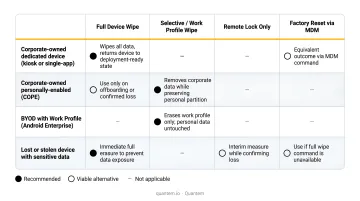
Check EAS protocol compatibility if an account-only wipe is planned. Run Get-MobileDevice and inspect the ClientVersion field. Account-only wipe requires EAS v16.1 or later. If the device is running an older version, the command fails with an error, not a fallback.
Step 2: Verify Permissions and Connectivity
Before touching anything:
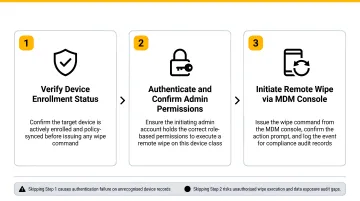
- Confirm you hold the Exchange Administrator role or the equivalent MDM admin role
- Check the device's last sync timestamp—a device offline for an extended period will queue the command but won't execute until it reconnects
- Do not change the user's password or disable ActiveSync access yet—doing so before the wipe completes breaks the device's ability to authenticate and receive the command
Step 3: Issue the Remote Wipe Command
Via Exchange Admin Center:
- Navigate to Recipients > Mailboxes
- Select the user > Manage Mobile Devices
- Select the target device
- Choose Wipe Data (full wipe) or Account Only Remote Wipe Device
- Save and confirm
Via Exchange Online PowerShell:
For a full wipe with email confirmation:
Clear-MobileDevice -Identity <DeviceID> -NotificationEmailAddresses "admin@company.com"
For an account-only wipe:
Clear-MobileDevice -Identity <DeviceID> -AccountOnly -NotificationEmailAddresses "admin@company.com"
For bulk offboarding, loop through a CSV of device IDs using a foreach script block with the same cmdlet.
Via Outlook on the Web (user self-service): Settings > General > Mobile Devices—users can trigger a wipe themselves for lost personal devices without IT involvement.
Step 4: Verify Completion and Document the Action
- Monitor device status in EAC or your MDM dashboard; it should transition from Wipe Pending to Wipe Successful
- If you used
-NotificationEmailAddresses, wait for the confirmation email before taking any further account actions - Log the wipe event with: date, time, device ID, initiating admin, wipe type, and reason
Under GDPR Article 32 and CCPA, organizations must demonstrate that appropriate technical measures were taken. A wipe log serves as direct evidence of those controls in action.
When Should You Use a Remote Wipe?
Remote wipe is not a routine action. Reserve it for situations where corporate data is genuinely at risk and physical recovery is off the table.
Use remote wipe when:
- A device is confirmed lost or stolen with no realistic chance of recovery
- An employee is terminated or resigns and held corporate data on a company-managed or BYOD device
- A device shows signs of compromise—malware, unauthorized access, or unexplained behavior
- A device is being decommissioned or reassigned and needs to be cleared
Do not use remote wipe when:
- The device can still be physically retrieved and secured
- The user only accessed corporate data through a browser (no wipe mechanism exists for browser-only access)
- Revoking app access or an MDM policy change would achieve the same security outcome with far less disruption
The policy-change alternative is more common than most teams realize. Before issuing a wipe command, ask whether removing the user's account or unenrolling the device profile cuts off corporate data access—without permanently destroying the device's contents.
What You Need Before Performing a Remote Wipe
Skipping this phase is the most common reason wipes fail or produce unintended results. Before issuing any wipe command, confirm you have the right permissions, a management channel to the device, and a clear understanding of what the command will actually do.
Admin Permissions and Role Assignment
You need the Exchange Administrator role or the equivalent in your MDM platform (Device Manager or Global Admin in Intune; the appropriate admin role in Quantem). Without it, the wipe command is rejected at the system level before it ever reaches the device.
Device Enrollment or ActiveSync Connectivity
The device must be either enrolled in an MDM platform or connected to Exchange via ActiveSync. Devices that access corporate email exclusively through a browser cannot receive a remote wipe command—there is no management channel to carry it.
This matters at scale. The same Lookout/Forrester research found that 90% of companies permitted BYOD, but only 50% required security enrollment. That gap means half of all personal devices accessing corporate data may be unreachable by a remote wipe command at the moment you need it most.
Protocol and Client Compatibility
This is the compatibility detail most teams miss:
- Account-only wipe via Exchange requires EAS v16.1 or later (iOS 10+; supported Android native mail clients)
- Outlook for iOS and Android supports only Wipe Data, which removes Outlook app data (email, calendar, contacts)—it does not support Account Only Remote Wipe Device
- **Native iOS and Android mail clients** receiving a Wipe Data command trigger a full factory reset, not a selective wipe
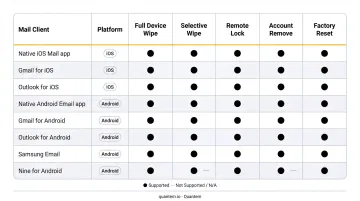
Always confirm the mail client before selecting the wipe type—the same label can mean Outlook data removal, account removal, work profile deletion, or full factory reset depending on how the device is managed.
Wipe Authorization and Communication Plan
For BYOD devices especially, establish internal authorization before issuing the command. Confirm HR, legal, or a manager has approved the action. NIST SP 1800-22 specifically identifies the risk of personal data loss during a device wipe as a documented privacy concern—account-only wipe or work-profile deletion is the appropriate response where supported.
Key Factors That Affect Remote Wipe Success
Device Connectivity and Sync Status
The wipe command queues server-side and executes on the device's next connection to Exchange or the MDM infrastructure. A powered-off device, one in airplane mode, or one that has had its data connection cut will not receive the command until it reconnects.
The critical implication: if the device never reconnects—because the user already factory-reset it or swapped SIMs—the wipe remains "Pending" indefinitely. Issue the command immediately when an incident is discovered. Every hour of delay reduces the probability of successful execution.
Wipe Type vs. Mail Client Compatibility
A "Wipe Data" command behaves very differently depending on the client receiving it:
- Outlook for iOS/Android + Wipe Data → only Outlook app data is removed
- Native iOS/Android mail (EAS) + Wipe Data → full factory reset, personal photos and files included
- Native iOS/Android mail (EAS) + Account Only Wipe → Exchange account data only (requires EAS v16.1)
Sending a full device wipe to a BYOD device running a native mail client without the user's explicit consent creates legal liability. Always verify device ownership and mail client before selecting the wipe type.
Pre-Wipe Account Changes
Once you've confirmed the right wipe type, execution order matters just as much. Changing the user's password or disabling ActiveSync before the wipe completes prevents the device from authenticating to receive the command. The device gets locked out, the wipe command never arrives, and corporate data stays on the device indefinitely.
The correct sequence:
- Issue the wipe command
- Confirm "Wipe Successful" status
- Then disable account access and reset credentials
Common Mistakes and How to Fix Them
Remote wipe failures almost always come from the same handful of errors. Here's what to watch for — and how to correct course.
Mistake #1: Revoking account access before the wipe completes Fix: Issue the wipe command first. Wait for "Wipe Successful." Then make account access changes.
Mistake #2: Running a full wipe on a BYOD device without checking ownership Fix: Confirm device ownership in your MDM inventory and identify whether the device uses Outlook or a native mail client. Default to account-only wipe for BYOD unless legal and HR have explicitly approved a full wipe.
Mistake #3: Removing the device record while a wipe is still pending Fix: The device record must stay active to receive the queued command. Deleting it removes the queue entry and cancels the wipe entirely.
If the wipe isn't completing, these two scenarios cover most cases:
Problem: Status stuck on "Wipe Pending" for 24–48+ hours Likely cause: device is offline, has been user-reset, or had account access revoked before receiving the command. What to check: Review the last sync timestamp. If the device is confirmed unrecoverable, disable the account and revoke all active sessions through your identity provider.
Problem: Account-only wipe returns an EAS version error
Likely cause: device is running EAS v16.0 or earlier.
What to check: Run Get-MobileDevice and inspect the ClientVersion field. If the version is incompatible, coordinate with the device owner on a full wipe (with authorization) or an alternative containment method.
Frequently Asked Questions
What does account only remote wipe device mean?
Account-only remote wipe removes only the Exchange mailbox data—emails, contacts, and calendar entries—tied to the work account, without touching personal content like photos, apps, or messages. It's designed for BYOD scenarios where the organization has no right to erase personal data.
Can my company remote wipe my phone?
Yes, if your work email is configured via Exchange ActiveSync or your device is enrolled in a company MDM platform, the IT admin can issue a remote wipe. Whether that wipe is full-device or account-only depends on how the account was set up and which mail client you're using.
Does remote wipe work if the phone is turned off?
The command queues on the server and executes the next time the device connects to Exchange or the MDM infrastructure. A powered-off or airplane-mode device will receive and run the command once it reconnects and authenticates.
Will I lose personal photos if my company wipes my work phone?
It depends on the wipe type. An account-only wipe preserves all personal data. A full device wipe erases everything, including photos, apps, and messages. On BYOD devices, the mail client in use also matters—Outlook for iOS/Android limits the wipe to Outlook data by default, while native mail apps may trigger a full factory reset.
How do I know if a remote wipe was successful?
Monitor the device status in Exchange Admin Center or your MDM dashboard. It transitions from "Wipe Pending" to "Wipe Successful" once the device executes the command. You can also configure automatic email confirmation so the status change is logged without manual checking.
Can a remote wipe be undone?
No. Once executed on the device, a remote wipe cannot be reversed. A full device wipe permanently deletes all data and returns the device to factory settings. Always confirm the correct device and wipe type before issuing the command.