For organizations in healthcare, logistics, retail, and field services - where rugged Android handhelds and shared kiosks outnumber Windows laptops - that overhead rarely makes sense.
This guide walks through a practical migration from Microsoft Intune to Quantem MDM: from auditing your current setup to verifying devices are fully managed after the switch. No scripting required.
Key Takeaways
- Export and document all active Intune policies before unenrolling devices; policies must be recreated manually in Quantem
- Android BYOD/Work Profile devices migrate with no data loss; fully managed and dedicated devices require a retire or wipe
- Quantem's toggle-based controls eliminate scripting overhead common in Intune environments
- Validate enrollment and policy application on a pilot group before fleet-wide rollout
- Enterprise plan customers can access free migration support via support@quantem.io
Why Organizations Are Moving Away from Microsoft Intune
The Cost Reality
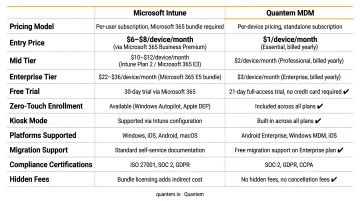
Intune's standalone plan costs $8.00 per user per month, billed annually. That's a per-user cost - meaning a 500-device fleet where users share devices still requires a license for every assigned user.
The costs compound quickly when you need advanced capabilities:
- Intune Suite add-on: $10.00/user/month (required for Advanced Analytics and Enterprise App Management)
- Microsoft Entra ID P1: $6.00/user/month (required for Conditional Access, the closest Intune equivalent to geofencing)
- Microsoft Entra ID P2: $9.00/user/month
An organization needing advanced analytics and location-based policies could easily spend $24+ per user per month across these licenses. Quantem's pricing runs $1–$3 per device per month depending on tier - with no add-on requirements for mid-tier features like geofencing (available from the Professional plan upward) and kiosk mode (included on all plans).
The Complexity Burden
Intune requires admins to work across at least three separate platforms:
- Entra ID for group management
- PowerShell for policy automation
- Microsoft Graph API for advanced configuration tasks
Microsoft's own migration documentation acknowledges that tenant setup involves planning across enrollment restrictions, compliance policies, Conditional Access, and staged assignments. Teams without dedicated Microsoft specialists hit this wall quickly.
Quantem's configuration model is toggle-based. Policies are applied through the admin console without scripting, making it workable for IT generalists managing mixed Android-Windows fleets.
Android Management as a Secondary Priority
The complexity burden is compounded for teams running Android-first fleets. IDC's 2024 UEM vendor assessment identifies Windows management as Intune's core strength, noting that specialized frontline and ruggedized device use cases can involve competition from more customizable tools. Android kiosk configurations, dedicated device enrollment, and Managed Google Play integration all require additional setup work that isn't present in Windows-first management.
For organizations whose primary device fleet is Android - rugged handhelds, shared kiosks, field tablets - this architecture mismatch creates real friction.
What to Do Before You Start: The Pre-Migration Checklist
Skipping preparation is what turns a smooth migration into a week of helpdesk fires. Complete these five steps before touching any devices.
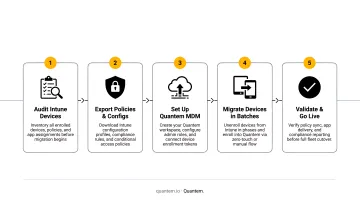
Step 1 - Export a Complete Device Inventory
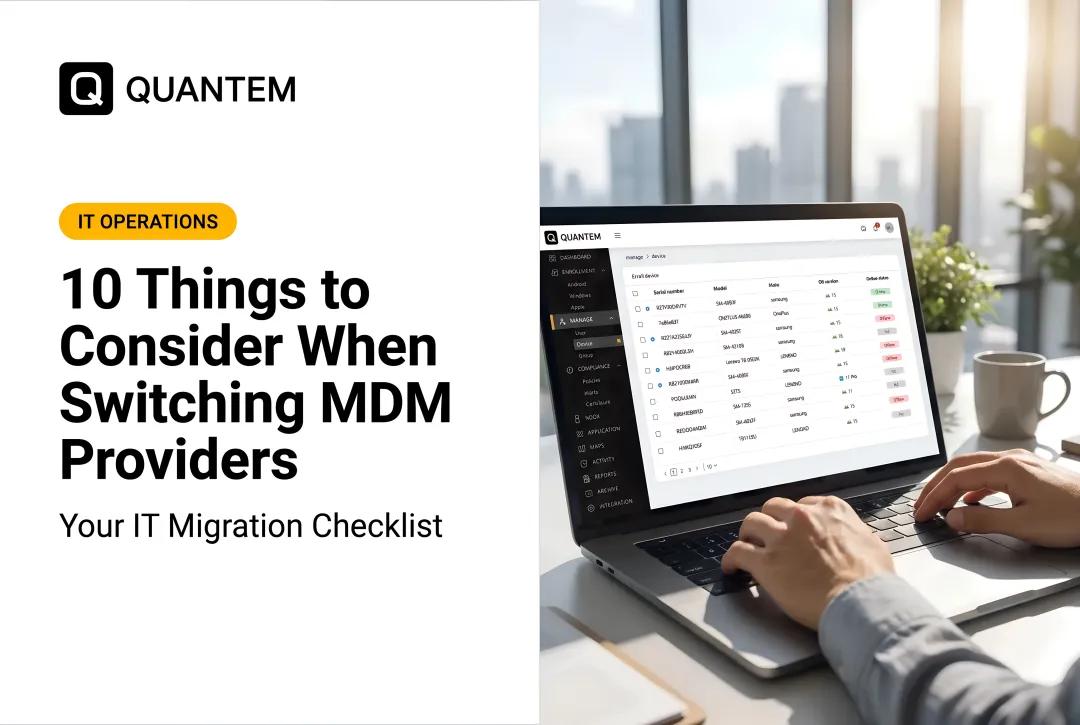
From the Intune admin center, export all enrolled devices. Capture:
- Device model and OS version
- Enrollment type (corporate-owned vs. BYOD)
- Assigned user
- Current compliance status
This list becomes the migration scope document and your verification checklist post-migration.
Step 2 - Document All Active Policies
Every configuration profile, compliance policy, app deployment, Wi-Fi/VPN profile, and kiosk configuration in Intune must be documented manually. These cannot be imported into Quantem and must be recreated from scratch. Teams that skip this step typically discover the gap mid-migration, when it's hardest to recover.
Step 3 - Set Up Quantem MDM in Parallel
Before unenrolling anything:
- Create your Quantem tenant
- Connect Managed Google Play for Android Enterprise
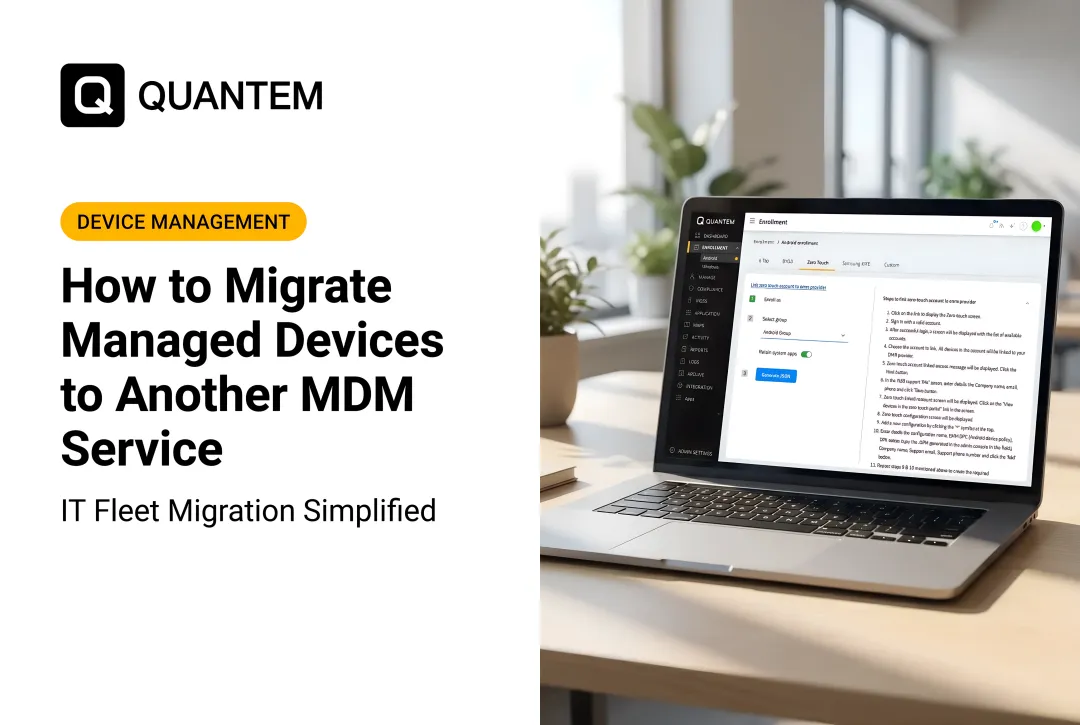
- Configure zero-touch enrollment for corporate Android devices
- Set up Windows enrollment settings
Running both platforms temporarily lets you test enrollment and policy application before committing.
Step 4 - Define a Pilot Group
Select 5–10 devices that represent your fleet's diversity - fully managed Android, Work Profile BYOD, and Windows if applicable. Migrate this group first. Validate enrollment, policy push, app deployment, and (where applicable) kiosk configuration before expanding.
Track helpdesk ticket volume and enrollment failures closely during the pilot - those two signals tell you whether the broader rollout is ready.
Step 5 - Communicate With End Users
Employees who receive no warning about an MDM change may factory reset their devices or call the helpdesk in a panic. A simple pre-migration email and a one-page instruction sheet dramatically reduces support volume. Microsoft's own migration guidance identifies clear user communication as a key factor in minimizing downtime and helpdesk calls during transitions.
Step-by-Step: Migrating Devices from Intune to Quantem MDM
The fundamental rule: a device can only have one active MDM authority at a time. Every device must be unenrolled from Intune before it can be enrolled in Quantem.
Unenrolling Android Devices from Intune
Corporate-owned fully managed devices (Device Owner / Android Enterprise):
You have two options from the Intune admin center:
- Retire: Removes MDM profiles, managed apps, and company data while leaving user data intact. Use this when the device will remain in service and data preservation matters.
- Wipe: Factory resets the device and removes everything. Use this for dedicated/shared devices where no personal data exists, or where a clean slate is operationally preferable.
BYOD Work Profile devices:
Issue a Retire action from the Intune admin center. This removes only the work container - personal apps, photos, and data are completely untouched. After removal, users enroll in Quantem's Work Profile mode via the enrollment link or app, creating a new secure work container with the same separation model.
Unenrolling Windows Devices from Intune
Windows unenrollment can be triggered two ways:
- Admin-initiated: Retire the device from the Intune admin center
- Device-side: Settings > Accounts > Access work or school > select the connected account > Disconnect
⚠ Watch out for "tattooed" settings: Some Intune CSP and registry configurations persist on Windows devices after unenrollment. Microsoft confirms this behavior varies by CSP. Test pilot devices carefully and verify no residual configurations remain before treating migration as complete.
Enrolling Devices into Quantem MDM
With unenrollment complete, devices are ready for Quantem enrollment. Steps vary by platform and ownership model.
Android corporate devices:
- Use zero-touch provisioning via the Android zero-touch portal - factory-reset or new devices auto-enroll without user interaction on first boot
- For devices mid-migration that aren't going through a factory reset, use the Quantem enrollment link or QR code
Android BYOD:
- Send users the Quantem enrollment invite
- Users install the Quantem agent and enroll under Work Profile mode
- Personal apps and data remain fully separated from the managed work profile
Windows: Deploy the Quantem Windows enrollment package after Intune unenrollment. Policies, app assignments, and compliance rules configured in Quantem apply once enrollment is confirmed.
Handling Android and Windows Device Migration Scenarios
The Three Android Migration Paths
| Android Mode | Intune Exit Method | Quantem Entry Method |
|---|---|---|
| Fully Managed (Device Owner) | Retire or Wipe from admin center | Zero-touch re-enrollment on first boot |
| Work Profile (BYOD) | Retire (work container removed only) | Re-enroll via Quantem Work Profile invite |
| Dedicated/Kiosk | Wipe (factory reset required) | Zero-touch provisioning into Quantem kiosk mode |
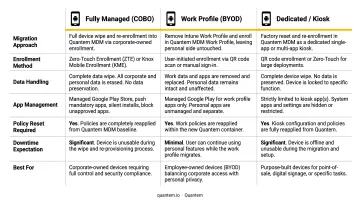
Kiosk mode is available on all Quantem plans - Essential through Enterprise - so dedicated device deployments don't require upgrading tiers to access this functionality.
Windows Migration Considerations
Quantem's Windows management uses a lightweight agent model, which reduces the Entra ID integration dependencies present in Intune. Co-existence conflicts during the transition window are uncommon, especially compared to Windows-to-Windows MDM migrations.
That said, the tattooing issue noted above is real. Some Intune CSP settings linger after unenrollment regardless of which MDM you're moving to. Before fleet-wide rollout, address this with a targeted pre-migration checklist:
- Catalog all custom registry and CSP configurations applied via Intune
- Verify each setting is cleared on pilot devices after unenrollment
- Confirm no lingering policies conflict with Quantem's applied profiles
iOS and macOS Note
Quantem supports Android, Windows, and iOS device management. If your fleet includes Macs, plan for a separate macOS solution before migration - Quantem's current platform does not extend to macOS endpoints. Mixed-OS environments with iPhones and iPads are fully covered.
Post-Migration: Verifying Your Quantem MDM Setup
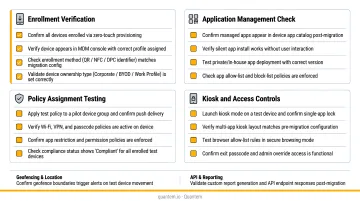
A successful cutover means nothing if devices aren't enrolled and policies aren't active. Run through these checks in the Quantem admin console before closing out the migration:
Enrollment verification:
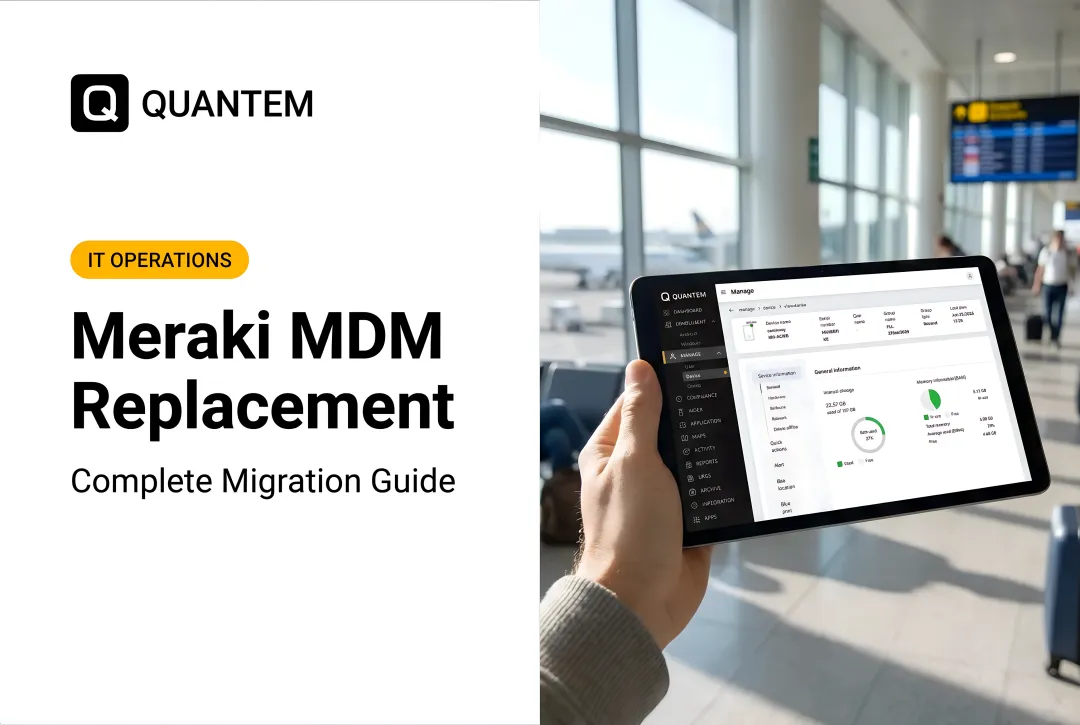
- All migrated devices appear as enrolled
- Correct device details (OS version, device name, assigned user) are displayed
- Devices have received their assigned policy groups
Policy application testing:
- Wi-Fi profiles are pushing and connecting correctly
- App deployments are completing, including private apps with version control
- Kiosk configurations are active on dedicated devices
- Geofencing alerts are triggering as expected (Professional and Enterprise plans)
Enterprise plan customers get free migration support included. Reach out to support@quantem.io for hands-on help validating your setup, troubleshooting enrollment gaps, or closing any compliance gaps.
Common Migration Mistakes to Avoid
Unenrolling before rebuilding policies - devices in the gap between MDM systems are left without enforcement, app management, or compliance controls. In healthcare or financial environments, that's a real security gap. NIST SP 800-124 Rev. 2 is explicit that unmanaged mobile devices face evolving threats requiring centralized configuration and lifecycle controls.
Migrating the entire fleet at once - a configuration error that affects 10 pilot devices is fixable. The same error across 2,000 devices simultaneously is an incident. Always validate the pilot cohort first.
Skipping user communication - Employees who don't know what's happening will call the helpdesk, refuse re-enrollment, or factory reset their own device. A brief email and a simple one-page guide prevent most of this.
Frequently Asked Questions
Can I migrate from Microsoft Intune to Quantem MDM without wiping devices?
Android BYOD/Work Profile devices can migrate without a wipe - the Intune work profile is removed, and the user re-enrolls in Quantem's Work Profile mode with no personal data loss. Fully managed Android and Intune-enrolled Windows devices may require a Retire or factory reset depending on enrollment type.
Will my existing Intune policies transfer automatically to Quantem MDM?
No. Intune policies cannot be imported directly into Quantem - every configuration profile, compliance policy, and app assignment must be manually recreated in the Quantem admin console. Skipping the policy documentation step before unenrollment means those configurations are gone with no recovery path.
How long does a migration from Microsoft Intune to Quantem MDM typically take?
Timeline depends on fleet size, device variety, and how complete your pre-migration setup is before you start. A 10-device pilot can typically be validated in a single day. Full fleet migrations for hundreds of devices are generally planned across 2–4 weeks to allow for staged rollout and issue resolution.
Does Quantem MDM support Android zero-touch enrollment?
Quantem supports zero-touch provisioning for corporate Android devices - factory-reset or new devices auto-enroll without user interaction via the Android zero-touch portal. Android 9.0+ is broadly supported, with some devices supporting zero-touch from Android 8.0 onward.
What happens to BYOD employee data during migration from Intune to Quantem?
When the Intune Retire action is issued on a Work Profile BYOD device, only the work container is removed - personal apps, photos, messages, and data remain untouched. Quantem's Work Profile re-enrollment then creates a new managed container using the same data separation model.
Does Quantem MDM support Windows device management?
Yes. Quantem supports both Android and Windows device management, making it a practical fit for mixed-fleet organizations in healthcare, retail, logistics, and field service.