Key Takeaways
- Managed Google Play is a required component of every Android Enterprise solution, not an optional add-on
- IT admins control exactly which apps employees can see and install, eliminating shadow IT risk
- Three app types are deployable: public Play Store apps, private LOB apps, and web apps
- Private apps publish in under 10 minutes - no Google developer account needed
- The right MDM console determines how efficiently your team manages the entire app lifecycle
What Is Managed Google Play?
Managed Google Play is Google's enterprise-grade version of the Play Store, designed specifically for organizations deploying Android at work. On managed devices, it replaces the standard consumer Play Store with a curated, IT-controlled storefront where employees can only see and install apps their organization has approved.
Google's developer documentation is explicit: every Android Enterprise solution is a combination of three components - your EMM console, Android Device Policy, and Managed Google Play. It's the app distribution layer every Android Enterprise deployment depends on.
Two Enterprise Binding Types
Since 2024, Google's registration process creates one of two enterprise types:
| Attribute | Managed Google Domain (Recommended) | Managed Google Play Accounts (Legacy) |
|---|---|---|
| Account type | Managed Google Accounts | Managed Google Play Accounts |
| Admin console access | Full Google Admin console | Limited; tied to Gmail address |
| Status | Default for all new sign-ups | Legacy; Google recommends upgrading |
If your organization is still on a legacy Gmail-associated enterprise, the upgrade path is available. The managed Google domain unlocks full Google Admin console access, including Workspace, Cloud Identity, and Gemini management.
The Managed Google Play Iframe
For IT admins, the Managed Google Play iframe embeds directly inside your EMM/MDM console. Admins can search apps, approve public titles, publish private apps, and organize collections - all without switching platforms. The iframe surfaces four dedicated pages:
- Search apps - browse and approve public Play Store titles
- Private apps - publish and manage internally built apps
- Web apps - package web URLs as installable app shortcuts
- Organize apps - arrange approved apps into curated collections
Android Enterprise Deployment Modes and Where Managed Google Play Fits
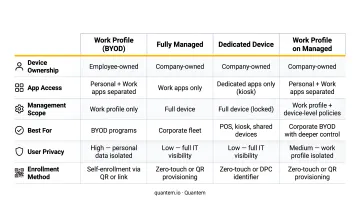
Managed Google Play serves as the app distribution channel across all four Android Enterprise deployment modes - what differs between them is how much control users retain over their devices.
| Mode | Device Ownership | User App Access |
|---|---|---|
| BYOD (work profile on personal device) | Employee-owned | Personal Play Store untouched; work profile restricted to approved apps |
| COPE (work profile on company-owned device) | Company-owned | Same separation as BYOD, with additional device-level policies |
| COBO / Fully Managed | Company-owned | All app access controlled by IT; no personal profile |
| Dedicated / Kiosk | Company-owned | Single-purpose; locked to specific apps or workflows |
Work Profile Deployments
On BYOD and COPE devices, Managed Google Play delivers apps exclusively into the work profile container. The personal Play Store remains completely unaffected - employees keep access to their personal apps, and IT manages nothing in the personal profile. Work apps appear with a briefcase badge so users can distinguish them at a glance.
This separation matters for adoption. Employees on BYOD programs are far more likely to accept enrollment when they know IT cannot touch their personal data or apps.
Fully Managed and Dedicated Devices
On fully managed and dedicated devices, Managed Google Play becomes the exclusive app store. Users cannot install anything outside the approved catalog.
This matters most in sectors where unauthorized apps create real risk:
- Healthcare: Compliance requirements demand strict app boundaries on patient-facing devices
- Logistics: Warehouse devices need to stay locked to operational workflows
- Retail: Unauthorized installs on POS or kiosk devices introduce both security gaps and downtime risk
App Types You Can Deploy Through Managed Google Play
Managed Google Play supports three distinct app types - public store apps, private line-of-business apps, and web apps - each with its own distribution and management workflow.
Public Play Store Apps
IT admins browse the full public Google Play catalog, approve specific titles, and push them silently to managed devices. No user interaction required during installation - apps simply appear on the device.
During the approval step, admins accept app permissions on behalf of users. This creates an important ongoing responsibility: when a developer releases an update that requests new permissions, those permissions require re-approval before the update distributes. EMM consoles receive alerts when this happens, and admins can configure one of two behaviors:
- Keep approved - the update proceeds automatically even with new permissions
- Revoke approval on new permissions - the app is removed from the store until re-approved
App update timing is separately configurable with three modes:
- Default - updates when device is on Wi-Fi, charging, and idle (up to 24-hour delay)
- High Priority - updates immediately when a new version passes Google Play review
- Postpone - delays automatic updates for up to 90 days, after which the latest version installs via default mode
For healthcare or logistics deployments, Postpone mode is valuable - it gives IT teams time to validate updates against workflows before they reach production devices. That 90-day window is a hard cap, though. Organizations cannot defer indefinitely.
Private (Line-of-Business) Apps
Organizations can publish internal APKs directly through Managed Google Play via two paths:
EMM console (recommended for most organizations): Managed Google Play automatically creates a developer account on your behalf, waiving the standard $25 registration fee. Apps publish in as little as 10 minutes and remain invisible to the public store.
Google Play Developer Console: Requires a paid developer account but provides full Play Console publishing features - better suited for organizations with multi-app or staged publishing workflows.
Private apps are exclusively visible to the publishing organization - they never appear in the public catalog. An EMM like Quantem adds version control on top of this, so IT teams can manage internal app versions and execute rollbacks across device fleets without touching individual devices.
Web Apps
Web apps in Managed Google Play are not browser bookmarks. Google defines them as Android apps created from a URL, icon, and title. They appear in the device launcher like native apps and distribute through the same workflows as any other managed app.
Three display modes are available: Minimal UI (shows URL bar), Standalone (hides URL bar), and Fullscreen (hides all system UI). Icons should be 512×512 pixel square images, and titles must stay under 30 characters.
How to Set Up Managed Google Play for Your Organization
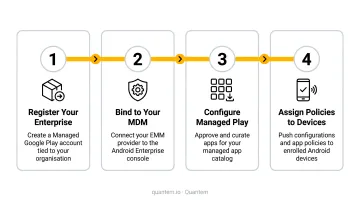
Setup happens entirely inside your MDM console. Google's registration is triggered from there, and the whole process typically takes under 15 minutes.
Initiate from your MDM - Select "Set up Android Enterprise" within your MDM console. This triggers a redirect to Google's registration flow. Since 2024, this creates a managed Google domain by default.
Choose your account type - Three options:
- Existing Google Workspace admin account (recommended if your org already uses Workspace)
- Business email without an existing Google account (creates a new managed Google domain)
- Gmail address (creates a legacy Managed Google Play Accounts enterprise - the path Google recommends upgrading away from)
Configure device settings - After registration, configure Android Enterprise settings within the MDM console: whether COBO device users can manage apps with personal Google accounts, whether setup accounts are provisioned automatically, and which enrollment method applies (zero-touch, QR code, or others).
Connect the iframe - The Managed Google Play iframe embeds in your MDM console, giving admins a single interface for app approval, private publishing, and catalog organization. Everything stays in one place.
Key App Management Capabilities in Managed Google Play
App Approval and Collections
Only approved apps appear in users' Managed Google Play stores. Admins organize these into collections with custom ordering, giving employees a clean, role-relevant catalog. Two layout modes exist:
- Basic - all approved apps appear in a single list (up to 1,000 apps); enabled by default
- Custom - apps grouped into named collections of up to 100 apps each, with multi-page navigation
For organizations managing more than 20 apps, Custom mode is worth the additional configuration - a flat list of 50+ apps is difficult for employees to navigate.
Managed App Configurations
Managed configurations let IT admins push app configuration values remotely: pre-filling server URLs, enabling specific features, and enforcing security policies within apps - without requiring any user setup.
Apps that support managed configs declare their configurable settings in their manifest. EMMs read those declarations and expose them as configurable fields in the admin console.
This matters most for standardizing deployments across large fleets. A field service team with 500 devices shouldn't require 500 manual app configurations.
Permission Management
Because apps are silently pushed to devices, IT admins accept runtime permissions during the approval step. Admins set default responses for runtime permission requests silently, choosing from three options:
- Prompt - user is asked at runtime
- Allow - permission granted automatically
- Deny - permission blocked automatically
For apps built on API 23 or higher, per-permission responses are configurable at the individual permission level.
The governance implication: permission decisions are made centrally, not by individual employees. That's a concrete security control - but it requires admins to stay current on what permissions each approved app actually requests.
Choosing an MDM That Makes the Most of Managed Google Play
Managed Google Play provides the infrastructure. The MDM console is what IT admins use every day - and the quality of that integration determines whether app management takes minutes or hours.
Look for these capabilities in any MDM evaluation:
- Native iframe integration - apps sync directly within the MDM console, no platform-switching required
- Zero-touch enrollment - devices arrive pre-configured with the correct apps and policies
- Private app publishing - no Google developer account needed; the MDM handles it natively
- Group-based app assignment - target device groups and user groups independently
- Version control for private apps - roll back app versions across a fleet without touching individual devices
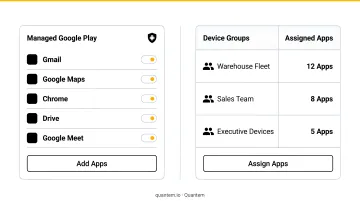
Quantem includes all of these capabilities across its plans, starting at $1–$3 per device per month. Zero-touch provisioning, private app management with version control, and full Android Enterprise support are included without per-feature pricing. Whether a team manages 10 devices or 10,000, that model removes the usual cost barrier to enterprise-grade Android management.
Android holds approximately 72.77% of global smartphone market share, which means most organizations are already running mixed or Android-majority fleets. The question isn't whether you need Managed Google Play - it's whether your MDM makes it easy to use.
Frequently Asked Questions
What is Managed Google Play?
Managed Google Play is Google's enterprise version of the Play Store, used by IT admins to deploy and control app access on Android devices enrolled in Android Enterprise. Unlike the consumer Play Store, users can only see and install apps their organization has explicitly approved.
What is the difference between Managed Google Play and Google Play?
Standard Google Play lets any user with a Google account install any public app. Managed Google Play restricts the visible catalog to IT-approved apps and adds capabilities unavailable in the consumer version: silent installation, private app publishing, managed configurations, and update timing controls.
Do I need Google Workspace to use Managed Google Play?
No. Since 2024, registering for Android Enterprise creates a managed Google domain without requiring an existing Workspace subscription. You can sign up using a business email, and Google creates the necessary account infrastructure automatically.
Can employees still access personal apps on a managed device?
It depends on the deployment mode. On BYOD and COPE devices, the personal profile retains full access to the standard Play Store while the work profile is restricted to Managed Google Play. On fully managed (COBO) and dedicated devices, IT controls all app access.
What types of apps can be distributed through Managed Google Play?
Three types: public Play Store apps (IT-approved and silently pushed to devices), private LOB apps (uploaded via your MDM console, visible only to your organization), and web apps (browser shortcuts that appear as native apps in the device launcher).
How do I enroll my organization in Managed Google Play?
Enrollment starts inside your EMM/MDM console, not directly through Google. The admin initiates Android Enterprise setup, gets redirected to Google's registration flow, provides the organization name and admin email, and completes setup. The MDM console then links to Managed Google Play for ongoing app management.