The problem is that "adding Wi-Fi" sounds straightforward until you run into authentication failures on Android 11 devices, certificate errors that produce no visible user message, or profiles that deploy successfully but never actually connect. The outcome depends heavily on your enrollment mode, the Android OS version in your fleet, and whether certificates are in place before the Wi-Fi profile lands on the device.
This guide walks through every step: prerequisites, profile creation, critical parameters, common mistakes, and troubleshooting - covering fully managed, work profile, and dedicated device deployments.
Key Takeaways
- Wi-Fi profiles must be deployed through an MDM console, not configured manually on each device
- Two profile types exist: Basic (PSK) and Enterprise (802.1x EAP), each with different setup requirements
- Android 11+ rejects Enterprise Wi-Fi profiles that lack a RADIUS server domain name and root CA
- Android 12+ deprecates WEP security; Android 13+ introduces MDM-controlled MAC address randomization
- Deploy certificate profiles before Wi-Fi profiles; reversing that order causes immediate authentication failure
What You Need Before Adding Wi-Fi Settings for Android Enterprise
Getting the prerequisites right prevents the most common configuration failures. Most "profile applied but no Wi-Fi" tickets trace back to missing information or skipped steps before anyone touched the MDM console.
MDM Console with Android Enterprise Support
You need an MDM solution enrolled with Android Enterprise to push Wi-Fi profiles centrally. Manual device-by-device configuration isn't viable at scale and makes centralized control impossible. Platforms like Quantem let IT admins create and assign Wi-Fi profiles using toggle-based controls - without scripting or per-device setup.
Network and Certificate Information
Have these ready before opening the profile creation screen:
- SSID - the exact network name, character-for-character (case-sensitive)
- Security type - Open, WPA-PSK, or 802.1x EAP
- Pre-shared key - if using WPA-PSK
- RADIUS server DNS name and port - if using 802.1x
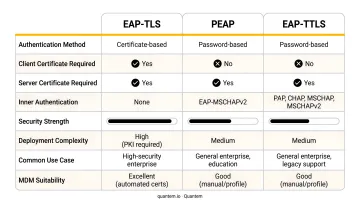
- EAP method - EAP-TLS, PEAP, or EAP-TTLS
- Root CA certificate - uploaded to the MDM before the Wi-Fi profile is created
- Client certificate profile - for EAP-TLS deployments (SCEP or PKCS)
- Proxy details - server address, port, exclusion list, or PAC file URL if required
Android Version and Enrollment Mode Awareness
Not all settings apply equally across your fleet. Know these constraints before you build the profile:
| Android Version | Constraint |
|---|---|
| Android 11+ | Enterprise Wi-Fi profiles require root CA + domain suffix match; blank RADIUS server name = connection rejected |
| Android 12+ | WEP deprecated; mandatory server certificate validation for WPA/WPA2/WPA3-Enterprise |
| Android 13+ | TOFU behavior when no trusted root CA is installed; MDM-controlled MAC address randomization supported |
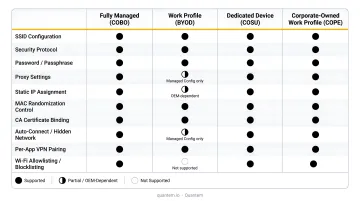
Enrollment mode also determines what's configurable:
- COBO (fully managed) - full range of Wi-Fi policy controls, including advanced lockdown
- COSU (dedicated devices) - full Wi-Fi policy support, including MAC randomization management
- COPE (corporate-owned work profile) - full policy controls apply across both profiles
- BYOD (personally owned work profile) - restricted options: no advanced Wi-Fi lockdown, limited proxy controls, no MAC randomization management
How to Add Wi-Fi Settings for Android Enterprise Devices
These steps apply across Android Enterprise enrollment types - corporate-owned fully managed, dedicated, and work profile - with differences called out where they exist.
Step 1: Create a New Wi-Fi Device Configuration Profile
Navigate to the device configuration or profiles section of your MDM console. Select the option to create a new profile, choose Android Enterprise as the platform, and select Wi-Fi as the profile type.
Some consoles separate profiles by enrollment type - corporate-owned versus personally owned work profile. If yours does, select the correct category before building the profile, since the available settings differ between them.
Assign a descriptive name that identifies both the network and its scope. Something like Corp-WiFi-FullyManaged is more useful than Wi-Fi Profile 1 when you're managing multiple profiles across device groups.
Step 2: Configure Basic Wi-Fi Settings
- Network Name - the display label shown to users
- SSID - the exact identifier the device uses to find and join the network (case-sensitive; must match the access point exactly)
- Security Type - choose one:
- Open: no authentication; appropriate only for isolated or guest networks
- WPA-Pre-shared Key: enter the PSK; suitable for simpler deployments
- 802.1x Enterprise: requires EAP configuration in Step 3
- Connect Automatically - enable this so devices reconnect when in range without user action
- Hidden Network - enable only if the access point does not broadcast the SSID
Avoid WEP entirely. It's deprecated on Android 12 and above, and the encryption is crackable in minutes with widely available tools.
Note that duplicate SSIDs targeting the same device will conflict. Most MDM platforms prevent two profiles with the same SSID from being assigned to a single device, but the failure is usually silent - the second profile simply doesn't apply.
Step 3: Configure Enterprise (802.1x EAP) Authentication - If Applicable
Skip this step if you're using Open or WPA-PSK. For 802.1x deployments:
Select the EAP type:
- EAP-TLS: mutual certificate authentication - both client and server present certificates
- PEAP: server certificate + username/password inner authentication (MS-CHAPv2 is the common inner method)
- EAP-TTLS: server certificate + flexible inner authentication (PAP, MS-CHAP, or MS-CHAPv2)
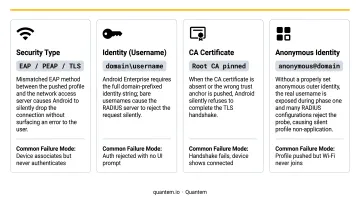
Enter the RADIUS server name. This is the DNS name from the RADIUS server's certificate (for example, radius.company.com). Per Android's secure Wi-Fi enterprise configuration requirements, this field is mandatory on Android 11 and later - without it, new Enterprise Wi-Fi configurations are rejected and not saved on the device.
Attach certificates:
- Select the pre-uploaded trusted root CA certificate profile for server validation
- For EAP-TLS, also select the SCEP or PKCS client certificate profile deployed to the device
- Certificates must already be applied to the device before this profile is pushed - deploying them simultaneously or after the Wi-Fi profile causes authentication failure
For credential-based methods (PEAP and EAP-TTLS), enter the username/password identity credentials. Configure Identity Privacy (outer identity) with a value like anonymous to protect the user's actual identity during the initial EAP exchange.
Step 4: Configure Proxy Settings and Assign the Profile
Proxy options:
- None: no proxy required
- Manual: enter server IP address, port number, and host exclusion list
- Automatic: enter the PAC file URL for auto-configuration
For corporate-owned devices on Android 13 and later, configure MAC Address Randomization:
- Use device MAC - for environments using MAC-based Network Access Control (NAC)
- Use randomized MAC - for networks that don't require device tracking
Save the profile and assign it to the appropriate device group or enrollment policy. Monitor deployment status in your MDM console - a successful push shows the profile as Applied; any error state (such as "Not Applicable" or "Failed") indicates a scope mismatch or certificate dependency issue that needs resolving before the device can connect.
Key Wi-Fi Parameters That Control Connection Success
A correctly structured profile still fails if the wrong values are entered. Each of these four parameters has caused silent, undiagnosed connection failures in real deployments.
SSID vs. Network Name
The SSID must exactly match the access point's broadcast name - Android's Wi-Fi APIs treat SSIDs as case-sensitive. The Network Name is a display label only and has no effect on connection behavior. A single character difference in the SSID value means the device searches for a network that doesn't exist, the profile shows as applied, and the device never connects.
EAP Type Selection
The EAP method in your MDM profile must match the method configured on the RADIUS or NPS server. EAP-TLS, PEAP, and EAP-TTLS use different authentication flows - a RADIUS server configured for PEAP will reject an EAP-TLS client. Per RFC 3748, an unacceptable EAP exchange ends in EAP Failure. From the device side, this looks like a loop of failed attempts - no connection, no error, even with valid certificates installed.
Certificate Validity and Trusted Root CA
Root CA certificates must be:
- Valid and not expired
- Trusted by the device (deployed via MDM before the Wi-Fi profile)
- Correctly uploaded to the MDM console
Android 11 and later reject new Enterprise Wi-Fi configurations outright if the root CA plus domain suffix match is missing. Expired certificates fail silently - there's no visible user error. Set up expiry alerts in your MDM console before certificates lapse, not after devices start dropping off the network.
RADIUS Server Name Field (Android 11+ Requirement)
The DNS name entered here must match the Common Name or Subject Alternative Name in the certificate presented by the RADIUS server. Partial domain suffixes are accepted - company.com covers all subdomains. This field is not optional on Android 11 and later. If you're migrating from an Android 10 fleet, audit every existing Wi-Fi profile for this field before rollout - it's the most common reason profiles apply without connecting on newer devices.
Common Mistakes When Configuring Android Enterprise Wi-Fi Settings
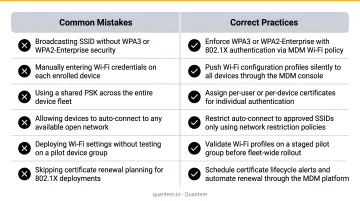
- Deploy certificates before the Wi-Fi profile - certificate profiles must show "Applied" status on the target device first. Pushing Wi-Fi simultaneously, or before certificates are ready, causes immediate authentication failure with no clear error message.
- Avoid duplicate SSIDs across profiles targeting the same device - the second profile typically fails silently. Audit existing assignments before creating new ones and use unique SSIDs per profile where possible.
- Match the profile type to the enrollment category - BYOD work profile devices have restricted Wi-Fi options (no MAC randomization control, limited proxy settings, no advanced lockdown). Applying a fully managed profile to a personally owned device causes unpredictable behavior.
Troubleshooting Wi-Fi Configuration Issues on Android Enterprise Devices
Deployment success in the MDM console doesn't guarantee connectivity. The most common issues only surface after the profile reaches the device.
Profile Applied But Device Doesn't Connect
Root cause: SSID mismatch between the profile value and the access point's broadcast name, or the device is connected to a higher-priority saved network that takes precedence.
Check for:
- SSID value in the profile matches the access point's broadcast name exactly (case-sensitive)
- Device disconnected from all existing saved Wi-Fi networks before testing
- "Connect Automatically" enabled in the profile configuration
Certificate Validation Errors or "Unable to Connect" on Android 11+ Devices
Root cause: The RADIUS Server Name field is blank or incorrect, or the root CA certificate profile hasn't been successfully deployed to the device before the Wi-Fi profile.
Check for:
- Root CA certificate profile status shows "Applied" on the target device before re-deploying the Wi-Fi profile
- RADIUS server name field matches the DNS name in the RADIUS server's certificate exactly
Authentication Rejected Despite Correct Credentials or Certificates (EAP Failure)
Root cause: EAP type or inner authentication method in the MDM profile doesn't match the RADIUS server configuration.
Check for:
- EAP type and inner authentication method cross-referenced with the network team managing the RADIUS/NPS server
- RADIUS server logs reviewed for the specific rejection reason - the server log will identify whether the rejection is an EAP method mismatch or a certificate issue
Profile Fails to Deploy to BYOD (Personally Owned Work Profile) Devices
Root cause: The profile was configured with settings available only for corporate-owned enrollment types. BYOD Wi-Fi profiles configure network access at the device level - Wi-Fi is a shared system resource - so the available options are more limited than corporate-owned profiles.
Check for:
- Separate Wi-Fi profile created and scoped specifically for personally owned work profile enrollment
- Profile type selected in the MDM matches the target enrollment category
Frequently Asked Questions
What does enterprise Wi-Fi mean?
Enterprise Wi-Fi refers to wireless networks secured using 802.1x port-based network access control with a RADIUS server, rather than a shared password. Each user or device authenticates individually using credentials or certificates, making it more secure and auditable than standard WPA-PSK networks.
What is the difference between Basic and Enterprise Wi-Fi profiles in Android Enterprise?
Basic Wi-Fi profiles use a pre-shared key (WPA-PSK) or no authentication, suited for simpler or guest networks. Enterprise profiles use 802.1x EAP authentication with certificates or credentials validated against a RADIUS server, which is required for corporate networks with per-user or per-device access control.
Can Wi-Fi settings be pushed to Android Enterprise devices without user interaction?
Yes. When deployed through an MDM console, Wi-Fi profiles are silently applied without requiring end-user input. On corporate-owned fully managed devices, users cannot modify or remove the policy-applied Wi-Fi configuration.
What EAP types are supported for Android Enterprise Wi-Fi configuration?
Three primary EAP types are supported: EAP-TLS (mutual certificate authentication), PEAP (server certificate plus username/password), and EAP-TTLS (server certificate plus flexible inner authentication including PAP, MS-CHAP, and MS-CHAPv2).
Why does my Android 11 or later device fail to connect even after a Wi-Fi profile is applied?
Android 11 requires the RADIUS Server Name field to be populated with the DNS name from the RADIUS server's certificate. Without this field, Android 11+ devices will not connect to WPA2-Enterprise networks through MDM-deployed profiles - the configuration is rejected and not saved on the device.
Does the Wi-Fi profile apply to both the work profile and personal side of a BYOD device?
Wi-Fi is a shared system resource, so the profile applies at the device level rather than only within the work profile container. Configuration options for personally owned work profile enrollments are more limited than for corporate-owned devices. Advanced Wi-Fi lockdown and MAC randomization controls are not available on BYOD enrollments.