Introduction
Picture this: a customer walks up to your store's self-service display mid-promotion, taps the screen, and accidentally navigates to the Windows desktop. Now your promotional content is gone, the underlying file system is exposed, and the nearest IT person is three states away. Or worse - a Windows update prompt fires during peak hours, killing your checkout queue display entirely.
These aren't edge cases. They're predictable failures when general-purpose Windows devices run digital signage without proper OS-level lockdown.
Windows kiosk solutions address this directly. By restricting devices to one or more approved applications through Windows' built-in Assigned Access feature, retailers can turn off-the-shelf hardware into dedicated, tamper-resistant signage that IT teams control remotely. What follows covers what Windows kiosk mode actually is, why it fits retail specifically, the most common deployment use cases, and how MDM platforms make fleet-scale management practical for large device fleets.
Key Takeaways
- Windows kiosk mode (Assigned Access) locks devices to approved apps only, blocking access to the underlying OS
- Retail deployments gain better uptime, tighter security, and consistent on-brand content across locations
- Common use cases include promotional displays, interactive product catalogs, self-checkout stations, and wayfinding
- MDM platforms handle kiosk fleet deployment and management across multiple locations at scale
- Zero-touch enrollment removes the need for on-site IT during new device provisioning
What Is a Windows Kiosk Solution?
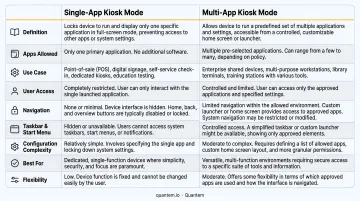
Windows kiosk mode is a native OS feature called Assigned Access, built into Windows 10 and Windows 11 across Pro, Enterprise, Education, IoT Enterprise, and LTSC editions. It restricts a device to either:
- Single-app kiosk mode - one application runs full-screen; nothing else is accessible
- Multi-app kiosk mode - a curated set of approved apps with a locked-down Start menu and taskbar
The distinction matters. Installing digital signage software on a standard Windows PC leaves the full OS exposed: the taskbar, file explorer, browser, and settings are all one accidental click away.
A properly deployed Windows kiosk solution makes the device behave like dedicated hardware built for one purpose. The OS is still there; it's just completely inaccessible to anyone using the screen.
The Role of MDM
Without a Mobile Device Management platform, Assigned Access must be configured manually on each device using Windows Settings or Windows Configuration Designer. For a single display, that's manageable. For a retail chain with dozens of locations and hundreds of screens, it's not.
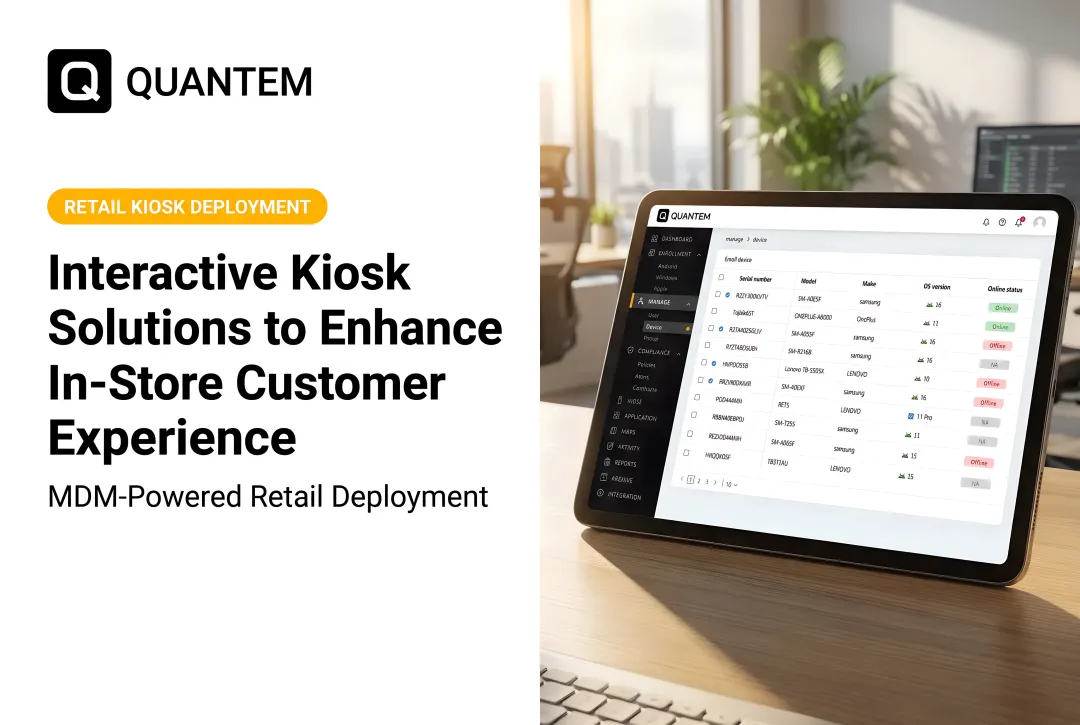
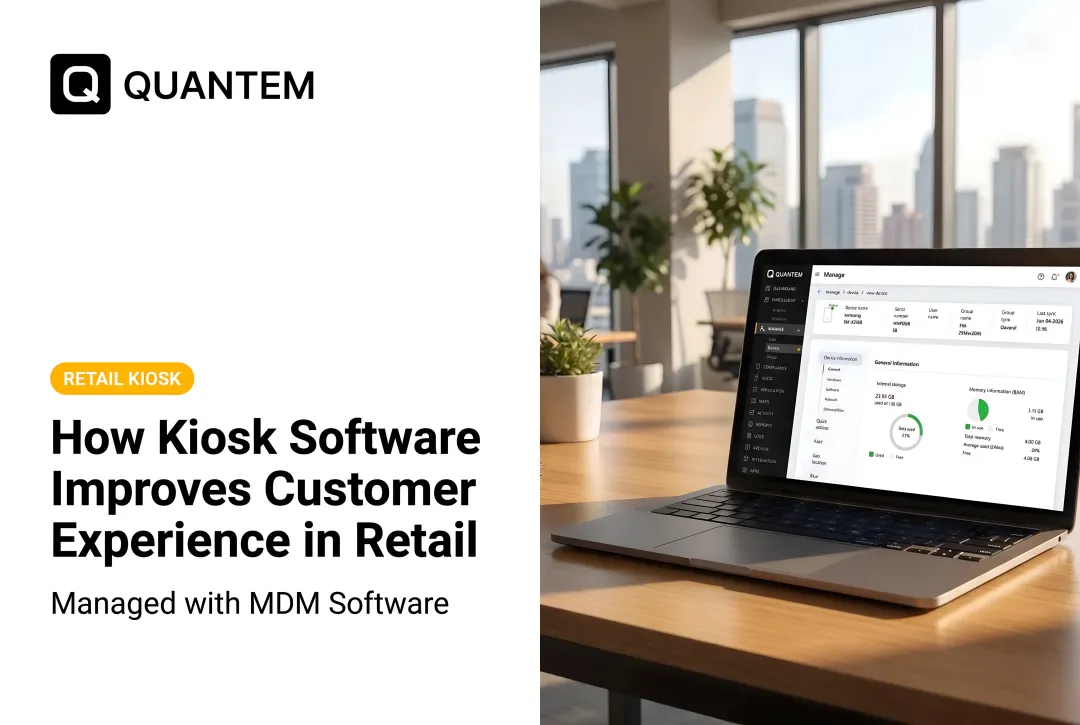
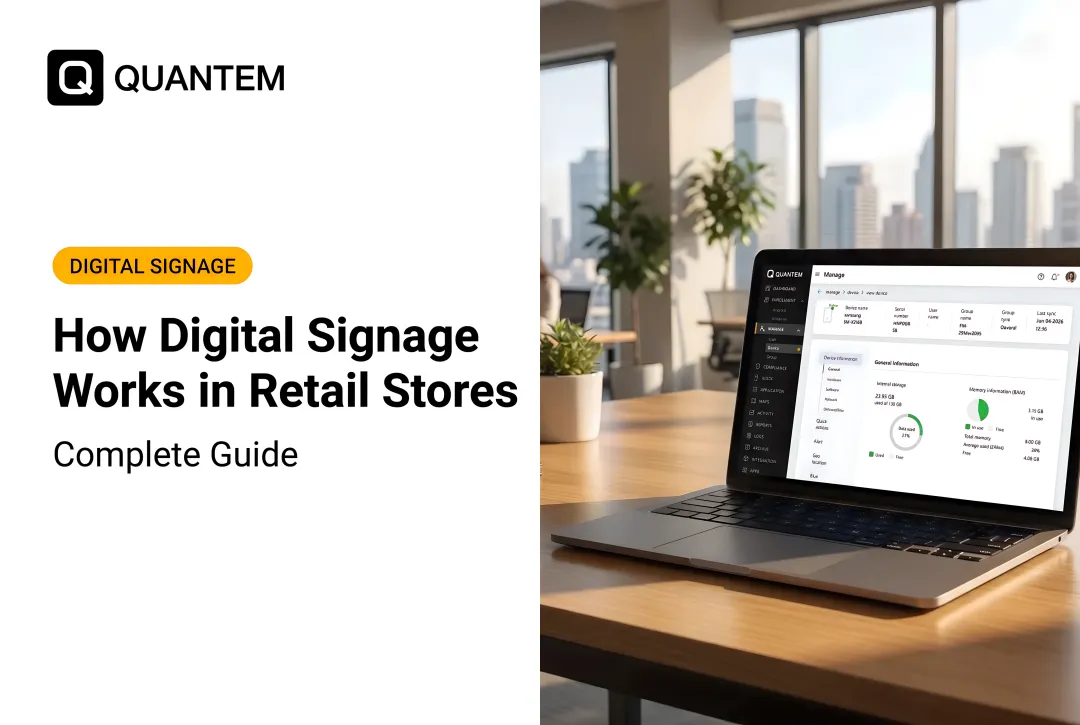
An MDM platform lets IT teams create kiosk policies once in a central dashboard and deploy them to any number of enrolled Windows devices automatically. Platforms like Quantem handle this through the AssignedAccess CSP (Configuration Service Provider), Microsoft's MDM protocol for enforcing kiosk configurations remotely. No scripting required, and no device-by-device setup.
Why Windows Kiosk Mode Is Built for Retail Digital Signage
Uptime Without Human Interference
The most common source of signage downtime in retail isn't hardware failure - it's human interference. An employee closes the display app to check something. A customer swipes too aggressively and triggers a settings menu. A Windows Update notification fires at noon on Black Friday.
Kiosk mode eliminates all of these. When a device is locked to a single signage app, there's no Start menu, no taskbar, no pathway to any other process. The display stays on what it's supposed to show.
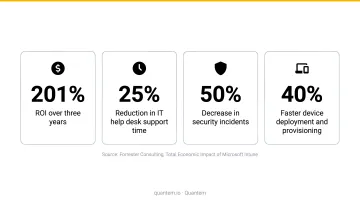
For IT teams managing distributed fleets, Forrester's Total Economic Impact study of Microsoft Intune quantifies what MDM-managed endpoint control delivers: 181% ROI, $11.36M net present value over three years, a 75% reduction in device-failure triaging, and 80% less downtime from endpoint updates. These are enterprise endpoint numbers, but the operational logic applies directly to retail signage fleets.
Security for Customer-Facing Deployments
Retail kiosk screens are public-facing by definition. Without OS-level lockdown, any customer with enough curiosity can navigate away from the display and into the underlying system.
Windows kiosk mode blocks access to the file system, network settings, and all non-approved applications. For retailers whose kiosks sit near or integrate with payment processing, this matters for PCI DSS compliance.
PCI DSS v4.0 Requirement 9.5 requires point-of-interaction devices to be protected from tampering and unauthorized substitution. Kiosk mode is one hardening layer in that posture, alongside device inventories, physical inspections, and staff training.
Consistent, On-Brand Content at Every Location
Franchise and multi-location retailers live and die by visual consistency. A standard Windows device drifts: desktop wallpaper bleeds through, browser tabs stack up, app notifications interrupt content mid-display.
Kiosk mode enforces a clean environment 100% of the time. Pair that with MDM policy enforcement, and every screen in every store shows exactly what HQ intended.
Lower Total Cost of Ownership
Kiosk mode cuts OS overhead and software bloat - which translates to real cost savings at the fleet level:
- Extends hardware life: Aging mini PCs or media players can be repurposed as dedicated signage nodes instead of replaced.
- Reduces deployment spend: Entry-level Windows signage media players from vendors like Advantech start around $683, making MDM-based lockdown a far cheaper path than new hardware.
- Lowers management overhead: Fewer background processes mean fewer failures to troubleshoot across distributed locations.
Key Retail Use Cases for Windows Kiosk Digital Signage
Promotional and Dynamic Product Displays
Single-app kiosk mode running a Content Management System is the backbone of most retail digital signage networks. Rotating promotional content - limited-time offers, seasonal campaigns, clearance messaging - displays on screens at store entrances, end-caps, and checkout queues.
The key operational advantage: content updates push remotely from HQ. No truck rolls, no USB drives handed to store managers.
Interactive Product Catalogs and Self-Service
Multi-app kiosk mode enables richer customer-facing experiences on touchscreen displays. Customers can:
- Browse extended inventory not available on the shelf
- View product specifications and compatibility details
- Check in-store availability across locations
- Access loyalty program sign-ups or product reviews
SOTI's 2024 retail technology report found that 91% of consumers have used in-store technology, with 32% using kiosks specifically. But the same report noted 69% say there's often not enough staff to resolve self-serve issues - which makes remote troubleshooting and device health monitoring non-negotiable.
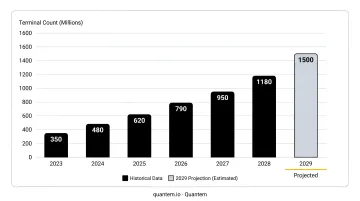
Self-checkout is the fastest-growing category here. According to Retail Dive citing RBR Data Services, over 217,000 self-checkout terminals were delivered globally in 2023, up 12% year over year, with global installations projected to reach 2 million by 2029. Windows kiosk solutions power many of these stations - locking devices to a specific checkout application while blocking all other system access.
Wayfinding and In-Store Navigation
Large-format retail environments - department stores, big-box retailers, shopping malls - use Windows kiosk signage for interactive wayfinding. These deployments use maps, directories, and interactive screens to guide shoppers to specific departments, amenities, or events.
Multi-app kiosk mode suits wayfinding particularly well. A single locked experience can bundle:
- Interactive store maps and department directories
- Event and promotion schedules
- Loyalty program access
- Product availability lookups
Employee-Facing Internal Signage
Not every kiosk faces customers. Retailers deploy Windows kiosk digital signage in stockrooms and break rooms to show shift schedules, safety notices, KPI dashboards, and internal communications - locked down so employees can't interact with the underlying OS, even when the screen is unattended.
Managing Windows Kiosk Signage at Scale with MDM
The Scale Problem
A single retail brand might operate 50 locations, each with 4–6 signage displays. That's 200–300 devices. Configuring Assigned Access manually on each one - even with Windows Configuration Designer - isn't just slow, it's error-prone. One misconfigured device means a screen showing the wrong content, or no content at all.
MDM solves this through fleet management: create a kiosk policy once, assign it to a device group, and it deploys automatically to every enrolled device that matches.
Walmart's scale illustrates the endpoint: the retailer manages nearly 170,000 digital screens across 4,500+ stores for its retail media network. MDM-style centralized control is the only operational model that works at that volume.
Zero-Touch Enrollment
Zero-touch provisioning is where MDM delivers the clearest time savings. A new Windows device arrives at a store location, connects to the internet, and automatically enrolls into the MDM, receives its kiosk policy, and locks into the designated signage app - without any IT staff on-site.
Forrester's Intune study found that Windows Autopilot reduced device setup time from 2–3 hours to under 30 minutes. For a retailer rolling out signage across 20 new store openings simultaneously, that's the difference between a two-week IT sprint and a one-day push.
Quantem includes zero-touch enrollment across all plans - including the Essential tier at $1/device/month - making it accessible even for smaller retail operations that can't justify premium MDM pricing. That's notably lower than the $2.20–$4.75/device/month range common among competitors.
Remote Policy Updates and Compliance
When a seasonal campaign launches or a brand refreshes its promotional content, MDM enables IT to push updated kiosk policies to all devices simultaneously from a single dashboard action. Common remote updates include:
- Switching which app is locked in single-app kiosk mode
- Updating allowed URLs in a kiosk browser profile
- Adjusting display settings or screen timeout policies
- Refreshing content playlists for seasonal campaigns
For retailers whose kiosks collect customer data - loyalty sign-ups, satisfaction surveys - compliance is non-negotiable. Quantem holds SOC-2, GDPR, and CCPA certifications, covering what GDPR Article 13 requires at data collection and what CCPA mandates for California consumers regarding notice and data rights.
Deploying Windows Kiosk Digital Signage: A Practical Overview
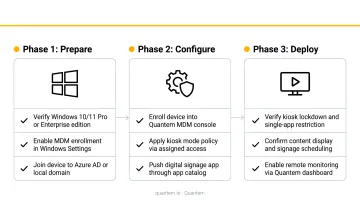
A Windows kiosk signage deployment runs through three phases:
Device provisioning - Enroll the Windows device into an MDM, either manually for small deployments or via zero-touch for fleet rollouts. The device receives its base configuration automatically on first network connection.
Kiosk policy configuration - Use the MDM dashboard to assign single-app or multi-app kiosk mode and specify which signage app or browser URL is locked in. Then set display behavior rules from the same dashboard. Platforms like Quantem replace manual Windows Configuration Designer workflows with toggle-based controls - no scripting needed.
Content and schedule management - Connect a CMS to the locked signage app to push and schedule content remotely. The MDM handles device policy; the CMS handles what displays on screen. Both layers work together - each handling a distinct job.
Before rolling out to the floor, retail IT teams typically work through a few practical decisions:
- Use wired Ethernet for permanent fixture displays; Wi-Fi for flexible or temporary installations
- Set screen orientation - portrait for end-cap and point-of-sale displays, landscape for overhead or wall-mounted screens - via MDM policy per device or device group
- Schedule nightly reboots during non-operating hours to keep devices refreshed without interrupting store hours
Frequently Asked Questions
How much does a digital kiosk cost?
Costs vary by component. Windows signage media players (Advantech) run $683–$1,185+; commercial touchscreen displays range from $425 for a 24-inch Dell to $2,400 for a 55-inch interactive display. MDM licensing adds $1–$4.75+/device/month depending on platform. Total deployment cost scales down per device as fleet size increases.
What is Windows kiosk mode and how does it work for digital signage?
Windows kiosk mode (via Assigned Access) restricts a device to one or more approved applications, blocking all access to the broader OS. For digital signage, this means the display always shows the intended content, with no risk of accidental navigation, taskbar exposure, or system notifications interrupting the screen.
What is the difference between Windows kiosk mode and simply running signage software on Windows?
Standard signage software on an unrestricted Windows device still leaves the OS fully accessible - taskbar, file explorer, settings, and all. Kiosk mode enforces OS-level lockdown so the device behaves as a dedicated appliance with no pathway to the desktop or any other application.
Can I manage multiple Windows kiosk displays remotely across different store locations?
Yes. An MDM platform provides centralized remote management of all enrolled Windows kiosk devices: push policy updates, restart devices, swap locked apps, and monitor device health from a single dashboard without on-site IT visits.
How do I lock a Windows device to a single signage app?
Two methods: (1) Windows' built-in Assigned Access via Settings or Windows Configuration Designer, which works for individual devices but requires manual setup per device; or (2) an MDM platform, which lets you create the policy once and deploy it automatically to any number of devices.
Is Windows kiosk mode secure enough for customer-facing retail displays?
Windows kiosk mode blocks file system access, settings, and non-approved apps, making it well-suited for public-facing deployments. For kiosks handling payment processing or customer data, pairing it with a compliance-certified MDM platform (SOC-2, GDPR, CCPA compliant, like Quantem) adds the security layer that OS lockdown alone cannot provide.