This guide is written for IT administrators and EMM implementation teams with console access. It covers everything from prerequisites through post-configuration validation and the three most common failure points.
Key Takeaways
- Complete the Google EMM binding in Knox Manage before enrolling any Android Enterprise devices
- A personal Google account works for Android-only deployments; a Google Workspace domain account is required for ChromeOS or Workspace integration
- Domain conflicts are the most common registration failure, so verify your account type before starting
- Always click Save after configuring app update and maintenance window settings
- Use a service account or shared IT mailbox for the binding, never an individual employee's personal account
What You Need Before You Begin
Get these in order before opening the Knox Manage console:
- Active Knox Manage license - Android Enterprise configuration cannot be completed on an unlicensed tenant
- Google account (personal or enterprise domain) - see account type guidance below
- Clarity on deployment scenarios - fully managed, work profile/BYOD, dedicated/kiosk, or COPE. Your Google account type depends partly on this
- Domain control confirmation - if you plan to use a Google Workspace account, confirm your IT team administers that domain
Which Google Account Type Do You Need?
| Deployment Goal | Account Type Required |
|---|---|
| Android devices only | Personal Google account |
| Android + ChromeOS | Google Workspace enterprise domain account |
| Google Workspace integration | Google Workspace enterprise domain account |
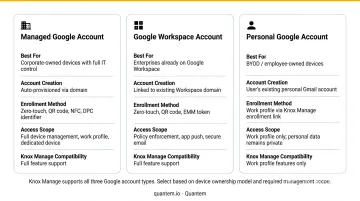
Critical: Do not use a Google account already associated with a managed Google domain your team doesn't control. This triggers the "Can't Enable Android Enterprise" binding error and forces you into a workaround flow.
How to Configure the Android Enterprise Environment with Knox Manage
The configuration follows a fixed sequence: navigate to settings → initiate account linking → authenticate through Google → complete registration → return to Knox Manage to confirm. Jumping steps or switching accounts mid-flow requires a full reset.
Navigating to the Android Enterprise Settings Page
Two console path options exist depending on your Knox Manage version:
- Original console: Setting > Android > Android Enterprise
- New console: Profile icon > Settings > KNOX MANAGE > ANDROID ENTERPRISE
Click Link Account to initiate the Google registration flow. If an admin account already exists on the tenant, the work email field pre-populates. Entering a different email at this point generates an informational warning - don't ignore it.
Choosing Your Account Type and Completing Google Registration
Path 1 - Enterprise domain account (Google Workspace):
- Click Allow after selecting Link Account
- Confirm binding to your Google Workspace account
- This gives your IT team consolidated management of Android Enterprise, ChromeOS, and Chrome browser through the Google Admin console - best when your team controls the domain
Path 2 - Personal Google account (Android-only deployment):
- Select "Sign up for Android only" - this routes through the Google Play EMM registration flow
- Enter your domain or business name
- Provide Data Protection Officer and EU representative details if your organization is subject to GDPR requirements
- Accept the Managed Google Play agreement
- Click Complete Registration
This path also supports binding multiple Knox Manage tenants to one Google Admin console - useful for MSPs or organizations with separate tenants per business unit.
Confirmation: Knox Manage displays the linked Google account information on the Android Enterprise settings page. This confirms Google has accepted Knox Manage as the EMM provider.
Handling the "Can't Enable Android Enterprise" Error
If you see this error after completing the steps above, the email address is tied to a managed Google domain administered by someone else. Two resolution paths exist:
- Option 1: Contact the existing domain admin and ask them to add your email address to that domain
- Option 2: Select "Sign up for Android only" from the error dialog, then manually invite the email address via Managed Google Play - sign in to Managed Google Play > Settings > Add > enter the email > Invite
Creating a new Google account just to bypass this error will complicate bind management down the line - avoid it.
Post-Configuration: Environment Settings and Validation
After registration, the Android Enterprise page in Knox Manage exposes additional settings that must be reviewed before you enroll devices. Skipping them causes app update conflicts and inconsistent device behavior across your fleet.
Testing the Sync Connection
Click Test & Sync on the Android Enterprise page. A success pop-up confirms Knox Manage can communicate with Google's servers. If this fails, device commands, app pushes, and policy updates won't propagate - resolve it before proceeding to enrollment.
Configuring App Auto-Update Behavior
Knox Manage offers four Default Auto Update Apps options:
- Wi-Fi only - default; recommended for data-sensitive environments and large device fleets
- Any network - updates over cellular; appropriate for small fleets with generous data plans
- User choice - device user controls update behavior
- Never - no automatic updates; requires manual IT-initiated pushes
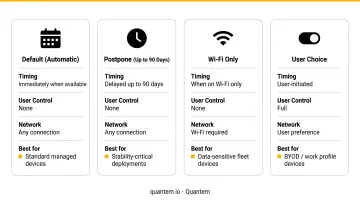
For logistics or healthcare fleets on cellular data plans, stick with Wi-Fi only. Google's default managed app update behavior already targets Wi-Fi + charging + idle conditions.
Maintenance Window Setup
When enabled, the Maintenance Window forces app updates only during a defined time block (configured via Start Time and Duration). This is designed specifically for dedicated or kiosk devices - healthcare check-in terminals, retail POS systems, warehouse scanners - where mid-shift app interruptions are unacceptable.
When disabled, updates apply whenever conditions allow, but IT can still pause them during configured OS freeze periods.
Click Save before exiting. Unsaved changes do not persist and require full re-entry, a common oversight during initial setup.
Common Configuration Issues and How to Fix Them
These are the three most common errors IT admins encounter when setting up Android Enterprise with Knox Manage - along with the root cause and fastest fix for each.
"Can't Enable Android Enterprise With This Account" Error
- Problem: Registration fails with a domain conflict error
- Cause: Email is tied to a managed Google domain controlled by another party
- Fix: Use the "Sign up for Android only" workaround, or contact the domain admin to add your email. Avoid throwaway Google accounts - they create bind management problems during re-enrollment later
Sync Test Fails After Registration
- Problem: Test & Sync returns a failure even after the binding appears successful
- Cause: Firewall rules blocking Knox Manage's outbound connections, or an expired Google account session
Fix: Allowlist the following domains and ports in your firewall, then re-authenticate the Google account from the Android Enterprise settings page if session expiry is suspected:
| Domain | Protocol | Ports |
|---|---|---|
*.samsungknox.com |
TCP | 443 |
*.google.com |
TCP | 443, 5228–5230 |
*.googleapis.com |
TCP | 443 |
*.gstatic.com |
TCP | 443 |
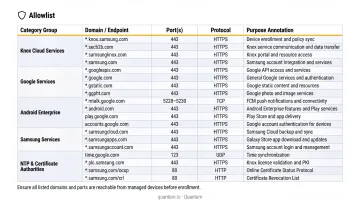
See Samsung Knox firewall exceptions for the complete allowlist.
Android Enterprise Binding Breaks After Account Inactivity
- Problem: Enrolled devices lose management connectivity or enrollment stops working
- Cause: Google's inactive account policy can deactivate or delete a personal Google account unused for 2 years, severing the EMM link. This does not apply to accounts created through an organization.
- Fix: Assign the binding account to a shared IT admin mailbox with regular activity. Re-link via the Knox Manage console. Devices with a fully severed binding may require re-enrollment.
Pro Tips for a Stable Android Enterprise Configuration
Before bulk provisioning begins, a few configuration habits prevent the most common failure points IT teams run into post-deployment.
Use an organizational account for the Google binding. When an employee leaves, their personal account goes with them - and potentially the binding too. Use a shared IT mailbox or service account. Document the binding account credentials in your IT runbook alongside Knox Manage tenant details.
Add a second Owner to Managed Google Play. Google allows multiple users with Admin or Owner roles on a single Managed Google Play account. Add a second Owner and enable two-factor authentication on the binding account.
Enroll one test device before bulk provisioning. Validate that Managed Google Play apps appear correctly, auto-update settings behave as configured, and device commands from the Knox Manage console reach the device. Document the results as a baseline.
Running a mixed-brand Android fleet? Knox Manage is built around Samsung hardware and its full feature set reflects that. For fleets with non-Samsung Android devices, an MDM platform purpose-built for mixed environments - like Quantem, which handles Android Enterprise across device brands without Knox-specific dependencies - gives IT teams a more consistent policy management experience.
Frequently Asked Questions
What is Android Enterprise used for?
Android Enterprise is Google's management framework for business Android deployments. It gives IT admins control over work profile separation, silent app installation, device policy enforcement, and secure enrollment methods like zero-touch - across fully managed, BYOD, dedicated/kiosk, and COPE scenarios.
What is the difference between Android Enterprise and Knox?
Android Enterprise is Google's software-level management framework available on all GMS-certified Android devices. Samsung Knox is a hardware-backed security and management layer exclusive to Samsung devices. It extends Android Enterprise with chip-level protections (Knox Vault), granular hardware controls, and Samsung-specific enrollment tools like Knox Mobile Enrollment.
Do I need a Google Workspace account to configure Android Enterprise with Knox Manage?
No. A personal Google account is sufficient for Android-only device management. You only need a Google Workspace enterprise domain account if you're also managing ChromeOS devices or integrating Knox Manage with Google Workspace authentication.
Can I bind multiple Knox Manage tenants to the same Google Admin account?
Yes. Repeat the "Sign up for Android only" registration flow for each Knox Manage tenant - each binding receives a unique EMM binding ID. MSPs and organizations with separate business units typically use this approach.
What happens if the Google account used for the Android Enterprise bind is deleted?
Deletion severs the EMM link, preventing new device enrollments and potentially disrupting policy delivery to existing managed devices. You'll need to re-link a Google account via the Knox Manage console, and affected devices may require re-enrollment depending on how long the binding was broken.
What is Managed Google Play and why is it required for Android Enterprise?
Managed Google Play is the enterprise app distribution platform that enables IT admins to silently install, update, and restrict apps on managed Android devices. Completing the Android Enterprise registration in Knox Manage establishes the connection to Managed Google Play, which underpins all app management on enrolled devices.