iPad self-check-in kiosks solve these problems. By locking an iPad to a dedicated visitor management or check-in app, businesses automate sign-in, capture visitor data securely, print badges on demand, and notify hosts instantly—all without tying up front-desk staff.
Key Takeaways
- Lock each iPad to one check-in app to capture visitor data and notify hosts automatically
- Guided Access fits 1–3 devices; MDM platforms like Quantem scale to hundreds with remote control
- Healthcare, retail, corporate, and education teams use kiosks for check-in, waitlists, and access control
- Budget about $449 for a base iPad, ~$149 for a countertop stand, plus optional badge printers
What is an iPad Self-Check-in Kiosk?
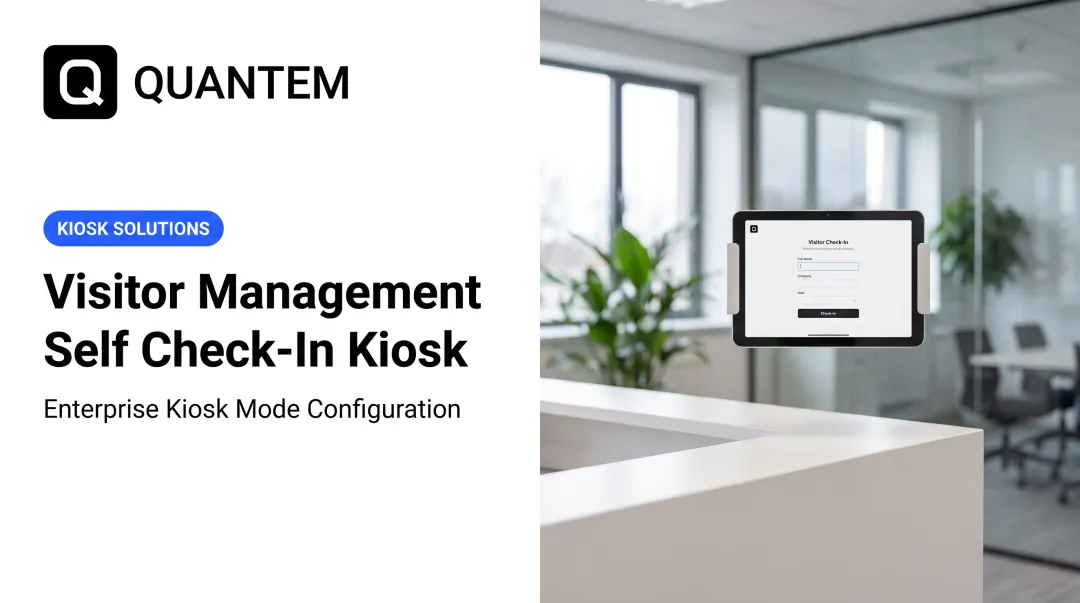
An iPad self-check-in kiosk is a dedicated iPad configured in kiosk mode so it runs only one check-in app. Visitors, patients, or customers interact with that app alone. They cannot open Safari, Settings, or the App Store.
Core functionality includes:
- Capturing visitor name, company, host, and purpose of visit
- Scanning government IDs or QR codes for pre-registered guests
- Printing adhesive visitor badges with photo and host information
- Sending instant notifications (email, SMS, Slack) to the host
- Logging entry and exit timestamps for compliance audits
Consumer vs. enterprise deployment:
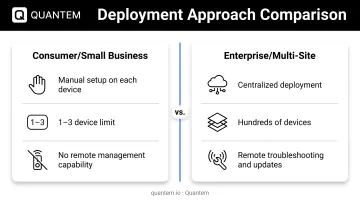
Small setups often lock one or two iPads manually with Apple's built-in Guided Access. That works for a single lobby, but it does not scale.
Enterprise fleets enroll iPads through Apple Business Manager and Mobile Device Management (MDM). IT can enforce security policies, push app updates, and troubleshoot devices remotely from one console—without touching each iPad.
Key Benefits of iPad Self-Check-in Kiosks for Businesses
Enhanced Security and Compliance
iPad kiosks create a digital audit trail: every visitor entry, badge print, and host notification is timestamped and stored. IT teams can configure watchlist screening to flag unwanted visitors, require NDA signatures before entry, and verify IDs against a blocklist.
Compliance support:
- HIPAA: Security safeguards for ePHI call for administrative, physical, and technical controls—apps can enforce badge expiration, screening questions, and secure storage
- GDPR: Data minimization and security rules mean collecting only necessary visitor data and deleting it after the retention period
- CCPA: Notice at or before collection requires businesses to disclose what visitor data they collect and why
Improved Visitor Experience
Guests move through arrival faster and with less friction:
- Check in at their own pace without waiting in a front-desk line
- Pre-register by link so on-site check-in takes seconds
- Use contactless QR codes or facial recognition when they arrive
Operational Efficiency Gains
Receptionists shift from repetitive sign-in tasks to greeting VIPs, handling deliveries, and managing meetings. The kiosk operates 24/7, supporting early arrivals and after-hours access without extra staffing.
Data Collection and Insights
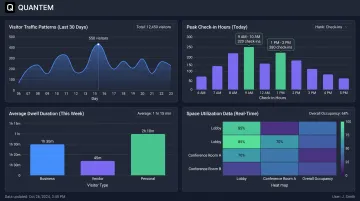
Digital sign-in logs reveal visitor traffic patterns, peak check-in times, and average dwell duration. Facilities teams use this data to optimize staffing, adjust space allocation, and identify underutilized meeting rooms.
How to Set Up iPad Self-Check-in Kiosk: Complete Implementation Guide
You can lock an iPad into check-in mode with Apple's built-in tools or a full MDM platform. Choose based on fleet size and how much remote control you need.
Native Kiosk Setup: Guided Access Method
Apple's Guided Access feature restricts an iPad to a single app session. It's suitable for small businesses deploying 1-3 devices.
Step-by-step setup:
- Open Settings > Accessibility > Guided Access
- Toggle Guided Access on and set a passcode
- Launch your check-in app (such as Envoy or SwipedOn)
- Triple-click the top button to start Guided Access
- Circle areas of the screen to disable (such as the settings icon) or leave the entire screen active
- Tap Start in the upper-right corner
Limitations:
- Manual activation on each device
- No remote updates or troubleshooting
- A device reboot exits Guided Access
This method fits single-location deployments with minimal IT resources.
Enterprise Kiosk Setup: Mobile Device Management (MDM) Method
MDM platforms provide centralized, persistent control. IT teams configure kiosk restrictions once and push them to hundreds of devices over the air.
MDM deployment process:
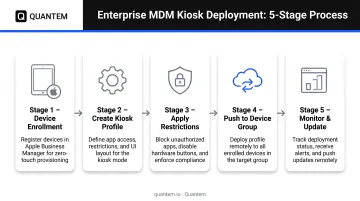
- Enroll devices: Add iPads to Apple Business Manager and link to your MDM service
- Create a kiosk profile: Select Single App Mode, choose the check-in app, and apply restrictions (disable camera, prevent Settings access, block app deletion)
- Assign the profile: Push the configuration to a device group (such as "Building A Reception")
- Deploy at scale: New iPads auto-enroll when unboxed and apply the kiosk profile immediately
Advantages over Guided Access:
- Remote profile updates without touching devices
- Centralized monitoring and troubleshooting
- Multi-location support from one console
- Security enforcement (password policies, wipe commands)
- Compliance reporting for audits
Quantem includes built-in kiosk mode on every plan: Essential ($1/device/month), Professional ($2/device/month), and Enterprise ($3/device/month). Pricing runs 50-70% below typical MDM tools ($3-$10+/device/month).
Essential Configuration Settings
Critical settings for reliable kiosk operation:
- Disable Auto-Lock: Set to "Never" to keep the screen always on
- Set Maximum Brightness: Ensures visibility in lobby lighting
- Sign Out of App Store: Prevents accidental app downloads
- Enable Do Not Disturb: Blocks notification banners during check-in
- Configure Wi-Fi Auto-Join: Connects to the office network after power cycles
- Set Up Offline Mode: Allows check-in when internet drops; syncs when reconnected
Best iPad Kiosk Software Solutions for Self-Check-in
Selection Criteria to Compare
Evaluate kiosk software on:
- Ease of setup and customization (branding, workflows, fields)
- Security features (ID verification, watchlist screening, data encryption)
- Integration capabilities (Slack, Microsoft Teams, Active Directory)
- Offline functionality (queue check-ins locally, sync when online)
- Badge printing support (compatible printers, label templates)
- Pricing model (per-location, per-device, flat-rate)
- Compliance certifications (SOC 2, GDPR, HIPAA alignment)
Top iPad Kiosk Software Platforms
Envoy
Strengths: Enterprise integrations, facial recognition, pre-registration workflows, and a polished visitor experience.
Envoy's iPad kiosk app requires iPadOS 15.0+ and supports identity verification, badges, host alerts, and audit trails. Its compliance page lists SOC 2 Type 2 and GDPR alignment.
Pricing: Basic plan is free (100 entries/month), Premium costs $362/location/month billed annually, and Enterprise pricing is custom.
Best for: Multi-location enterprises with complex integration needs (Active Directory, access control systems).
SwipedOn
Strengths: Simplicity, fast setup, and strong offline mode.
SwipedOn's iPad app requires iPadOS 16.0+ and emphasizes ease of use. SwipedOn holds SOC 2 Type II and ISO 27001 certifications; offline entries queue and sync automatically.
Pricing: No current public pricing found; request a quote.
Best for: Small to mid-sized businesses seeking quick deployment without IT overhead.
Quantem (MDM Solution)
Strengths: Zero-touch provisioning, Single App Mode lock, remote kiosk policies, and low per-device cost versus typical MDM tools.
Quantem is an MDM platform, not a visitor check-in app. It deploys and manages iPad kiosk fleets, locking each device to Envoy, SwipedOn, or a custom app, with SOC 2, GDPR, and CCPA alignment.
Pricing: $1–$3/device/month (Essential to Enterprise, billed yearly), with a 21-day free trial.
Best for: Organizations deploying 10+ iPad kiosks across multiple sites that need centralized device control without high MDM spend.
Software Comparison Framework
| Platform | Pricing Model | Key Features | Best Use Case |
|---|---|---|---|
| Envoy | Per-location subscription ($362/month Premium) | Enterprise integrations, facial recognition, pre-registration | Multi-location corporate offices |
| SwipedOn | Custom (no public pricing) | Fast setup, offline mode, ISO 27001 certified | Small businesses, single locations |
| Quantem | Per-device ($1-$3/month) | MDM with built-in kiosk mode, zero-touch provisioning, remote management | Multi-site kiosk fleets (10+ devices) |
Making the Right Choice for Your Organization
Ask these questions:
- How many locations? Single-site: native apps work. Multi-site: add MDM.
- What compliance requirements? HIPAA or GDPR: verify vendor certifications and configuration options.
- Need for integrations? Active Directory, Slack, or access control: choose Envoy or similar enterprise platforms.
- Budget constraints? Free tiers suit low-volume lobbies; $362/month requires 100+ visitors to justify.
- IT resources available? Limited IT: prefer SwipedOn's simplicity. Strong IT: leverage Quantem's MDM for control.
Industry-Specific Use Cases for iPad Self-Check-in Kiosks
iPad self-check-in kiosks show up in different ways depending on the setting. The workflow is similar—verify the visitor, collect what you need, notify staff—but compliance rules, integrations, and peak traffic change by industry.
Healthcare and Medical Facilities
- Patient check-in: Capture insurance, consent forms, and health screening before appointments
- HIPAA-aligned data handling: Encrypt patient information, restrict app access, and keep audit logs
- Telehealth intake: Patients check in, then join video visits from a private room
- Appointment updates: Show upcoming slots and let patients reschedule on the spot
Yale School of Medicine documented an iPad-based patient self-check-in redesign built to streamline front-desk intake.
Retail and Hospitality
- Waitlist management: Guests add their name, get SMS updates, and check queue status
- Service appointment check-in: Salon or spa clients confirm arrival and alert staff
- Self-service ordering: Diners browse, customize, and pay from a locked ordering app
- Loyalty enrollment: Collect email and phone for rewards during check-in
Corporate Offices and Coworking Spaces
- Visitor management: Log guests, print badges, and notify hosts by Slack or email
- Contractor sign-in: Capture liability waivers, safety acknowledgments, and time on site
- Employee check-in: Track attendance, meeting-room bookings, and desk reservations
- Delivery logging: Couriers sign in, scan package IDs, and record drop-off times
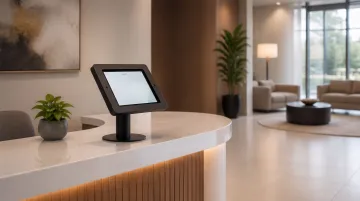
Lobby iPads often pair check-in with ID verification, blocklist screening, and badge printing so the front desk is not stuck on clipboard intake.
Education and Government
- Campus visitor tracking: Universities log guests, issue temporary access, and monitor entry points
- Parent sign-in for schools: K–12 front desks capture ID details and notify staff when a guardian arrives
- Government office queuing: DMV or permit offices issue ticket numbers and estimated wait times
- Event registration: Conferences, open houses, and town halls check in attendees at the door
Across these settings, IT still needs the iPad locked to the check-in app, with remote policy control when devices move between sites.
Hardware Selection and Setup Tips for iPad Kiosks
The right iPad, stand, and peripherals decide whether visitors check in on their own or wait on staff. Pick supported hardware you can mount securely and manage remotely when something fails in the lobby.
Choosing the Right iPad Model
Recommended models:
- iPad 11-inch (A16): 11-inch display, A16 chip, USB-C, Wi-Fi 6, Bluetooth 5.3, 128GB storage, $449
- iPad Air (M2): Larger Liquid Retina display, M2 chip, USB-C, Wi-Fi 6E—stronger choice for high-traffic lobbies
Minimum requirements:
- iPadOS 15.0+ (Envoy) or iPadOS 16.0+ (SwipedOn)
- 64-128GB storage (sufficient for kiosk apps and badge templates)
- Wi-Fi 6 for fast connectivity and a longer useful life on the same hardware
Avoid deprecated models that no longer receive security updates.
Essential Accessories and Peripherals
iPad stands:
- Countertop enclosed stands: Bouncepad Core Counter ($149) secures the iPad behind acrylic or metal, with cable management and rotation
- Floor-standing kiosks: Ideal for open lobbies without counter space
- Wall mounts: ADA-compliant height (42-48 inches), swivel for staff-assisted mode
Badge printers:
- Thermal printers: Brother QL-820NWB (Wi-Fi or Ethernet, adhesive labels)
- Thermal vs. label: Thermal is faster and quieter; label printers offer color but require ink
Protective cases and styluses:
- Tempered-glass screen protectors for high-traffic areas
- Styluses for signature capture on consent forms or waivers
- Cable locks or fully enclosed cases to deter theft in unattended lobbies
Physical Setup Best Practices
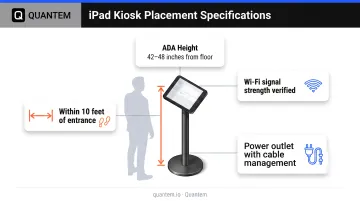
Placement considerations:
- Entrance visibility: Position kiosks within 10 feet of entry doors so visitors see them immediately
- ADA compliance: Mount at 42-48 inches from floor to screen center for wheelchair access
- Power outlet proximity: Run cables through stands to avoid trip hazards
- Network connectivity: Confirm Wi-Fi signal strength; use Ethernet adapters if Wi-Fi is unreliable
- Lighting conditions: Avoid direct sunlight or glare; adjust brightness to compensate
Maintenance and Troubleshooting
Maintenance checklist:
- Weekly: Wipe screens with microfiber cloth, check badge-printer paper levels
- Monthly: Update iPadOS and check-in app; verify kiosk policy enforcement in your MDM
- Quarterly: Monitor battery health; replace if capacity falls below 80%
- Annually: Review visitor logs, adjust workflows, audit compliance settings
Always-on kiosks often stay plugged in. Apple's charge-management feature may cap charge at 80% during prolonged power connection to protect battery health.
Common issues and solutions:
| Issue | Solution |
|---|---|
| iPad stuck in kiosk mode | Use MDM to remotely unlock or exit Single App Mode |
| App crashes or freezes | Restart remotely via MDM or triple-click to exit Guided Access |
| Printer connectivity problems | Verify Wi-Fi network, re-pair Bluetooth, check printer firmware |
| Offline mode not activating | Confirm app settings allow offline check-in; test by disabling Wi-Fi |
With an MDM such as Quantem, IT can unlock single-app kiosk mode, push updates, and enforce policies without walking to the lobby.
Frequently Asked Questions
Can I put an iPad into kiosk mode?
Yes. Apple's Guided Access locks an iPad to one app temporarily. Enable it in Settings > Accessibility > Guided Access, then triple-click the top button. For persistent, fleet-wide kiosk mode, an MDM like Quantem enforces Single App Mode remotely.
What is the best kiosk software for iPad?
It depends on your needs. Envoy fits enterprises with complex integrations; SwipedOn suits small businesses that want simplicity. For device management, Quantem's MDM ($1–$3/device/month) includes built-in kiosk mode and zero-touch provisioning.
What is the best tablet for check-in?
iPads dominate enterprise kiosk deployments due to iOS stability, security updates, professional appearance, and ecosystem support. Android tablets offer lower upfront costs but lack the consistent hardware quality and App Store curation that businesses require for public-facing kiosks.
Where can I find iPad check-in stands?
Reputable manufacturers include Bouncepad (countertop/floor), Compulocks (keyed enclosures), and ArmorActive (outdoor kiosks). Choose countertop stands for desks, floor stands for lobbies, or wall mounts for tight spaces. Prioritize cable management and tamper-resistant hardware.
How much does iPad kiosk software cost?
Visitor apps often charge per location (Envoy Premium: $362/month) or per device; MDM platforms like Quantem charge $1–$3 per device/month. Free tiers usually cap entries or features. Budget for the app, MDM (if 5+ devices), hardware (~$449 iPad + $149 stand), and badge printers if needed.